Creating Custom labels - admin guide
TABLE OF CONTENTS
- 1 Overview & Introduction
- 2 Prerequisites & Requirements
- 3 Getting Started
- 4 Core Features & Functions
- 5 Step-by-Step Workflows
- 6 Technical Information
- 7 Troubleshooting
- 8. Related Features & Cross-References
- 9. Additional Resources
1 Overview & Introduction
Custom labels allow site administrators to create up to five unique labels that teachers can apply to assignments. These labels provide students with clear, additional information about assignment requirements, such as whether AI tools can be used, collaboration is required, or the task will later be presented. The goal is to make assignments easier to understand by highlighting specific requirements, helping students better prepare and focus. Administrators create and manage labels at the site level, whilst teachers apply them to individual assignments within their courses.
2 Prerequisites & Requirements
Before setting up custom labels, ensure you have:
- Site administrator permissions in itslearning
- Access to Edit global settings in the Admin menu
- Understanding that labels will be available to all teachers across the site once created
3 Getting Started
3.1 Activating the Feature
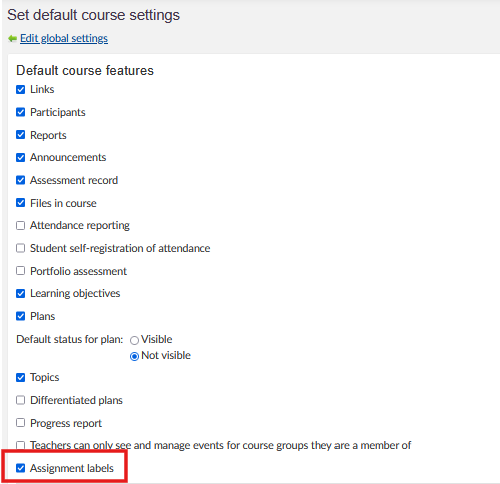
Before creating custom labels, you must first activate the Assignment labels feature:
- Go to Admin in the Personal Menu
- Open Edit global settings
- Navigate to Set default course settings
- Scroll to the bottom of the page to find the Available features section
- Enable Assignment labels and press "save"
Once activated, the feature will be available for teachers to enable in their individual courses.
3.2 Initial Configuration
After activating the feature:
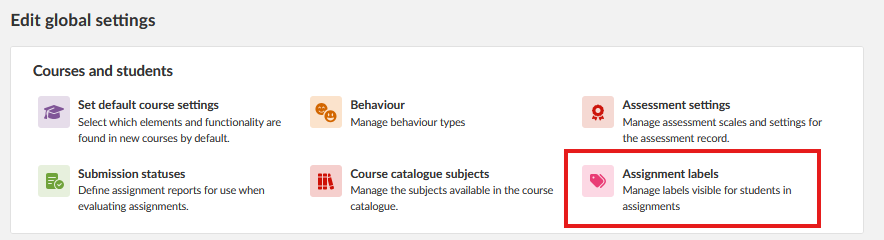
- Return to Edit global settings
- Click on Assignment labels
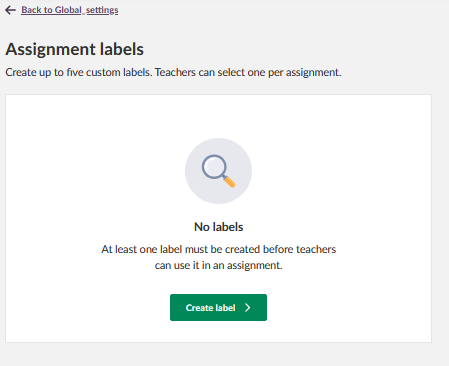
You will see the label creation interface where you can create up to five custom labels
4 Core Features & Functions
4.1. Creating Custom Labels
Administrators can create between one and five custom labels. Each label serves as a standardised indicator that teachers can apply to assignments. Labels are created once at the site level and shared across all courses.
4.2. Label Properties
Each custom label requires three elements:
Name: A short, clear title that identifies the label's purpose. It is recommended to write the name in uppercase letters to make it easier for students to read. The maximum length is 100 characters.
Description: A brief explanation to guide teachers on when to use the label. The description can contain up to 1,200 characters.
Colour: Select one colour from five available options. Each label must have a unique colour to ensure visual distinction for students.
4.3. Managing Existing Labels
Once created, labels can be edited or deleted. However, be aware that:
- Editing a label will apply changes to all assignments where it is currently used
- Deleting a label will remove it from all assignments where it was applied
5 Step-by-Step Workflows
5.1. Activating Assignment Labels
Objective: Enable the Assignment labels feature for your site.
Steps:
- Go to Admin in the Personal Menu
- Select Edit global settings
- Open Set default course settings
- Scroll to the Available features section
- Locate Assignment labels and enable it
- Save your changes
Result: The Assignment labels feature is now available for configuration and teacher use across the site
5.2. Creating a New Label
Objective: Create a new custom label that teachers can apply to assignments.
Steps:
- Go to Admin in the Personal Menu
- Open Edit global settings
- Click on Assignment labels
- Click on + Create label
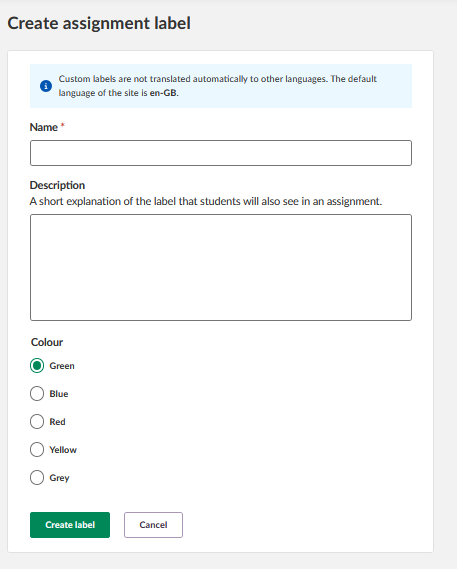
- Enter a Name (recommended in uppercase, maximum 100 characters)
- Enter a Description (maximum 1,200 characters) to guide teachers
- Select a Colour from the five available options
- Press "Create label"
Result: The new label is now available for teachers to apply to assignments in their courses.
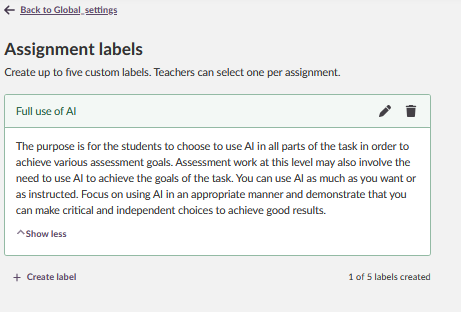
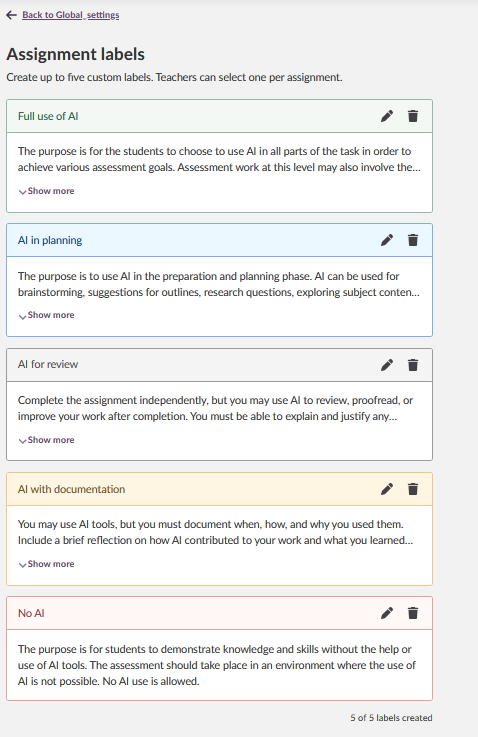
Create additional labels as needed with the + create label button (up to five total) labels.
5.3 Editing an Existing Label
Objective: Modify the name, description, or colour of an existing label.
Steps:
- Go to Admin in the Personal Menu
- Open Edit global settings
- Click on Assignment labels
- Locate the label you wish to edit and press the small pencil icon next to the headline
- Make the necessary changes to Name, Description, or Colour
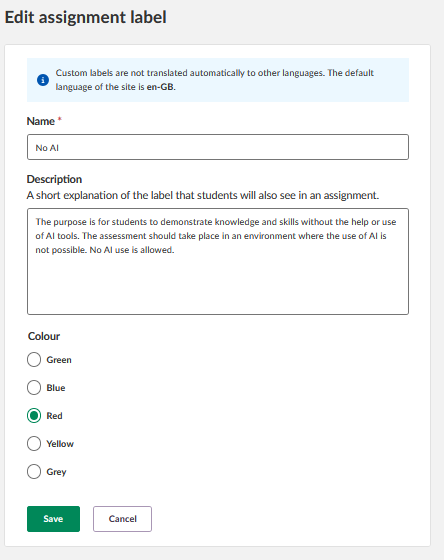
- Save your changes
Result: The label is updated, and changes apply to all assignments where this label is currently used.
Next Steps: Communicate the changes to teachers if the modifications significantly alter the label's meaning or usage.
5.4 Deleting a Label
Objective: Remove a custom label that is no longer needed.
Steps:
- Go to Admin in the Personal Menu
- Open Edit global settings
- Click on Assignment labels
- Locate the label you wish to delete
- Delete the label
- Confirm the deletion
Result: The label is removed from the system and from all assignments where it was previously applied.
Next Steps: Inform teachers if a widely used label has been deleted to avoid confusion.
6 Technical Information
6.1 System Limitations
Custom labels have the following limitations:
- Maximum of five labels can be created per site
- Labels are only available in the Assignment tool
- No support for multi-language labels (they will not automatically translate to other languages but follows site setting)
- Labels are not reorderable; new labels are added to the bottom of the list
- Name field has a 100-character limit
- Description field has a 1,200-character limit
6.2 Site-Level Management
Custom labels are managed exclusively at the site level by administrators. Teachers cannot create, edit, or delete labels. This centralised management ensures consistency across all courses and prevents confusion from duplicate or conflicting labels.
6.3 Impact on Courses and Teachers
Once labels are created:
- They become available to all teachers across the site
- Teachers must enable Assignment labels in their individual course settings before they can apply labels
- Editing a label affects all assignments where it is used
- Deleting a label removes it from all assignments where it was applied
7 Troubleshooting
7.1 Common Issues
Problem: Teachers report they cannot see or use the custom labels.
Cause: The teacher has not enabled Assignment labels in their course settings.
Solution: Instruct teachers to enable the feature in their course by going to Settings > Course properties and features > Functions > Assignment labels.
Prevention: Communicate clearly to teachers that they must enable the feature at the course level after you activate it at the site level.
Problem: Unable to create a sixth label.
Cause: The system has a maximum limit of five custom labels per site.
Solution: Consider whether an existing label can be edited to serve a dual purpose, or decide which existing label is least used and can be replaced.
Prevention: Plan your label strategy carefully before creation to ensure the five available labels cover the most important assignment requirements.
Problem: A label's colour is not saving or changing correctly.
Cause: Each label must have a unique colour, and the system may prevent duplicate colour selection.
Solution: Ensure you are selecting a colour that is not already in use by another label. Review existing labels to see which colours are available.
Prevention: Keep track of which colours have been assigned to existing labels when creating new ones.
7.2. Label Management Problems
Problem: After editing a label, teachers report confusion about assignments where it was used.
Cause: Editing a label applies changes to all assignments where it is currently used, which may alter the meaning or context.
Solution: Communicate with teachers before making significant changes to widely used labels. Provide advance notice and explain the rationale for changes.
Prevention: Consider the impact on existing assignments before editing labels. If a significant change is needed, it may be better to create a new label and phase out the old one.
Problem: Accidentally deleted a label that was widely used.
Cause: Deleting a label removes it from all assignments where it was applied.
Solution: Recreate the label with the same name, description, and colour. Inform teachers that they will need to reapply the label to their assignments.
Prevention: Always verify the impact before deleting a label. Review which courses and assignments are using the label before removal.
8. Related Features & Cross-References
Assignment Tool: Custom labels are exclusively used within the Assignment tool. Understanding how teachers create and manage assignments will help you design effective labels that support common assignment workflows.
Course Settings: Teachers must enable Assignment labels in their course settings before they can use them. Understanding the course configuration process helps you provide better guidance to teachers.
Student View: Whilst administrators do not typically view labels from the student perspective, understanding how students see labels can inform better label design and naming conventions.
9. Additional Resources
Related Articles (under review):
- Assignment Tool - Teacher Guide
- Course Settings and Configuration
- Custom Labels - Teacher Guide
Support:
For additional assistance with custom labels or other itslearning features, contact your itslearning support team.