Registrations – Reference (Teacher)
TABLE OF CONTENTS
Introduction
The registration tool allows teachers to create a set of choices that students can register for. This is useful for activities such as signing up for time slots, choosing topics, selecting groups, or registering for events.
Teachers define the available choices and optional constraints (such as seat limits and deadlines). Once students have registered, teachers can view the results, export them to Excel, or use them to create course groups.
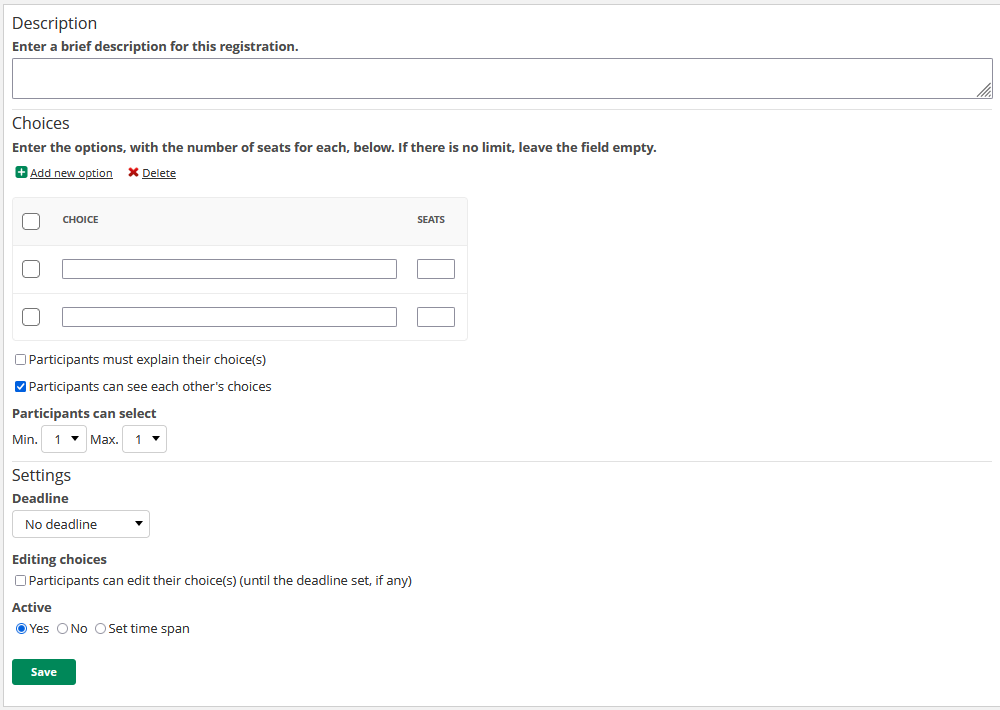
1 Creating a registration
To create a registration:
- In the course, go to Resources > Add resource > Activities > Registration.

- Enter a Description explaining the purpose of the registration.
- Add choices and configure settings (see below).
- Click Save.
1.1 Choices
Each choice represents an option that students can select (for example, a time slot, a topic, or a group). You can add up to 200 choices.
For each choice, you can optionally set the number of seats available. This limits how many students can select that choice. If no seat limit is needed, leave the field empty.
Click Add new option to add more choices.
1.2 Settings
The following settings are available when creating a registration:
| Setting | Description |
|---|---|
| Participants must explain their choice(s) | When enabled, students must enter a comment or reason after making their selection. A Reason column is displayed in the Registrations tab showing each student's explanation. |
| Participants can see each other's choices | When enabled, students can view how others have registered. This also makes the Registrations tab visible to students. |
| Participants can select | Set the minimum and maximum number of choices a student can make. Default: Min = 1, Max = 1. |
| Deadline | Set a date and time by which students must register. |
| Editing choices | When enabled, students can go back and change their selection (subject to any other restrictions such as deadlines or seat limits). |
| Active (visibility) | Only an active registration is visible to students. Options: Yes, No, or Set time span. Default: Yes (unless created through the planner, in which case the plan settings control the default). |
Note: Once the registration is active or at least one participant has registered, not all fields can be edited. A warning is displayed: "You cannot edit all fields, because registration is active or at least one participant has already registered."
2 Viewing registrations
After saving, the Information tab displays a summary of the registration, including the description, publication date, deadline, selection requirements, and whether participants can view each other's registrations.
Click the Registrations tab to view the results. This tab shows each choice with the number of registered and available seats, the list of registered students under each choice, and a list of students who have not yet registered at the bottom.
The toolbar on the Registrations tab provides the following actions: Register, Edit, Remove, View in Excel, and Create course groups.
2.1 Registering on behalf of a student
Teachers can register a student on their behalf:
- On the Registrations tab, find the student in the Not registered list at the bottom.
- Select the student using the checkbox.
- Click Register in the toolbar and select the appropriate choice.
2.2 Editing or removing a student's registration
Teachers can edit or remove a student's registration:
- On the Registrations tab, find the student under their registered choice.
- Select the student using the checkbox.
- Click Edit to change the choice, or Remove to delete the registration.
Note: When performing actions on behalf of multiple students at the same time, all selected students must meet the same requirements. For example, if a choice has only two seats available, you cannot register three students for it at once. If students have selected different choices, you cannot edit them simultaneously. An error message is displayed if an action cannot be performed.
2.3 Exporting to Excel
Click View in Excel in the toolbar to export the registration results to an Excel file for further analysis.
2.4 Creating course groups from registrations
Click Create course groups in the toolbar to create course groups based on the registration results. Each choice becomes a course group, and registered students are added as group members. Course groups are not created automatically — you must click the button to trigger the action.
3 Student view
When a student opens the registration, the Information tab displays the description, registration information (publisher, deadline, selection requirements), and a Register button.
After clicking Register, the student sees the available choices with the number of remaining seats. The student selects one or more choices (depending on the min/max settings) and clicks Confirm registration.
After registering, the student sees their selected choice(s) under Your choices, with options to Edit choice or Remove all choices (if editing is enabled by the teacher).
The Registrations tab is only visible to students if the teacher has enabled Participants can see each other's choices. When visible, students can see who has registered for each choice.
More Help Resources
Have more questions? Please start with asking your school administrator.
Product Release notes
Stay updated with itslearning latest releases: https://itslearning.com/product-updates
Service Status
Check the current status of itslearning services: https://status.itslearning.com/
Ideas Portal
Share your ideas and help shape the future of itslearning: https://ideas.itslearning.com/
Roadmap
Check out our roadmap: https://itslearning.com/global/roadmap/