Assessment Record / Gradebook - Reference (Teacher)
TABLE OF CONTENTS
- Introduction
- 1 What you can do in the Assessment Record
- 2 Access the Assessment Record
- 3 Understand the assessment grid
- 4 Filter, sort and search
- 5 Add assessments and columns
- 6 Work with terms and final assessments
- 7 Use tabs and summary views
- 8 Manage assessment settings
- 9 Open the student view
- 10 Expected behaviour and troubleshooting
Introduction
Teacher Reference
The Assessment Record, also called Gradebook in some itslearning language versions, helps teachers calculate, store and share assessment information with students. You can use it to view course assessments, add assessment columns, organise assessments into categories, use weighting, view averages, export assessment information and open an individual student report.
Note: The name shown in your course may be Assessment Record or Gradebook, depending on the language settings used in your site. The feature behaviour is described together in this article.
Prerequisite: The Assessment Record must be enabled for the course. If you cannot access it, check the course settings or contact your administrator.
1 What you can do in the Assessment Record
You can use the Assessment Record to manage assessment information for a course.
| Area | What you can do |
|---|---|
| Assessments | Add new and existing assessments, enter assessment values, add comments and edit or remove assessment columns from the grid. |
| Organisation | Filter by term, group and category. Sort columns by title or deadline. Search for students. |
| Averages and weighting | Use averages, category weighting and assessment weighting when these options are enabled for the course. |
| Reporting | Open trends and progress, view average and count information, build assessment summaries and open individual student reports. |
| Export and transfer | View the Assessment Record in Excel, export to CSV and, where enabled, transfer grades to supported Student Information System (SIS) providers. |
2 Access the Assessment Record
The Assessment Record is available from the course Reports area.
- Open the course.
- Select Reports in the course menu.
- Select Assessment Record or Gradebook.

3 Understand the assessment grid
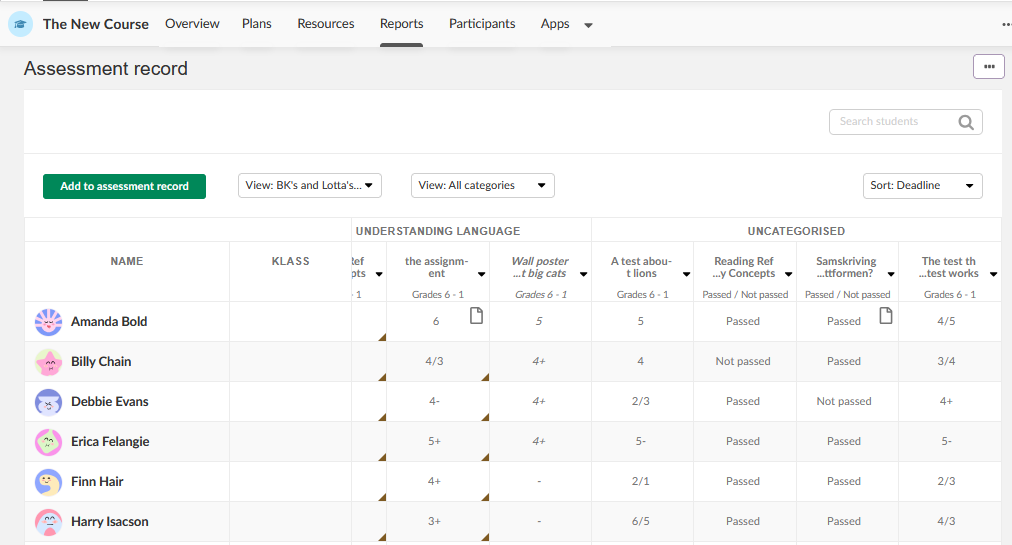
The assessment grid is the main view. Students are displayed as rows. Assessment items are displayed as columns. Teachers can use the grid to review assessment information for the whole course and open more detailed views for individual students or assessments.
3.1 Student column
The left-most column lists the students enrolled in the course. Select a student name or profile picture to open the individual Assessment Record for that student.
3.2 Overall average and final assessment columns
The Overall average column shows the overall average for each student. If the course uses several assessment scales, an average is calculated for each scale.
The course can also use Final assessment. Unlike Overall average, the Final assessment is entered manually. If a Final assessment is added to a term, the Final assessment column appears to the right of the student name.
Note: Hover over an average cell if the full value does not fit in the column width.
3.3 Assessment columns and column headers
Each assessment added to the Assessment Record is shown as a separate column. If categories are enabled, assessment columns are grouped by category. By default, the columns are sorted alphabetically by title.
The column header shows the assessment title on two lines. If the title is too long, it is shortened with ellipses. Hover over the header to view the full title. The assessment scale is shown below the title. If the assessment uses score, the maximum score is also shown.

3.4 Enter assessments and comments
You can enter grades or scores directly in the individual cells in the grid. Selecting the document icon in a cell opens a page where you can enter an assessment and comment for that student.
Teachers can manually override assessments for tests when this is needed.
3.5 Exempt a student from an assessment
You can exempt an assessment from the average for a specific student.
- Select the assessment cell for the student.
- Select the flag in the upper-left corner of the cell.
- Apply the exemption.
Note: Only assessments that are visible for students are calculated into the overall average.
3.6 Edit and delete columns
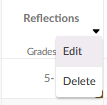
A down arrow in each column header opens a menu with options to edit or delete the column.
- Select the down arrow in the relevant column header.
- Select Edit to open the edit screen for that item.
- Select Delete to remove the item from the Assessment Record.
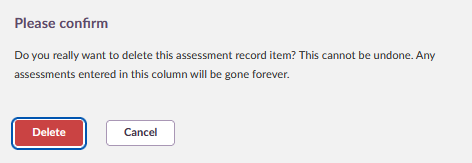
- Confirm the deletion when prompted.
Important: Deleting an item from the Assessment Record does not normally delete the original assignment. Final assessments and manual assessment columns are exceptions. When a term is set to complete, Final assessments cannot be deleted.
3.7 Tooltips
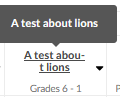
Tooltips appear when you hover over column headers and cells with overflow text. Depending on the assessment setup, a tooltip can show:
- the full assessment title
- deadline
- category name
- category weight
- assessment weight
- course average
Some tooltip information is shown only when the course or assessment uses the relevant feature.
3.8 Extra user information for students
Extra user information can add a fixed column to the right of the student column. This is useful when several students in the same course have the same name.
The default options are Username and Synchronisation key. Custom columns, such as age, can also appear as options when they have been configured.
Admin setting: Extra user information and custom fields are configured by an administrator.
4 Filter, sort and search
The Assessment Record includes filters and sorting controls to help you work with large courses.
| Control | Use | Behaviour |
|---|---|---|
| Group filter | Filter students by one or more course groups. | If no groups exist, the menu can show an option to add groups. |
| Category filter | Filter assessment columns by one or more categories. | If uncategorised elements exist, Uncategorised is available as a filter option. |
| Term filter | Filter the grid by term. | Terms are added by administrators at organisation level. |
| Sort columns by | Sort assessment columns by title or deadline. | When sorting by deadline, assessments without a deadline are displayed last. |
| View score as | Switch between score and percentage values. | This is available when score is used. |
| Search | Search for students. | Search can use first name and last name. Username, synchronisation key or age can also be searchable when enabled. |
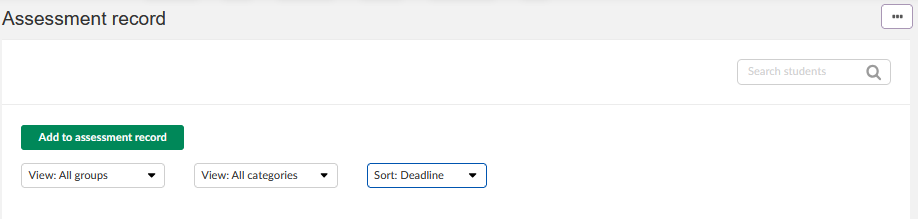
5 Add assessments and columns
You can add content to the Assessment Record in two main ways: from the Assessment Record itself or while creating assessable activities such as assignments, tests and tasks.
5.1 Add from the Assessment Record
- Open the Assessment Record.
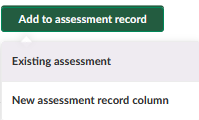
- Select Add to Assessment Record or Add to Gradebook.
- Choose whether to add an existing assessment or create a new column.
- Complete the required fields.
- Select Save.
| Option | Use when | Notes |
|---|---|---|
| Existing assessment | An assessable activity already exists in itslearning but was not added to the Assessment Record when it was created. | If all eligible elements are already included, this option is visible but disabled. |
| New column | You need a manual assessment column in the Assessment Record. | Add a title, term, category if used, and assessment scale. You can also set the column as a Final assessment. |
Prerequisite: If you use terms and want to add Final assessments, an administrator must first create a Term assessment in the Terms section of the admin panel.
5.2 Add while creating an activity
When you create assignments, tests and tasks, you can choose to add the results to the Assessment Record. If you add an element, select the assessment scale and the relevant category and term.
When grades are added directly from the Assessment Record using the add assessment option, itslearning creates a task.
6 Work with terms and final assessments
Terms let you filter the Assessment Record by grading period. Terms are added by administrators at organisation level.
6.1 Filter by term
- Open the Assessment Record.
- Open the term dropdown.
- Select the term you want to view.
6.2 Complete a term
When a Final assessment linked to a term is created in the Assessment Record, the Complete term toggle appears next to the term dropdown.
- Open the relevant term in the Assessment Record.
- Use the Complete term toggle.
- Confirm that you want to finalise the term assessment.
Important: A teacher can revert the toggle as long as the head teacher has not completed the term at organisation level. Once a term has been completed, the Final assessment can no longer be deleted.
7 Use tabs and summary views
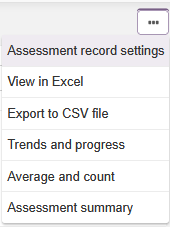
The Assessment Record includes several views. These may be available from tabs or from the three-dot menu, depending on the version and layout used in your site.
| View | Purpose |
|---|---|
| Assessments | Shows the assessment grid with assessments added to the course. You can filter, sort, edit and delete assessment columns. |
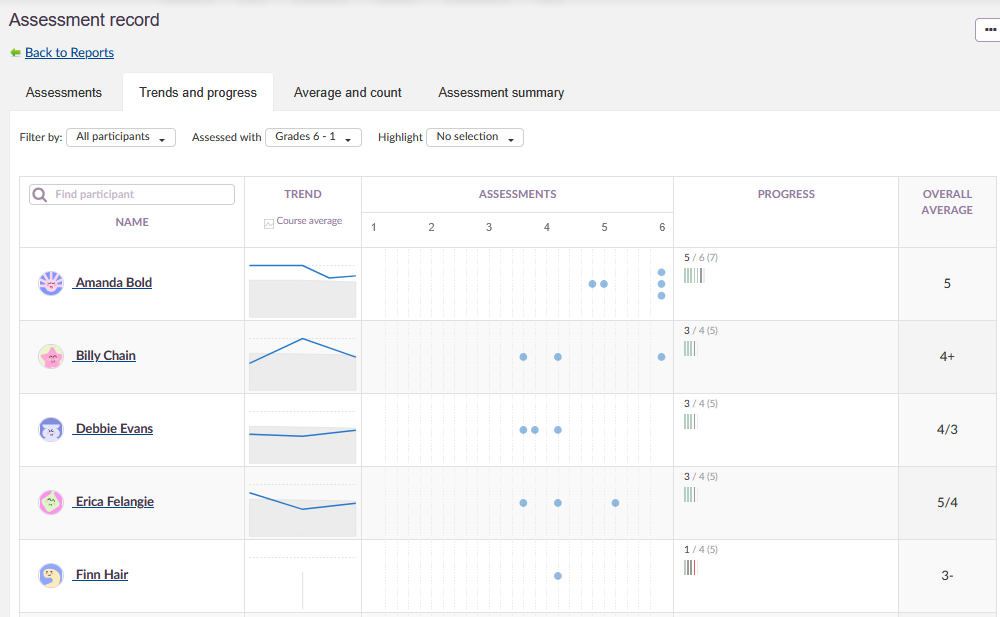
| Trends and progress | Shows performance trends and course progress. It helps teachers review grade trends over time, distribution of assessment scores and progress on tasks. |
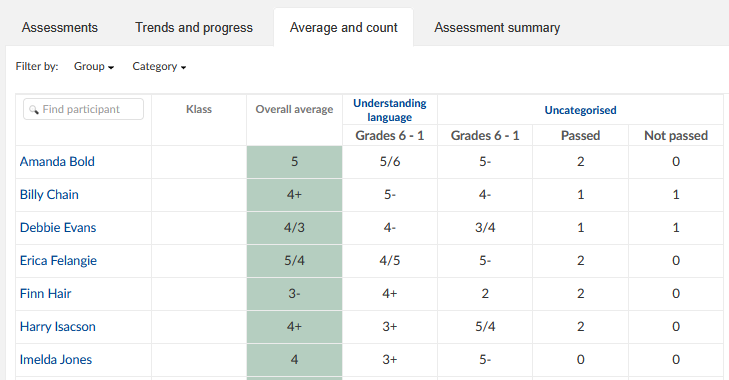
| Average and count | Shows overall averages and summarises the average for each category in the selected term. If several scales are used in one category, the average for each scale is listed separately. |
| Assessment summary | Lets teachers build summaries and calculations across terms, categories and other calculations. This can support final averages across multiple terms. |
7.1 Trends and progress
The Trends and progress view gives teachers a visual overview of student performance. It is designed to help answer these questions:
- Is the student's grade trend improving or declining over time?
- Are assessment scores consistent or variable?
- What progress is the student making on tasks and mandatory course elements?
7.2 Average and count
The Average and count view is visible when average is enabled for the course. It shows averages for participants and category averages for the selected term.
When score is used as the assessment scale, the average is shown as a percentage by default. A teacher can choose to view the average as another grade scale, but students can only see the average as a percentage.
7.3 Assessment summary
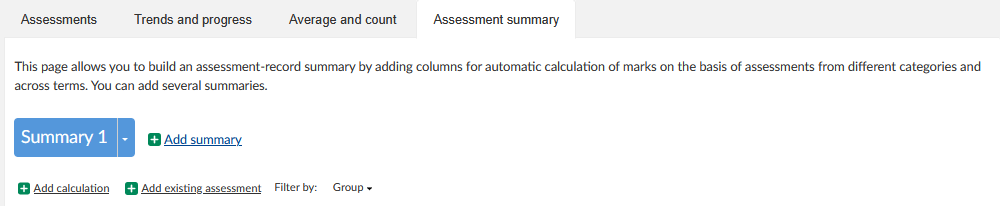
Assessment summary is used to build course grade summaries across terms and categories. A teacher can add existing assessment elements or add calculation columns.
- Open Assessment summary.
- Select Add summary to create a summary view.
- Select Add existing assessment to include an existing item, or select Add calculation to create a calculated column.
When adding a calculation, give it a title and description. The title is shown as the column header. The description is shown in a tooltip when the mouse pointer is hovered over the title.
| Calculation choice | Behaviour |
|---|---|
| Categories and terms | The calculation is based on selected categories and terms. You can change category weighting or add term weighting. |
| Another calculation | The calculation is based on an existing calculation. This requires at least one existing calculation. |
You can choose how to present the calculation, including whether percentages may exceed 100, whether decimal values are used and whether the mark is highlighted for students at the top of the summary.
Note: If a Gradebook summary exists for a student, a new tab is shown in the student and parent view. The order, title and description follow the teacher's setup.
▶ Use status on calculated columns
When creating columns in the assessment summary, the option Use status for this column can be selected. The statuses are:
- Not set: white
- In progress: yellow
- Completed: green
In the assessment summary table, a dropdown appears for columns that use statuses. In the student view, a grade that uses status receives the background colour for the selected status.
8 Manage assessment settings
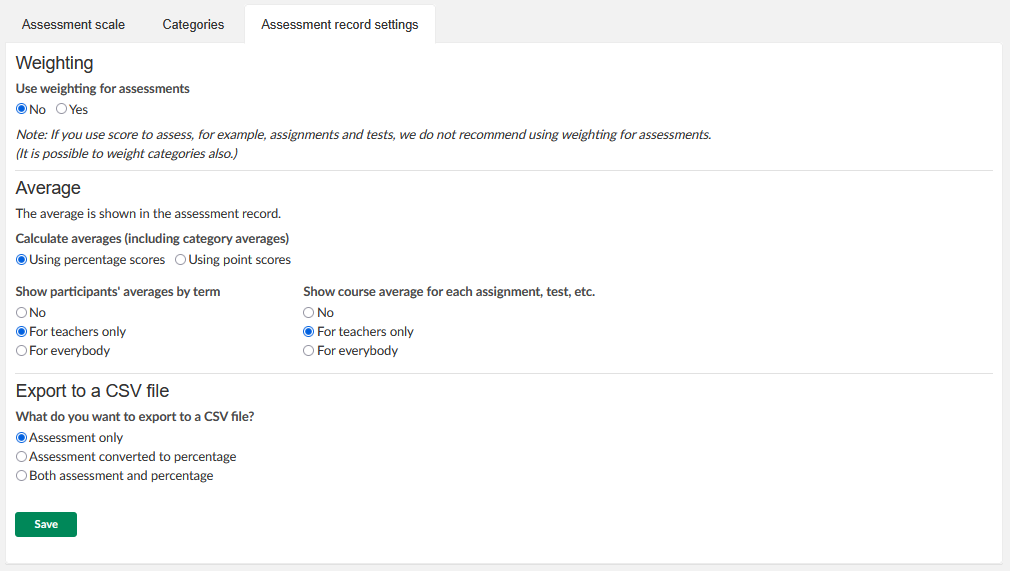
Assessment settings control scales, categories, averages, weighting and CSV export behaviour.
8.1 Open assessment settings
You can access Assessment Record settings from the Assessment Record or from the course settings.
- Open the course.
- Open the More menu in the course navigation.
- Select Settings.
- Select Assessment settings.
From the Assessment Record, you can also open the three-dot menu in the top-right corner and select Assessment Record settings.
The Assessment settings page has three tabs:
- Assessment scale
- Categories
- Assessment Record settings
8.2 Assessment scales
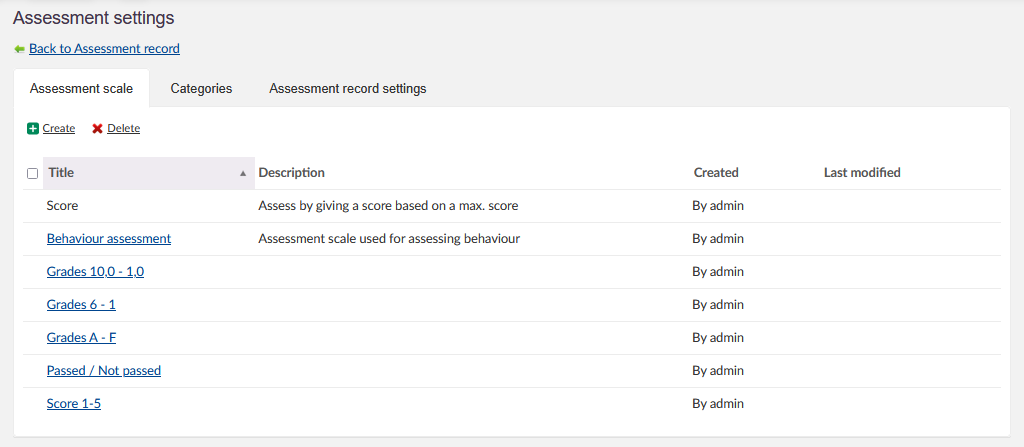
Assessment scales are used to assess work in a course. The Assessment scale tab shows the scales available in the course, including custom scales created by the course teacher.
| Scale behaviour | Details |
|---|---|
| Created by Admin | Scales created by an administrator cannot be modified by the teacher. |
| Created by teacher | Teachers with the required permissions can create course-specific assessment scales using Create. These can be changed or deleted by the teacher. |
| Score scale | Score must be included as a scale by an administrator if it is used to assess work other than tests. Teachers cannot create Score as a scale. If Score is included, it appears at the top of the list. |
| Maximum score | For tests, the maximum score is calculated automatically from the questions. For assignments and custom assessments, the teacher enters the maximum score when Score is selected. |
8.3 Categories
Categories organise assessments in the Assessment Record. They can also be used for category weighting when average is enabled.
- Open Assessment settings.
- Select the Categories tab.
- Select Add.
- Enter the category title.
- Select Save.
To delete a category, select the checkbox next to the category title and select Delete. You can delete several categories by selecting several checkboxes before selecting Delete.
To change the order of categories, use Up and Down.
8.4 Category weighting
Category weighting lets you assign different values to categories.
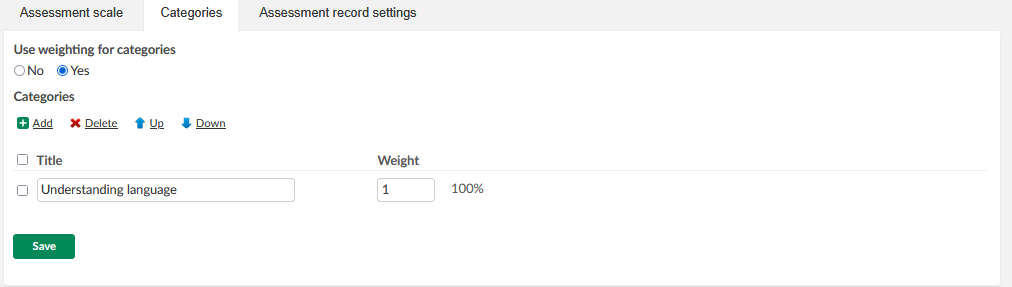
- Open the Categories tab.
- Under Use weighting for categories, select Yes.
- Select Save.
- Enter numerical weight values for the categories.
A Weight column appears to the right of the category title. The percentage is calculated automatically from the values entered in the weight column. If categories already exist when weighting is enabled, the categories are split equally by default.
8.5 Assessment Record settings tab
The Assessment Record settings tab contains settings for weighting, averages and CSV export.
| Setting | What it controls |
|---|---|
| Weighting | Turns on weighting for single assessments, participant averages and course average for each assessment, test or task. |
| Average | Controls whether participant averages and course averages are shown. When participant average is enabled, the Average and count view becomes available. |
| Export to CSV file | Controls what data is included when the Assessment Record is exported to a CSV file. |
8.6 Assessment weighting
Assessment weighting is available from the Assessment Record three-dot menu.
- Open the Assessment Record.
- Open the three-dot menu.
- Select Assessment weighting.
- Enter numerical weight values for assignments, tests or tasks.
Unless weighting is used, assessments are calculated as 100%. Weighting lets you increase the value of selected assessments. For example, one assessment can count twice while another counts three times towards an average.
Important: Final assessments cannot be weighted.
When assessment weighting is enabled, the assessment weight is shown in the tooltip when you hover over the element header in the Assessment Record.
9 Open the student view
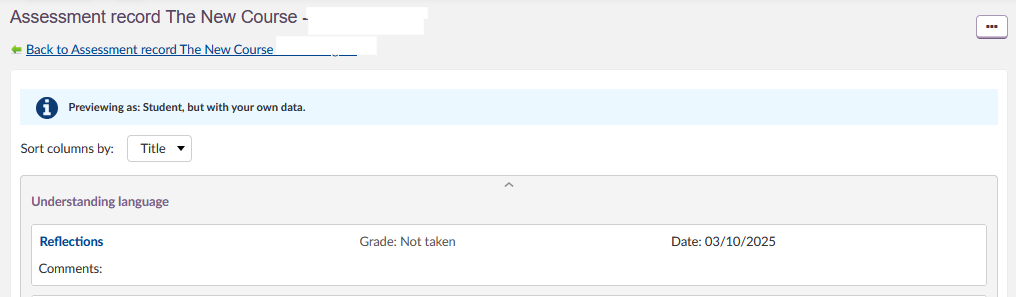
The student view shows an aggregated summary of one student's performance in the course. It can be filtered by term and sorted by title or deadline. If categories exist, assessments are grouped by category. Category averages and overall averages are shown when enabled.
9.1 Open student view as a teacher
- Open the Assessment Record.
- Select the student's name or profile picture in the student column.
9.2 Open student view as a student
Students can open their individual Assessment Record report from the pull-out menu accessed from their profile settings in the upper-left corner.
10 Expected behaviour and troubleshooting
| Problem | Symptom | What to check |
|---|---|---|
| The Assessment Record is not visible | You cannot open the tool from the course. | Check whether the Assessment Record is enabled in course settings. |
| Existing assessment cannot be selected | The option is visible but disabled. | All eligible assessable elements may already be included in the Assessment Record. |
| Average and count is missing | The view is not available. | Check whether average for participants is enabled in Assessment Record settings. |
| Score cannot be used for assignments or custom assessments | Score is not available as an assessment scale. | Ask an administrator to include Score as an assessment scale. Teachers cannot create Score as a scale. |
| Final assessment cannot be deleted | The delete option is unavailable or deletion is blocked. | Check whether the term has been completed. Final assessments cannot be deleted after the term is complete. |
| Search does not find username, synchronisation key or age | Only names are returned in the search. | These search fields depend on whether the information has been enabled. |
More Help Resources
Have more questions? Please start with asking your school administrator.
Product Release notes
Stay updated with itslearning latest releases: https://itslearning.com/product-updates
Service Status
Check the current status of itslearning services: https://status.itslearning.com/
Ideas Portal
Share your ideas and help shape the future of itslearning: https://ideas.itslearning.com/
Roadmap
Check out our roadmap: https://itslearning.com/global/roadmap/