LTI tool – adding external tools to a course (2026)
TABLE OF CONTENTS
1 Overview
LTI (Learning Tools Interoperability) is a standard that allows web-based applications and content hosted on other platforms to be connected to itslearning. Teachers can use LTI to add external tools to their courses — for example, interactive simulations, specialist subject tools, or third-party content providers.
The LTI tool must be enabled by your system administrator before it is available in a course. itslearning does not supply the external apps — it facilitates their use within the platform.
2 Adding an LTI tool to a course
- In the course, go to Resources > Add resource > Activities > LTI tool.
- Add an appropriate title by clicking Change title.
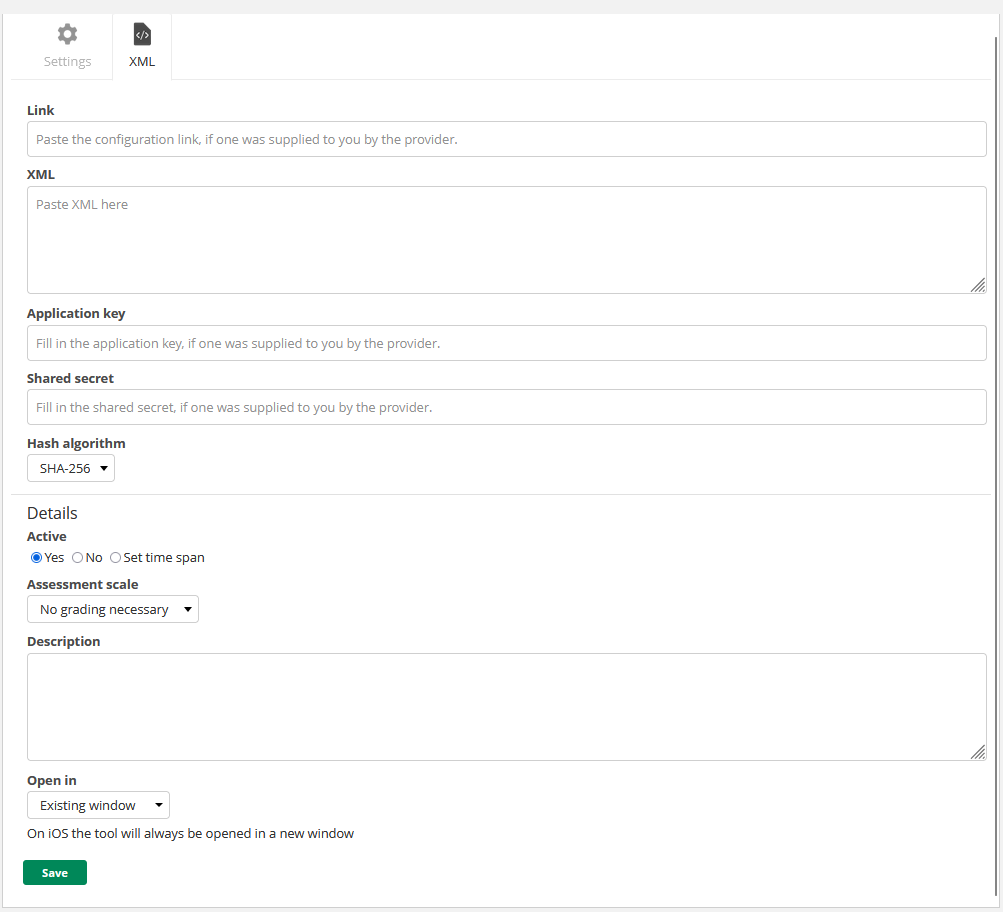
- The configuration page displays two tabs: Settings and XML. The tab you use depends on the information provided by the tool vendor.
If you are unsure which method to use, contact your tool provider.
2.1 Settings tab (direct link)
Use the Settings tab if the tool provider has supplied a direct link (also called a launch URL).
- Enter the link in the Url field.
- If the tool requires authentication, enter the Application key (consumer key) and Shared secret provided by the vendor.
- Configure the remaining settings (see section 3 and section 4).
- Click Save.
2.2 XML tab (configuration link or XML)
Use the XML tab if the tool provider has supplied a configuration link or XML code.
- If you have a configuration link, enter it in the Link field.
- If you have configuration XML, paste it into the XML field.
- If the tool requires authentication, enter the Application key and Shared secret.
- Configure the remaining settings (see section 3 and section 4).
- Click Save.
3 General settings
The following settings are available on both the Settings and XML tabs:
- Privacy level — controls what information about the user is sent to the external tool. Options: Anonymous (no name or email), Email only, Name only, Public (name and email).
- Launch credentials management — determines where the application key and shared secret are managed. Options include Link level (credentials are set per LTI tool instance).
- Application key — the consumer key provided by the tool vendor (if required).
- Shared secret — the shared secret provided by the tool vendor (if required).
- Hash algorithm — the algorithm used for authentication. Default: SHA-256.
4 Details
The Details section is available on both tabs:
- Active — controls visibility. Options: Yes, No, or Set time span.
- Assessment scale — if the connected tool is able to send back grades, select the scale the grades should be mapped to. Set to No grading necessary if the tool does not return grades.
- Description — a text description displayed on the page above the LTI tool.
- Open in — controls where the tool opens. Options: Existing window (opens inside the itslearning interface), New window, or various pop-up sizes (640×480, 800×600, 1024×768). Note that on iOS, the tool always opens in a new window regardless of this setting. The tool itself may also override this setting.
5 Settings reference
| Setting | Description |
|---|---|
| Url | The link to the learning tool (also known as launch URL). Used on the Settings tab. |
| Privacy level | Controls what user information is sent to the tool. Options: Anonymous, Email only, Name only, Public. |
| Launch credentials management | Determines where the application key and shared secret are managed. |
| Link | The configuration link supplied by the tool provider. Used on the XML tab. |
| XML | Configuration XML supplied by the tool provider. Used on the XML tab as an alternative to the configuration link. |
| Application key | Consumer key provided by the vendor, used to verify access rights to the tool. |
| Shared secret | Shared secret provided by the vendor, used to verify access rights to the tool. |
| Hash algorithm | The algorithm used for authentication. Default: SHA-256. |
| Active | Controls whether the tool is visible to students. Options: Yes, No, Set time span. |
| Assessment scale | If the tool returns grades, select the scale to map grades to. Set to "No grading necessary" if not applicable. |
| Description | A text description displayed on the page above the learning tool. |
| Open in | Controls where the tool opens. Options: Existing window, New window, 640×480 pop-up, 800×600 pop-up, 1024×768 pop-up. On iOS, the tool always opens in a new window. |
More Help Resources
Have more questions? Please start with asking your school administrator.
Product Release notes
Stay updated with itslearning latest releases: https://itslearning.com/product-updates
Service Status
Check the current status of itslearning services: https://status.itslearning.com/
Ideas Portal
Share your ideas and help shape the future of itslearning: https://ideas.itslearning.com/
Roadmap
Check out our roadmap: https://itslearning.com/global/roadmap/