Trash Can – Overview (Sysadmin)
Contents
- Introduction
- Site-level trash can
- Course-level trash can
- Quarantine period
- Searching the trash can
- Restoring items
- Deleting items permanently
- Emptying the trash can
- Archiving vs deleting
- Recommended routine for emptying
1 Introduction
When users, courses, projects, or terms are deleted in itslearning, they are moved to the trash can. Items remain in the trash can until they are either restored or permanently deleted by an administrator. There is no automatic deletion of items from the trash can.
There are two levels of trash can in itslearning:
- Site-level trash can – accessible from the Administration area. Contains deleted users, courses, projects, and terms.
- Course-level trash can – accessible within each course. Contains deleted resources and plans.
Prerequisite: You must have administrator permissions to access the site-level trash can. Course-level trash can access requires appropriate course permissions.
2 Site-level trash can
The site-level trash can is found in the Administration area. It allows administrators to restore or permanently delete users, courses, projects, and terms that have been deleted.
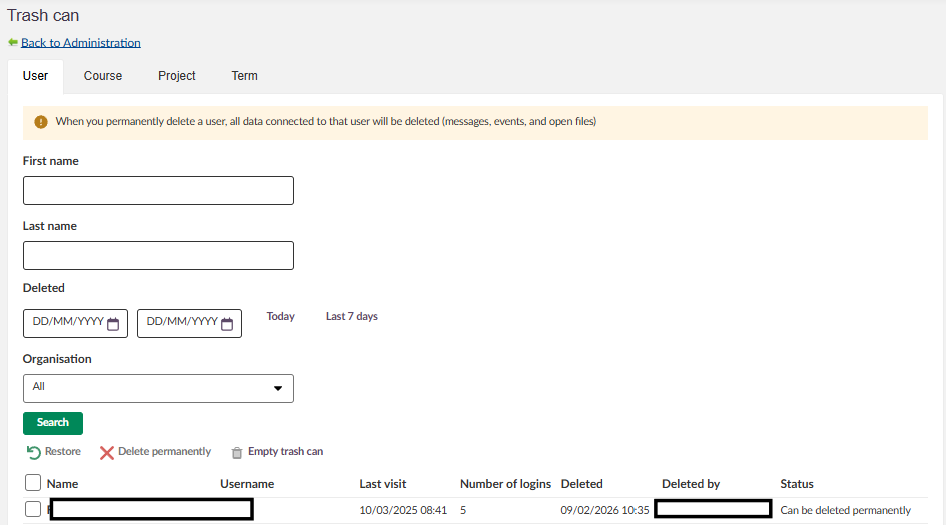
The trash can is organised into four tabs:
2.1 Users
Displays deleted user accounts. The following information is shown for each user: name, username, last visit, number of logins, deletion date, deleted by, and status.
When a user is in the trash can, they cannot log in to itslearning. Users can be restored manually if needed. When a user is permanently deleted from the trash can, all data associated with that user is removed from the database.
2.2 Courses
Displays deleted courses. Deleted courses can be restored manually by an administrator. When a course is permanently deleted, all content within the course is removed from the database.
2.3 Projects
Displays deleted projects.
2.4 Terms
Displays deleted terms.
3 Course-level trash can
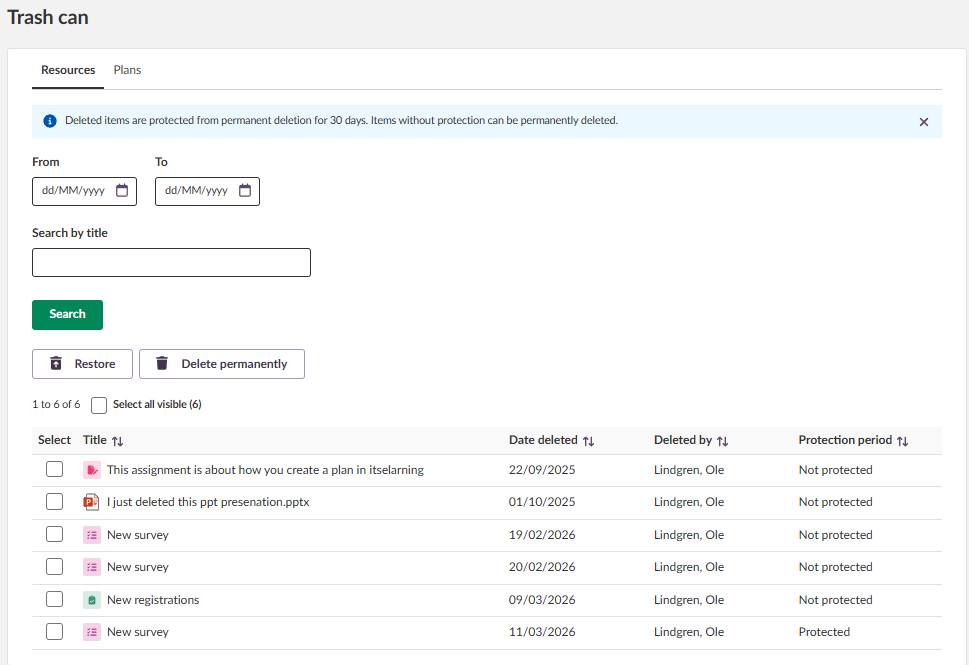
The course-level trash can contains deleted resources and plans from within a course. It is organised into two tabs: Resources and Plans.
For each item, the following information is displayed: title, date deleted, deleted by, and protection period.
Note: Deleted items are protected from permanent deletion for the duration of the quarantine period. Items where the quarantine period has elapsed can be permanently deleted.
4 Quarantine period
Deleted items are placed in quarantine for a set period before they can be permanently deleted. The quarantine period is the safety time that items must remain in the trash before they can be deleted permanently.
Quarantine periods are configured separately for the site-level and course-level trash can under Administration > Edit global settings > Features and security. The value can be set between 0 and 300 days.
Note! Items in quarantine cannot be permanently deleted until the quarantine period has elapsed.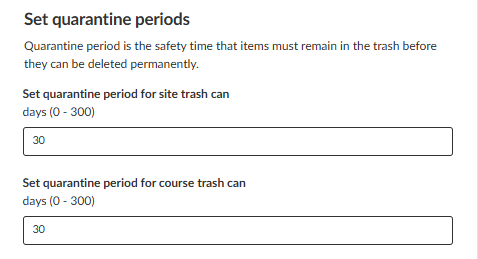
5 Searching the trash can
Site-level trash can:
- Go to Administration.
- Select Trash can.
- Select the relevant tab (User, Course, Project, or Term).
- Use the available search filters (name, deletion date, organisation) to find items.
- Click Search.
The site-level trash can provides quick date filters (Today and Last 7 days) as well as custom date ranges.
Course-level trash can:
- Open the course.
- Open the Trash can.
- Select the relevant tab (Resources or Plans).
- Use the date range filters or search by title to find items.
- Click Search.
6 Restoring items
- Navigate to the relevant trash can (site-level or course-level).
- Search for or locate the item to restore.
- Select the checkbox next to the item(s).
- Click Restore.
7 Deleting items permanently
Items can only be permanently deleted once the quarantine period has elapsed.
- Navigate to the relevant trash can.
- Search for or locate the item to delete.
- Select the checkbox next to the item(s).
- Click Delete permanently.
Warning: When you permanently delete a user, all data connected to that user will be deleted, including messages, events, and open files. This action cannot be undone.
8 Emptying the trash can
The site-level trash can includes an Empty trash can option, which permanently deletes all items that are no longer in quarantine. This option is available on all tabs.
9 Archiving vs deleting
Archiving a course is not the same as deleting it. Archived courses are not placed in the trash can. All participants can still access an archived course by navigating to Courses > All courses > View > Archived. However, the course card will no longer be displayed on the start page.
10 Recommended routine for emptying
Since there is no automatic deletion, it is recommended that organisations establish a routine for regularly reviewing and emptying the trash can. When creating such a routine, consider the following:
- Is there a need to access historical data (e.g. former students’ work)?
- What are the requirements under GDPR for your organisation?
- What other legislation applies to data retention in your organisation?
A common practice is to permanently delete users and courses after a set period – for example, 1–2 years after students have left the school.
More Help Resources
Have more questions? Please start with asking your school administrator.
Product Release notes
Stay updated with itslearning latest releases: https://itslearning.com/product-updates
Service Status
Check the current status of itslearning services: https://status.itslearning.com/
Ideas Portal
Share your ideas and help shape the future of itslearning: https://ideas.itslearning.com/
Roadmap
Check out our roadmap: https://itslearning.com/global/roadmap/