Navigate itslearning - Getting started
TABLE OF CONTENTS
1. What You'll Accomplish
By the end of this guide, you'll be able to navigate most of itslearning's main interface and access your courses, notifications, and essential tools. This takes about 5 minutes and provides the foundation for all your teaching activities on the platform.
2. Before You Begin
• Ensure you have your itslearning login credentials
• Open itslearning in your web browser
• Have at least one course assigned to your account
3. Quick Start Workflow
Step 1: Locate the Main Toolbar
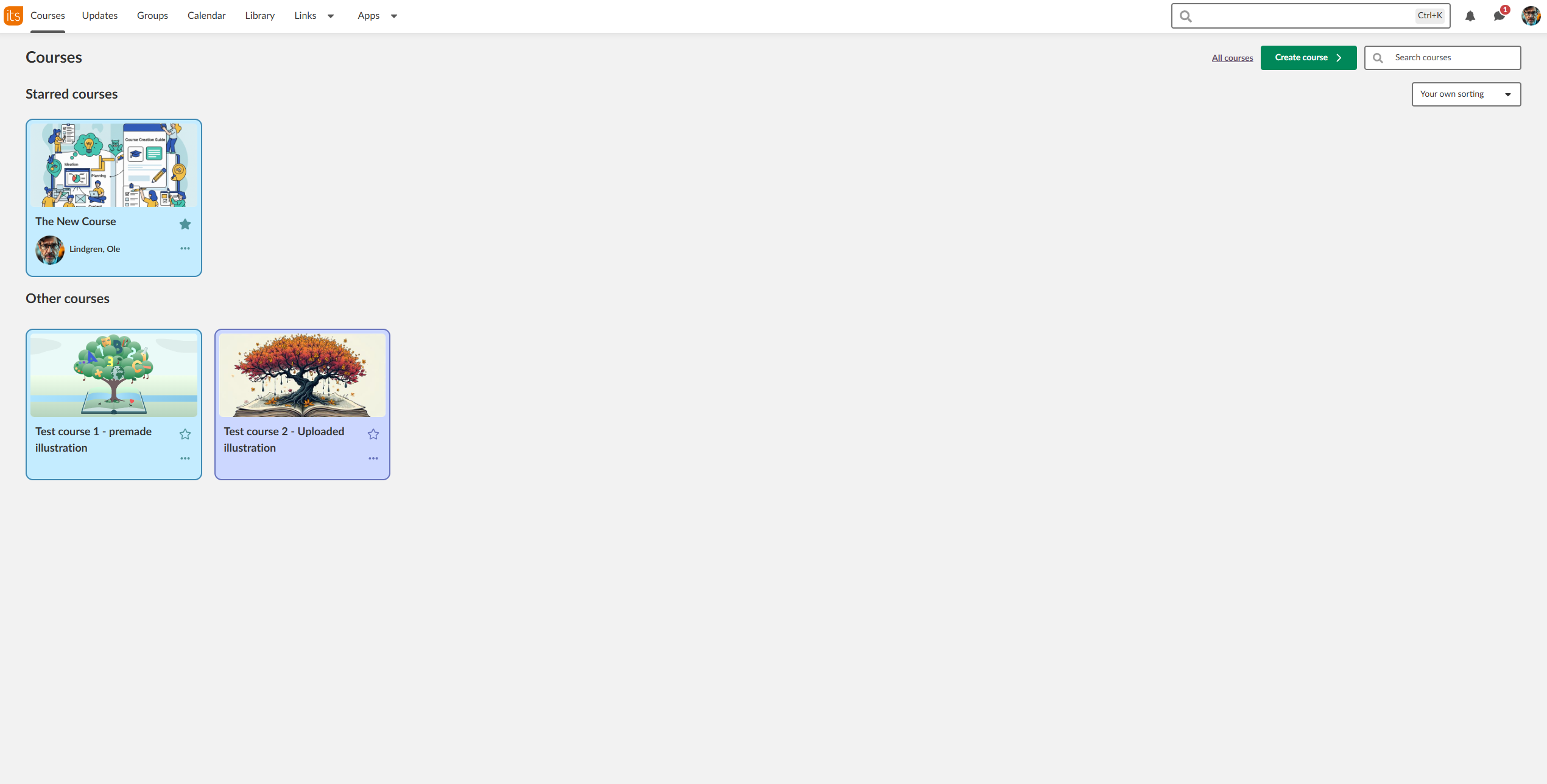
The menu bar at the top contains your primary navigation. This guide covers the essentials: "Courses," "Updates," notifications, and your personal menu. Other toolbar items like "Groups," "Calendar," "Library," and "Apps" are covered in dedicated Getting Started articles.

Step 2: Access Your Course page
- Click "Courses" in the main toolbar
- View your "Starred courses" (favourites) at the top
- All Courses" appears on the right side of the page. If you have many courses, scroll down to see them all.
✓ Checkpoint: You should see course cards displaying your enrolled courses with recent activity indicators.
Step 3: Organise Your Course View
- Use the "Search courses" field to find specific courses quickly
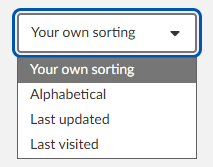
- Click the sorting dropdown (shows "Custom sorting" by default) to sort by "Alphabetical," "Last updated," or "Last visited"
- Star important courses by clicking the star icon on any course card to add them to your favourites
- Drag and drop starred course cards to reorder them, or use the dropdown menu to sort automatically
Step 4: Check Your Updates and Tasks
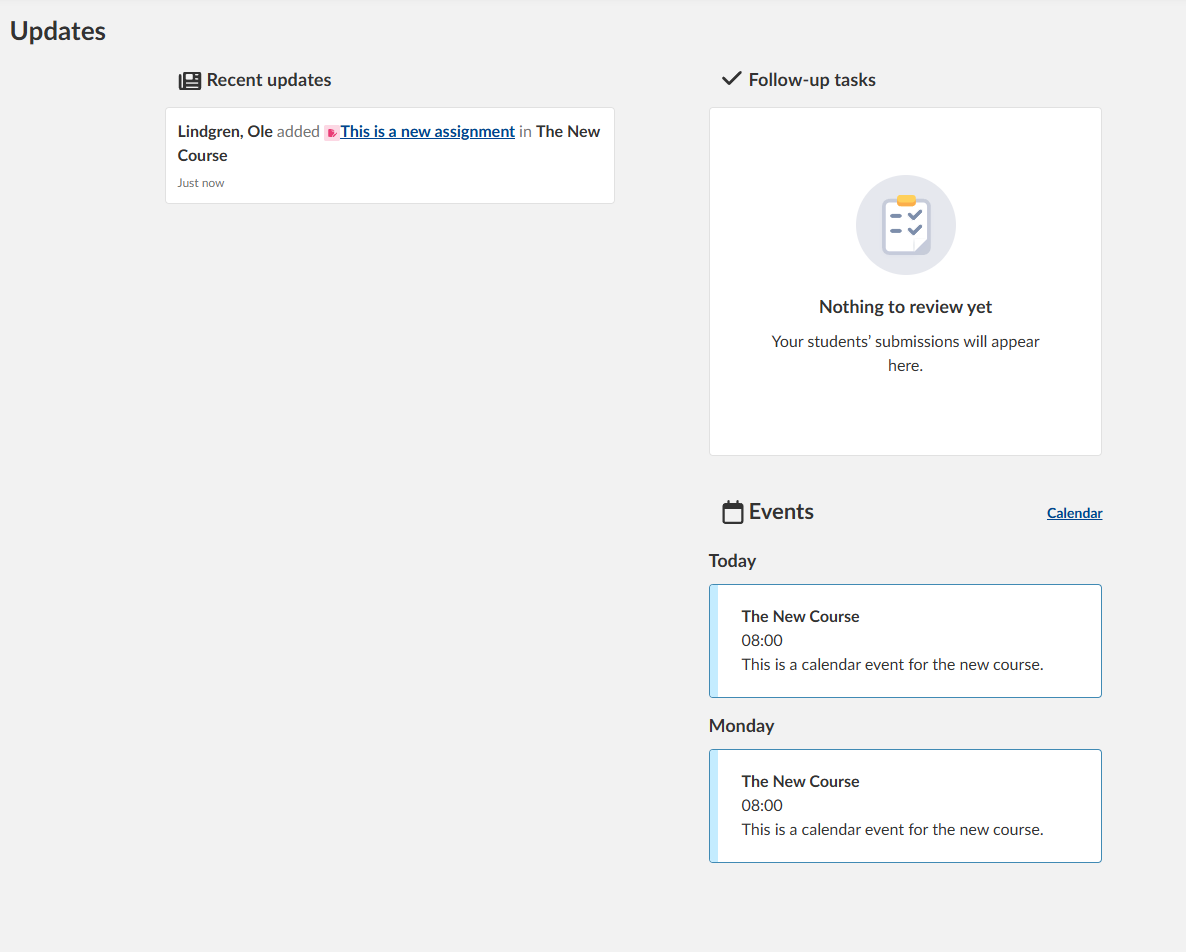
- Click "Updates" in the main toolbar
- Review "Recent updates" for course announcements
- Check "Follow-up tasks" for assignments requiring attention
✓ Checkpoint: You should see a clear list of recent activity and any outstanding tasks in all your courses (if any exists).
Step 5: Access Notifications and Messages
- Click the bell icon (top-right) for notifications
- Click the speech bubble icon for internal messages
- Numbers on these icons indicate unread items

Step 6: Use Your Personal Menu
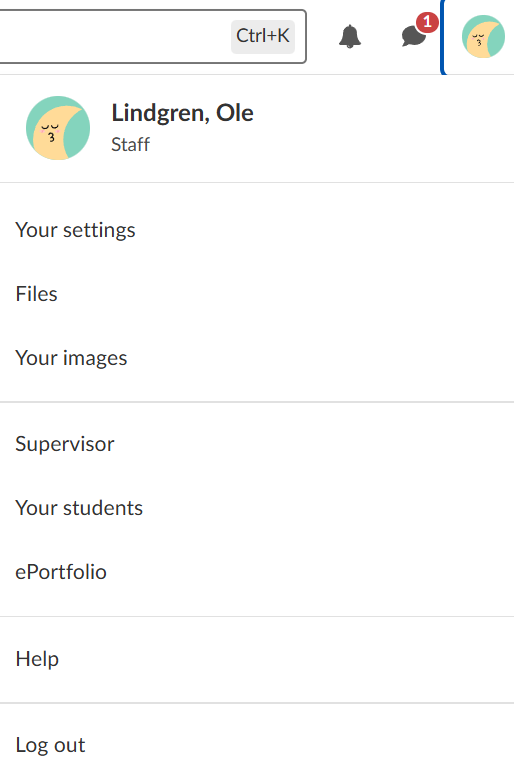
- Click your name or profile image (top-right corner)
- Access "Your settings," "Your files," and other personal options
- Note that not all in these menus are available for all profiles
- Always "Log out" when finished for security
- Note that some options are controlled by a system administrator and might not be available.
✓ Checkpoint:Your personal menu should display with options relevant to your account permissions.
More Help Resources
Have more questions? Please start with asking your school administrator.
Product Release notes
Stay updated with itslearning latest releases: https://itslearning.com/product-updates
Service Status
Check the current status of itslearning services: https://status.itslearning.com/
Ideas Portal
Share your ideas and help shape the future of itslearning: https://ideas.itslearning.com/
Roadmap
Check out our roadmap: https://itslearning.com/global/roadmap/