Course Templates – Cross-Site Templates (Teacher)
TABLE OF CONTENTS
- Introduction
- 1 Creating a Course From a Cross-Site Template
- 2 Applying a Cross-Site Template to an Existing Course
- 3 Differences When Using a Template From Another Site
- 4 Troubleshooting
Introduction
When browsing course templates, users may see an Other sites tab. This tab shows course templates shared by users from other itslearning sites in the same country. The availability of this tab is controlled by the system administrator.
Using a template from another site follows the same workflow as using any other template. However, some content may not be included or may behave differently due to differences in site configuration and available modules. These differences are described in section 3.
Note: If you do not see the Other sites tab when browsing templates, your system administrator has not enabled cross-site templates for your site. Contact your administrator for more information.
Important: Sites using the beta shareable planner feature will no longer see planner content listed on the Other sites tab. If you want to continue sharing courses that contain planner content across sites, the course must be shared as a cross-site template.
For general information on all template features, see the Course Templates – Teacher Guide. For information on managing cross-site template visibility and permissions, see the Course Templates – Administrator Guide.
1 Creating a Course From a Cross-Site Template
Prerequisite: You need the user right Create courses based on a template or apply template to existing courses.
To create a new course using a template from another site:
- Start creating a new course.
- In the Template section, click Browse templates.
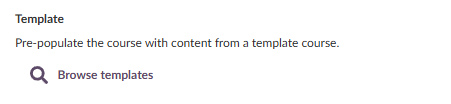
- Select the Other sites tab to browse templates from other itslearning sites.
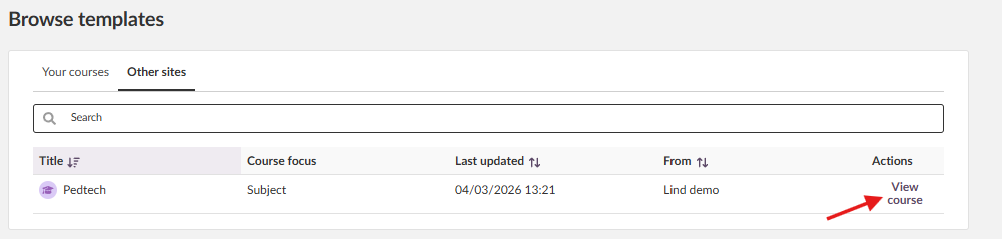
- Click View course on the template you want to review.

- Review the content. Be aware that some content may not be included when using a template from another site (see section 3).
- Click Use as template.
- When you return to the Create course page, make the rest of your changes and click Create course.
- The new course opens automatically.
A banner with the message Course set-up in progress. Please wait. appears at the top of the page while the course is being set up.

You will receive an email notification when the course creation process is complete, if you have selected this option.
2 Applying a Cross-Site Template to an Existing Course
Prerequisite: You need the user right Create courses based on a template or apply template to existing courses.
To apply a template from another site to an existing course:
- Go to the course you want to apply a template to.
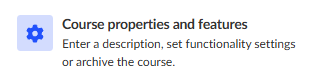
- Select Settings > Course properties and features.
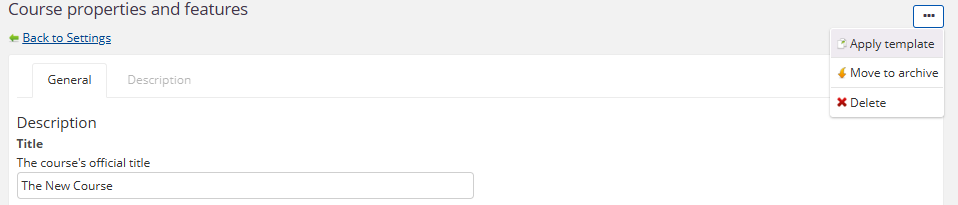
- Select the three-dot menu (…).
- Select Apply template.
- Click Browse templates.

- Select the Other sites tab to browse templates from other itslearning sites.
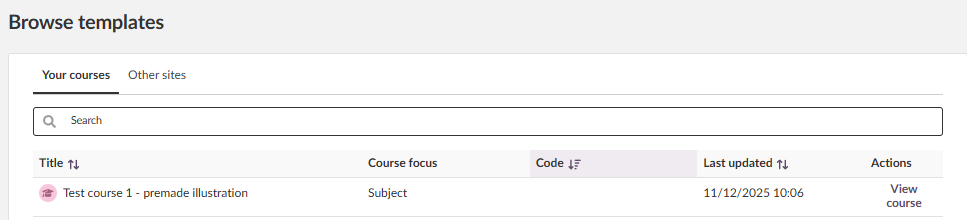
- Click View course on the template you want to review.
- Review the content and click Use as template. Be aware that some content may not be included (see section 3).

- Review optional settings that appear.
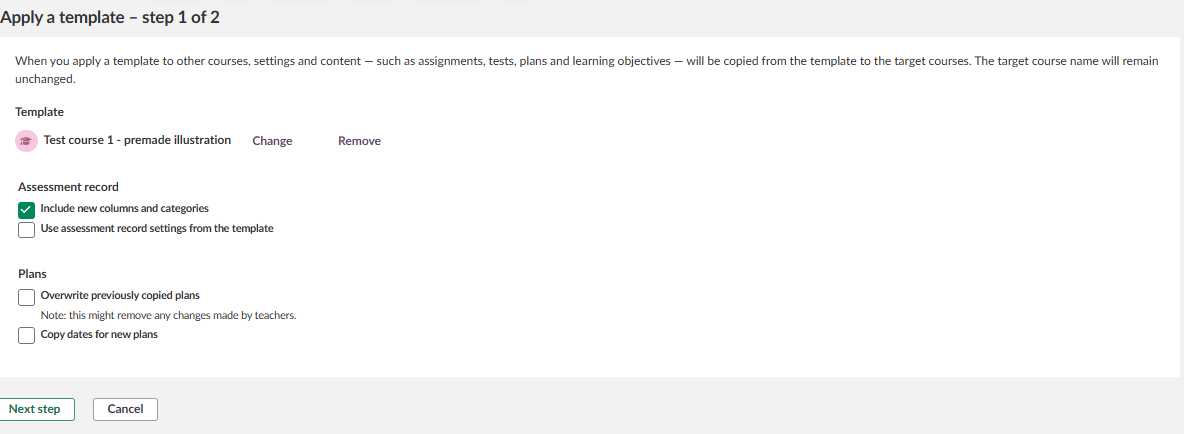
- Click Next step.
- Review the summary of what will be copied.
- Optionally, select Send me a message when copying is completed.
- Click Apply template.
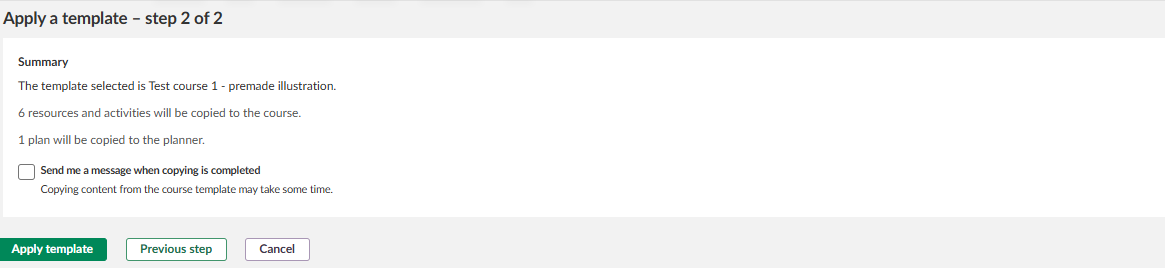
The content from the template is copied to the course. The target course name remains unchanged.
3 Differences When Using a Template From Another Site
Compared to a template from the same site, the following exceptions apply when a user creates or applies a course template from another itslearning site.
3.1 Planner
Some itslearning sites have the option to add a rubric to a topic in the planner. Since this is disabled for most sites, this topic rubric will not be included in the template.
3.2 Resources
Only content is included in the course template. Any tool-specific settings are excluded. This means, for example, that a group assignment will be added as a regular assignment.
The following resource limitations apply to cross-site templates:
| Resource Type | Behaviour |
|---|---|
| File attachments to a Task resource | Excluded. Note: Task is being merged into the Assignment tool. For assignments, file attachments are supported. |
| SCORM content | Excluded, as SCORM is an additional paid module. |
| Legacy tool content (e.g. Test 2.0) | Excluded. |
| LTI 1.3 content | Added, but the LTI tool may not be configured on the receiving site. The content can either be removed, or the LTI tool needs to be set up by the administrator. |
| Library resources (when Library is disabled for the user) | Copies are made of each resource that was in the Library. If the author of the resource has indicated that it should not be copied, it will not be added to the course. |
| Permissions on resources (including folders) | Ignored. |
3.3 Learning Objectives
If the template course has learning objectives added from the repository of the school or site, these are added as a copy to the course (as if they were created in the course). Learning objectives that were created in the template course itself are also added as a copy.
Only assessment criteria (used in rubrics) that have been added to the national or state repository are kept.
3.4 Settings
Assessment scales created within the site of the template are ignored.
4 Troubleshooting
4.1 Content Missing After Applying a Cross-Site Template
Symptoms: Some resources, SCORM content, or tool-specific settings are missing after applying a template from another site.
Cause: Cross-site templates have limitations on what content can be transferred between sites (see section 3).
Solution:
- Review the list of differences in section 3 to understand which content types are excluded.
- For LTI 1.3 content that is not working, contact your administrator to set up the required LTI tool.
- For other excluded content, you will need to add it manually to the course.
More Help Resources
Have more questions? Please start with asking your school administrator.
Product Release notes
Stay updated with itslearning latest releases: https://itslearning.com/product-updates
Service Status
Check the current status of itslearning services: https://status.itslearning.com/
Ideas Portal
Share your ideas and help shape the future of itslearning: https://ideas.itslearning.com/
Roadmap
Check out our roadmap: https://itslearning.com/global/roadmap/
The features shown are part of the project within the framework of the German Development Project (GDP), a cooperation between four German states and itslearning with the aim of improving digital education in Germany through tailor-made product developments.
Click here to learn more about the GDP roadmap and what other features you can expect.
For German readers: Click here for more information about the project within the framework of the German Development Project.