Manage Apps - Adding Modules, Apps and Plugins (Sysadmin)
TABLE OF CONTENTS
- 1 Overview
- 2 Prerequisites
- 3 Extension types: modules, apps and plugins
- 4 Add an extension
- 5 Extended data
- 6 Third-party apps
- 7 Vendor access
- 8 Settings
- 9 Where to find more information
Introduction
itslearning can be extended with web-based tools and content from other platforms. As a system administrator, you manage these extensions from the Manage apps page. This article explains the extension types, how to add an extension, and what each tab on the Manage apps page is used for.
1 Overview
itslearning connects to external tools through the international LTI specification, which allows web-based applications and content hosted in other platforms to be used inside itslearning. itslearning may not supply the apps themselves, but it facilitates their use in the platform.
itslearning supports LTI versions 1.0, 1.1 and 1.3. Versions 1.0 and 1.1 were deprecated by 1EdTech in June 2022, so all new tool integrations use version 1.3. You can see the list of itslearning's certifications in the 1EdTech TrustEd Apps Directory.
All extensions are managed from one location:
Admin setting: Administration > Manage apps
The Manage apps page contains five tabs: Manage extensions, Extended data, Third-party apps, Vendor access and Settings. Each tab is described in this article.
2 Prerequisites
Prerequisite: You must have system administrator permissions to access the Manage apps page.
3 Extension types: modules, apps and plugins
There are three types of extensions in itslearning. The type determines where the tool appears and how users interact with it. Most new tools are available as apps.
| Extension type | Use case |
|---|---|
| App (Application) | The tool is meant for teachers or students to select or create course content. Optionally, a result can be sent back to itslearning. |
| Plugin | The tool allows users to insert content, such as videos or images, in a text editor, similar to add-ons in Microsoft Word or Google Docs. |
| Module | The tool is a service that users should have access to in a specific context, such as within a course or as supervisor. |
3.1 Apps (Applications)
Apps are extensions to the Add page of an itslearning course. They allow users to select or create resources. These resources can be added to a plan and will also appear in course reports, such as the 360 report.
A tool can also send a status or a result (score) back to itslearning. Resources with a result can be included in the gradebook. When content is selected, created or viewed, a side panel to the right of the content offers common itslearning actions:
- Manually making the content visible or invisible to students, or scheduling the visibility of the content
- Assigning a deadline*
- Tagging the content as homework*
- Assigning the content to course groups or individual students (by default it is assigned to all students in the course)
- Choosing an assessment scale*
- Choosing to hide results and make them all visible to students at once (the result can still be visible in the tool itself; this setting only controls visibility in itslearning)*
Note: The options marked with * are only offered if the tool supports the LTI Advantage extension Assignment and Grade Services.
3.2 Plugins
Plugins are extensions to the rich text editor found throughout itslearning. This extension type is suited for tools that let the user select content to include in a document, such as images or videos. If the content makes more sense as a stand-alone resource, the App type is a better fit.
Plugins require the tool provider to implement the LTI Advantage extension Deep Linking. itslearning currently only supports the Content Item Type "LTI Resource Link".
3.3 Modules
Modules are extensions to one of the menus or pages of itslearning. Modules are commonly used to grant access to a tool outside the context of a course, for example a video library, or to grant access to a report.
Module extensions can be added in a fixed number of places:
| Location type | Available placements |
|---|---|
| Menus | Main menu, Course menu |
| Pages | Administration, Supervisor, Status and Follow-up (course), Assessment record/Gradebook (course) |
Note: Module extensions do not currently support any of the LTI Advantage extensions, only LTI 1.3 Core.
4 Add an extension
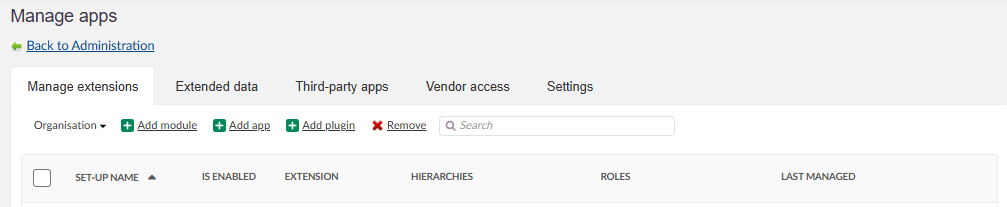
Extensions are added from the Manage extensions tab. The tab lists all set-ups with their name, enabled status, extension, hierarchies, roles and when they were last managed. Use Add app, Add plugin or Add module depending on the extension type. Apps and plugins follow the same configuration steps, while modules have their own dialogue with additional placement options.
The Manage extensions tab. Choose Add module, Add app or Add plugin.
Important: When users launch extensions, their personal data might be sent to a third party. Make sure you have a legal arrangement with the third party, such as a data processing agreement.
Note: To see tool-specific set-up instructions, browse the app library and click on the title of the app.
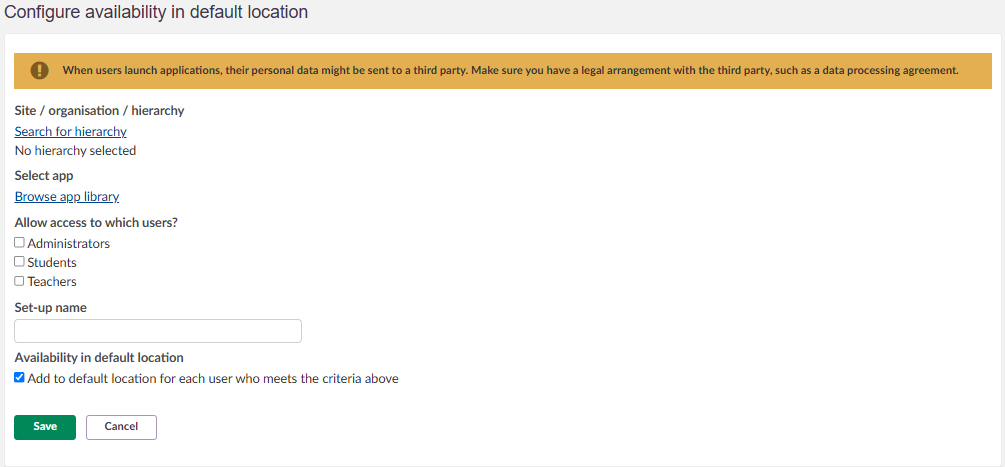
4.1 Add an app or plugin
- Click Add app or Add plugin, depending on the extension type.
- Select the hierarchy (for example, a single school or the whole site) by clicking Search for hierarchy and selecting the appropriate level.
- Click Browse app library, search for the tool, and click Include this app.
- Choose which roles the extension should be available for by selecting Administrators, Teachers and/or Students.
- Optional: Change the name of the set-up. By default, it uses the hierarchy name combined with the extension name.
- Optional: Uncheck Add to default location for each user who meets the criteria above if you do not want to add the extension by default. Users will then need to find and add the extension themselves.
- Click Save.
4.2 Add a module
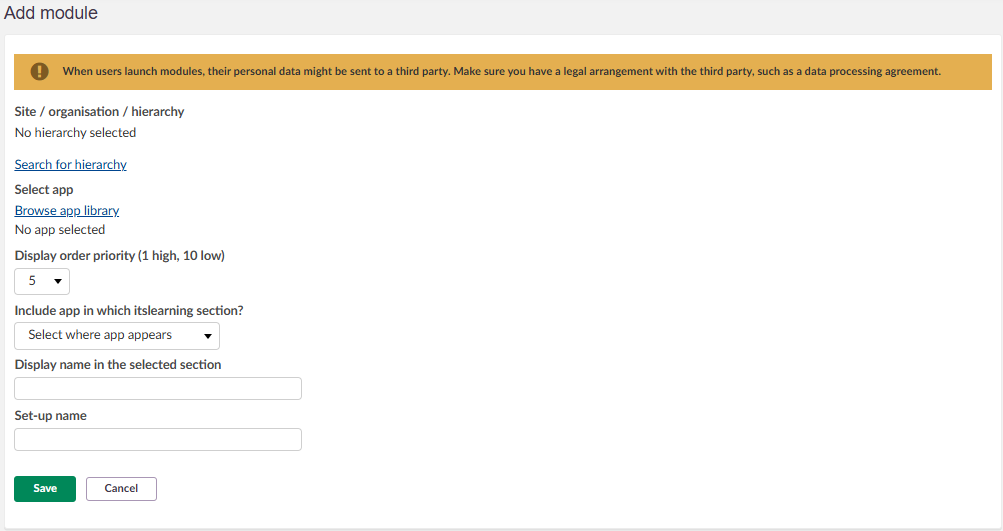
The module dialogue includes additional options for display order and placement. Modules can be given a custom display name in the section where they appear.
- Click Add module.
- Select the hierarchy by clicking Search for hierarchy and selecting the appropriate level.
- Click Browse app library, search for the tool, and click Include this app.
- Set the Display order priority (1 high, 10 low). The default value is 5.
- Under Include app in which itslearning section?, select where the module appears. The available placements are: Administration menu, Top menu, Supervisor menu, Course main menu, Course follow-up menu, Assessment record, Course Ready-to-use content and Course settings menu.
- Enter a Display name in the selected section. This is the name users see in the chosen placement.
- Enter a Set-up name.
- Click Save.
5 Extended data
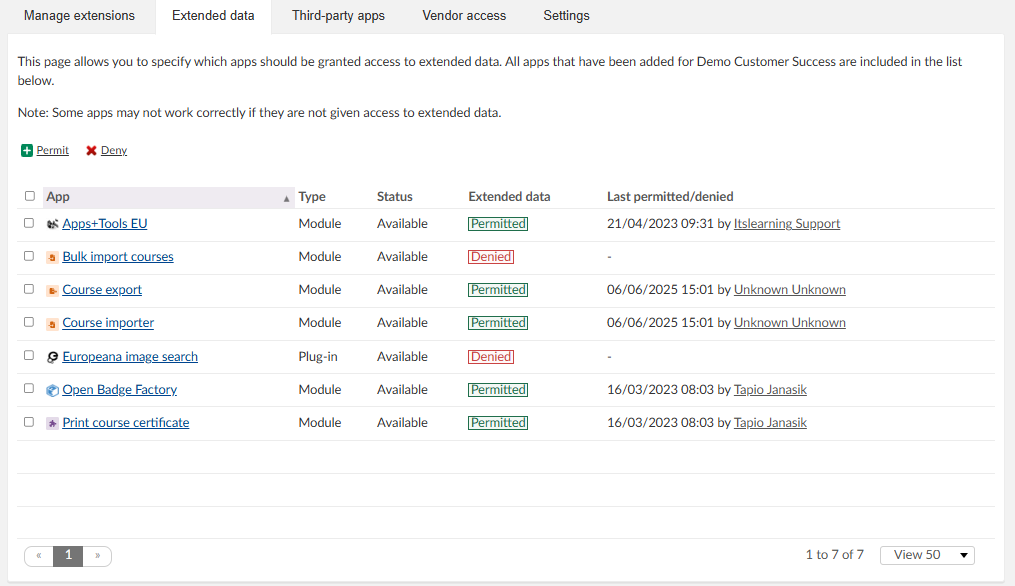
The Extended data tab lets you specify which apps should be granted access to extended data. All apps that have been added for your organisation are included in the list. For each app, the list shows the type, availability status, whether extended data is permitted or denied, and when access was last permitted or denied and by whom.
To change access, select one or more apps in the list and click Permit or Deny.
Note: Some apps may not work correctly if they are not given access to extended data.
6 Third-party apps
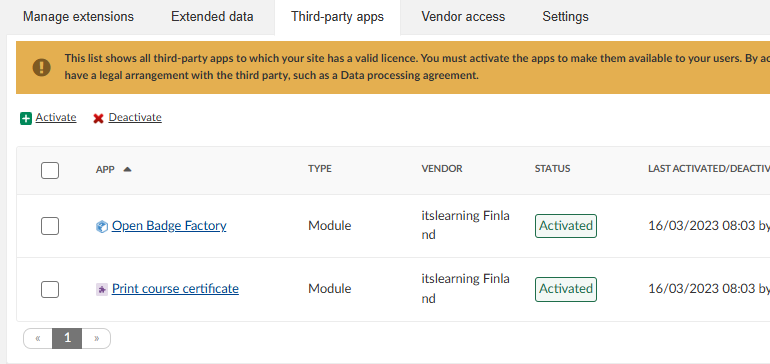
The Third-party apps tab shows all third-party apps to which your site has a valid licence. You must activate the apps to make them available to your users. To change availability, select one or more apps and click Activate or Deactivate.
Important: By activating a third-party app, you are consenting that you have a legal arrangement with the third party, such as a data processing agreement.
7 Vendor access
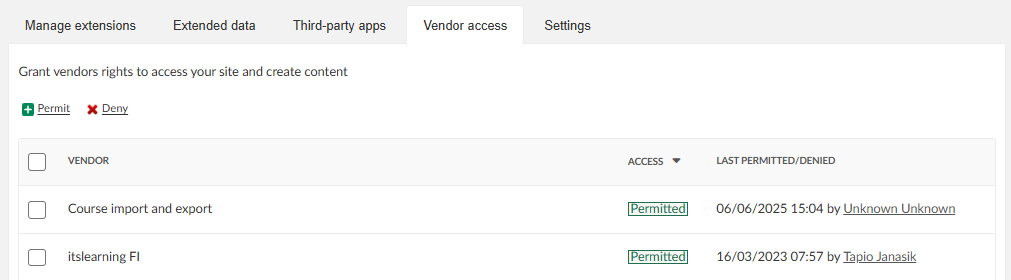
The Vendor access tab lets you grant vendors rights to access your site and create content. The list shows each vendor, the current access status, and when access was last permitted or denied and by whom. To change access, select one or more vendors and click Permit or Deny.
8 Settings
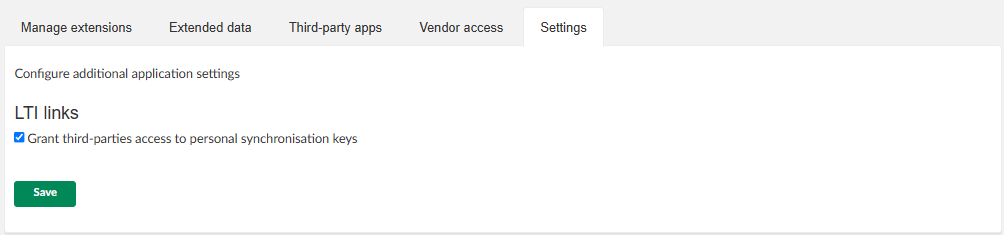
The Settings tab contains additional application settings.
| Setting | Description |
|---|---|
| LTI links: Grant third-parties access to personal synchronisation keys | Controls whether third parties are granted access to personal synchronisation keys for LTI links. |
Click Save to apply changes.
9 Where to find more information
If a tool you use is not visible in the app library, please reach out to your itslearning contact.
The itslearning developer portal contains all the information you or your app vendor may need to get started:
More Help Resources
Have more questions? Please start with asking your school administrator.
Product Release notes
Stay updated with itslearning latest releases: https://itslearning.com/product-updates
Service Status
Check the current status of itslearning services: https://status.itslearning.com/
Ideas Portal
Share your ideas and help shape the future of itslearning: https://ideas.itslearning.com/
Roadmap
Check out our roadmap: https://itslearning.com/global/roadmap/