Calendar – Complete Guide (Teacher)
TABLE OF CONTENTS
- Introduction
- 1 Prerequisites & Requirements
- 2 Getting Started
- 3 Workflows
- 4 Technical Information
- 5 Related Features & Cross-References
- 6 Additional Resources
Introduction
The Calendar in itslearning helps you manage your schedule and keep track of appointments, lessons, and events across all your courses and projects. Accessed from the main menu, the Calendar consolidates events from multiple sources into a single view, making it easy to see your complete schedule at a glance.
Use the Calendar to add course events that automatically appear on students' calendars, create personal reminders, view lesson plans in weekly format, and book physical resources such as rooms and equipment. Events can be created by clicking directly on dates or times, and can be easily rearranged using drag-and-drop functionality.
The Calendar integrates closely with your courses and projects, when lessons and events are added in courses or communities, they automatically populate events in the Calendar. You can also export your itslearning calendar to external applications like Microsoft Outlook or Google Calendar.
1 Prerequisites & Requirements
User Permissions Required
| Role | Permissions |
|---|---|
| Teachers | Can create events in course calendars, view student calendars, and book resources (if enabled) |
| Administrators | Can create events in course calendars, view student calendars, and manage resources/bookings (if enabled) |
| Students | Can view course events, create personal events, but cannot see other users' calendars |
| Parents | Can view their children's calendars but cannot search for other users |
| Guests | Cannot see other users' calendars |
Dependencies
- Calendar integrates with the Plans feature
- Calendar displays resources from Resource Booking management
- Mobile app integration requires itslearning mobile app installation
2 Getting Started
2.1 Accessing the Calendar
The Calendar is easily accessed from a tab in the main menu at the top of the itslearning interface.
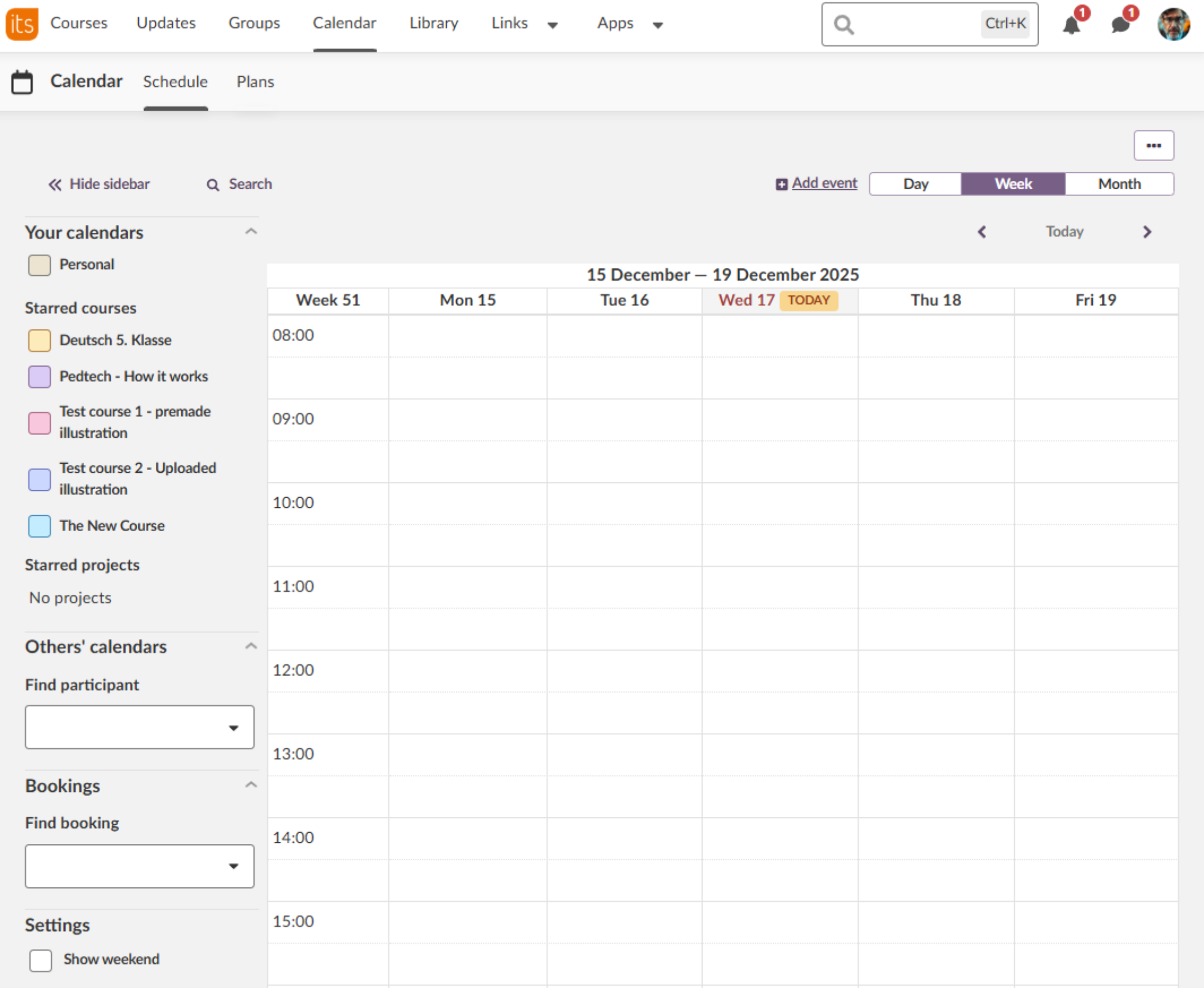
2.2 Layout and Function
2.2.1 Main menu
Access Calendar from the main navigation bar

2.2.2 Submenu
When you open the Calendar, you will notice two tabs on the sub menu, under the main menu:

- Schedule: The page you are on - View and plan calendars by day, week, or month
- Plans: View "plans cards" from all starred courses you are a member of. This tab displays plans that have been given dates in the planner, showing the first lines of the plan description, and indicated how many resources are connected to it. Click on any plan card to navigate directly to that plan. Teachers can also show their students' plan cards by choosing a student in the dropdown menu under "View plans for". See 2.2.3 for details on who appears in this list and what is shown.
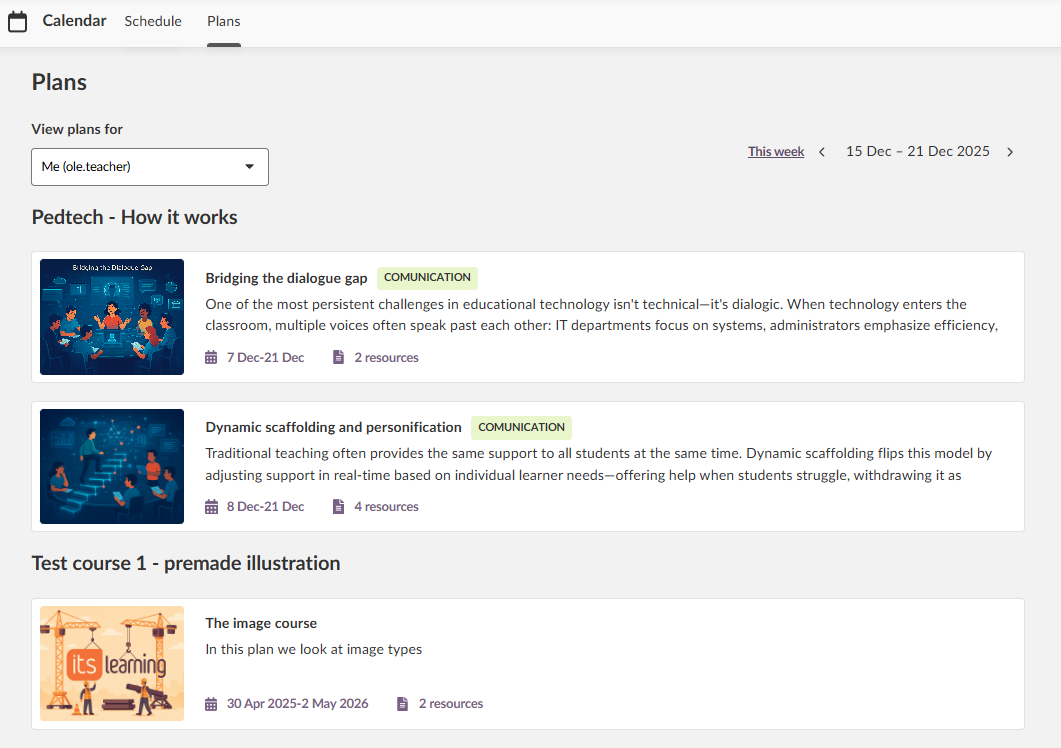
2.2.3 The "View plans for" dropdown
Who appears in the dropdown:
- Users with a Student course role in at least one course where you have a Teacher or Administrator role, or more precisely, any user whose course profile has the setting "Include profile in learner reports (progress report, personal report, etc.)" enabled
What you see when you select a user:
- The plan cards shown match what that user themselves sees on their own Plans tab: only plans that are currently visible (active) to them, and only from courses they have starred
Special cases:
- Courses where the selected user has a Teacher role are excluded from the view
- Courses where the selected user has a Guest role are included in the view
Note: On your own Plans tab, courses where you have a Teacher or Administrator role show both active and inactive plans, provided the course is starred.
2.2.4 Navigation area

| Option | Description |
|---|---|
| Ellipsis (...) | Contains "Subscribe to iCal feed", which opens a popup to link your itslearning calendar to external calendars like Outlook. Note: this syncs FROM itslearning TO the external calendar, not the other way around. |
| Hide sidebar | Opens and closes the sidebar for better calendar view on smaller screens |
| Search | Opens a new tab listing all events (past, present, and future) from all communities in which you are enrolled. Filter by:
|
| View controls | Switch between Day, Week, or Month view (selected view highlighted in purple) |
| Day View | Detailed hourly schedule for a single day |
| Week View | Complete week overview (Monday to Friday, or through Sunday if "Show weekend" is enabled) |
| Month View | Month-at-a-glance grid format |
| Add event button | Quick access to create new events |
| Navigation arrows | Move between time periods |
| Today button | Jump back to current date |
2.2.5 Sidebar
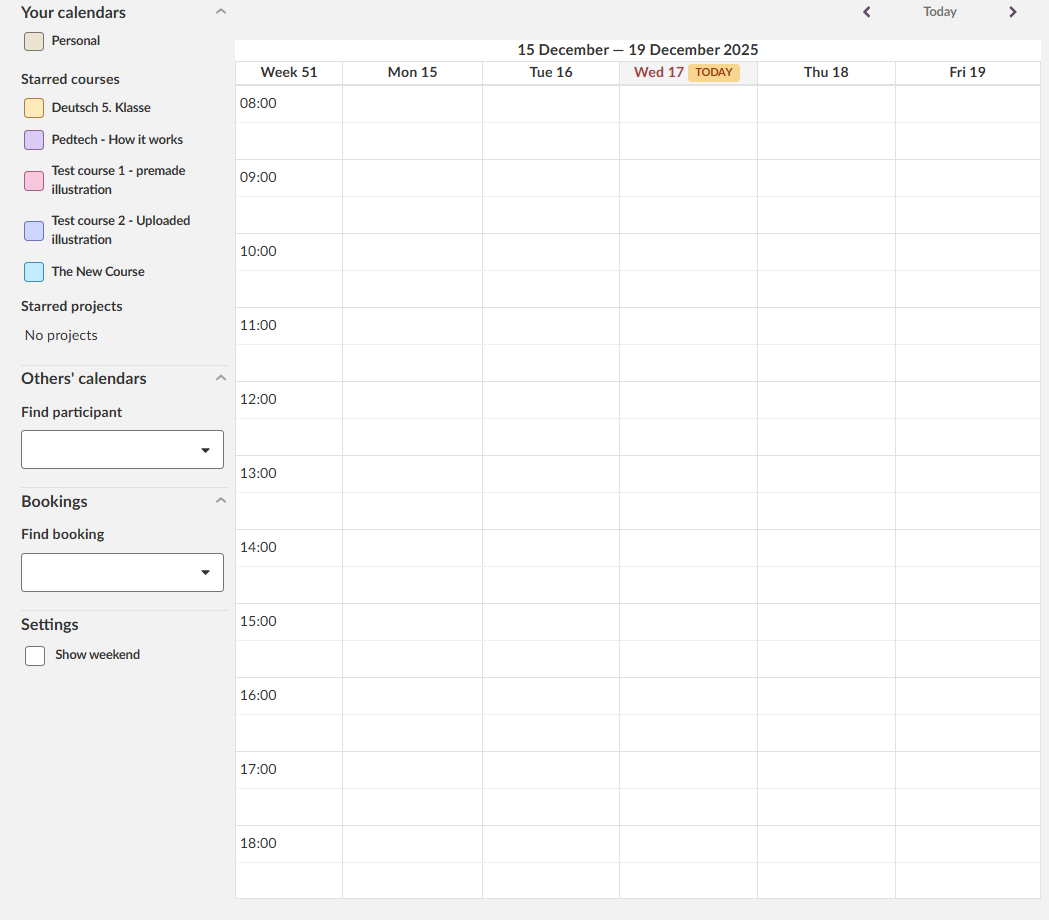
The sidebar lets you control what you see in the main calendar area. The sections of the sidebar can be opened and closed with the small arrow next to its name.
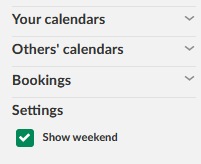
2.2.6 Your calendars
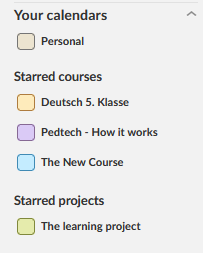
Personal: Your private calendar (checkbox to show/hide) - Personal events are completely private. When other teachers or administrators view your calendar, they will see the time slot marked as "busy" but cannot see the event title, description, or any other details. Use personal events for reminders, preparation time, or anything you don't want visible to others.
Starred courses:
List of your favorite courses with check boxes
Each course has a colour-coded square for identification
Click checkbox to show/hide course events
Note that if you are missing a course in the calendar, you might have to push the star/mark it as a favorite on the main course page.
Starred projects:
- List of your favorite projects with check boxes
- Shows "No projects" if you haven't starred any projects
2.2.7 Others' calendars
You can find other teachers and student calendars and review these. That can be useful if you try to plan something and you aren't sure about available time
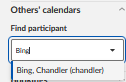
- Find participant: Search field to view other users' calendars
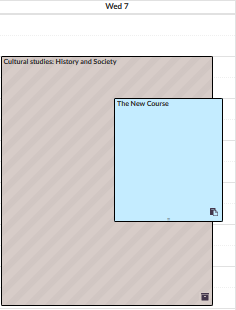
- Type a name, select from dropdown, and their events appear with diagonal stripes. In the image below, the blue course is your course, and the brown one with stripes is a students course for the same day.
- Click the "X" beside a name to remove their calendar
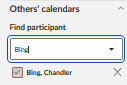
- You can view multiple users simultaneously to compare availability
Who can use this feature:
| Role | Access |
|---|---|
| Teachers & Administrators | Can search and view other users' calendars |
| Students & Guests | Cannot view other users' calendars |
| Parents | Can view their children's calendars only |
What you can see: Course/project events (titles, times, dates), booked resources
What you cannot see: Personal events, private project details (titles appear as "Project" for non-members)
2.2.8 Bookings
- Find booking: Search for booked resources to see when they are in use
- Type the first few letters of a resource name to search
- Check/uncheck resources to show or hide their bookings on the calendar
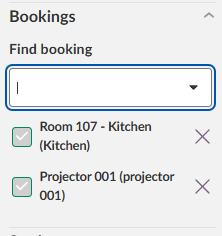
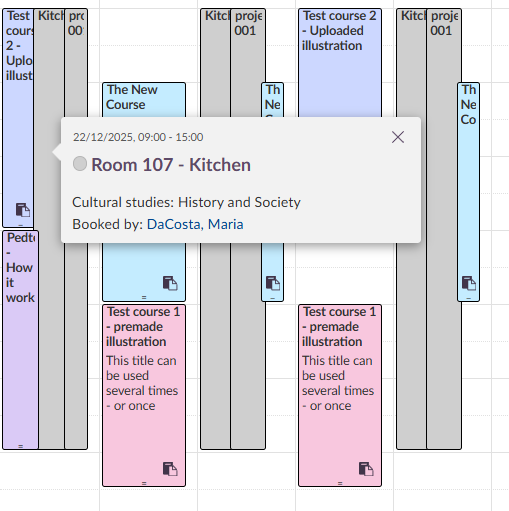
- Booked time slots appear as grey blocks on the calendar, helping you identify availability. If you click the grey box, you will be able to see who has booked it and for what course.
2.2.9 Main Calendar Area
Week View Display:
- Week number shown at top left (e.g., "Week 48")
- Days of the week displayed across columns (Mon 24 through Fri 28)
- Current day highlighted with "TODAY" label
- Hourly time slots from 08:00 to 18:00 (or configured time range)
- Date range shown at top: "24 November–28 November 2025"
Event Display
- Events shown as coloured blocks matching course colour from sidebar. Course name and description displayed within event block
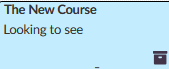
- Small icons in bottom right corner:
- Document icon = linked resources or plans
- Resource icon = booked rooms/equipment
Automatic Population
When lessons and events are added in courses or communities, they automatically populate in the Calendar and in the events section on the course/community overview page.
Event Management
- Create events by clicking directly in time/date cells or using "Add event" button
- Move events by dragging and dropping to new date/time
- Click any event to view details or edit (if you have permission)
2.3 Filtering Your View
Use the sidebar check-boxes to control which events appear. By default, all calendars are displayed the first time you open the calendar. If there are calendars that are not open, but has events, you will see a yellow banner over the main calendar display

To focus on specific courses:
- Uncheck courses you want to temporarily hide by clearing the checkbox next to its name.
- Leave checked only the courses you want to see
- Calendar updates immediately and shows the current checked courses
Note: Filtering only affects YOUR view. It does not delete events, affect other users' views, or change event visibility for students.
3 Workflows
3.1 Quickly creating an event from the calendar
Objective: Add a single event to a course calendar that will be visible to all course participants.
Steps:
- Navigate to Calendar from the main menu
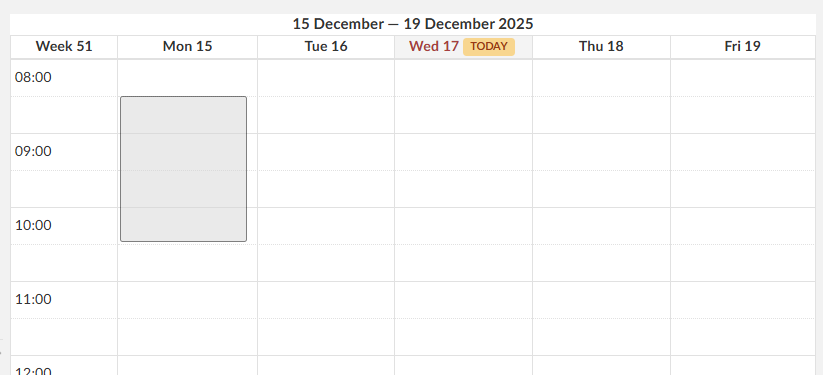
- Click or mark date/time cells in the calendar
In the popup window:
- Calendar dropdown: Select the course OR your personal calendar from the list (all courses where you are a teacher will appear)
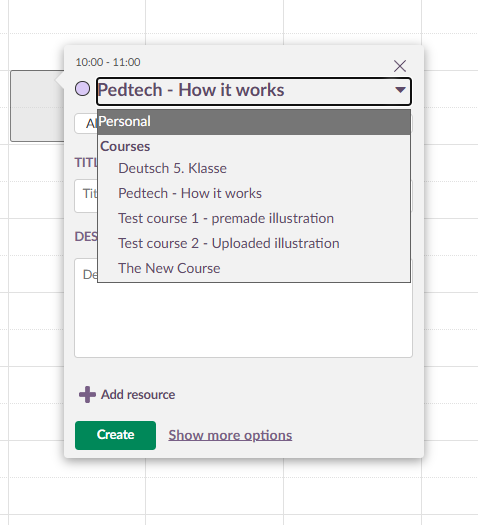
- Participants: Choose who should see this event:
- All participants (default)
- Specific groups or individuals
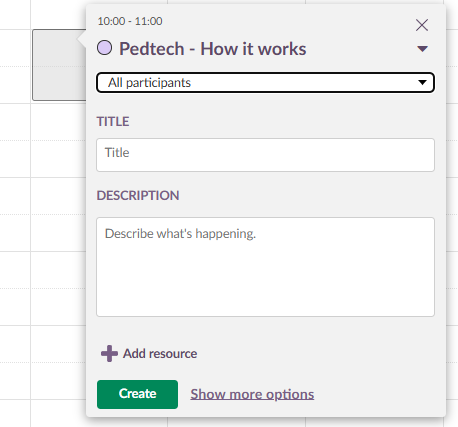
- Title: Enter a descriptive event title
- Description: Add details about the event (optional)
- + Add resource: You can attach learning materials to the event. Note that if you create a resource in the calendar, it will not automatically become part of a plan. Resources created in the calendar can be found in the resources section in an auto generated folder called "Calendar Resources".
- Show more options: Gives more advanced options. See section 3.2 for more information.
- For basic events, click "Create"
The event now appears in your calendar and in the calendars of all participants of the course. The event is colour-coded according to the course colour.
3.2 "Add event" and "Show more options"
The Add event on the main display, and the "Show more options" button on a basic event opens the same window.
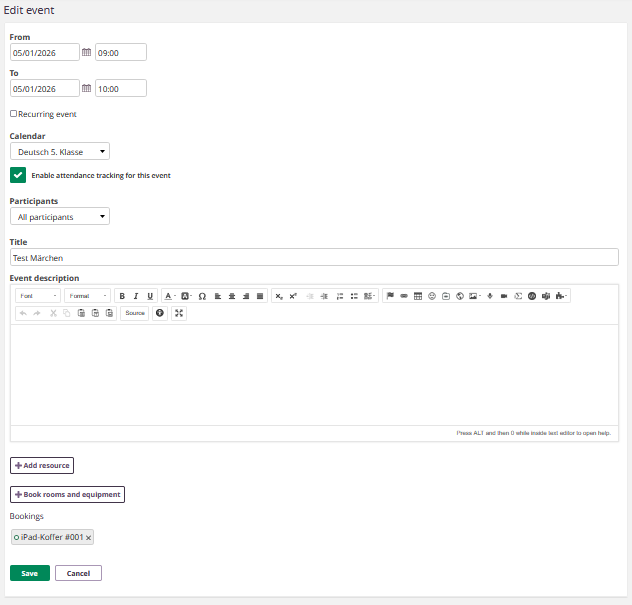
When you push the button, a new page will open that gives you several options when creating events
3.2.1 Complete the event form
| Field | Description |
|---|---|
| From / To | Set the start and end date and time |
| Calendar | Select the course, project, or "Personal" from the drop down menu |
| Enable attendance tracking | If turned on in your area, you can track attendance in itslearning with this function. |
| Participants | Choose "All participants" or select specific groups/individuals |
| Title | Enter a descriptive event name |
| Event description | Add details using the rich text editor (optional) |
3.2.2 Adding Resources to single Events
- Click + Add resourceto attach digital materials to the event
- Note that an event with an added resource cannot be made into a recurring event. Neither can a resource be added to recurring events from the calendar (that's what the planner is for).
- You can create a new resource directly, or browse and select existing resources from your courses
- Resources added via the calendar are stored in an auto-generated folder called "Calendar Resources" in the course's resources section
Note: Resources created in the calendar are not automatically linked to a plan, they exist independently
3.2.3 Booking rooms and/or physical resources
Physical resources such as rooms and equipment must first be set up by an administrator. If no resources appear, contact your system administrator. Unlike the digital resources, bookings can be added to both single and recurring events.
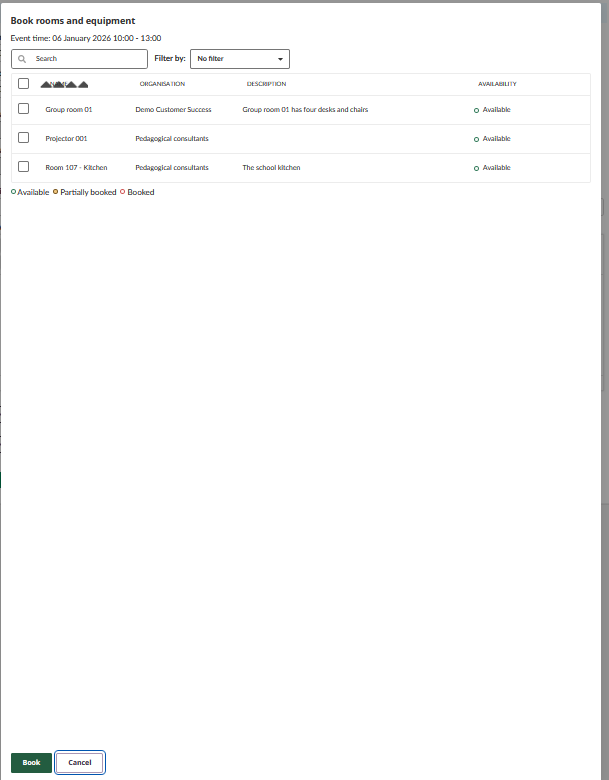
- Click + Book rooms and equipment to reserve physical resources
- A new window opens up where you can see all rooms and physical resources that are bookable in your school
- Pick the resource(s) you need for your event(s)
- Click Save
Result: The booked room/equipment shows up on the edit event screen, and a small icon is attached to the calendar event
Modifying Resource Bookings:
To change or remove resource bookings:
- Click on the event in your calendar
- Click the pencil icon (Edit)
- In the "Bookings" section, click the 'X' next to any resource you wish to remove
- Click "Book rooms and equipment" to add different resources
- Click "Save" to confirm changes
Resource Visibility: When viewing other users' calendars, booked resources are visible (but personal event details are not). This helps with resource planning across the organisation.
Handling Booking Conflicts:
If a resource shows as "Partially booked" or "Booked":
- Consider adjusting your event time
- Select an alternative resource
- Contact the administrator to check if the existing booking can be modified
- The system will prevent double-booking of resources
3.2.4 Making It a Recurring Event
To create an event that repeats on a regular schedule:
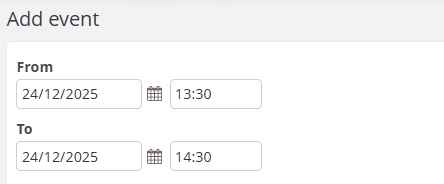
First, set the From and To fields, these define the duration of each individual event (e.g., 13:30–14:30 creates a one-hour event each time it recurs)
- Check the Recurring event checkbox
- Under Repeat, select how often the event should occur:
- Every week
- Every 2nd week
- Every 3rd week (up to every 10th week)
- Select which days of the week the event should occur
- Set the Ends date to stop the recurrence (e.g., end of term or school year)
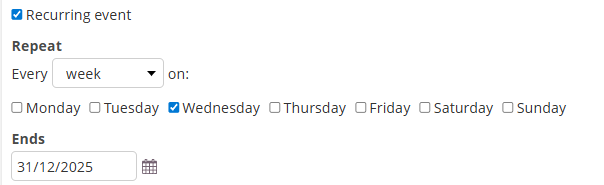
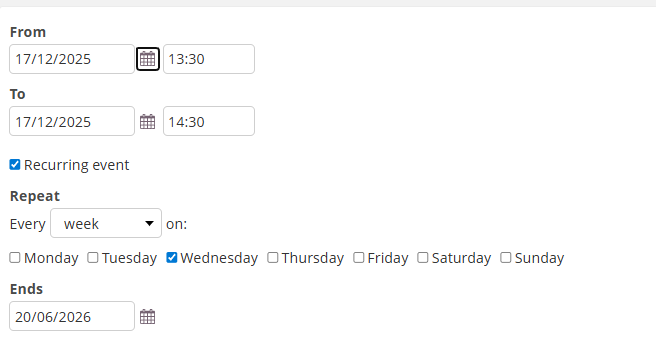
Example: To create a weekly 1-hour meeting every Wednesday until the end of term:
- Set From/To as 13:30–14:30
- Check "Recurring event"
- Select "Every week"
- Tick "Wednesday"
- Set Ends to your last day of term
3.3 Connecting Plans to Calendar Events
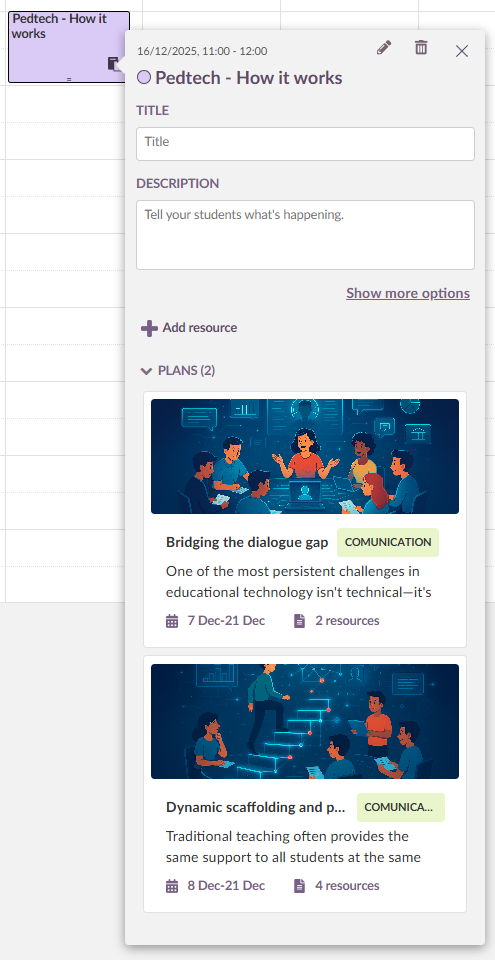
Plans and calendar events connect automatically based on dates, you do not manually link them from the calendar.
How it works:
- When you create or edit a plan in the Planner, you assign it a date range
- Any calendar events that fall within that date range will automatically show the connected plan(s)
- When viewing an event, expand the "PLANS" section to see all plans active during that time
- Click on a plan card to navigate directly to the full plan
Note: You cannot add or remove plan connections from the calendar itself. To change which plans appear, adjust the plan dates in the Planner.
3.4 Editing and Deleting Events
3.4.1 Editing an Event:
Objective: Modify details of an existing calendar event.
Steps:
- Click on the event in your calendar
- In the popup window, click the pencil icon (Edit)
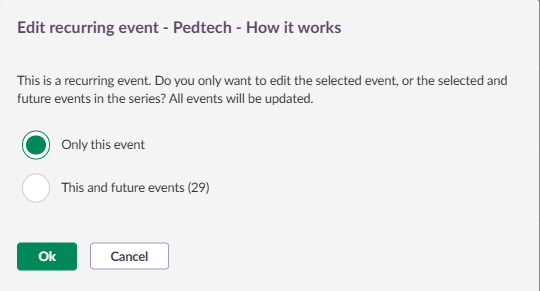
- If this is part of a series of events (recurring event), a popup will ask you if you want to edit this event or all future events. Note that popup only shows up if you are editing a future event.
- Make your changes
- Click "Save"
The event is updated with the new information. All participants will see the updated details immediately
3.4.2 Deleting an Event:
Objective: Remove an event from the calendar.
Steps:
- Click on the event in your calendar
- In the popup window, click the bin icon (Delete)
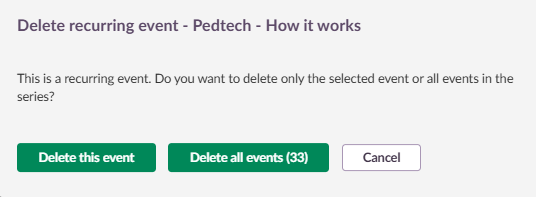
- If this is part of a series of events (recurring event), a popup will ask if you want to delete this event, or all future events in the series.
- Note! there is no warning prompt when deleting events.
Result: The event is removed from your calendar and from all participants' calendars if it was a course event.
Important: Deleting a course event removes it from all enrolled students' calendars. There is no undo function.
3.5 Exporting Calendar to External Applications
Objective: Subscribe to your itslearning calendar in external calendar applications like Microsoft Outlook, Google Calendar, or Apple Calendar.
Steps:
Navigate to Calendar from the main menu
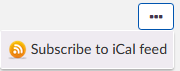
Click the ellipsis (...) in the upper right-hand corner
Select "Subscribe to iCal feed"
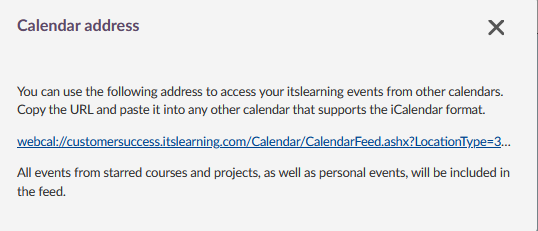
A dialogue box appears with a calendar feed URL
Copy the link or click it to open directly in a calendar application of your choice
Import the link into your external calendar application:
For Microsoft Outlook:
- Go to Calendar view
- Right-click "My Calendars"
- Select "Add Calendar" > "From Internet"
- Paste the URL
- Click OK
For Google Calendar:
- Click the + next to "Other calendars"
- Select "From URL"
- Paste the URL
- Click "Add calendar"
For Apple Calendar:
- Go to File > New Calendar Subscription
- Paste the URL
- Click Subscribe
Result: Your itslearning calendar events will now appear in your external calendar application. The calendars will sync automatically.
What Gets Included: All events from your starred courses and projects, plus personal calendar events, will be included in the subscription stream.
Important Security Note: Anyone with access to the feed URL can view your calendar without requiring a username and password. Be careful not to share the link with anyone.
Mobile App Alternative: The itslearning calendar can also be added to your phone calendar when you set up the itslearning mobile app. This provides a more secure integration than the subscription method.
4 Technical Information
4.1 Integration with Courses and Projects
The Calendar integrates automatically with other itslearning features:
| Calendar | Events |
|---|---|
| Courses | Events created in course calendars appear for all enrolled participants and on course overview pages |
| Projects | Events visible to members only; non-members see "Project" instead of the title |
| Plans | Can be connected to calendar events (see Section 3.3); plan dates automatically create calendar entries |
5 Related Features & Cross-References
Complementary Features:
| Feature | Connection |
|---|---|
| Plans | Course plans connect directly to calendar events (see section 3.3) |
| Resource Booking | Book rooms and equipment through calendar events (see section 3.2.3) |
| Course Overview | Events appear in the events section of course pages |
| Mobile App | Access calendar on mobile devices |
| Notifications | Receive alerts for upcoming calendar events |
Alternative Approaches:
- Use the Events section on course overview pages instead of the main Calendar
- Use external calendar applications and subscribe to itslearning feed
- Use mobile app for on-the-go calendar access
6 Additional Resources
Community Resources:
Service Status: Check the current status of itslearning services: https://status.itslearning.com/
Ideas Portal: Share your ideas and help shape the future of itslearning: https://ideas.itslearning.com/
Roadmap: Check out our roadmap: https://itslearning.com/global/roadmap/
Contact Information: For additional support, contact your local itslearning administrator or submit a support ticket through the Help Center.
More Help Resources
Have more questions? Please start with asking your school administrator.
Product Release notes
Stay updated with itslearning latest releases: https://itslearning.com/product-updates
Service Status
Check the current status of itslearning services: https://status.itslearning.com/
Ideas Portal
Share your ideas and help shape the future of itslearning: https://ideas.itslearning.com/
Roadmap
Check out our roadmap: https://itslearning.com/global/roadmap/