Terms - Manually Managing Terms (Sysadmin)
TABLE OF CONTENTS
- Introduction
- 1 Overview
- 2 Navigating to Term management
- 3 Adding a term
- 4 Managing existing terms
- 4 Managing existing terms
Introduction
A term is a time-limited period used to manage assessment and attendance within an organisation. Terms must be configured by a sysadmin before certain features become available. If itslearning is integrated with a SIS, terms are created automatically during the integration process and do not need to be added manually.
1 Overview
Terms are required for the following features:
- Assessment records
- Attendance
- Behaviour
Terms can also be used as an optional filter when managing courses. Each term can be assigned to a specific organisation, allowing different organisations within the same instance to operate on separate term schedules.
2 Navigating to Term management
Admin setting: Administration > Terms
The Term management page lists all terms configured for your instance. Each entry shows the following information:
| Column | Description |
|---|---|
| Term name | The name of the term. Click the name to open and edit the term. |
| Description | The description entered when the term was created. |
| Status | Indicates whether the term is visible or archived. |
| Organisation | The organisation the term is assigned to. |
| Start date | The first day of the term. |
| End date | The last day of the term. |
3 Adding a term
- Go to Administration > Terms.

- Click Add term.
- Complete the fields in the Term details, Term assessment, and Term defaults sections.
- Click Save.
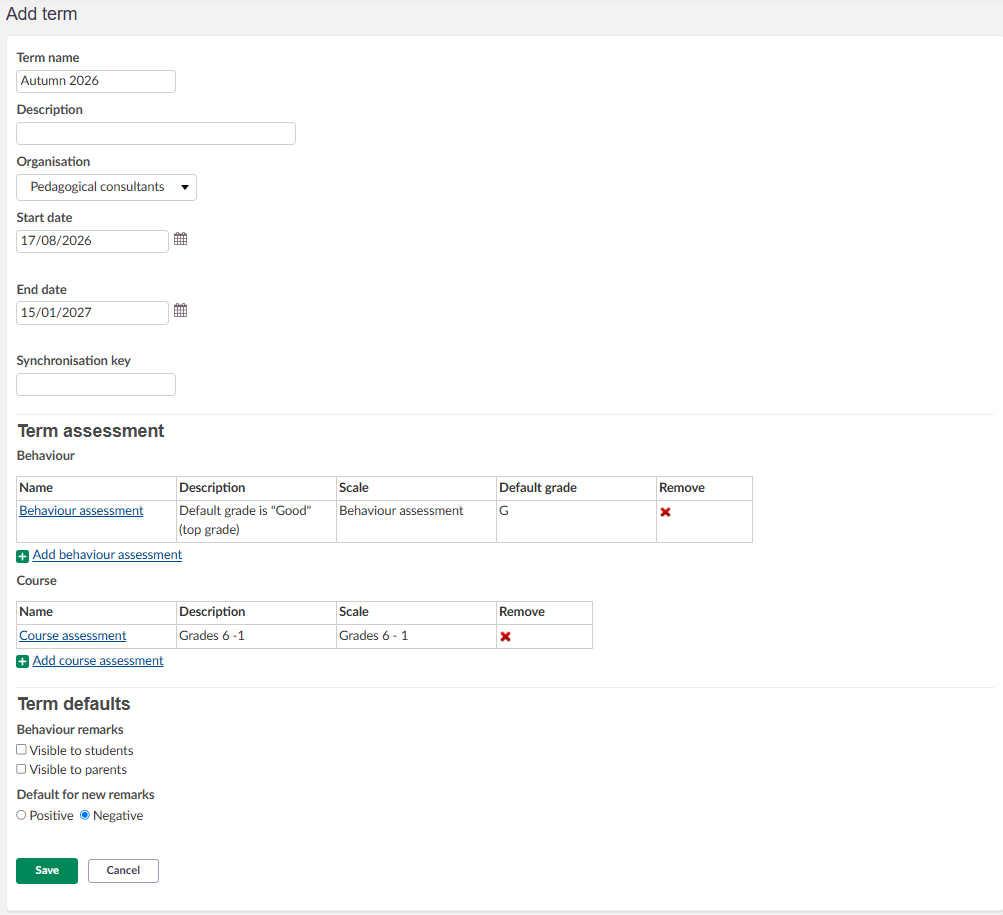
3.1 Term details
| Field | Description |
|---|---|
| Term name | The display name for the term (e.g. Semester 1 2025/2026). |
| Description | An optional description for the term. |
| Organisation | The organisation the term applies to. Select from the dropdown. Different organisations can be assigned separate term schedules. |
| Start date | The first day of the term. |
| End date | The last day of the term. |
| Synchronisation key | Used to map the term to a corresponding record in an external system, such as a SIS. [VERIFY] |
3.2 Behaviour assessment
The behaviour assessment defines the scale and default grade used when recording behaviour during the term. Click Add behaviour assessment to open the configuration dialog.
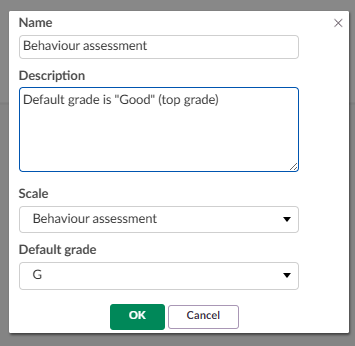
| Field | Description |
|---|---|
| Name | The name of the behaviour assessment. |
| Description | An optional description for the behaviour assessment. |
| Scale | The assessment scale used when recording behaviour. |
| Default grade | The grade pre-selected by default when a behaviour record is created. |
3.3 Course assessment
The course assessment defines the structure used for overall term assessments at the course level. Click Add course assessment to open the configuration dialog.
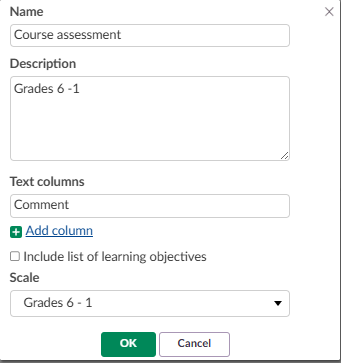
| Field | Description |
|---|---|
| Name | The name of the course assessment. |
| Description | An optional description for the course assessment. |
| Text columns | Defines the text columns included in the assessment (e.g. Comment). Click Add column to include additional columns. |
| Include list of learning objectives | When selected, the course assessment includes a list of learning objectives. |
| Scale | The assessment scale used for the course assessment. |
3.4 Term defaults
The Term defaults section controls the default visibility and type settings for behaviour remarks entered during the term.
| Setting | Description |
|---|---|
| Visible to students | When selected, behaviour remarks are visible to students by default. |
| Visible to parents | When selected, behaviour remarks are visible to parents by default. |
| Default for new remarks | Sets the default type for new behaviour remarks. Select either Positive or Negative. |
4 Managing existing terms
From the Term management page, the following actions are available for existing terms:
| Action | Description |
|---|---|
| Delete term | Select one or more terms using the checkboxes, then click Delete term to remove them. |
| Archive | Moves a term out of the active list without deleting it. To view archived terms, change the Show filter to Archived. |
| Filter by organisation | Use the Organisation dropdown to display terms for a specific organisation only. |
| Search | Use the search field to locate a specific term by name. |
Important: Deleting a term is permanent.
Note: Once terms have been created, teachers can link individual courses to a term via More > Settings > Course term > Add term within the course.
More Help Resources
Have more questions? Please start with asking your school administrator.
Product Release notes
Stay updated with itslearning latest releases: https://itslearning.com/product-updates
Service Status
Check the current status of itslearning services: https://status.itslearning.com/
Ideas Portal
Share your ideas and help shape the future of itslearning: https://ideas.itslearning.com/
Roadmap
Check out our roadmap: https://itslearning.com/global/roadmap/