Class Course – Reference (Teacher)
TABLE OF CONTENTS
- Introduction
- 1 Overview
- 2 Creating a Class Course
- 3 Topics
- 4 Adding Resources to a Topic
- 5 Managing Resources
- 6 Course Settings
- 7 Navigation
- 8 Plans
- 9 Announcements
- 10 Student View
- 11 Participants
Introduction
The Class course type organises learning content into topics, which are displayed on the course overview page. Topics are the primary organisational unit: each topic groups related learning materials and activities, and students access all content through the topic panel. This course type is designed for primary and lower secondary education.
1 Overview
When creating a course in itslearning, you select a Course focus. The available options are:
| Course focus | Description |
|---|---|
| Subject | Relevant to one subject, for example Geography or Mathematics. Often used with deadlines. |
| Class | Groups multiple topics or subjects within a single course and displays all learning content on the course overview page. Suitable for younger students. |
| Self-paced learning | Allows students to work at their own pace without time limits. Requires use of plans. |
| Information hub | A non-academic course used for information and file sharing, for example a staff room. |
Selecting Class creates a Class course. The course overview page displays a left-hand topic panel alongside an announcements area. Teachers manage topics and their content from this view.
Note: The calendar is not displayed on the Class course overview page. Calendar entries created for the course do not appear in the course view, even if they are associated with the course. This applies to all participants. To share time-sensitive information with students, use announcements.
2 Creating a Class Course
To create a Class course:
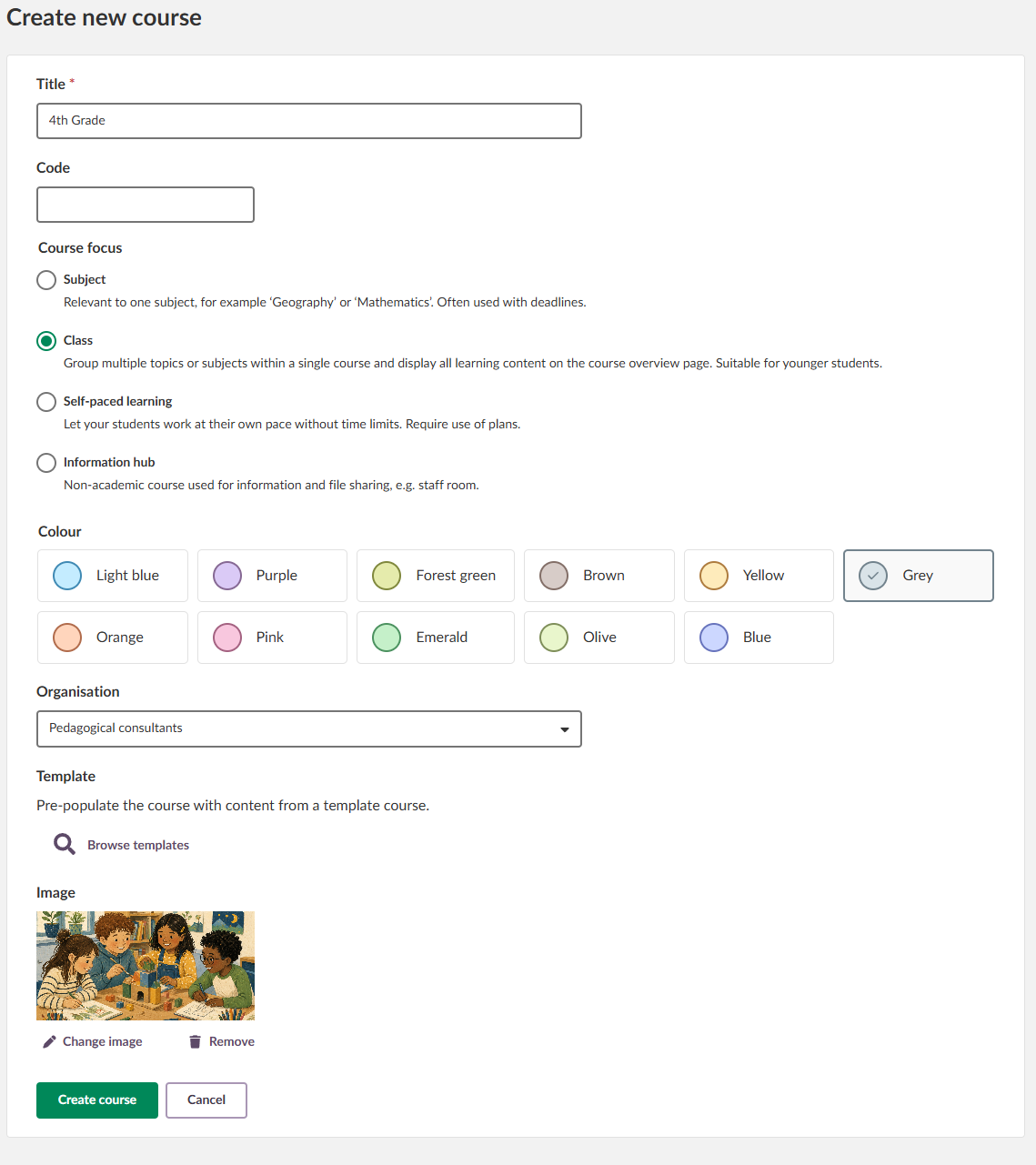
- Go to your dashboard and select Create course, or use your institution's equivalent course creation option.
- Enter a Title. This field is required.
- Optionally enter a Code.
- Under Course focus, select Class.
- Select a Colour for the course card.
- Select the Organisation the course belongs to.
- To pre-populate the course with content from a template, select Browse templates.
- Optionally add or change the course Image.
- Select Create course.
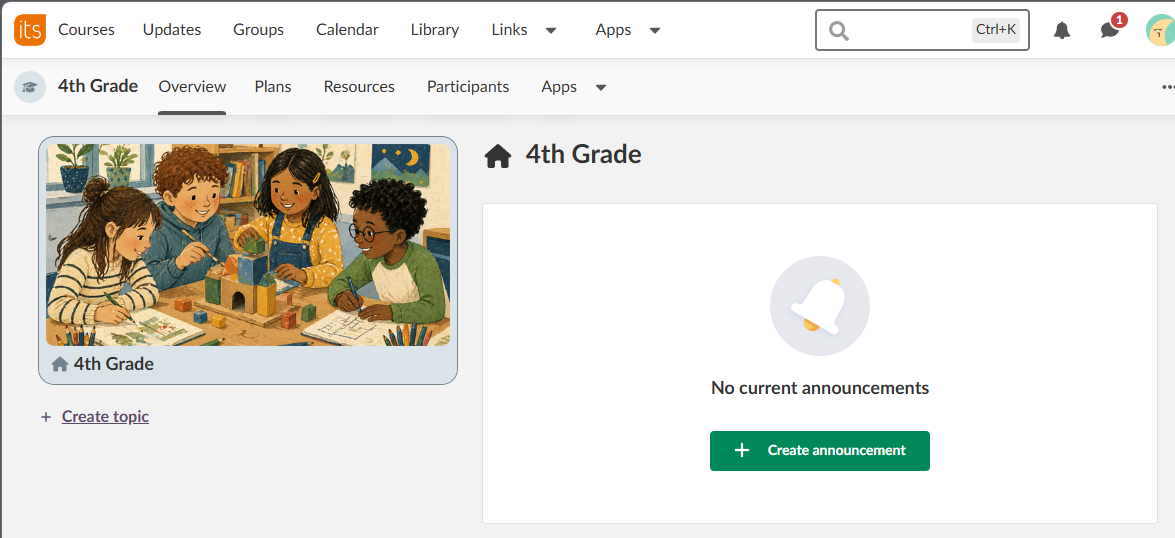
After the course is created, you are taken to the course overview page. The left-hand panel shows the course name and a + Create topic link. No topics exist yet. The main area displays the announcements section with a Create announcement button.
3 Topics
Topics are the main organisational units in a Class course. Each topic appears as an item in the left-hand panel. Selecting a topic displays its contents in the main area. A topic can be configured to display either resources or plans.
3.1 Creating a Topic
To create a topic:
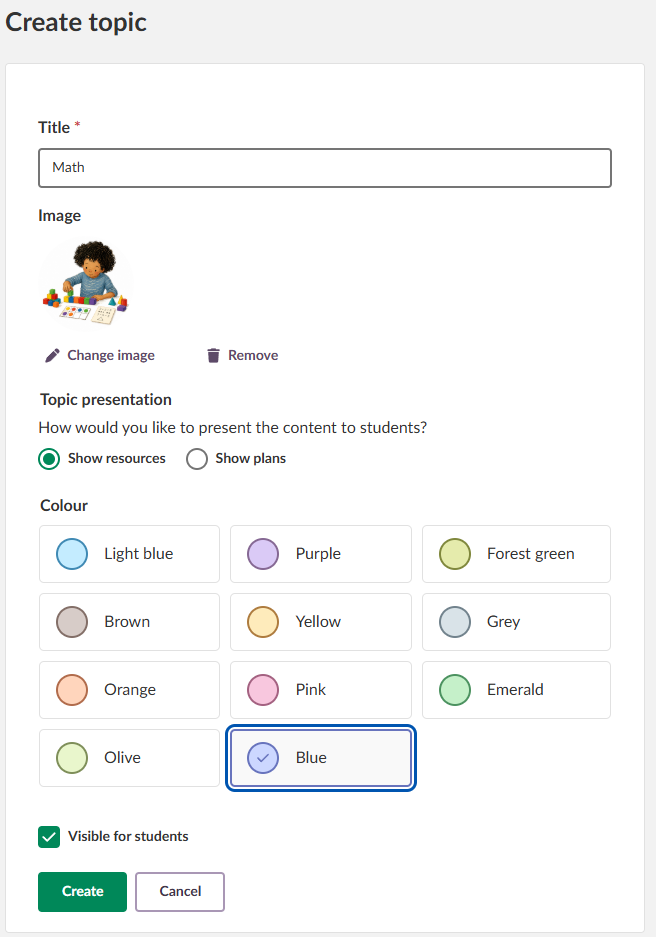
- In the left-hand panel, select + Create topic.
- Enter a Title. This field is required.
- Optionally add or change the topic Image. Adding an image helps younger students identify and navigate between topics.
- Under Topic presentation, select how content will be presented to students:
- Show resources – students see resources added directly to the topic.
- Show plans – students see plans associated with the topic.
- Select a Colour.
- To make the topic visible to students immediately, ensure Visible to students is ticked.
- Select Create.
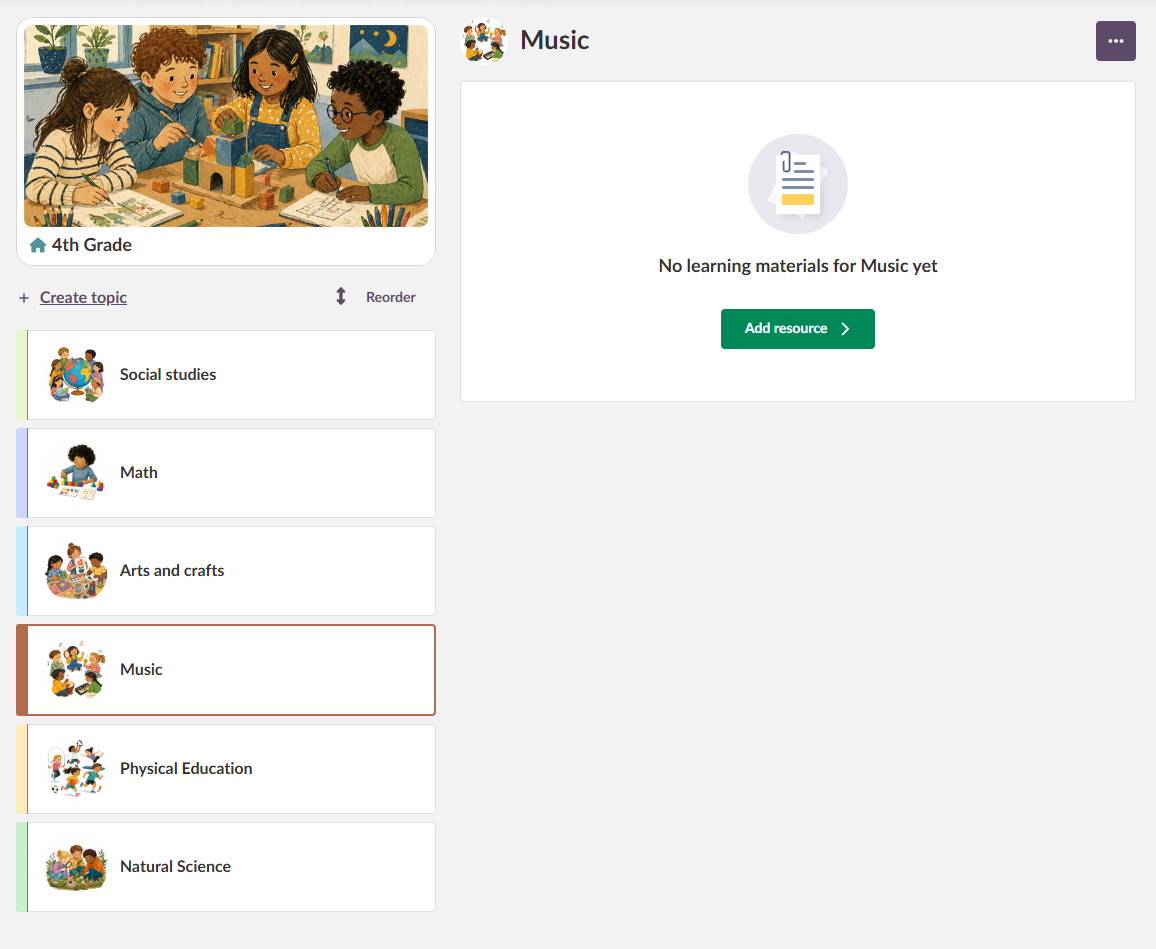
The new topic appears in the left-hand panel. The main area shows one of the following, depending on the topic presentation setting:
- If Show resources is selected: No learning materials for [topic name] yet with an Add resource button.
- If Show plans is selected: No learning materials for [topic name] yet with a Create plan button.
You can create as many topics as needed. Topics with content populate the left-hand panel and the overview page.
3.2 Editing a Topic
To edit an existing topic:
- Navigate to the topic you want to edit.
- Select the three-dot options menu (…) in the upper right corner of the topic page.
- Select Edit topic.
- Make any changes to the title, image, topic presentation, colour, or visibility.
- Select Save.
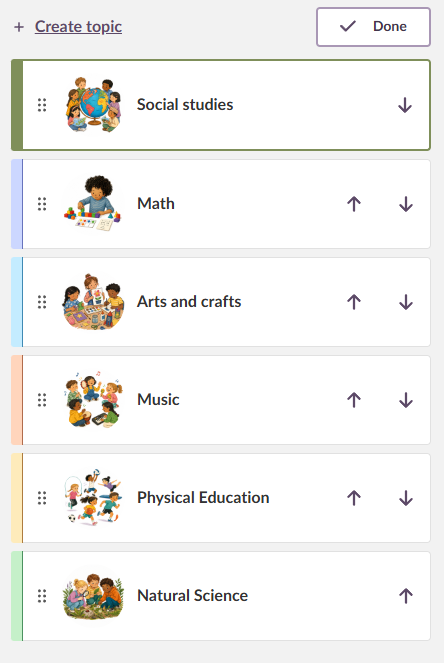
3.3 Reordering Topics
To change the order in which topics appear in the left-hand panel:
- In the left-hand panel, select Reorder.
- Use one of the following methods to reorder topics:
- Select the up or down arrow next to a topic.
- Click and drag a topic to the desired position using the six-dot drag handle.
- Select Done to exit reordering mode.
Note: The new order is saved as you reorder. Selecting Done exits reordering mode but is not required for the changes to take effect.
3.4 Topic Visibility
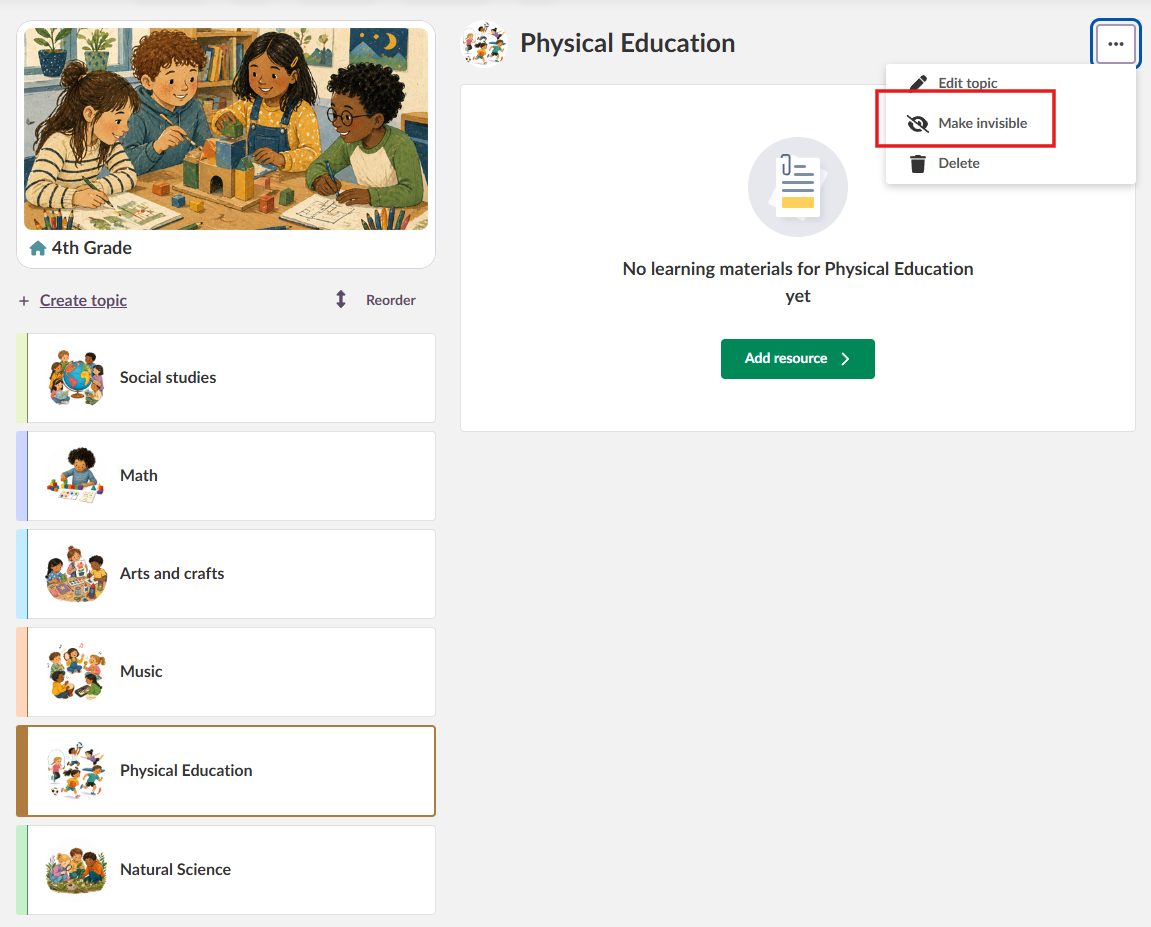
You can hide individual topics from students. To toggle visibility:
- Navigate to the topic.
- Select the three-dot options menu (…) in the upper right corner of the topic page.
- Select Make invisible to hide the topic, or Make visible to show it again.
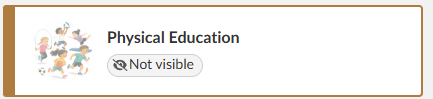
Hidden topics are marked as Not visible in the topic list and are not displayed to students.
3.5 Custom Topic Terminology
You can replace the default term "Topic" with a custom term, such as "Subject". To change the term:
- In the course navigation bar, select Plans.
- Select the three-dot options menu (…) in the upper right corner.
- Select Plan settings.
- In the Topic fields section, change the text from Topic to your preferred term.
- Select Save.
The custom term is applied across the course, including on the overview page.
4 Adding Resources to a Topic
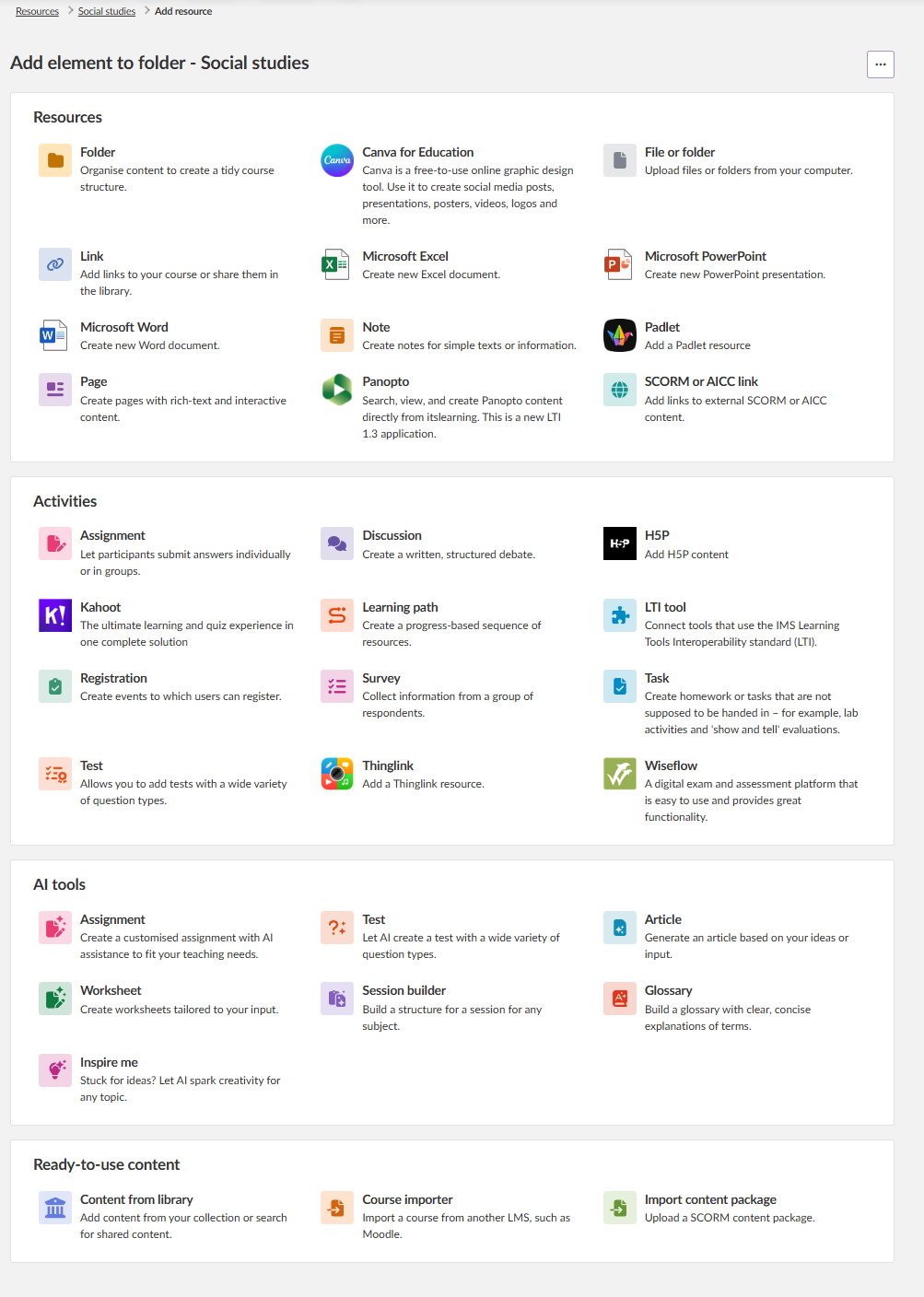
Resources and activities are added to individual topics. To add a resource or activity:
- In the left-hand panel, select the topic you want to add content to.
- Select Add resource.
- Select the resource or activity type from the list.
- Complete the creation form for the selected type and save.
The resource appears as a card in the topic. You can add multiple resources to a single topic.
5 Managing Resources
After resources have been added to a topic, you can reorder, hide, or delete them.
5.1 Reordering Resources
Resources within a topic can be reordered using either of the following methods:
| Method | How to use |
|---|---|
| Drag and drop | Press and hold the six-dot drag handle on any resource card, then move the card to the desired position. |
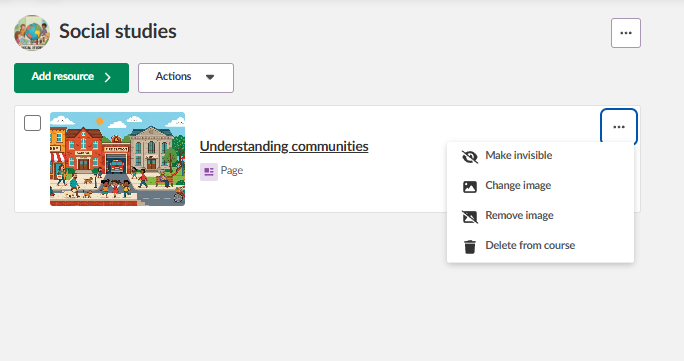
| Three-dot menu | Select the three-dot options menu (…) next to a resource and select Move up or Move down. |
The new order is reflected in the corresponding folder on the Resources page.
5.2 Visibility and Bulk Actions
To hide a single resource from students:
- Select the three-dot options menu (…) next to the resource.
- Select Make invisible.
To change visibility for multiple resources at once:
- Select the checkbox on each resource card you want to update.
- From the Actions dropdown menu, select Make visible or Make invisible.
Visibility changes are also reflected on the Resources page.
5.3 Deleting and Restoring Resources
To delete a resource from a topic:
- Select the three-dot options menu (…) next to the resource.
- Select Delete from course.
The resource is removed from the topic and moved to the trash can. To restore a deleted resource:
- In the course navigation bar, select Resources.
- Open the Trash can.
- Locate the deleted resource and restore it.
The resource is moved back to the topic it was removed from.
The three-dot menu for resources also includes the following options:
| Option | Description |
|---|---|
| Change image | Opens the image selector, allowing you to upload or select an image to display as a thumbnail on the resource card. |
| Remove image | Removes the thumbnail image from the resource. A confirmation dialog is displayed; select the red Remove button to confirm. |
6 Course Settings
Class courses have additional settings available under Course properties and features. To access these settings:
- In the course navigation bar, select the three-dot options menu (…) in the upper right corner.
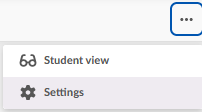
- Select Settings.
- Select Course properties and features.
6.1 Default Topic Presentation
You can set a default topic presentation mode for the entire course. In the Topic presentation section, select either Resources or Plans, then select Save.
When creating new topics, the selected default is pre-selected in the topic creation form. Existing topics are not affected by this change.
6.2 Show Resources Page to Students
By default, the Resources page is not visible to students in a Class course. To enable it:
- In the Functions section, enable the checkbox Show the Resources page to students.
- Select Save.
When enabled, students see a Resources link in the course menu.
6.3 Show or Hide Course Menu for Students
You can hide the entire course menu from students. To do this:
- In the Functions section, disable the checkbox Show course menu to students.
- Select Save.
When the course menu is hidden, students navigate using the topic panel and breadcrumbs only. Resources opened from a topic do not display the course menu.
7 Navigation
When a teacher opens a resource within a topic, the breadcrumb trail at the top of the page reflects the path within the Resources section (for example, Resources > Social studies > New survey). Following this breadcrumb does not return the teacher to the topic view. To return to the course overview, select Overview in the course navigation bar.
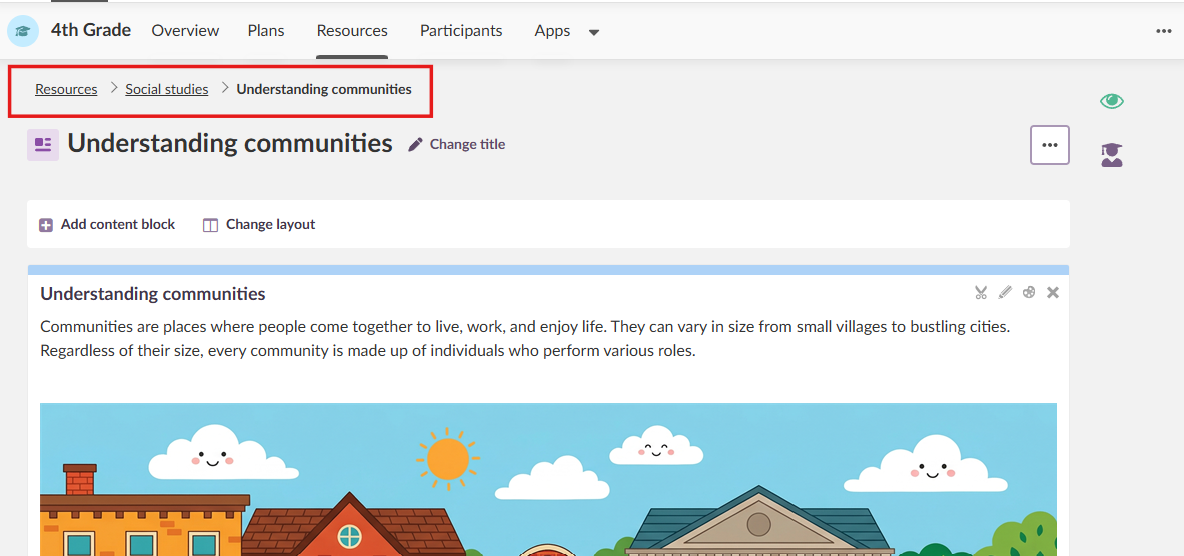
Note: For students, the breadcrumb trail navigates back to the topic they were working in.
8 Plans
The Plans tab in the course navigation bar provides an overview of all plans, organised by topic. The topic list shows each topic and the number of plans associated with it.
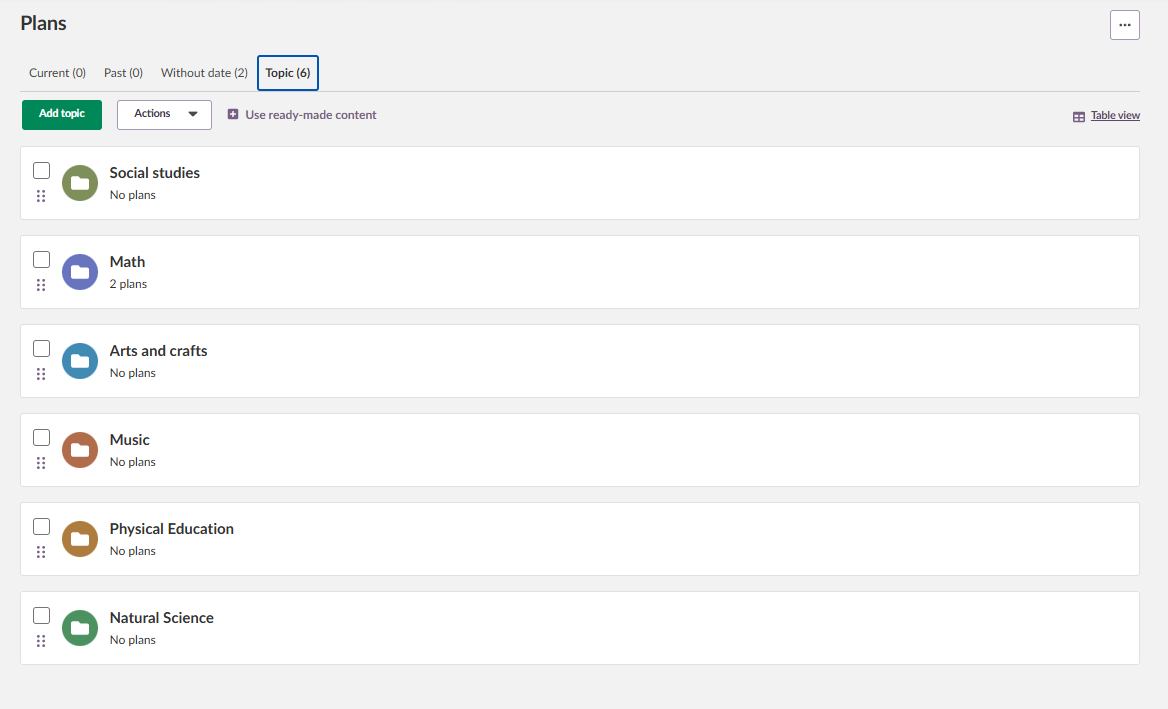
Selecting a topic in this view opens the topic folder. The topic folder displays plans where these are activated, or resources where that is the configured workflow.
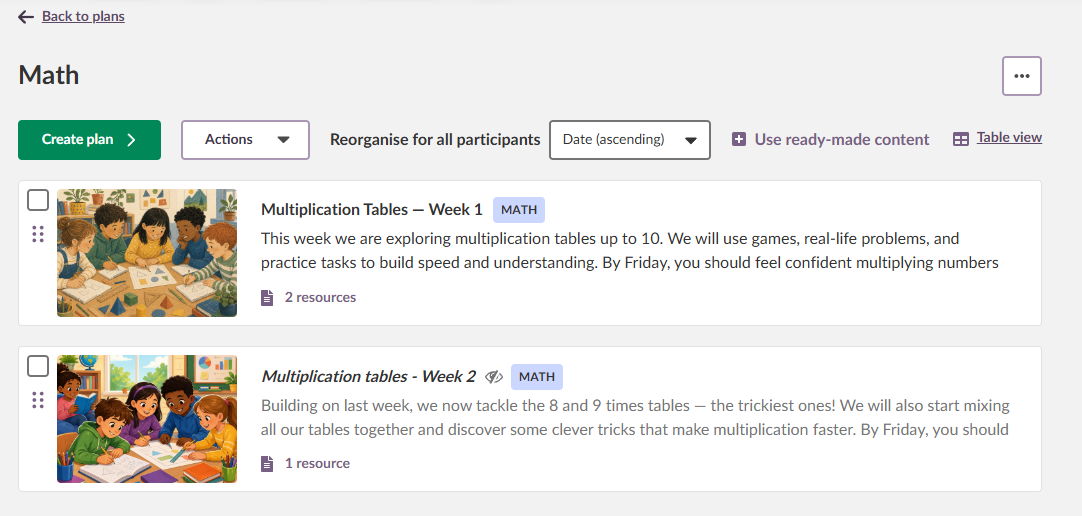
Plans can be reordered within a topic using drag and drop controls. You can also set images for individual plans using the image selector.
Note: A topic folder contains a Create plan option. Creating a plan from within a topic folder does not override the topic's Topic presentation setting. If the topic is configured to show resources, it will continue to display resources to students regardless of any plans created within the topic folder.
Note: The sorting options in the Plans tab (Current, Past, and Without date) are for teacher navigation only. The date and time settings on a plan do not control whether the plan is visible to students. Visibility in the learner view is controlled exclusively by the visibility toggle on each plan.
9 Announcements
The course overview page includes an announcements area where teachers can share updates with students. Announcements are displayed in the main area of the overview page, alongside the topic panel.
The announcements area is organised into three tabs:
| Tab | Content |
|---|---|
| Current | Announcements that are currently visible to students. |
| Scheduled | Announcements that have been scheduled for future posting. |
| Expired | Announcements that are no longer current. |
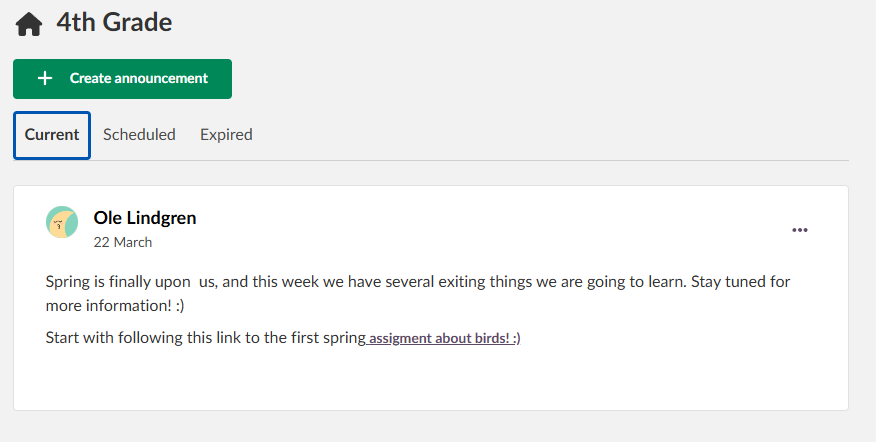
9.1 Creating an Announcement
To create an announcement:
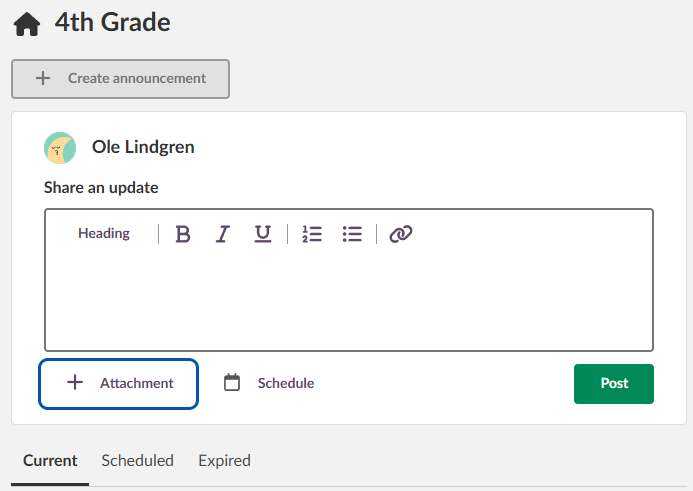
- On the course overview page, select the Create announcement button.
- In the announcement editor, enter your text. You can apply formatting using the editor toolbar.
- Select Post to publish the announcement immediately.
The announcement appears in the Current tab on the course overview page.
9.2 Attaching Resources to an Announcement
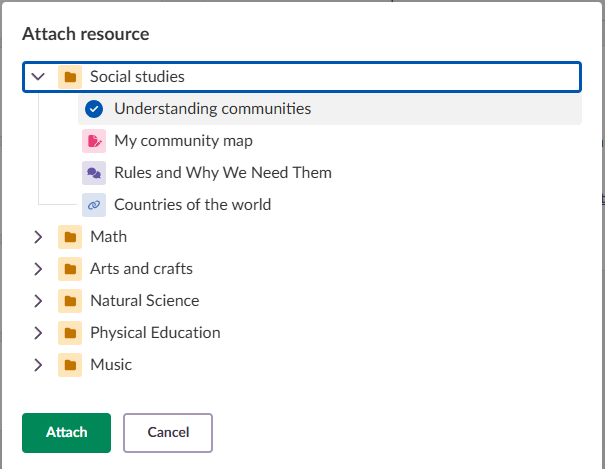
You can attach one or more resources to an announcement. To attach a resource:
- In the announcement editor, select the Attachment button beneath the editor.
- In the dialog that opens, select a resource from the list. The selected resource is marked with a checkmark.
- Select Attach to add the resource to the announcement.
The resource is added to the announcement as an element card. You can set an image for the attached resource using the image selector on the element card.
To attach additional resources, select the Attachment button again and repeat the steps above.
When you have finished, select Post to publish the announcement with its attachments.
9.3 Scheduling an Announcement
You can schedule an announcement to be posted at a future date and time. To schedule an announcement:
- In the announcement editor, enter your text and any attachments.
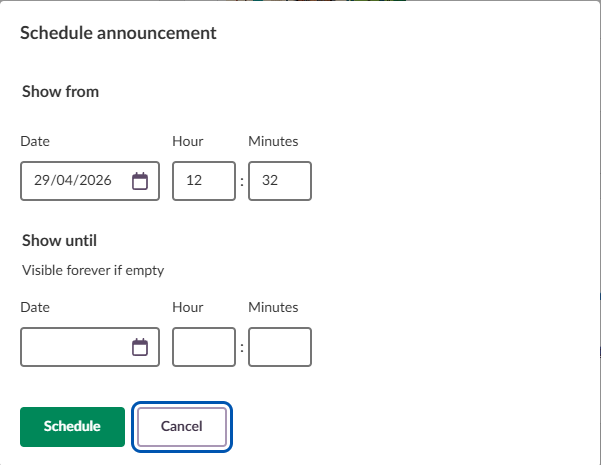
- Select the Schedule button to open the scheduling modal.
- In the modal, enter the date and time for the announcement to be posted.
- Select Schedule to confirm the scheduling details. The modal closes and an information banner is displayed showing when the announcement will be posted.
- Select Post to save the scheduled announcement.
The announcement editor closes. An information banner confirms that the announcement can be viewed in the Scheduled tab. To view scheduled announcements, select the Scheduled tab on the course overview page.
9.4 Managing Announcements
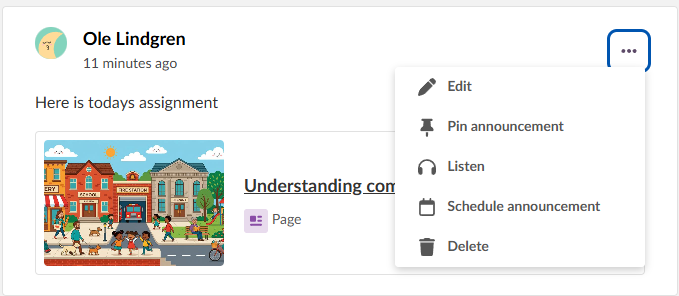
The following actions are available for managing announcements in a Class course:
| Action | Description |
|---|---|
| Pin announcement | Keeps the announcement at the top of the announcements list. |
| Edit | Edit the text, formatting, or attachments of an existing announcement. |
| Listen | Reads the announcement aloud using the listen function. |
| Schedule announcement | Schedules an existing announcement for future posting. See section 9.3 for details. |
| Delete | Removes the announcement from the course. |
10 Student View
You can preview how the course appears to students without leaving the course. To enter student view:
- In the course navigation bar, select the three-dot options menu (…).
- Select Student view.
A yellow warning banner is displayed at the top of the page indicating that you are viewing the course as a student. Topics marked as Not visible are hidden in this view. To exit student view, select the X button on the warning banner.
Note: If you enter student view while on a topic that is set to Not visible, the browser navigates to the overview page in teacher mode.
11 Participants
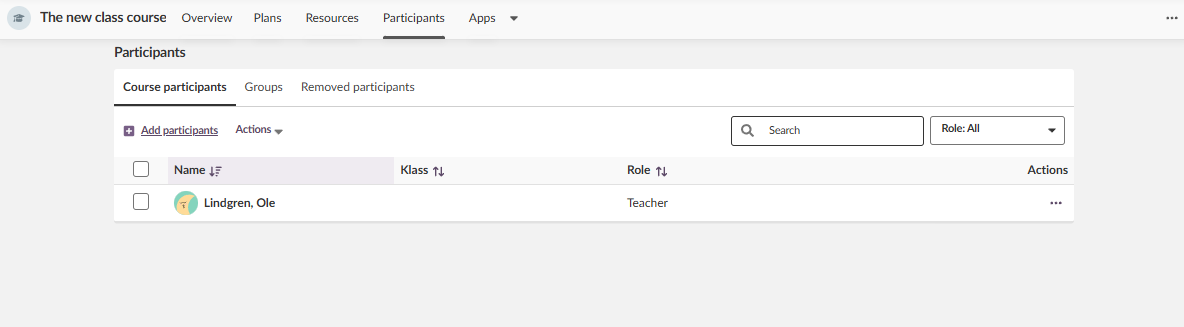
The Participants tab works in the same way as in other itslearning courses. From this tab you can view and manage course participants, groups, and removed participants.
More Help Resources
Have more questions? Please start with asking your school administrator.
Product Release notes
Stay updated with itslearning latest releases: https://itslearning.com/product-updates
Service Status
Check the current status of itslearning services: https://status.itslearning.com/
Ideas Portal
Share your ideas and help shape the future of itslearning: https://ideas.itslearning.com/
Roadmap
Check out our roadmap: https://itslearning.com/global/roadmap/
The features shown are part of the project within the framework of the German Development Project (GDP), a cooperation between four German states and itslearning with the aim of improving digital education in Germany through tailor-made product developments.
Click here to learn more about the GDP roadmap and what other features you can expect.
For German readers: Click here for more information about the project within the framework of the German Development Project.