The permission system - Admin and teacher guide
TABLE OF CONTENTS
- 1 Introduction
- 2 Prerequisites
- 3 Accessing Permissions
- 4 Understanding Permission Types
- 5 Changing Permissions for Roles and Groups
- 6 Viewing Permissions per Participant
- 7 Assigning Additional Permissions
- 8 Troubleshooting
1 Introduction
A permission system is the framework that controls who can access, view, and manage different parts of the platform. It defines roles such as Student, Teacher, and Guest, and assigns each role specific rights. For example, teachers may create and edit course content, whilst students can only view and submit assignments.
In December 2025, itslearning enhanced the permission system with updated accessibility design and streamlined workflows, making it easier for all users to manage permissions in a clear and efficient way. This update follows the same underlying logic as before but introduces a refreshed design.
2 Prerequisites
Before managing permissions, ensure the following:
• You have a Teacher or Course administrator role in the course
• You have access to the Resources section of the course
3 Accessing Permissions
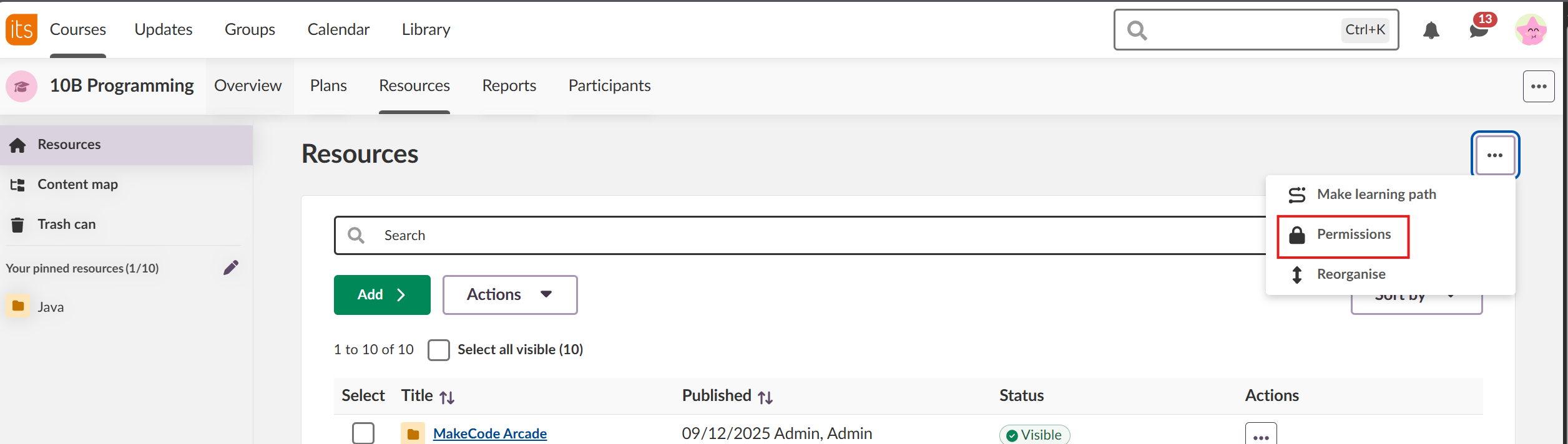
To access the Permissions settings for a course:
1. Navigate to your course.
2. Select Resources from the course menu.
3. Click the ellipsis (...) in the top right corner.
4. Select Permissions from the dropdown menu.
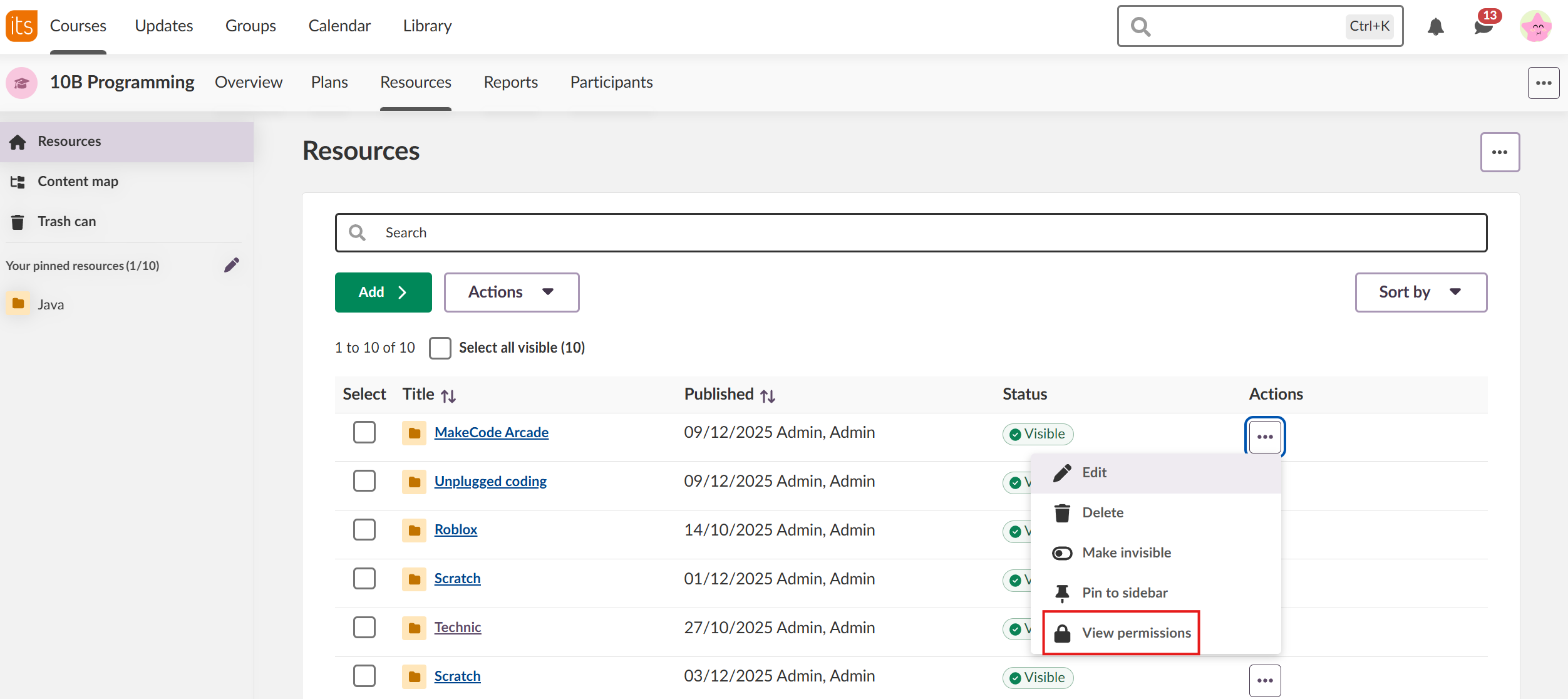
Note! You can access permissions for individual folders or resources by using the Actions button next to the status of the resource. The way permissions work are the same for both course and resource, but the scope of the permissions are different (course vs individual resource).
4 Understanding Permission Types
When you open Permissions, an explanatory banner provides an overview of how the permission system works. The following permission types are available:
Permission | Description |
Full control | Permission to manage folder permissions. Users with this permission can change who has access to the folder and its contents. |
Edit | Permission to edit the folder and its contents. |
Write | Permission to add elements to the folder, copy elements to and from the folder, and change the element sequence. |
Evaluate | This permission is not used by the folder directly. Elements added to this folder will inherit this permission. |
Participate | This permission is not used by the folder directly. Elements added to this folder will inherit this permission. |
Read | Permission to see the folder contents. Users can view but not modify the content. |
Note: The Evaluate and Participate permissions are inherited by elements within the folder. For example, if a test is added to a folder, the Participate permission determines who can take the test.
5 Changing Permissions for Roles and Groups
You can modify permissions for different roles (Teacher, Student, Guest) or groups. There are two methods to edit permissions:
5.1 Using the Actions Menu in permissions
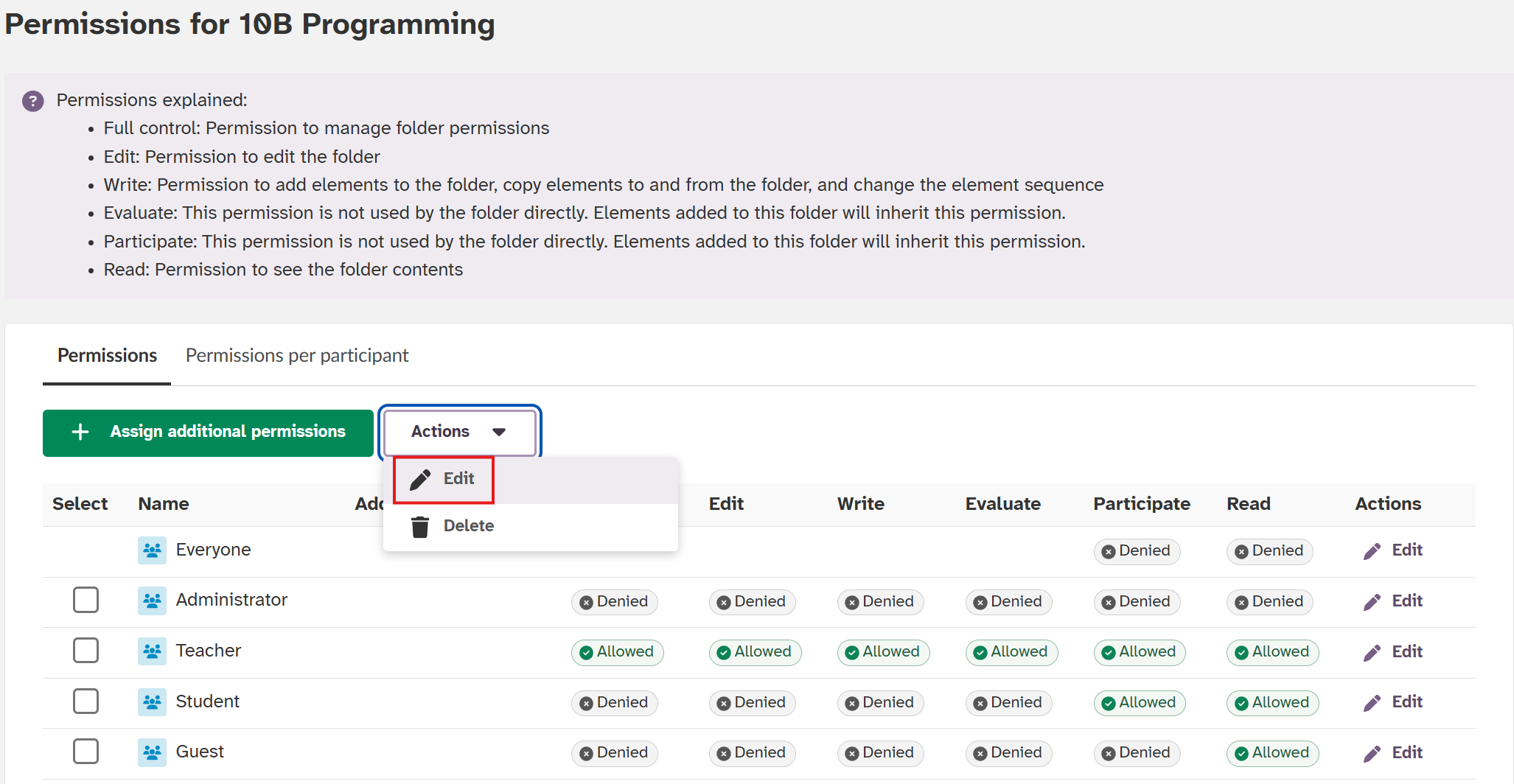
1. On the Permissions page, select the checkbox next to the role or group you wish to modify.
2. Click Actions in the toolbar.
3. Select Edit from the dropdown menu.
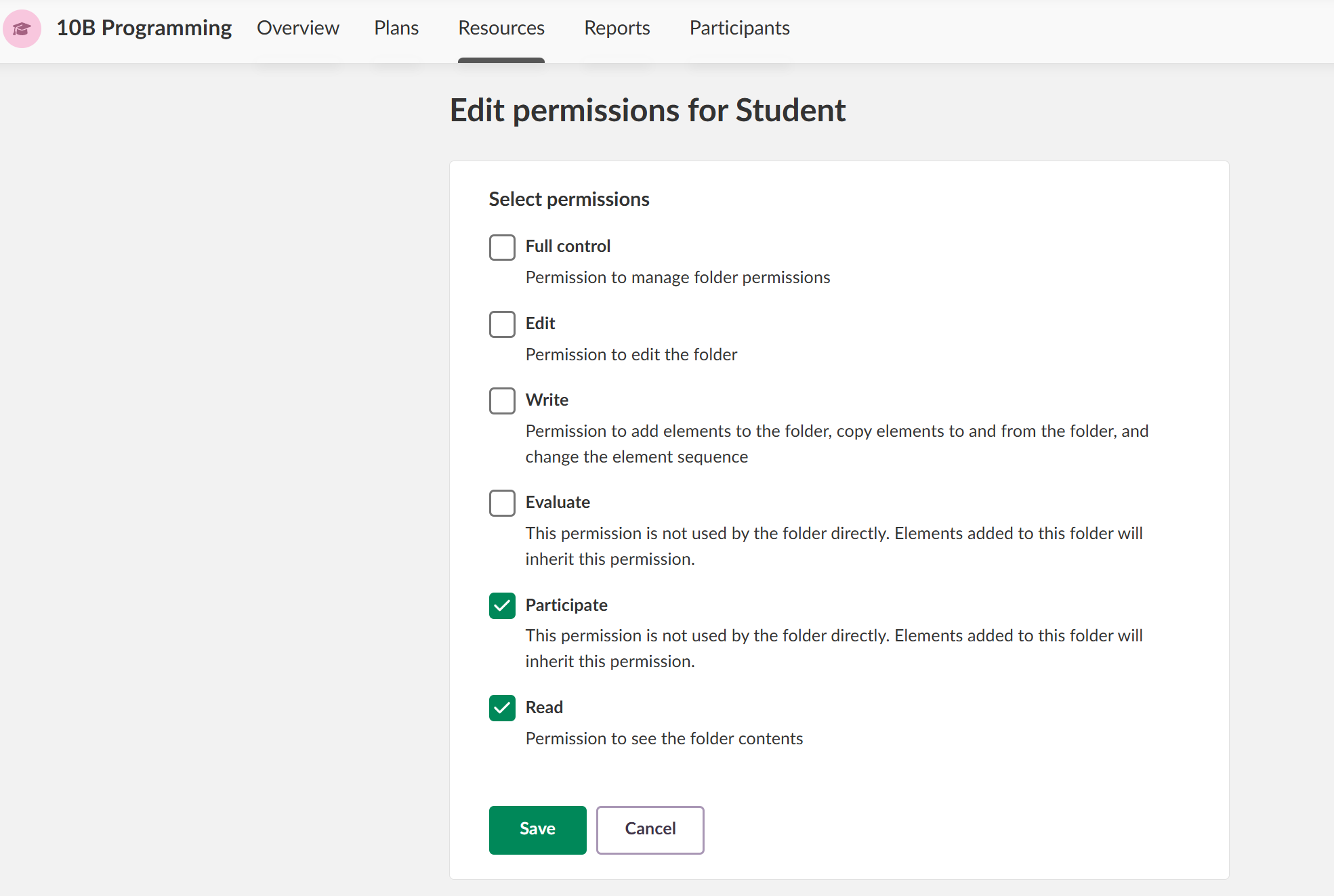
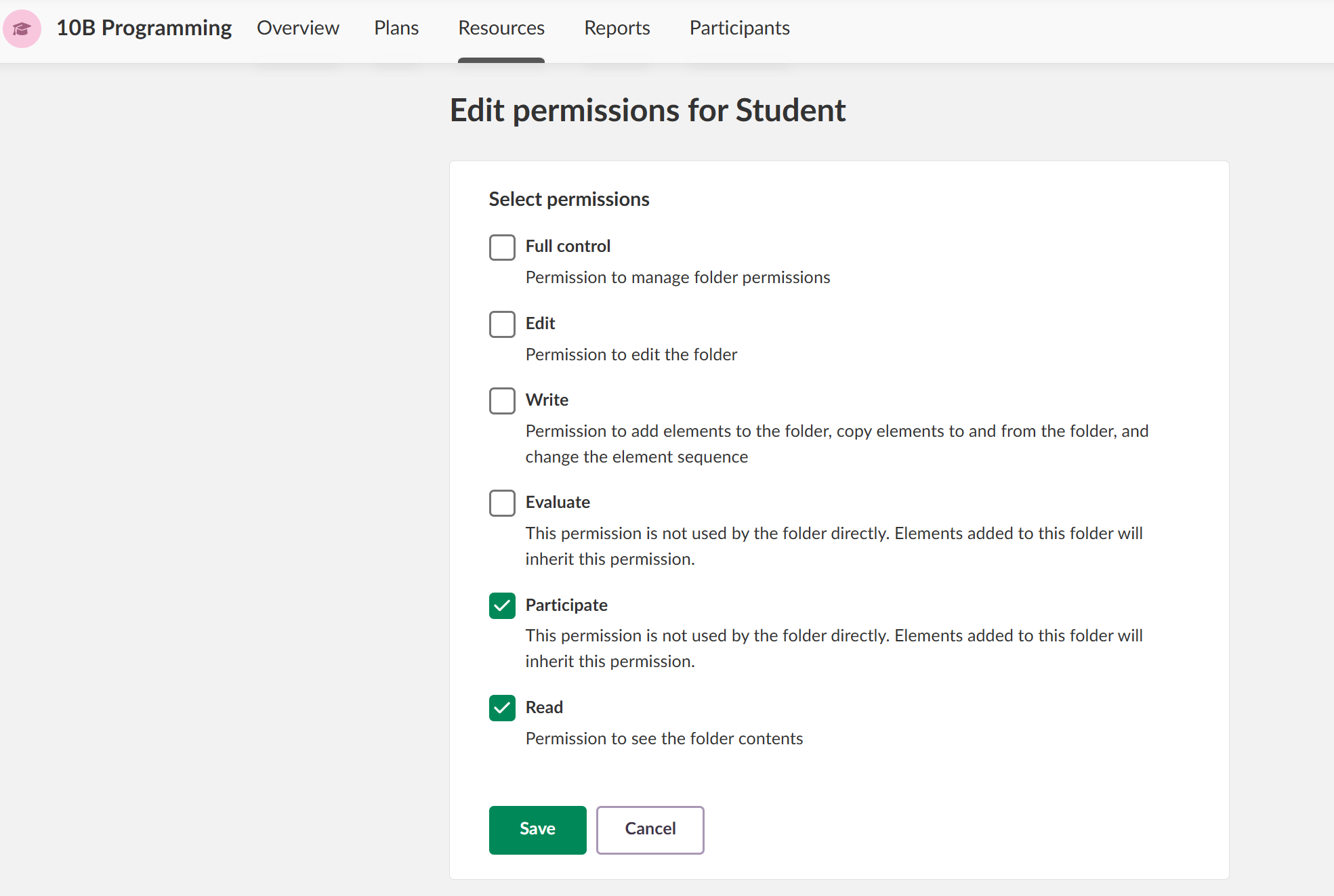
4. On the Edit permissions page, select or deselect the relevant permission checkboxes.
5. Click Save to apply your changes.
5.2 Using the Edit Button
1. On the Permissions page, locate the role or group you wish to modify.
2. Click the Edit button (pencil icon) next to the relevant entry.
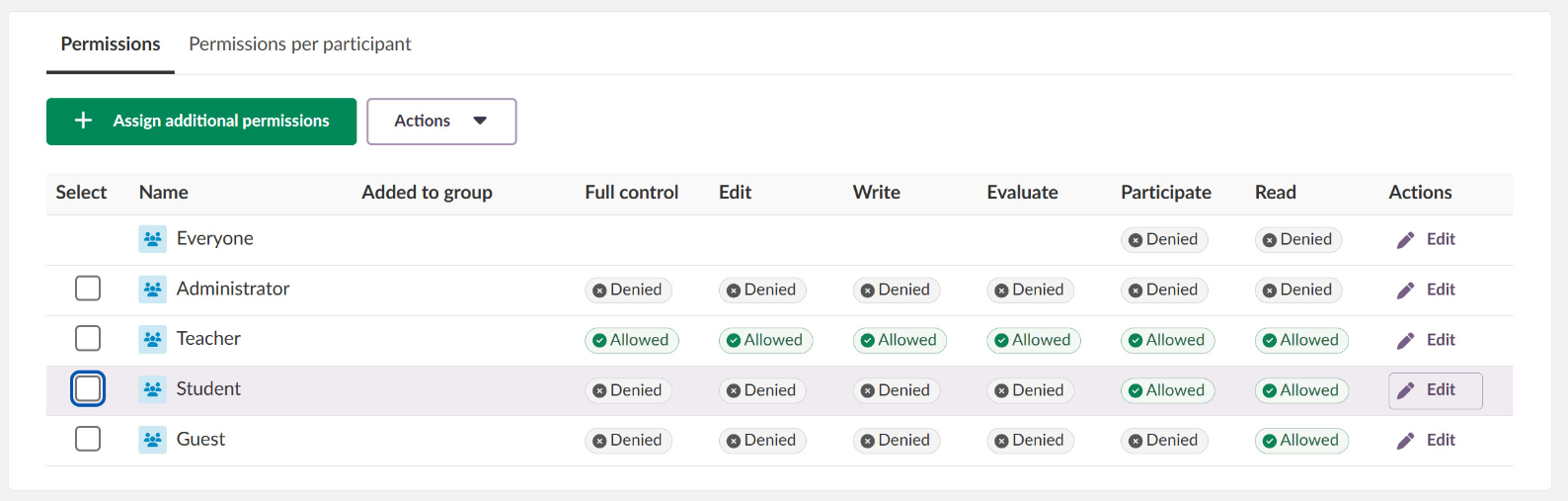
3. On the Edit permissions page, select or deselect the relevant permission checkboxes.
4. Click Save to apply your changes.
6 Viewing Permissions per Participant
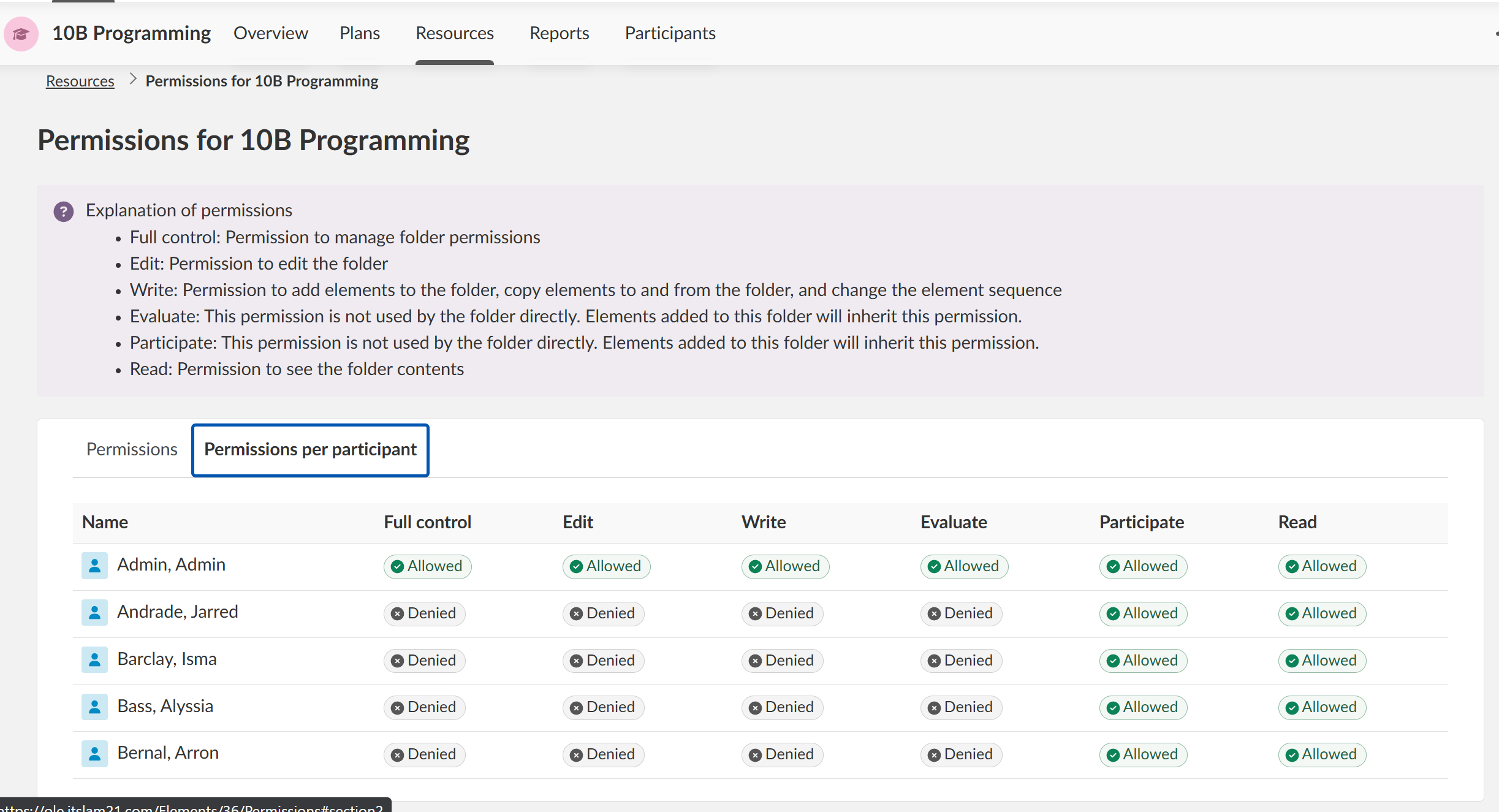
To see which permissions individual students and colleagues have in the course:
1. On the Permissions page, click Permission per participant.
2. A new page opens displaying a complete list of all students and colleagues in the course.
3. Review the permissions assigned to each participant.
7 Assigning Additional Permissions
To grant additional permissions to a specific student or group:
1. On the Permission page, click + Assign additional permissions.
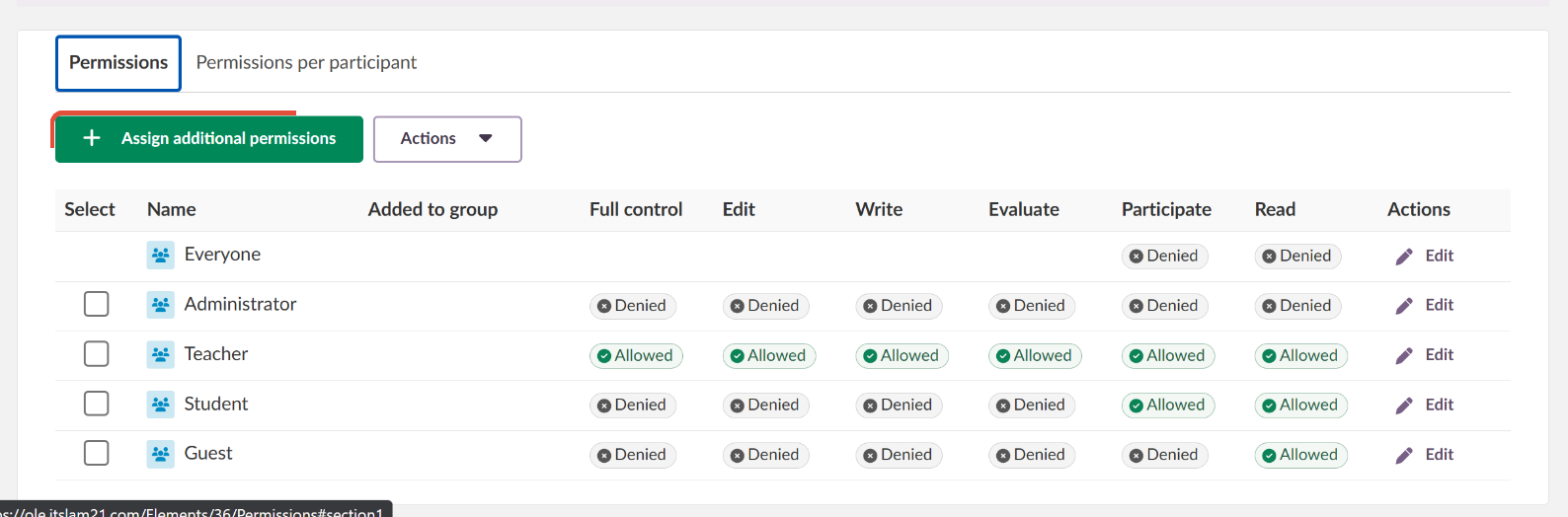
2. On the new page, use the search function to find the student or group.
3. Select the appropriate permissions for the student or group.
4. Click Save to apply the changes.
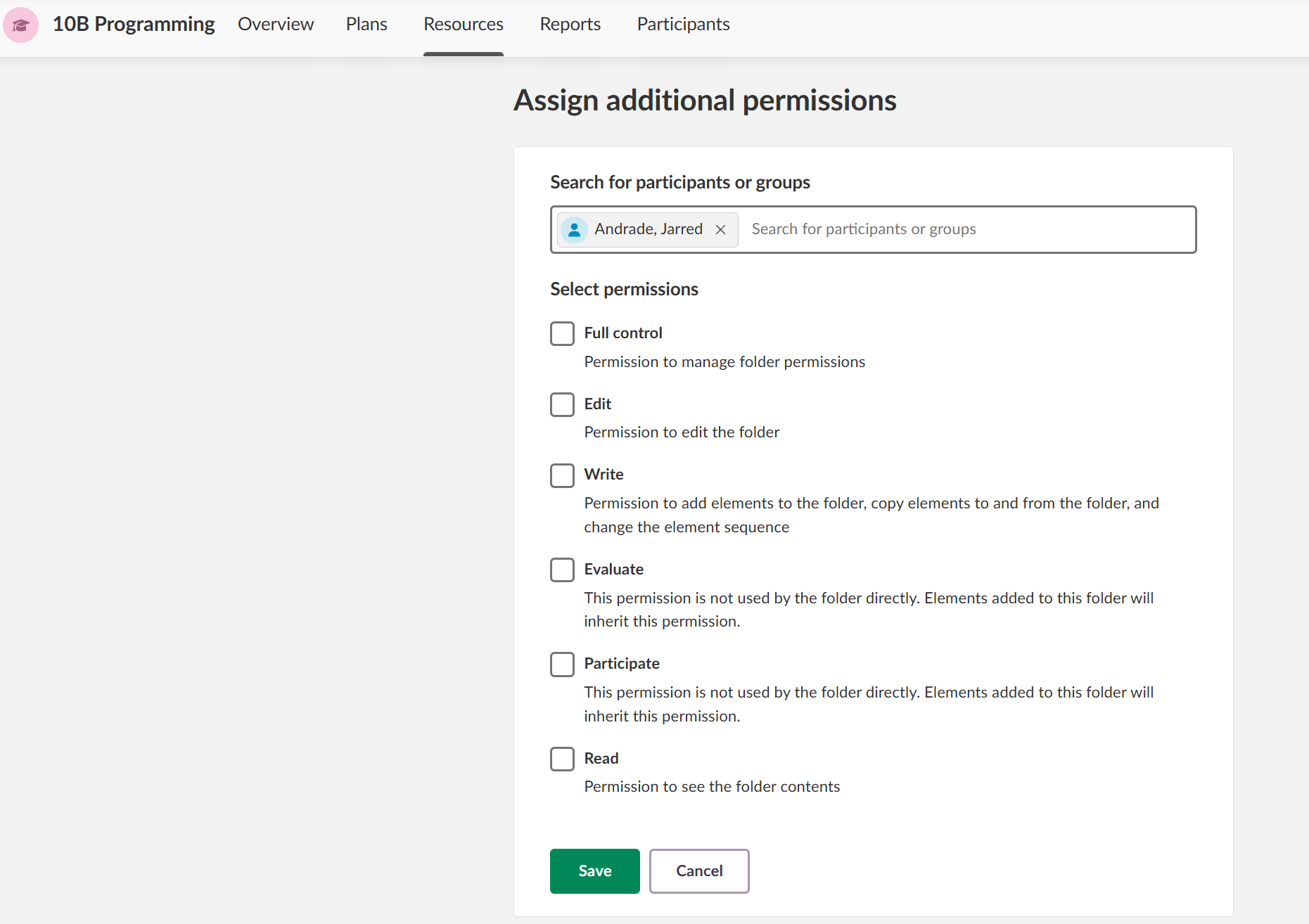
5. The person with increased permissions will show up on the permission page separately
Note the blue banner explaining permission conflicts. 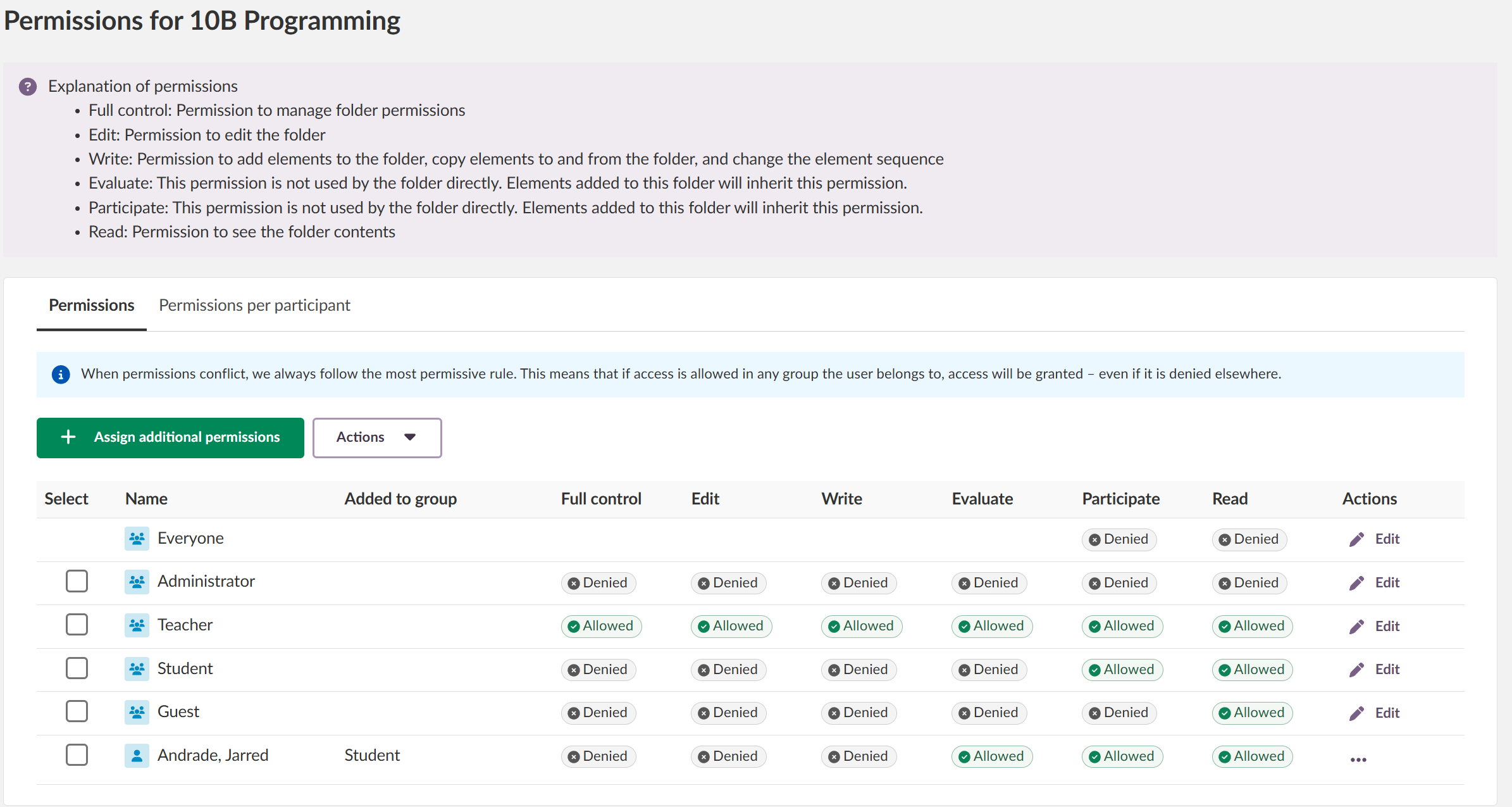
8 Troubleshooting
A participant cannot access course content
Symptoms: A student or colleague reports they cannot see or access specific content in the course.
Solution:
1. Navigate to Resources > ... > Permissions.
2. Click Permission per participant.
3. Locate the affected participant and verify their current permissions.
4. If necessary, click + Assign additional permissions to grant the required access.
A teacher cannot manage permissions
Symptoms: A teacher is unable to access or modify permission settings.
Solution:
1. Verify the teacher has the Full control permission for the relevant folder.
2. If not, a course administrator or another teacher with Full control must grant this permission.
Contact Support: For additional support, contact your itslearning administrator or visit the itslearning support pages
For unresolved issues, contact your itslearning Key Account Manager or support team with error messages and screenshots.
---------------------------------------
The features shown are part of the project within the framework of the German Development Project (GDP), a cooperation between four German states and itslearning with the aim of improving digital education in Germany through tailor-made product developments.
Click here to learn more about the GDP roadmap and what other features you can expect.
For German readers: Click here for more information about the project within the framework of the German Development Project.