Learning Objective Repository – Importing via XLSX (Sysadmin)
TABLE OF CONTENTS
- 1 Introduction
- 2 XLSX File Structure
- 3 Preparing the XLSX File
- 4 Importing the File
- 5 After Import
- 6 Download Example File
- 7 Technical Information
- 8 Troubleshooting
1 Introduction
Prerequisite: You must have the Learning objectives repository management permission at School or Site level to access the repository and perform imports.
You can create and import a complete learning objective repository structure using an XLSX file. This method is suitable for preparing large curriculum structures externally before uploading them to itslearning.
The import process consists of two stages: preparing the XLSX file with the correct structure, then uploading it through the Admin section.
1.1 Achievement levels (Assessment settings)
Before preparing Descriptor rows (see section 3.7), check how the assessment scale is configured for the course or courses where these learning objectives will be used. This scale is configured separately from the learning objective repository, and it determines how rubrics are displayed in a course.
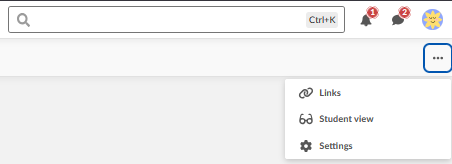
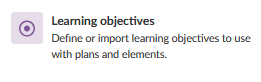
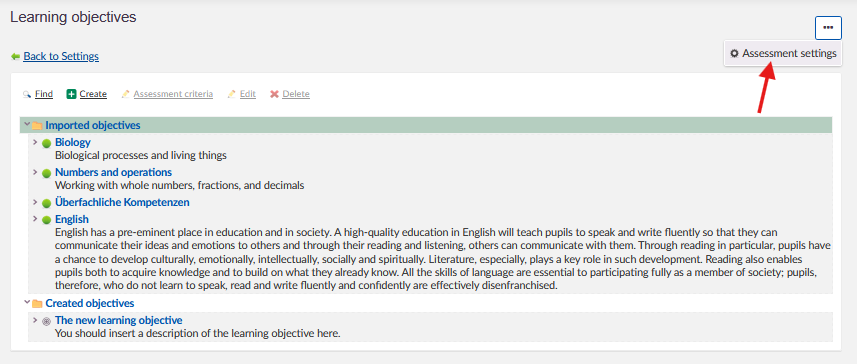
Where to find it: Course settings → Learning Objectives → Assessment settings → Achievement levels.
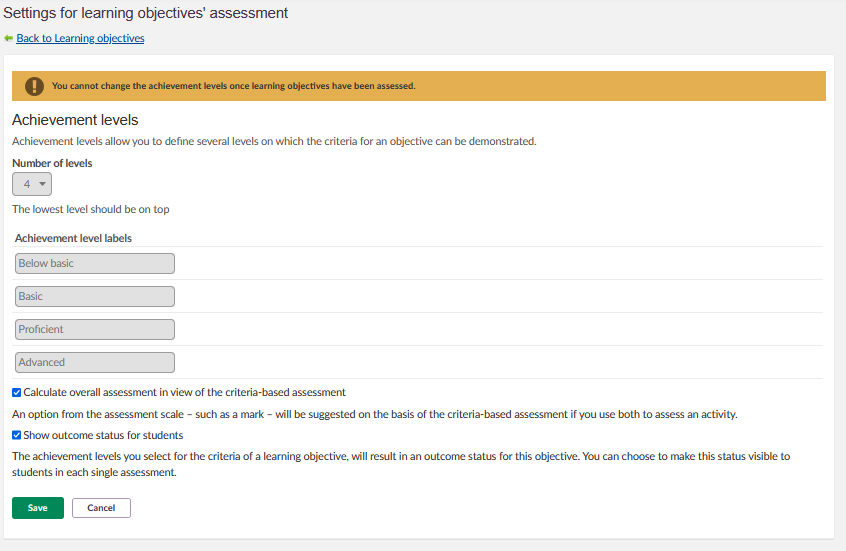
Here, an administrator or teacher defines:
- Number of levels – for example 4.
- Achievement level labels – the name shown for each level, ordered from the lowest to the highest. A common setup is Below basic, Basic, Proficient, Advanced.
Course settings:
Learning Objectives:
Assessment settings:
Achievement levels:
Important: Descriptors are matched to achievement levels by position, not by name. The first Descriptor under a Criterion corresponds to the lowest configured achievement level, the second descriptor to the next level, and so on. The Title you give a Descriptor (for example Low, Medium, High) does not need to match the achievement level labels (for example Below basic, Basic, Proficient, Advanced) – only the order and the count matter.
If a Criterion has fewer Descriptors than the configured number of achievement levels, the descriptors fill the highest levels first, and the lowest level or levels are left without a description. To make sure every level shows text, create one Descriptor for each configured achievement level, ordered from lowest to highest.
Achievement levels cannot be changed once learning objectives have been assessed using them. Confirm the assessment scale is configured the way you need before building or importing a large rubric structure.
2 XLSX File Structure
The XLSX file uses a hierarchical structure in which each row represents one element. The ParentID column links each element to its parent level in the hierarchy.
2.1 Required columns
The file must contain exactly the following five column headers in row 1. Header names are case-sensitive and must be typed exactly as shown.
| Column | Description | Required |
|---|---|---|
| ID | Unique identifier for the element | Yes |
| ParentID | ID of the parent element. Leave blank for root-level folders. | Yes (except root folder) |
| Title | Display name of the element | Yes |
| Description | Additional information about the element | No |
| Type | Element type. Accepted values: Folder, Subject, Category, LO, Criterion, Descriptor | Yes |
Note: The maximum file size is 10 MB. Only XLSX format is accepted.
2.2 Element types
Each row in the file must be assigned one of the following six element types. The type determines the hierarchy level and which parent elements are valid.
| Type | Description | ParentID must reference |
|---|---|---|
| Folder | Organises subjects by educational level (e.g. Primary, Secondary) | Leave blank (root level) |
| Subject | Contains learning objectives for a specific subject (e.g. Mathematics, English) | A Folder ID |
| Category | Organises learning objectives within a subject (e.g. Year 3, Addition) | A Subject ID or another Category ID |
| LO | The actual learning objective | A Subject ID or Category ID |
| Criterion | Assessment criterion for a learning objective (optional) | An LO ID |
| Descriptor | Performance level description for a criterion (optional) | A Criterion ID |
3 Preparing the XLSX File
3.1 Set up the spreadsheet
- Open Excel or another spreadsheet application.
- Create a new sheet.
- Add the following column headers in row 1, exactly as shown:
ID | ParentID | Title | Description | TypeImportant: Column headers are case-sensitive. Incorrect spelling or capitalisation will cause the import to fail.
3.2 Add a root folder
- In row 2, add your top-level folder.
- Leave the ParentID column blank.
- Set Type to Folder.
- Enter a unique ID and a descriptive Title.
Example:
| ID | ParentID | Title | Description | Type |
|---|---|---|---|---|
| MAT | Mathematics | Mathematics curriculum structure | Folder |
3.3 Add subjects
- Add one row for each subject.
- Set ParentID to the ID of the parent folder (e.g. MAT).
- Set Type to Subject.
- Use short, unique IDs (e.g. MAT_NUM).
- Enter a descriptive title (e.g. Numbers and operations).
Example:
| ID | ParentID | Title | Description | Type |
|---|---|---|---|---|
| MAT_NUM | MAT | Numbers and operations | Working with whole numbers, fractions, and decimals | Subject |
3.4 Add categories (optional)
Categories organise learning objectives within subjects. Categories can be nested within other categories to create deeper structures.
- Add a row for each category.
- Set ParentID to the relevant subject ID or parent category ID.
- Set Type to Category.
- Enter a descriptive title (e.g. Year 3, Calculation).
Example:
| ID | ParentID | Title | Description | Type |
|---|---|---|---|---|
| MAT_NUM.3 | MAT_NUM | Working with whole numbers | Year 3 number objectives | Category |
3.5 Add learning objectives
- Add a row for each learning objective.
- Set ParentID to the relevant subject ID or category ID.
- Set Type to LO.
- Enter a clear, specific title describing the skill or knowledge.
Example:
| ID | ParentID | Title | Description | Type |
|---|---|---|---|---|
| MAT_NUM.3_CALC_1 | MAT_NUM.3 | Add and subtract within 1000 | LO |
3.6 Add criteria (optional)
Criteria define assessment standards for learning objectives. Add criteria only if you use rubrics in your assessments.
- Add a row under the relevant learning objective.
- Set ParentID to the learning objective ID.
- Set Type to Criterion.
- Enter a short title describing what is being assessed.
Example:
| ID | ParentID | Title | Description | Type |
|---|---|---|---|---|
| MAT_NUM.3_CALC_1_CRIT | MAT_NUM.3_CALC_1 | Strategy use | Criterion |
3.7 Add descriptors (optional)
Descriptors define performance levels for each criterion. Add one descriptor row for each performance level in your rubric.
Before you start: Check how many achievement levels are configured under Course settings → Learning Objectives → Assessment settings (see section 1.1). Create exactly one Descriptor row per configured level, ordered from lowest to highest, so that every level in the rubric receives a description after import.
- Add a row for each performance level.
- Set ParentID to the criterion ID.
- Set Type to Descriptor.
- In Title, enter the level name (e.g. Low, Medium, High).
- In Description, enter a detailed explanation of what performance at this level looks like.
Important: List the lowest performance level first. itslearning expects descriptors ordered from lowest to highest, and matches them to the configured achievement levels in that order (see section 1.1).
Example:
| ID | ParentID | Title | Description | Type |
|---|---|---|---|---|
| MAT_NUM.3_CALC_1_DESC1 | MAT_NUM.3_CALC_1_CRIT | Low | Frequently makes calculation errors and needs significant support to complete the procedure | Descriptor |
The completed file should look like this:

4 Importing the File
- Save your spreadsheet as an XLSX file.
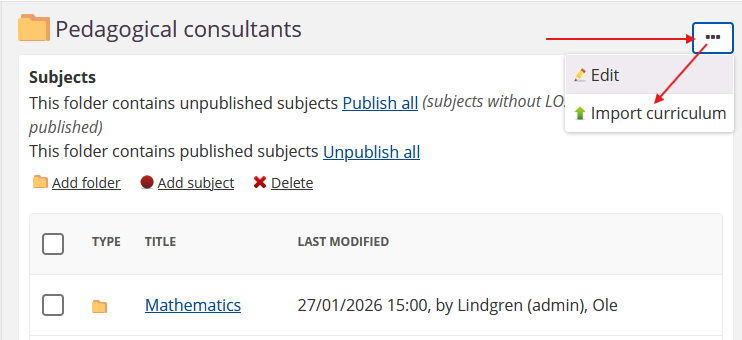
- In itslearning, navigate to Admin → Learning objective repository.
- Select the appropriate school or site repository.
- Click Import curriculum.
- Click Browse and select your XLSX file.
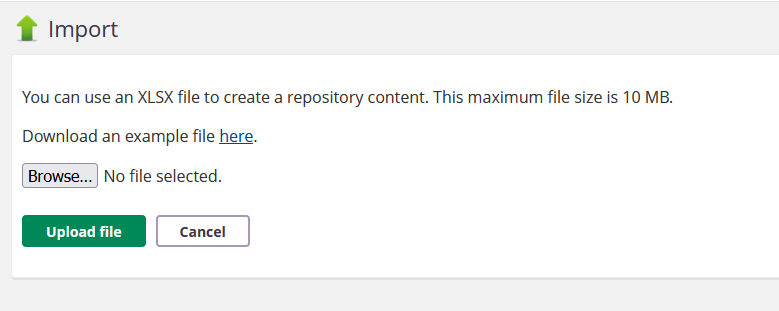
- Click Upload file.
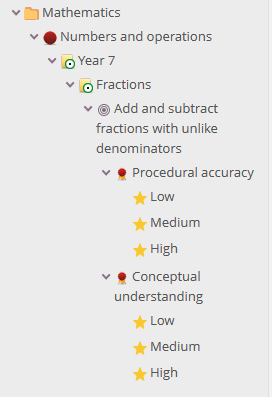
- Review the repository tree to verify all elements imported correctly.
5 After Import
Once the import is complete:
- All folders, subjects, categories, and learning objectives appear in the repository tree.
- Subjects display as unpublished (red icon) until you publish them.
- You can edit or extend the structure using the standard interface.
- The repository is available to teachers once subjects are published.
6 Download Example File
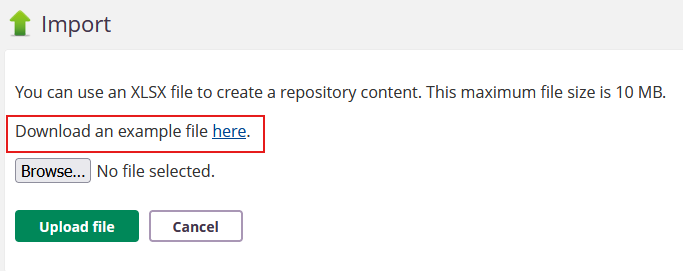
An example XLSX file is available in the import interface. Click the here link under "Download an example file" to access a correctly formatted template.
7 Technical Information
| Topic | Details |
|---|---|
| Local repository scope | Local repository learning objectives do not sync across sites and cannot be shared with the global community. |
| Course synchronisation | When structures change, updates synchronise overnight for learning objectives already added to courses. |
| My Library integration | Learning objectives can be used in My Library searches. |
| Achievement levels | The number and labels of achievement levels are configured under Course settings → Learning Objectives → Assessment settings, independently of the repository. Imported Descriptors are matched to these levels by position, lowest first. See section 1.1. |
8 Troubleshooting
Descriptor text is missing or appears under the wrong achievement level
Symptoms: When a learning objective's rubric is displayed in a course, one or more achievement levels show no descriptor text, or a descriptor's text appears under a different level than intended.
Cause: The number of Descriptor rows for a Criterion does not match the number of achievement levels configured under Course settings → Learning Objectives → Assessment settings. Descriptors are matched to achievement levels by position, lowest first. If there are fewer descriptors than configured levels, the lowest level or levels are left without text.
Solution:
- Check Course settings → Learning Objectives → Assessment settings → Achievement levels to find the configured number of levels.
- Edit the Criterion in the repository, or update the XLSX file and re-import, so that it has exactly one Descriptor for each achievement level, ordered from lowest to highest.
Prevention: Confirm the achievement level configuration (see section 1.1) before preparing Descriptor rows, and design each Criterion's rubric to match the configured number of levels.
Subject does not appear when adding objectives to a course
Symptoms: The subject list is empty or expected subjects are missing when adding objectives to a course.
Cause: The subject is not published, or it belongs to a different repository level.
Solution:
- Open the repository.
- Verify that the subject displays a green published icon.
- Confirm the user is connected to the correct school or site.
Prevention: Publish subjects immediately after creating learning objectives.
Cannot access the repository from the Admin section
Symptoms: The "Learning objective repository" link does not appear in the Admin section.
Cause: The user does not have the Learning objectives repository management permission.
Solution:
- Edit the user profile or policy.
- Enable Learning objectives repository management at School or Site level.
Prevention: Assign this permission during onboarding for all curriculum-responsible profiles.