
TABLE OF CONTENTS
- 1 Overview & Introduction
- 2 Prerequisites & Requirements
- 3 Accessing the Settings
- 4 Understanding the Settings Page
- 5 Step-by-Step: Configure Learning Objective Report Settings
- 6 Example Configuration
- 7 Troubleshooting
- 8 Related Features
1 Overview & Introduction
Learning objective reports allow administrators and teachers to monitor how students perform against defined learning objectives. As a system administrator, you configure the organisational rules that determine how mastery is calculated, which assessment-outcome statuses are used, how often mastery must be demonstrated, and which achievement levels are available. These settings apply to all learning objective reports within an organisation, including progress reports, alignment reports, and aggregated reports.
Settings are configured per organisation (school). One organisation holds the Default settings, which all other organisations inherit automatically. Other organisations can either continue using the default settings or define their own custom configuration by clicking Define new in the organisation overview.
2 Prerequisites & Requirements
- System administrator permissions are required.
- Learning objectives must be enabled and available within the organisation.
- Teachers cannot override these organisational settings; they apply the configured rules within their courses.
3 Accessing the Settings
Log in as a system administrator.
Open Administration from the top menu.
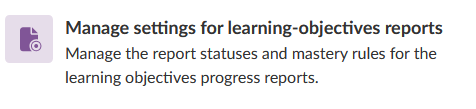
Select Manage settings for learning-objectives reports. The menu item description reads: "Manage the report statuses and mastery rules for the learning objectives progress reports."
The organisation overview page opens. The page title is Manage settings for learning-objectives reports. A Back to Administration link is available at the top of the page. The page displays a table with the following columns:
Column Description Organisation The name of the organisation. Clickable if custom settings have been defined. Status Shows Default for the organisation that defines the default settings, or Using default for organisations that inherit those settings. Last edited Date and time of the last change (displayed as DD/MM/YYYY HH:MM). Last edited by The name of the system administrator who last edited the settings. Organisations with the status Using default display a Define new link in the Status column. Organisations with the status Default display the organisation name as a clickable link.
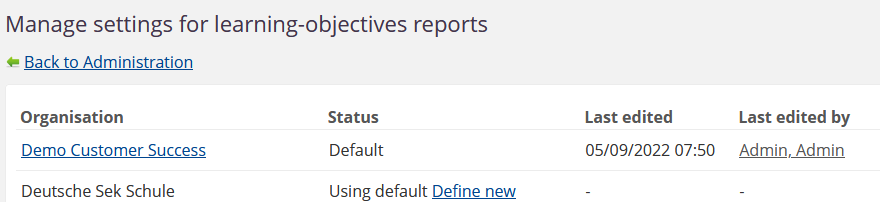
To edit the default settings, click the organisation name of the organisation with the Default status.
To create custom settings for another organisation, click Define new next to that organisation.
To return to Administration, click Back to Administration at the top of the page.
4 Understanding the Settings Page
The settings page contains several sections. Each is described below, matching the order in which they appear on the page.
4.1 Mastery
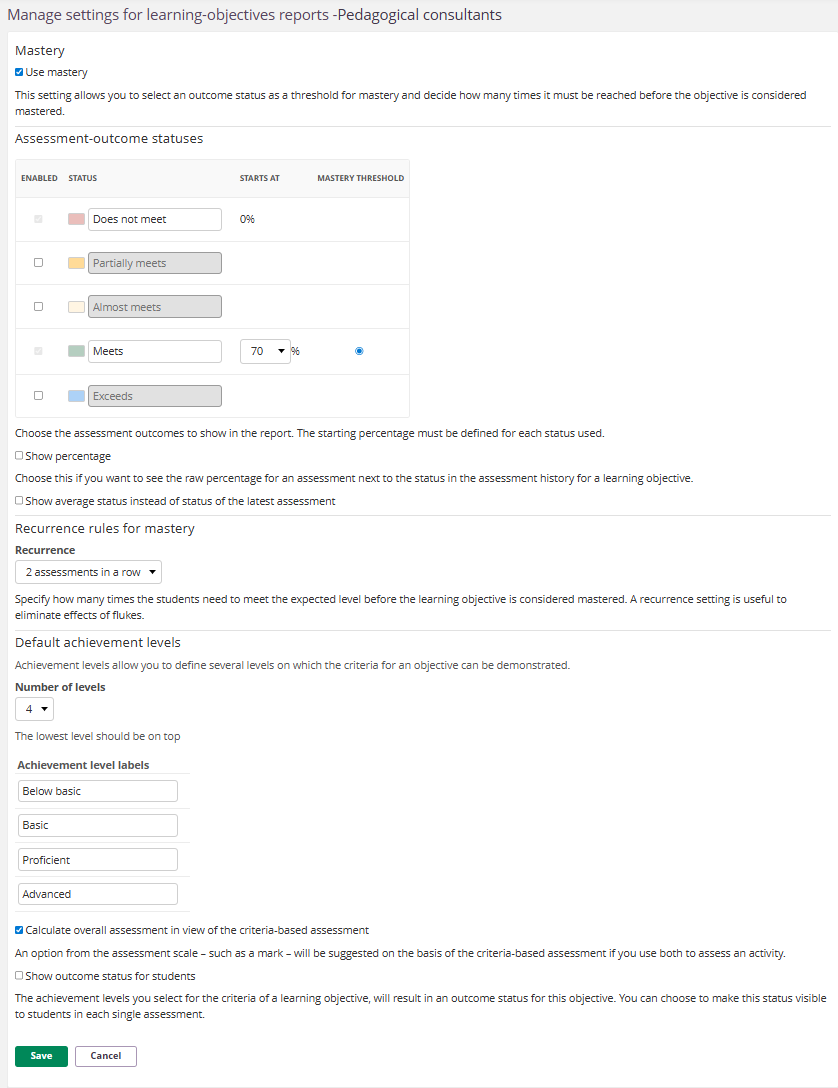
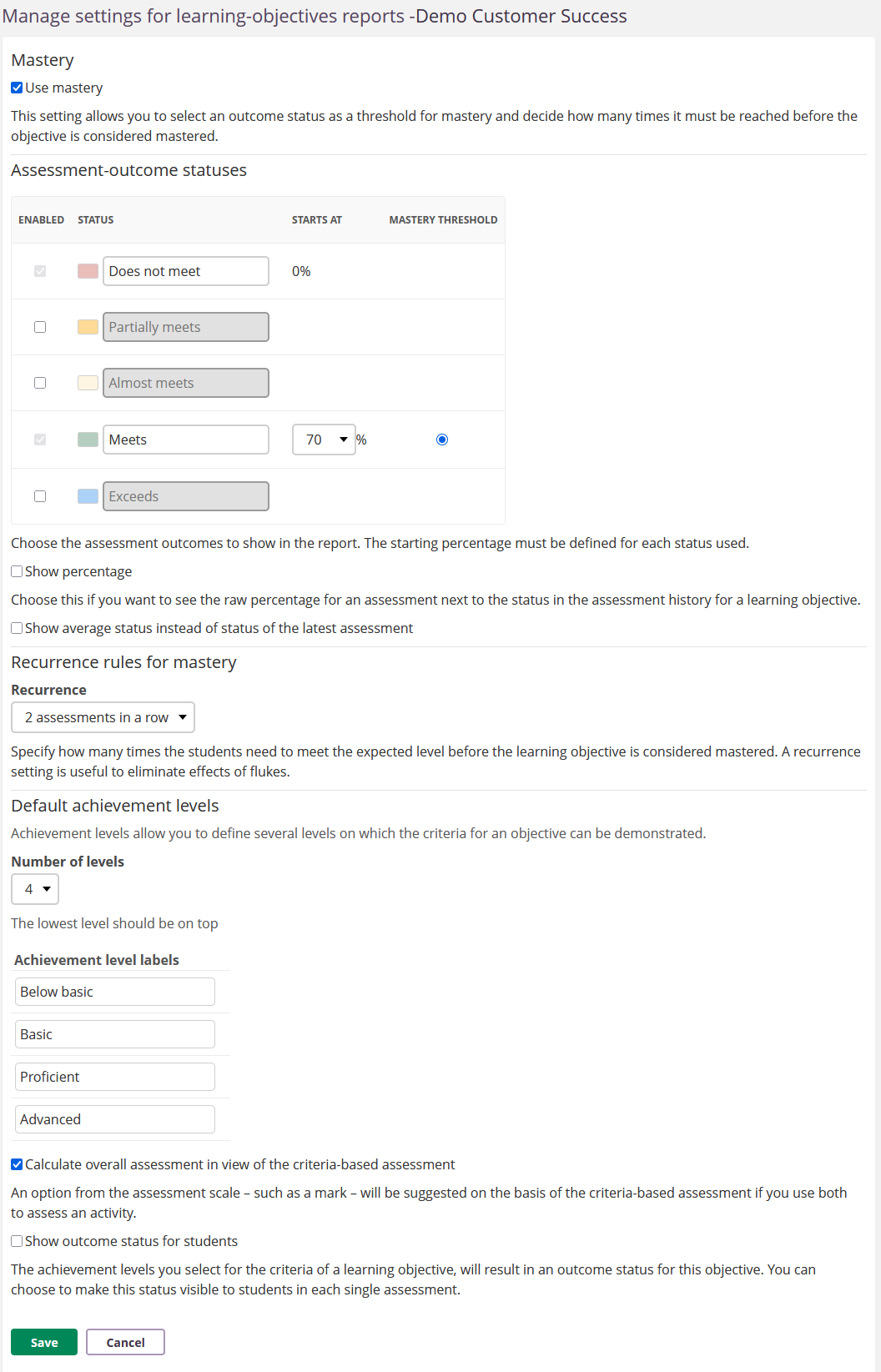
The Use mastery checkbox enables or disables mastery tracking for the organisation. When enabled, you can select an assessment-outcome status as the mastery threshold and define how many times it must be reached.

4.2 Assessment-outcome statuses
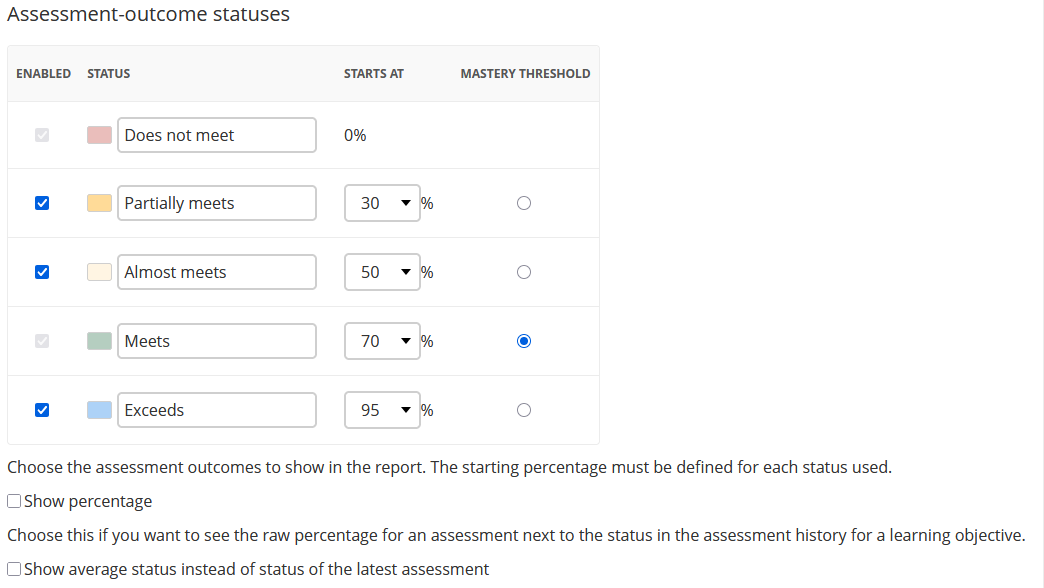
This section contains a table with four columns:
| Column | Description |
|---|---|
| Enabled | Checkbox to include or exclude a status from learning objective reports |
| Status | The name of the assessment-outcome status (editable text fields) |
| Starts at | The starting percentage for the status. A percentage must be defined for each enabled status |
| Mastery threshold | A radio button to select which status serves as the mastery threshold |
The on-screen description reads: "Choose the assessment outcomes to show in the report. The starting percentage must be defined for each status used."
Important: The mastery threshold button is only available for enabled statuses that have a starting percentage defined.
Show percentage
A checkbox option. When selected, the raw percentage for an assessment is displayed next to the status in the assessment history for a learning objective. The raw percentage is the original percentage score calculated for an assessment before it is mapped to an assessment outcome status. When “Show percentage” is enabled, this value appears next to the status in the learning objective’s assessment history.
Show average status instead of status of the latest assessment
A checkbox option. When selected, reports display the average status calculated across all assessments rather than showing only the most recent assessment status.
4.3 Recurrence rules for mastery
The Recurrence dropdown specifies how many times a student must meet the mastery threshold before the learning objective is considered mastered. This setting helps eliminate the effects of flukes.

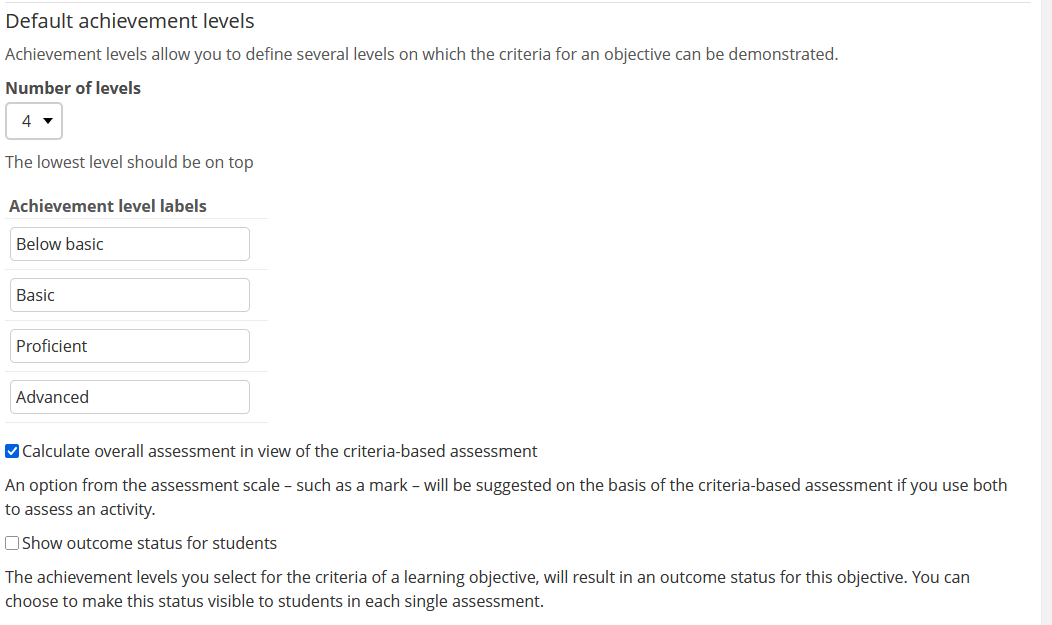
4.4 Default achievement levels
Achievement levels define the categories on which criteria for an objective can be demonstrated. You configure:
- Number of levels – Select the number of achievement levels from the dropdown.
- Achievement level labels – Text fields for each level name. The lowest level should be listed at the top.
The on-screen description reads: "Achievement levels allow you to define several levels on which the criteria for an objective can be demonstrated."
By default, four levels are available: Below basic, Basic, Proficient, and Advanced (from lowest to highest).
4.4.1 Calculate overall assessment in view of the criteria-based assessment
A checkbox option. When enabled, an option from the assessment scale (such as a mark) is suggested on the basis of the criteria-based assessment, if both assessment methods are used to assess an activity.
4.4.2 Show outcome status for students
A checkbox option. The achievement levels selected for the criteria of a learning objective result in an outcome status for that objective. When enabled, this status is visible to students in each single assessment.
5 Step-by-Step: Configure Learning Objective Report Settings
- Open Administration from the top menu.
- Select Manage settings for learning-objectives reports.
- To edit the default settings, click the organisation name of the organisation with the Default status. To create custom settings for another organisation, click Define new next to that organisation.
- Tick Use mastery to enable mastery tracking.
- In the Assessment-outcome statusestable:
- Tick the Enabled checkbox for each status you want to include in reports.
- Edit the Status names if needed.
- Enter the starting percentage for each enabled status.
- Select the Mastery threshold radio button next to the status that should represent mastery.
- Tick or clear Show percentage depending on whether you want raw percentages displayed in assessment history.
- Tick or clear Show average status instead of status of the latest assessment to choose between average and latest assessment display.
- Under Recurrence rules for mastery, select the number of times the mastery threshold must be met from the Recurrence dropdown.
- Under Default achievement levels:
- Select the Number of levels.
- Edit the Achievement level labels. List the lowest level at the top.
- Tick or clear Calculate overall assessment in view of the criteria-based assessment as appropriate.
- Tick or clear Show outcome status for students to control student visibility.
- Click Save.
6 Example Configuration
The following example shows how the settings work together:
The organisation uses five assessment-outcome statuses. "Does not meet" and "Meets" are enabled. "Does not meet" starts at 0% and "Meets" starts at 70%. The mastery threshold is set to "Meets", meaning students must reach at least the "Meets" status for a learning objective to count towards mastery.
Recurrence is set to "2 assessments in a row", so a student must achieve "Meets" or higher on two consecutive assessments before the learning objective is considered mastered.
Four achievement levels are configured: Below basic, Basic, Proficient, and Advanced (lowest to highest).
"Calculate overall assessment in view of the criteria-based assessment" is enabled, so teachers who use both criteria-based and scale-based assessment receive a suggested mark based on the criteria results.
7 Troubleshooting
Mastery not displaying in reports
Symptoms: Teachers cannot see mastery indicators in learning objective reports. Cause: "Use mastery" may be disabled in the organisation settings. Solution:
- Open Manage settings for learning-objectives reports.
- Select the relevant organisation.
- Tick Use mastery.
- Verify that a mastery threshold status is selected and has a starting percentage.
- Click Save.
Prevention: Verify settings after system updates or changes to organisation structure.
Incorrect mastery calculation
Symptoms: Students appear "mastered" too early or not at all. Cause: The recurrence setting or mastery threshold does not match the organisational policy. Solution:
- Review the Recurrence dropdown value.
- Confirm the correct status is selected as the Mastery threshold.
- Check the starting percentage for the selected status.
- Click Save.
Prevention: Document the organisational mastery policy and align settings accordingly.
Organisation still using default settings after changes
Symptoms: Changes made to settings do not appear to take effect for a specific organisation. Cause: The organisation may still be using the site-wide default. Its Status column will show "Using default" rather than a custom configuration. Solution:
- Return to the organisation overview (Manage settings for learning-objectives reports).
- Check whether the organisation's Status column shows "Using default".
- If it does, click Define new next to the organisation and configure the custom settings.
- Click Save.
More Help Resources
Have more questions? Please start with asking your school administrator.
Product Release notes
Stay updated with itslearning latest releases: https://itslearning.com/product-updates
Service Status
Check the current status of itslearning services: https://status.itslearning.com/
Ideas Portal
Share your ideas and help shape the future of itslearning: https://ideas.itslearning.com/
Roadmap
Check out our roadmap: https://itslearning.com/global/roadmap/