
TABLE OF CONTENTS
- 1. Overview & Introduction
- 2. Prerequisites & Requirements
- 3. Getting Started
- 4. Core Features & Functions
- 5. Step-by-Step Workflows
- 6. Settings & Customisation
- 7. Troubleshooting
- 8. Related Features
1. Overview & Introduction
Resource Management allows administrators to create and manage bookable resources such as rooms, devices, and specialised equipment. Staff, students, or guests can reserve these resources when scheduling events. This feature ensures efficient utilisation of shared assets across the organisation.
2. Prerequisites & Requirements
- Permissions: Administrator rights are required to access Bookings Management.
- System Requirements: A supported browser and active itslearning account.
- Dependencies: Calendar integration must be enabled for resource booking.
3. Getting Started
3.1 Accessing Bookings Management
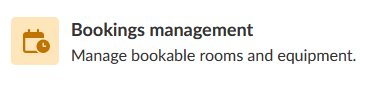
- Navigate to Admin > Bookings Management from the top menu.
- Confirm that you have the correct permissions to manage resources.
4. Core Features & Functions
- Create a list of bookable resources (e.g., rooms, projectors, lab materials).
- Define availability for staff, students, and guests.
- Assign resources to specific organisations.
- Edit or delete resources as needed.
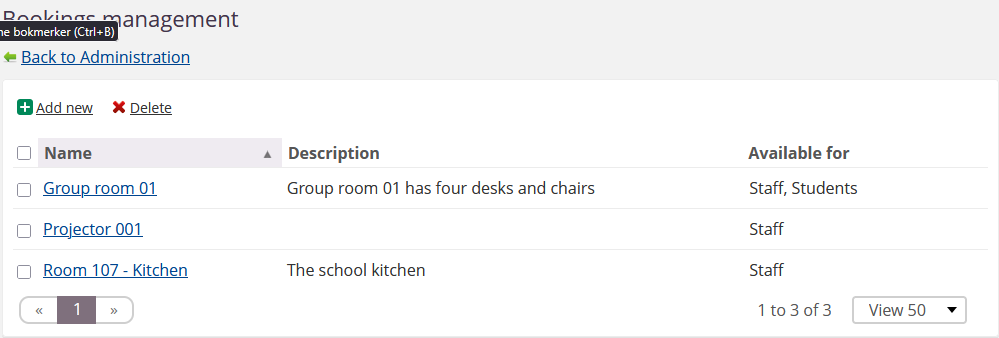
- View resource details and availability in a structured list.
5. Step-by-Step Workflows
5.1 Add a New Bookable Resource
Objective: Create a resource that users can book via the calendar.
Steps:
Steps:
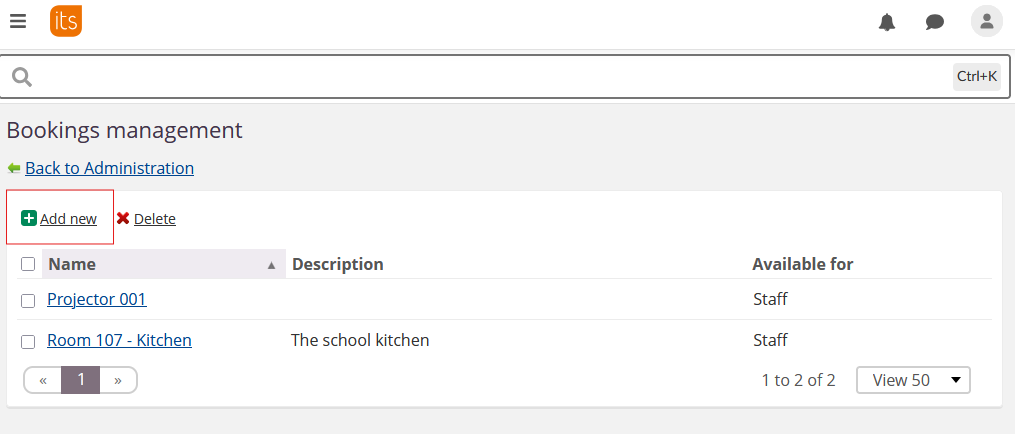
- Navigate to Admin > Bookings Management.
- Click Add new.
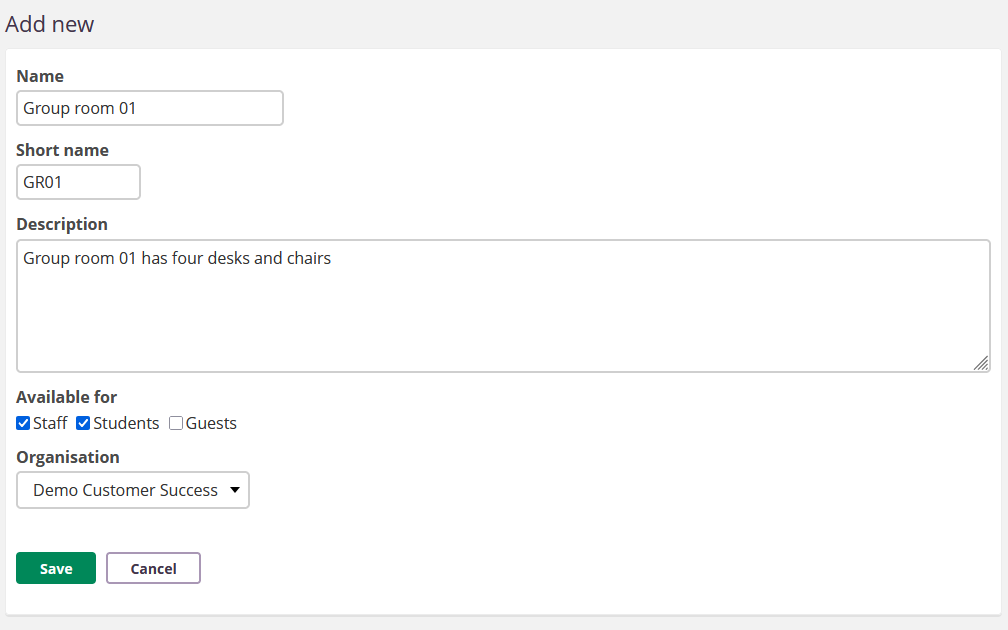
- Complete the resource form:
- Name: Full resource name (e.g., Projector 001 or Room 107 – Kitchen).
- Short name: Abbreviated identifier.
- Description: Details about the resource (e.g., The school kitchen).
- Available for: Select who can book (Staff, Students, Guests).
- Organisation: Assign to the relevant organisation.
- Click Save
Result: The resource appears in the list and is available for booking.
5.2 Manage Existing Resources
Objective: Edit or remove existing resources.
Steps:
Steps:
- From Bookings Management, view the resource list.
- Click the resource name to edit details.
- Use Delete to remove a resource if no longer needed.
6. Settings & Customisation
- Configure visibility for different user groups trough the profil settings.
- Assign resources to multiple organisations if required.
- Use descriptive names for clarity in the booking interface.
7. Troubleshooting
Resource Not Visible in Calendar
Symptoms: Users cannot find the resource when adding an event.
Cause: Resource not assigned to the correct organisation or user group.
Solution:
Cause: Resource not assigned to the correct organisation or user group.
Solution:
- Verify Available for settings.
- Check organisation assignment.
- Save changes and refresh the calendar.
Prevention: Always confirm settings during resource creation.
8. Related Features
More Help Resources
Have more questions? Please start with asking your school administrator.
Product Release notes
Stay updated with itslearning latest releases: https://itslearning.com/product-updates
Service Status
Check the current status of itslearning services: https://status.itslearning.com/
Ideas Portal
Share your ideas and help shape the future of itslearning: https://ideas.itslearning.com/
Roadmap
Check out our roadmap: https://itslearning.com/global/roadmap/