Cross site templates - sysadmin
TABLE OF CONTENTS
- 1 Overview
- 2 Controlling Template Permissions
- 3 Managing Cross-Site Templates
- 4 Differences When Using a Template From Another Site
- 5 Preventing Plan Duplicates
- 6 Troubleshooting
- 7 Related Articles
1 Overview
Course templates allow organisations to standardise course structure, content, and pedagogy across schools and sites. As an administrator, you control who can create, share, and apply course templates. You also manage cross-site template visibility and plan duplication settings.
For information on how teachers work with templates (creating courses from templates, applying templates, sharing courses as templates, and pushing templates to courses), see the Course Templates – Teacher Guide.
2 Controlling Template Permissions
Administrators control which users or user groups can work with course templates through profiles and policies. There are three user rights available.
2.1 User Rights

| User Right | Description | Scope Options |
|---|---|---|
| Allowed to share a course as a template | Enables the "Share as template" option on the Settings page in a course. Allows the user to make the course available as a template to others. | School – share within the user's organisation. Site – share with all users on the site, including other schools. All sites – share with other sites in the same country, including the option to share with selected sites. |
| Create courses based on a template or apply template to existing courses | Allows the user to select a template when creating a course, or to apply a template to an existing course. Applying to existing courses is useful when empty courses with the correct participants are created by a SIS integration. | No additional scope options. |
| Allowed to apply a template to other courses | Allows the user to push their course as a template to other courses. The user can push to any course where they are a teacher (or similar/higher role) and to courses attached to any organisation where they are a teacher or administrator. A template cannot be pushed to another course template. | No additional scope options. |
2.2 Configuring User Rights
To configure these user rights:
- Go to Administration.
- Open the relevant profile or policy.
- Locate the course template user rights.
- Enable or disable each right as needed and select the appropriate scope.
- Save the profile or policy.
Note: The option School restricts sharing to the user's own school. The option Site restricts sharing to the user's own itslearning site. The option All sites allows the user to share the template with other itslearning sites in their country, including the option to share with selected sites.
3 Managing Cross-Site Templates
System administrators can decide whether teachers are allowed to see and use course templates from other itslearning sites. This setting is found under Edit global settings > Features and security.
3.1 Template Usage Options
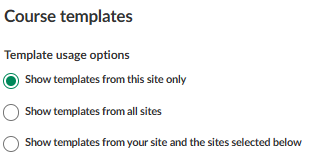
| Option | Description |
|---|---|
| Show templates from this site only | Teachers will not see the Other sites tab. Only templates from the user's own site are available. |
| Show templates from all sites | Teachers will see the Other sites tab. They can find all course templates shared by other sites in their country. |
| Show templates from your site and the sites selected below | Teachers will see the Other sites tab, but course templates from sites not selected by the system administrator are filtered out. Only sites from the same country as the administrator's site can be selected. |
Note: It can take up to 5 minutes before changes to this setting are applied across the platform. Until then, the previous value will be used.
Important: Sites using the beta shareable planner feature will no longer see planner content listed on the Other sites tab. If you want to continue sharing courses that contain planner content across sites, the course must be shared as a cross-site template.
4 Differences When Using a Template From Another Site
Compared to a template from the same site, the following exceptions apply when a user creates or applies a course template from another site. Administrators should be aware of these limitations when enabling cross-site templates.
4.1 Planner
Some itslearning sites may have the possibility to add a rubric to a topic in the planner. Since this is disabled for most sites, this topic rubric will not be included in the template.
4.2 Resources
Only content is included in the course template. Any tool-specific settings are excluded. This means, for example, that a group assignment will be added as a regular assignment.
The following resource limitations apply to cross-site templates:
| Resource Type | Behaviour |
|---|---|
| File attachments to a Task resource | Excluded. Note: Task is being merged into the Assignment tool. For assignments, file attachments are supported. |
| SCORM content | Excluded, as SCORM is an additional paid module. |
| Legacy tool content (e.g. Test 2.0) | Excluded. |
| LTI 1.3 content | Added, but the LTI tool may not be configured for the user. The content can either be removed, or the LTI tool needs to be set up by the administrator. |
| Library resources (when Library is disabled for the user) | Copies are made of each resource that was in the Library. If the author of the resource has indicated that it should not be copied, it will not be added to the course. |
| Permissions on resources (including folders) | Ignored. |
4.3 Learning Objectives
If the template course has learning objectives added from the repository of the school or site, these are added as a copy to the course (as if they were created in the course). Learning objectives that were created in the template course itself are also added as a copy.
Only assessment criteria (used in rubrics) that have been added to the national or state repository are kept.
4.4 Settings
Assessment scales created within the site of the template are ignored.
5 Preventing Plan Duplicates
When the same template is applied to an existing course multiple times, or when a template is pushed to courses more than once, duplicate content can result. To address this, there is a setting on the Edit global settings > Features and security page.
5.1 The Plan Duplicate Setting
Setting: "Prevent topics and plans from being copied again"
When this setting is enabled, topics and plans are not duplicated if the same template is applied again.
When this setting is disabled, the user applying or pushing a template will be given the choice to overwrite previously copied topics and plans. Overwriting may remove any changes made by teachers in the target courses.
Note: Some organisations prefer to leave this setting disabled, allowing the course teacher to determine what to use and manually remove any unwanted duplicate content.
6 Troubleshooting
Teachers Cannot See "Share as Template"
Symptoms: The "Share as template" option is not visible on the course Settings page.
Cause: The user does not have the "Allowed to share a course as a template" user right enabled in their profile or policy.
Solution:
- Go to Administration.
- Open the relevant profile or policy for the user.
- Enable the "Allowed to share a course as a template" user right and set the appropriate scope.
- Save the profile or policy.
Teachers Cannot See "Other Sites" Tab
Symptoms: The "Other sites" tab does not appear when browsing templates.
Cause: The cross-site template setting is set to "Show templates from this site only".
Solution:
- Go to Edit global settings > Features and security.
- Change the template usage option to "Show templates from all sites" or "Show templates from your site and the sites selected below".
- Save the setting.
Prevention: Review template usage options during initial site configuration.
Duplicate Plans After Reapplying a Template
Symptoms: Courses contain duplicate topics and plans after a template is applied more than once.
Cause: The setting "Prevent topics and plans from being copied again" is not enabled.
Solution:
- Go to Edit global settings > Features and security.
- Enable the setting "Prevent topics and plans from being copied again".
- For courses already affected, the course teacher will need to manually remove the duplicate content.
Prevention: Enable the plan duplicate prevention setting before templates are pushed to courses.
Cross-Site Template Changes Not Taking Effect
Symptoms: After changing the cross-site template setting, teachers still see the old options.
Cause: Changes to this setting can take up to 5 minutes to apply.
Solution:
- Wait up to 5 minutes for the change to take effect.
- Ask the teacher to refresh their browser.
LTI 1.3 Content Not Working After Applying a Cross-Site Template
Symptoms: LTI 1.3 resources appear in the course but do not function correctly.
Cause: The LTI tool may not be configured on your site.
Solution:
- Set up the required LTI tool on your site.
- Alternatively, remove the non-functioning LTI content from the course.
More Help Resources
Have more questions? Please start with asking your school administrator.
Product Release notes
Stay updated with itslearning latest releases: https://itslearning.com/product-updates
Service Status
Check the current status of itslearning services: https://status.itslearning.com/
Ideas Portal
Share your ideas and help shape the future of itslearning: https://ideas.itslearning.com/
Roadmap
Check out our roadmap: https://itslearning.com/global/roadmap/
The features shown are part of the project within the framework of the German Development Project (GDP), a cooperation between four German states and itslearning with the aim of improving digital education in Germany through tailor-made product developments.
Click here to learn more about the GDP roadmap and what other features you can expect.
For German readers: Click here for more information about the project within the framework of the German Development Project.