Files – Saving Course Materials (All users)
TABLE OF CONTENTS
- Introduction
- 1 Availability and controls
- 2 What students can save
- 3 Save a file resource
- 4 What happens when a file is saved again
- 5 Find and manage saved files
- 6 Important behaviour and limitations
- 7 Troubleshooting
Introduction
Saved course materials lets students keep a copy of file resources from a course for later use. When a student saves a file resource, itslearning stores a copy in Files under Saved course materials.
This can help students keep access to course materials they consider useful after the course has ended, after they have been removed from the course, or after the course has been deleted.
Note: This article covers saving file resources. Other content types, such as Page, cannot be saved with this feature.
1 Availability and controls
The feature has controls at site level and resource level. Site administrators control whether the feature is available. Teachers can control whether students may save individual file-based resources.
1.1 Site administrator setting
Admin setting: The site administrator must enable Let students save course resources to their Saved course materials in Edit Global Settings - Features and security - Tools and content before students can save file resources from courses.
When the setting is enabled, students can save supported file resources from a course to Saved course materials in Files.

1.2 Teacher control on file resources
By default, students are allowed to save any file-based resource when the site setting is enabled.
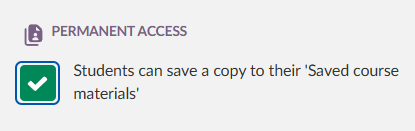
Teachers can disable this for a file resource by turning off the resource setting Students can save a copy to their Saved course materials. When this setting is turned off, the Save to Files option is removed from the resource interface.
Important: Turning off this setting only prevents saving within itslearning. Students can still download the file directly to their device as long as they have access to the resource.
1.3 Collaboration folders
Collaboration folders are designed as open, shared spaces where all participants can freely access and contribute content. Because unrestricted access is the intended behaviour, individual files in a collaboration folder cannot be protected from saving.
For this reason, the setting Students can save a copy to their Saved course materials is not available in collaboration folders. Any file placed in a collaboration folder, whether added by a teacher or a student, can always be saved to Files by any participant with access to the folder.
2 What students can save
| Content | Can be saved? | Notes |
|---|---|---|
| Document files | ✓ | Includes text/document files, such as Microsoft Word, Excel, PowerPoint, or corresponding Collabora Online documents when they are used as file resources. |
| Image files | ✓ | Students can save image file resources. |
| Audio files | ✓ | Students can save audio file resources. |
| Video files | ✓ | Students can save video file resources. |
| Pages and other non-file resources | ✗ | Only files can be saved. Content types such as Page cannot be saved with this feature. |
3 Save a file resource
- Open the course.
- Open the file resource you want to save.
- In the resource title row, select the three-dot menu.
- Select Save to Files.
The saved file is a copy of the resource as it existed at the time it was saved. The saved file name is taken from the resource title at the time of saving. The file is saved to a course-specific folder under Files > Saved course materials (see Find and manage saved files)

4 What happens when a file is saved again
If a student saves the same file resource again, the existing saved copy is updated. itslearning does not store multiple versions of the same resource in Saved course materials.
| Change in the course resource | Result when the student saves again |
|---|---|
| The file was edited, for example in Microsoft Office or Collabora Online. | The saved file is updated to the latest version. |
| The file in the resource was replaced. | The saved file becomes the new file. |
| The resource name was changed. | The saved file name is updated accordingly. |
5 Find and manage saved files
Saved files are stored in Files. Students can open, download, and delete saved files from there.
5.1 Where saved files are stored
Files that a student saves are stored in a course-specific folder under:
Files > Saved course materials
A course folder appears in Saved course materials when the student has saved at least one file from that course. This applies to both active courses and archived or closed courses.
There may be a short processing delay before the file appears in the folder.
Note: Assignment submissions are only shown in Saved course materials when they come from a course that has been archived or closed - for example, if the student was removed from the course or the course was deleted. In active courses, assignment submissions are not displayed in Saved course materials.
5.2 Open, download, or delete saved files
Students can download saved files. They can also open saved files in a new tab when the file format is supported by the browser.
Important: Deleting a saved file is permanent and cannot be undone.
If a student deletes a saved file by mistake and still has access to the course, they can go back to the course and save the file again. This applies when the course is active or archived.
5.3 Access after course changes
Students retain access to files they have saved in Saved course materials if:
- the course is archived
- the student is removed from the course
- the course is deleted
Saved files are copies. They are not links back to the course resource.
6 Important behaviour and limitations
| Area | Behaviour |
|---|---|
| Supported content | Only file resources can be saved. Page and other non-file content types cannot be saved with this feature. |
| Saving control | Teachers can remove the Save to Files option for a file resource by turning off Students can save a copy to their Saved course materials. |
| Downloads | The teacher setting does not prevent students from downloading the original file while they still have access to it. |
| Existing saved copies | A file already saved by a student remains available to that student in Saved course materials. |
| Versions | Saving the same resource again updates the existing saved copy. itslearning does not keep multiple saved versions of the same resource. |
| Collaboration folders | The teacher setting is not available in collaboration folders. Files in collaboration folders can always be saved to Files. |
7 Troubleshooting
7.1 The Save to Files option is missing
Symptoms: The student cannot see Save to Files in the three-dot menu for a resource.
Possible causes:
- The site administrator has not enabled saving course resources to Saved course materials.
- The resource is not a file resource.
- The teacher has turned off Students can save a copy to their Saved course materials for the resource.
Solution:
- Check that the resource is a file resource.
- Ask the teacher whether students are allowed to save a copy of the resource.
- If the feature is not available in any course, ask a site administrator to check the site setting.
7.2 The saved file is not visible in Files yet
Symptoms: The student selected Save to Files, but the file is not yet visible under Files > Saved course materials.
Cause: There may be a short processing delay before the file appears.
Solution:
- Wait briefly and check Files > Saved course materials again.
- Check the course-specific folder for the course where the file was saved from.
7.3 A saved file was deleted by mistake
Symptoms: A saved file is no longer available in Saved course materials.
Cause: Saved files can be deleted, and deletion is permanent.
Solution:
- If the student still has access to the active or archived course, open the original file resource again.
- Select the three-dot menu in the resource title row.
- Select Save to Files again.
7.4 A Page cannot be saved
Symptoms: The student wants to save a Page or another non-file resource, but the save option is not available.
Cause: This feature supports file resources only.
Solution:
- Use Save to Files only for file resources.
- For Pages and other non-file resources, use the access options provided by the course.
More Help Resources
Have more questions? Please start with asking your school administrator.
Product Release notes
Stay updated with itslearning latest releases: https://itslearning.com/product-updates
Service Status
Check the current status of itslearning services: https://status.itslearning.com/
Ideas Portal
Share your ideas and help shape the future of itslearning: https://ideas.itslearning.com/
Roadmap
Check out our roadmap: https://itslearning.com/global/roadmap/
The features shown are part of the project within the framework of the German Development Project (GDP), a cooperation between four German states and itslearning with the aim of improving digital education in Germany through tailor-made product developments.
Click here to learn more about the GDP roadmap and what other features you can expect.
For German readers: Click here for more information about the project within the framework of the German Development Project.