Projects – Administration (Sysadmin)
TABLE OF CONTENTS
- 1 Accessing Project Administration
- 2 Searching and Filtering Projects
- 3 Managing Projects
- 4 Related Settings
Overview & Introduction
Projects (known as Communities in US English) are collaborative spaces within itslearning designed for group work, school clubs, cross-functional events, and associations. Unlike courses, Projects do not include assignments, tests, or assessment tools. Instead, they provide a streamlined environment for sharing resources, coordinating activities, and facilitating discussions.
Project administration gives system administrators a central view of all projects on the site. From this page you can search and filter projects, delete projects, and add participants to projects directly without requiring user acceptance.
1 Accessing Project Administration
Admin setting: Administration > Projects
Select Projects from the Administration menu. The Project administration page opens and displays a list of all active projects on your site by default.
2 Searching and Filtering Projects
Use the search fields and filters at the top of the page to locate specific projects. You can combine multiple filters in a single search. Click Search to apply your criteria.
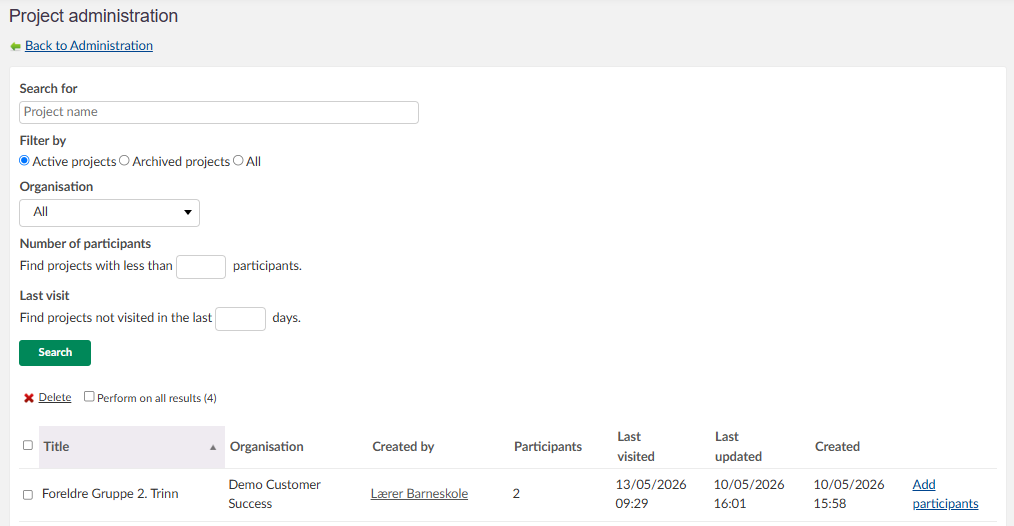
| Filter | Options | Description |
|---|---|---|
| Search for | Project name (free text) | Search by project title. |
| Filter by | Active projects / Archived projects / All | Limit results to projects with a specific status. The default view shows active projects. |
| Organisation | Dropdown list of organisations | Limit results to projects belonging to a specific organisation in your site hierarchy. |
| Number of participants | Numeric value | Find projects with fewer than the specified number of participants. Useful for identifying low-membership or empty projects. |
| Last visit | Number of days | Find projects not visited within the specified number of days. Useful for identifying inactive projects. |
The results table displays the following information for each project:
| Column | Description |
|---|---|
| Title | Project name. |
| Organisation | The organisation the project belongs to. |
| Created by | The user who created the project. Clicking the name opens that user's profile. |
| Participants | Total number of current participants in the project. |
| Last visited | Date and time of the most recent visit to the project. |
| Last updated | Date and time the project was last modified. |
| Created | Date and time the project was created. |
3 Managing Projects
3.1 Deleting Projects
Important: Deleting a project removes it and its content from the site. It is recoverable from the Trash can.
To delete one or more projects:
- Use the search and filter options to locate the projects you want to delete.
- Select the checkbox next to each project in the results list.
- Click Delete above the results table.
Note: To apply the delete action to every project matching your current filter criteria, select the Perform on all results checkbox before clicking Delete. This applies the action to all matching projects, not only those visible on the current page.
3.2 Adding Participants
System administrators can add participants to any project directly from the Project administration page. Unlike project manager invitations, administrator additions do not require user acceptance.
To add participants to a project:
- Locate the project in the results list.
- Click Add participants in that project's row.
- Use the search function to find the participant:
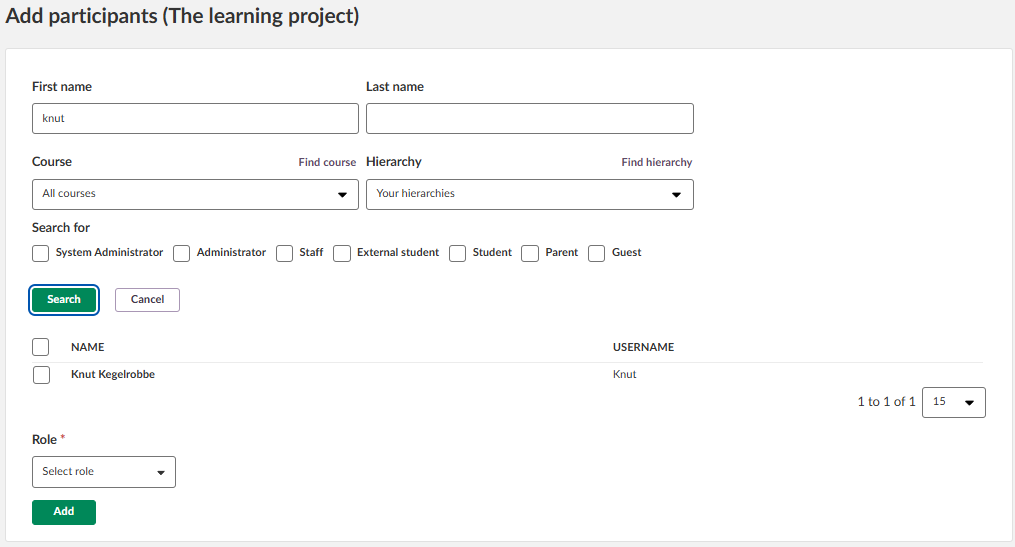
- Mark the user and select role
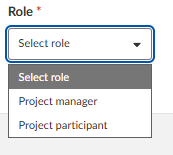
- Press "Add" and the user is added to the project,
Note: Project managers can also add participants from within the project itself using an invitation workflow, which requires the user to accept before they appear as a member. See the Projects – Getting Started article for details on the invitation method.
4 Related Settings
The following administration areas are relevant to managing projects on your site:
add
| Setting | Location | Description |
|---|---|---|
| Project Profiles | Administration > Profiles > Project tab | Configure role-based permissions for project members. The two default roles are Project manager and Project participant. Security levels, folder permissions, and general permissions are all configured here. See Projects – Profiles (Sysadmin) for full details. |