Main menu - Overview (Teacher)
TABLE OF CONTENTS
- Introduction
- 1 Overview
- 2 Courses
- 3 Updates
- 4 Groups
- 5 Calendar
- 6 Library
- 7 Links and Apps (optional)
- 8 Search bar
- 9 Personal menu
- 10 Notifications and messages
- 11 Additional options
Introduction
This article describes the main menu bar at the top of itslearning. It explains each menu item and its key features for teachers.
1 Overview
The main menu bar gives you navigation options across the top of itslearning.

| Menu item | Use it to |
|---|---|
| Courses | Access and manage your teaching courses. |
| Updates | See recent updates and follow-up tasks. |
| Groups | Access communities, organisational dashboards and projects. |
| Calendar | Schedule and plan events. |
| Library | Discover and share educational resources. |
| Links and Apps (optional) | Open links and resources that your district or school has set up. |
| Search bar | Search for content. |
| Your name or image | Open your personal menu. |
| Bell icon and speech bubble icon | Open notifications and messages. |
Note: Links and Apps are optional. Links are created by your district or school. Apps contain school-specific resources and utilities.
2 Courses
Use Courses to access and manage your teaching courses.
2.1 Main Courses page
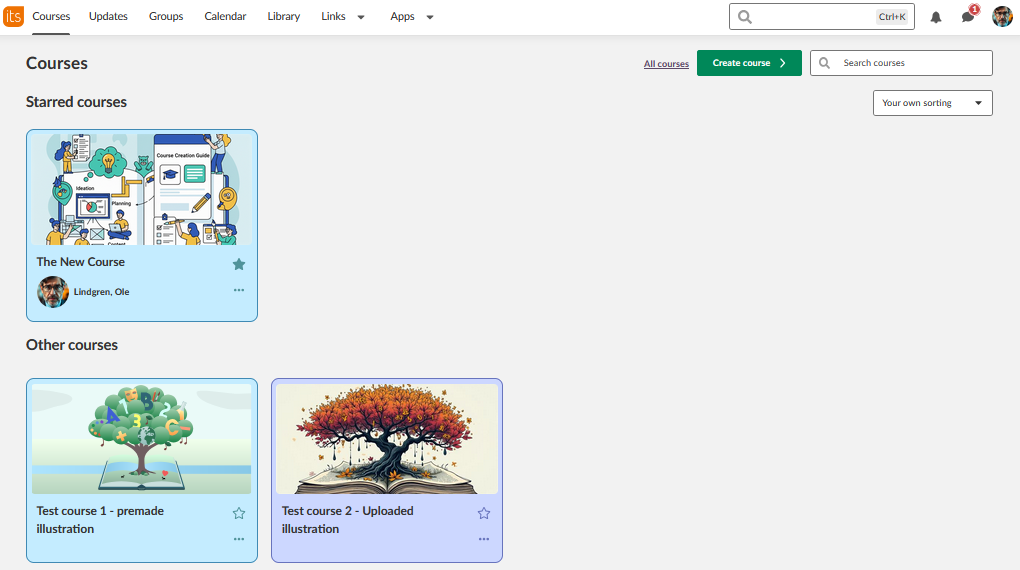
- View your Starred courses (your favourites) and Other courses.
- Course cards show the last updated date, the status and your role.
- A yellow star marks a favourite course. Select the star to add or remove a favourite.
- Select All courses to see your complete course list.
2.2 All courses page
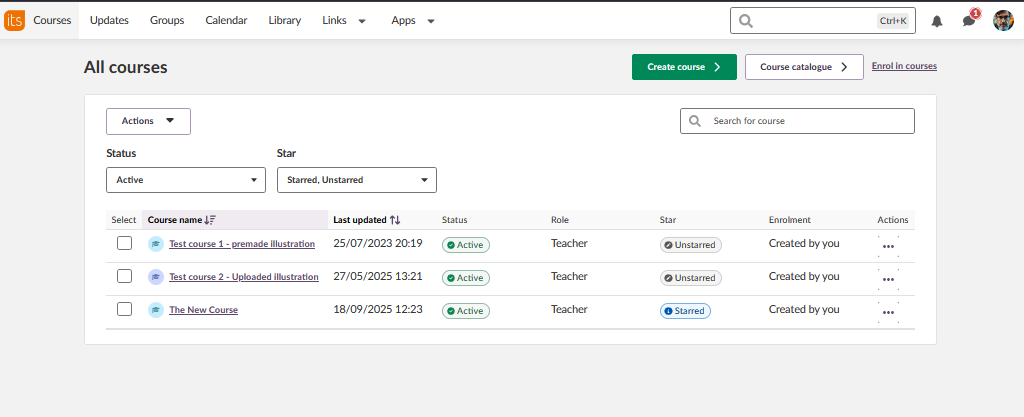
- The table view shows additional details: friendly name, last updated, last visited, status and role.
- Filter options: Add, Star, Unstar and Archive.
- Use the Show drop-down list to display active, all or archived courses.
- Sign up for additional courses via the local course catalogue.
2.3 Course management
- Search and sort functions are available.
- Select a course title to open the course content directly.
Note: Courses are archived rather than deleted. This allows you to reuse the content.
3 Updates
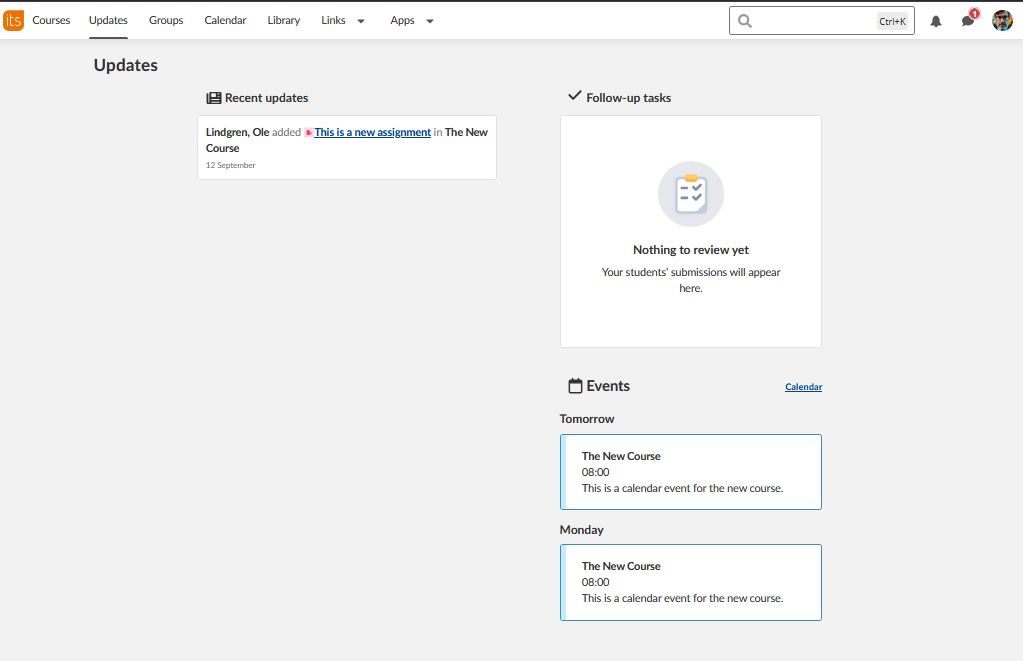
Updates shows Recent updates for course announcements and Follow-up tasks for assignments that need attention.
4 Groups
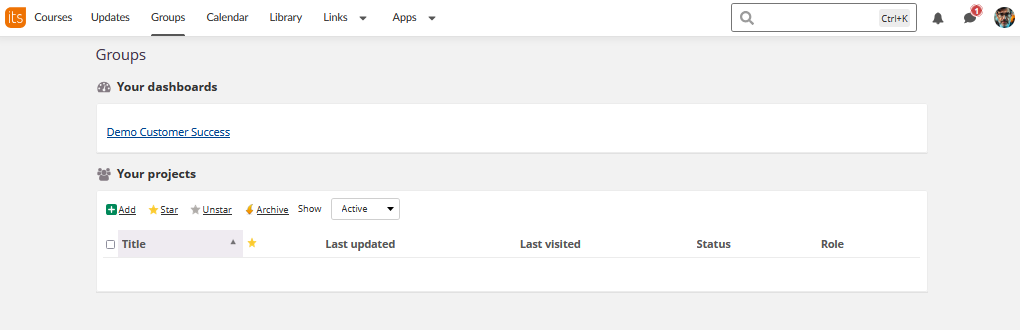
Use Groups to access communities and organisational dashboards.
4.1 Your dashboards
- View the organisational dashboards that are assigned to you.
- Access community spaces.
4.2 Your projects
- Manage collaborative projects.
- Filter options: Add, Star, Unstar and Archive.
- See your participation status for each project.
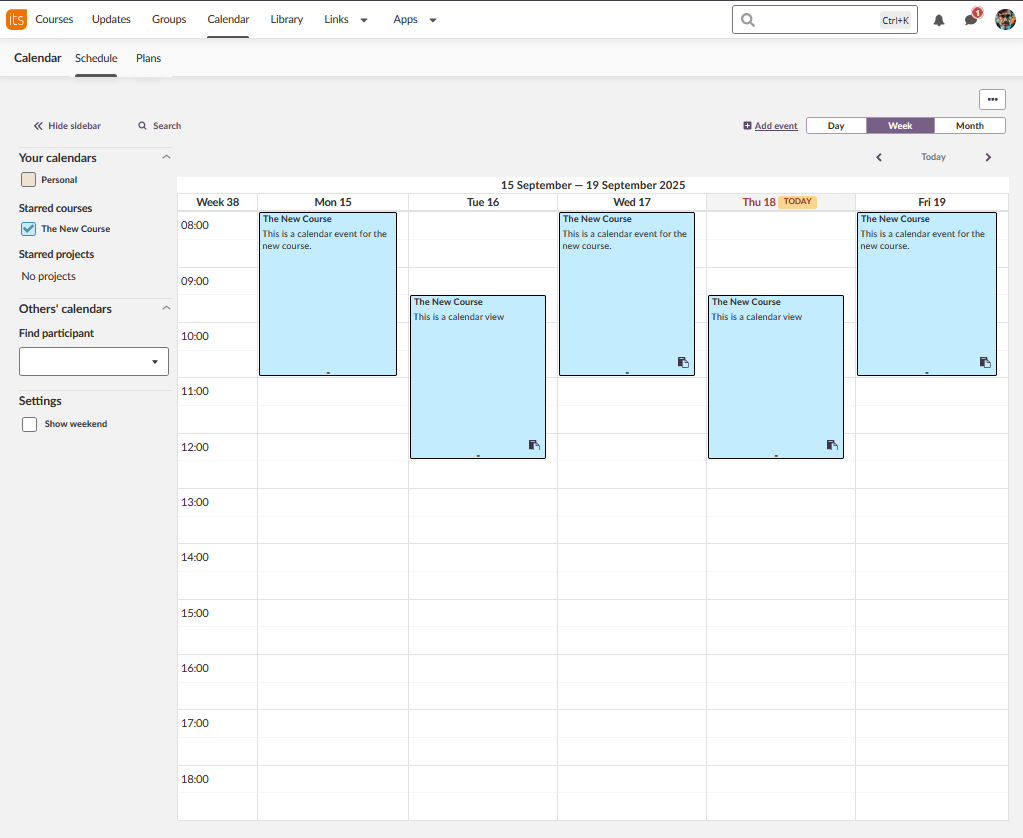
5 Calendar
Use Calendar for scheduling and planning. For a step-by-step guide, see Calendar - Getting started (Teacher).
5.1 Calendar views
- Day, Week and Month views are available.
- The Schedule and Plans tabs give different perspectives on your calendar.
5.2 Calendar management
| Calendar | Description |
|---|---|
| Your calendars | Includes your Personal calendar. |
| Starred courses | Switch course calendars on or off. |
| Starred projects | View project-related events. |
| Others' calendars | Access shared calendars, if available. |
5.3 Booking system (optional)
- Find participant booking options.
- Use the booking management tools.
- Integrate bookings with course scheduling.
6 Library
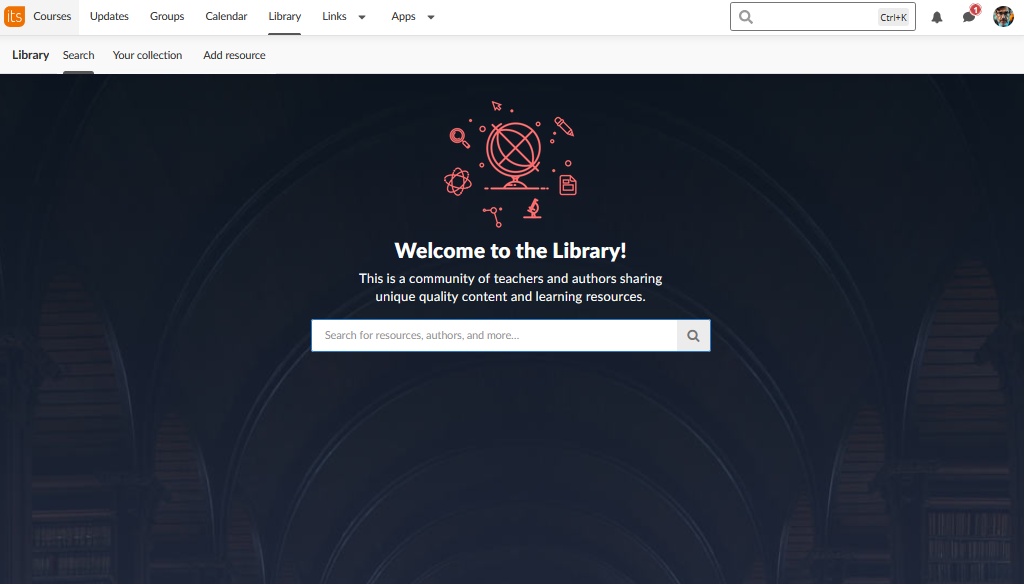
Use Library to discover and share educational resources.
6.1 Resource discovery
- Library is a community-driven content sharing platform.
- Search for resources, authors and learning materials.
- Teachers and authors curate the content.
6.2 Personal collection
- Save resources to your personal collection.
- Add your own resources to share with the community.
- Manage and organise your library content.
6.3 Add resource
Create and share resources within your school or site.
7 Links and Apps (optional)
- Links: Custom navigation options that your district or school creates. They can integrate local systems and resources.
- Apps: School-specific resources and utilities.
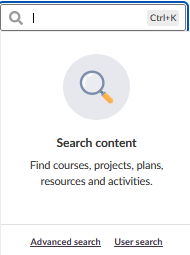
8 Search bar
Use the search bar to search for content within your courses, resources and similar areas.
9 Personal menu
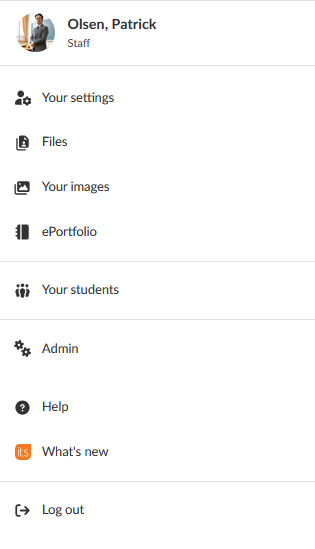
Select your name or image to open your personal menu and access account settings and personal options.
9.1 Account
| Option | Description |
|---|---|
| Your settings | Personal preferences and configurations. |
| Your files | Access your personal file storage. |
| Log out | Always log out when you leave the computer. |
9.2 Students
| Option | Description |
|---|---|
| Your students | A complete list with student details. Select a student name to view the profile card. |
| ePortfolio | Access the student portfolio system, if it is enabled. |
9.3 Admin
- Admin gives access to administrative functions. Availability depends on your permissions.
- Additional options may appear based on your role and permissions.
9.4 Help
Help links directly to the itslearning help page in your language.
Note: The help page defaults to English if your language has no native support articles.
10 Notifications and messages
Use the icons in the upper-right corner to stay connected with your courses and colleagues. For a step-by-step guide to messages, see Messages - Getting started (Teacher).
10.1 Notifications
- The bell icon opens system and course notifications.
- Activity alerts from your courses appear here.
- Important announcements and updates appear here.
10.2 Messages
- The speech bubble icon gives quick access to the messaging system.
- Use it to communicate with students and colleagues.
11 Additional options
The following role-based options may appear in your menu:
- Mentor: Assigned individuals or groups for development. The option may appear as "Headteacher", "Supervisor" or a custom title.
- Individual learning plan management.
More Help Resources
Have more questions? Please start with asking your school administrator.
Product Release notes
Stay updated with itslearning latest releases: https://itslearning.com/product-updates
Service Status
Check the current status of itslearning services: https://status.itslearning.com/
Ideas Portal
Share your ideas and help shape the future of itslearning: https://ideas.itslearning.com/
Roadmap
Check out our roadmap: https://itslearning.com/global/roadmap/