Calendar - Getting started (Teacher)
TABLE OF CONTENTS
Introduction
This article shows teachers how to open the itslearning Calendar, add a first event and filter the view.
1 Overview
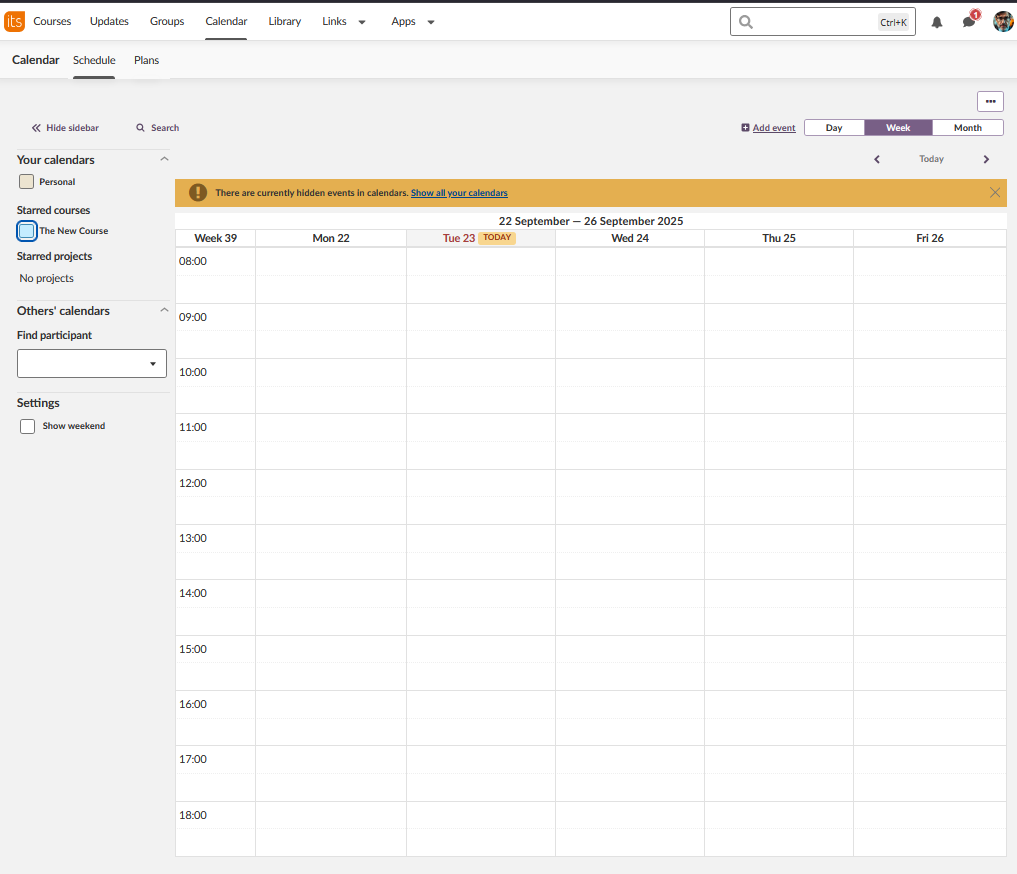
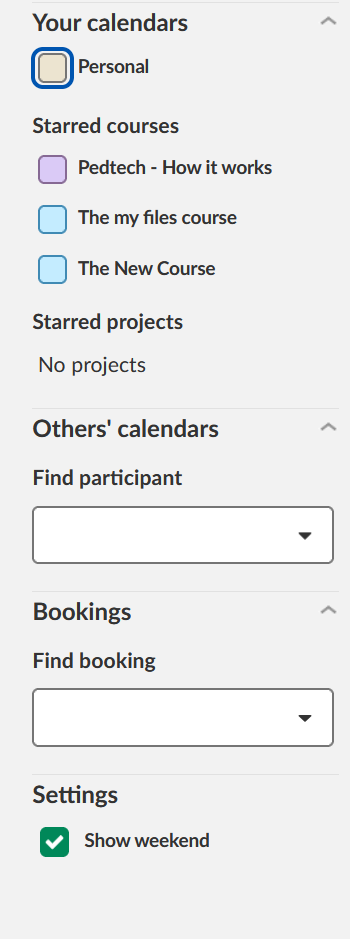
You open the Calendar from the main navigation menu. Your enrolled courses are listed on the left side, each with a coloured circle for identification. The Calendar has the following tabs:
| Tab | Shows |
|---|---|
| Schedule | Your consolidated calendar view by day, week or month. |
| Plans | Course plans by week. |
An event that you add to a course calendar is visible to students who are enrolled in that course.
2 Prerequisites
- Access to at least one course in itslearning.
- Details for your first event: date, time and description.
Prerequisite: Check with your administrator if you need permission to manage calendar events.
3 Step-by-step instructions
3.1 Opening the Calendar
- Select Calendar in the main navigation menu at the top of your screen.
3.2 Adding an event
- Select the Add event button, or select a date or time slot in the calendar grid.
- If you selected a slot in the grid, a short form opens. Enter a title and a description. The event takes place at the date and time that you selected.
- To see the full form, select Show more options. It offers the same options as the Add event form.
3.3 Completing and saving the event
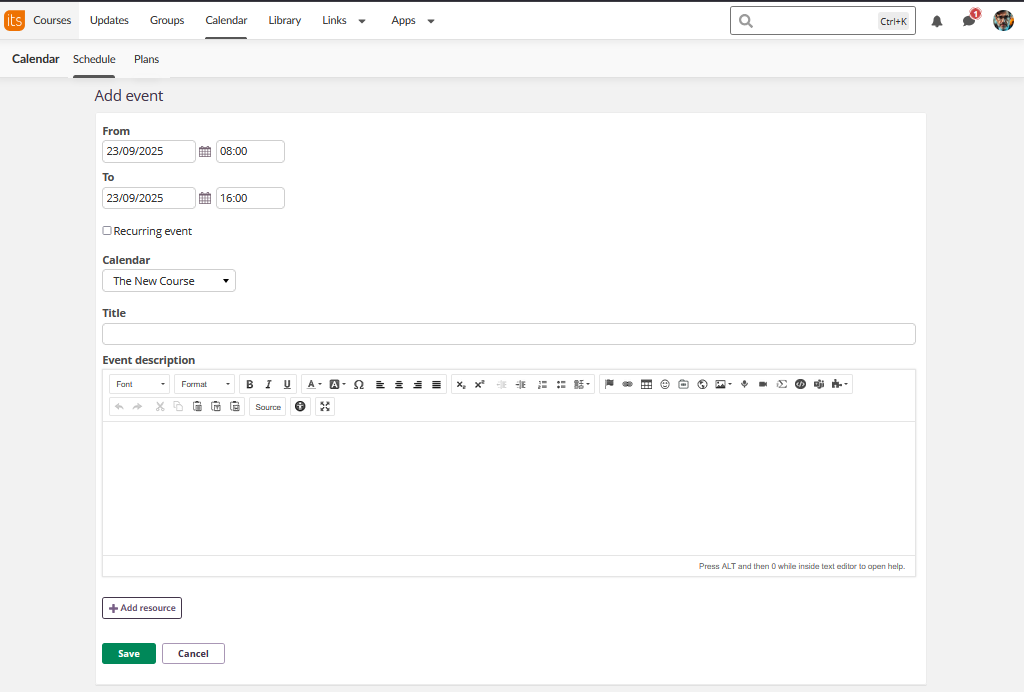
- Under From and To, set the date and time.
- Select the Recurring event checkbox to make the event recurring. More options open.
- In Calendar, select the course calendar to use.
- Enter a clear Title.
- In Event description, include relevant details for participants.
- Select the green Save button.
3.4 Checking the event
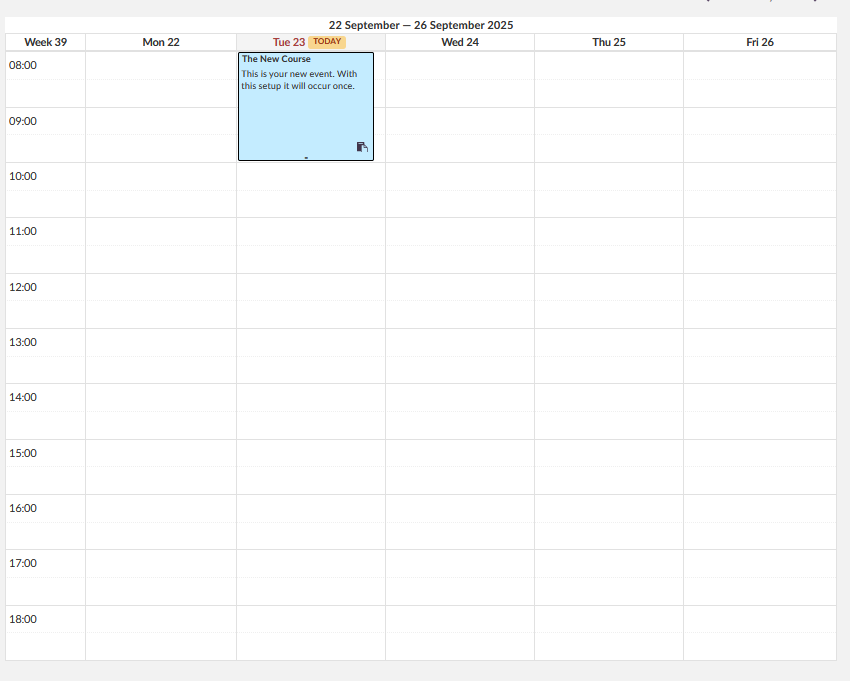
The event appears in the calendar grid as a coloured block that matches the colour of your course.
3.5 Editing or deleting an event
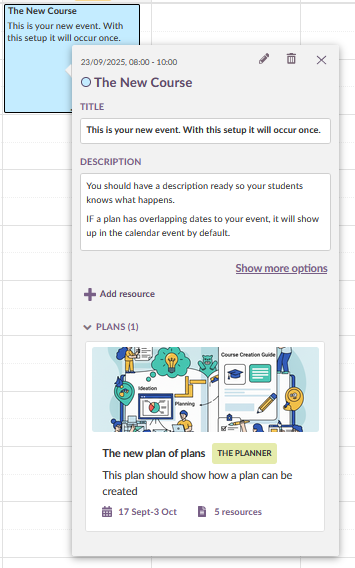
- Select the event to view its details.
- Select the pencil icon to edit the event, or select the bin icon to delete it.
3.6 Filtering your view
- Use the course checkboxes on the left to show or hide the calendars of specific courses.
More Help Resources
Have more questions? Please start with asking your school administrator.
Product Release notes
Stay updated with itslearning latest releases: https://itslearning.com/product-updates
Service Status
Check the current status of itslearning services: https://status.itslearning.com/
Ideas Portal
Share your ideas and help shape the future of itslearning: https://ideas.itslearning.com/
Roadmap
Check out our roadmap: https://itslearning.com/global/roadmap/