Personal settings - Getting started
TABLE OF CONTENTS
Introduction
This article explains how to update your personal settings in itslearning. It covers your profile, language, time zone, email notifications and connected accounts.
1 Overview
Your personal settings are on the Your settings page. The page has the following sections:
| Section | Use it to |
|---|---|
| Edit profile | Add personal information that you want to share with others in itslearning, including a profile picture. |
| Customise itslearning | Set your language, time zone, navigation and text editor preferences. |
| Email notifications | Set up alerts for important changes and new messages. |
| Connected accounts | Link external services such as Google Drive and OneDrive. |
If your site uses native itslearning login, you can also change your password on this page.
2 Prerequisites
- A profile photo on your computer (optional).
- Your preferred language and time zone.
- A decision on which email notifications you want to receive.
3 Step-by-step instructions
3.1 Opening your settings
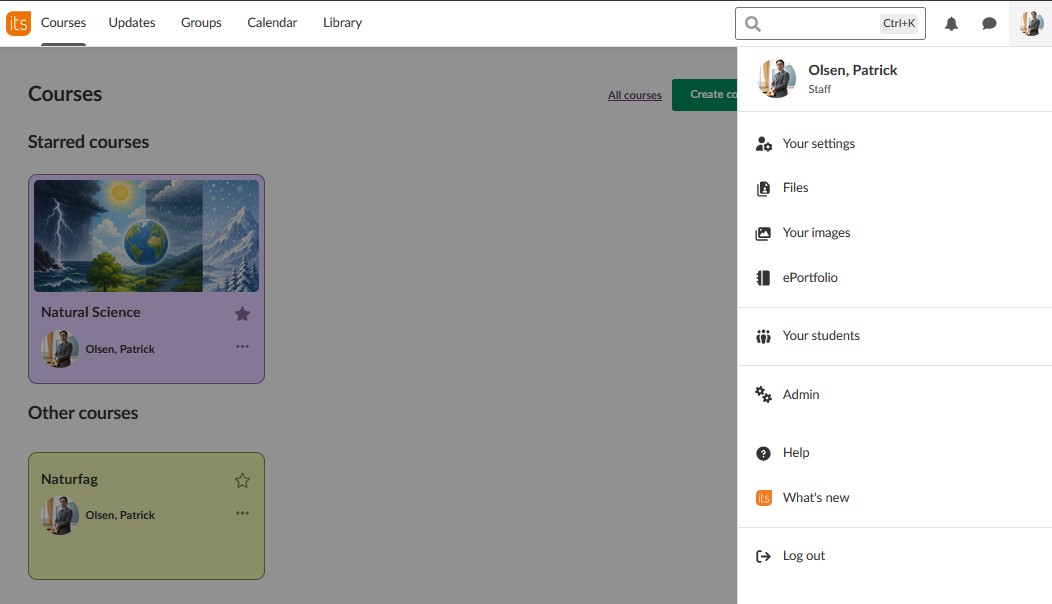
- Select the grey silhouette in the menu bar.
- Select Your settings.
3.2 Updating your profile
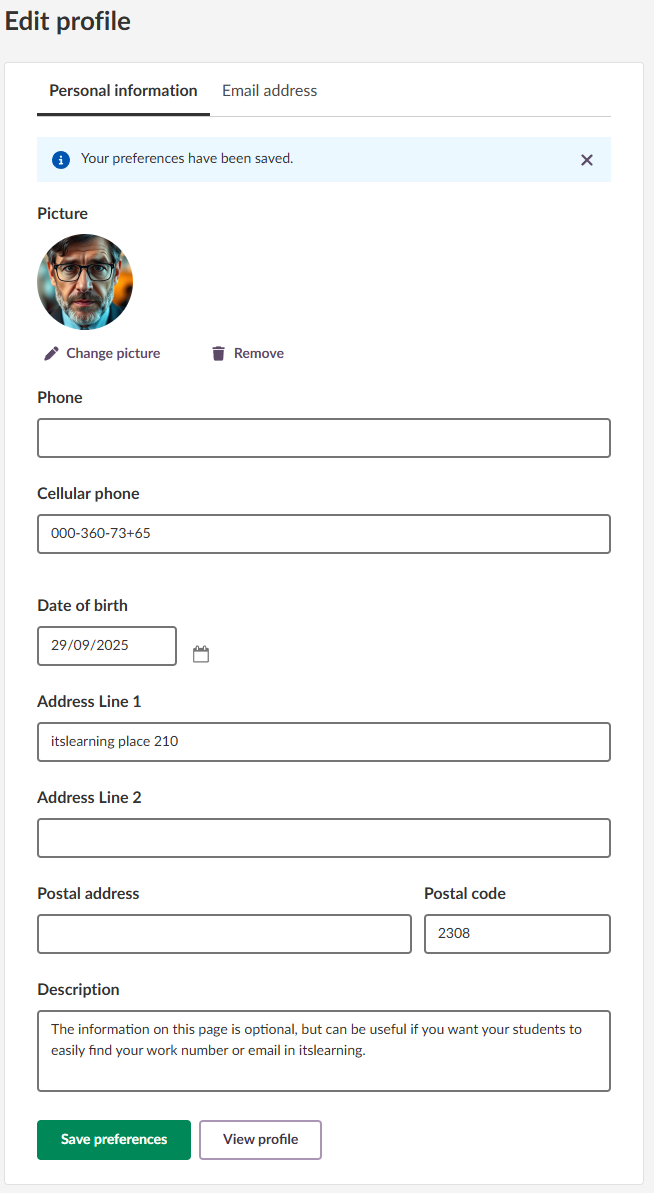
- Select Edit profile.
- To upload a profile picture, select + Add image. If you already have a profile picture, select Change image to replace it.
- Add your phone number or email address if you want to share them.
- Complete any other personal details.
- Select Save.
- Your profile photo now appears in the menu bar.
3.3 Customising itslearning
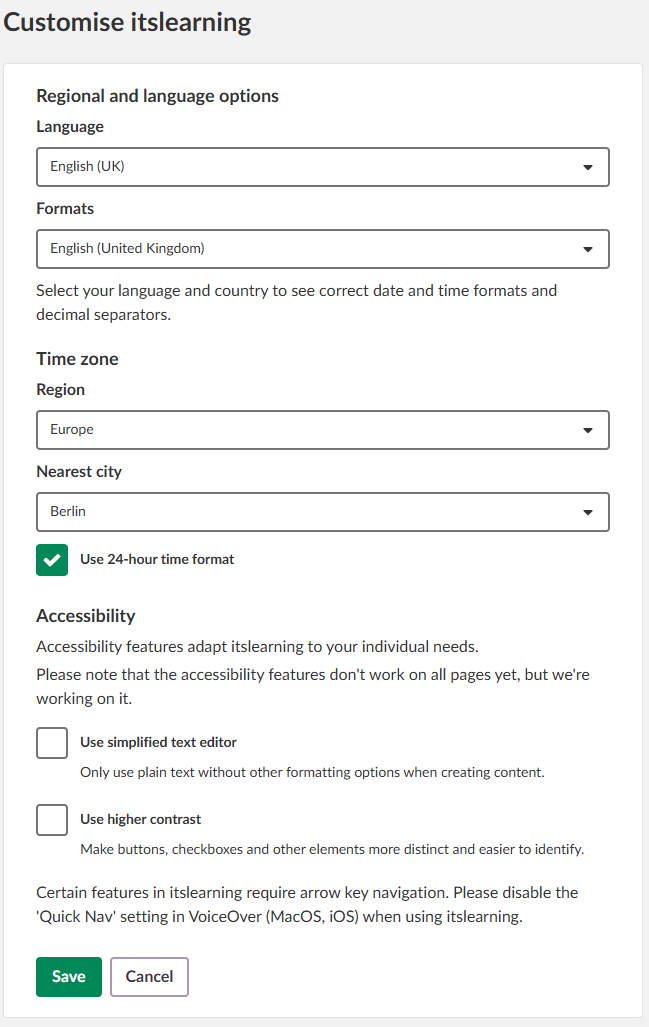
- Select Customise itslearning.
- In Language, choose one of the 18 available languages.
- In Time zone, select your local time zone.
- In Navigation, enable the simplified navigation tree if you prefer it.
- In Text editor, choose the simplified text editor if you need it.
- Select Save. The interface now displays in your chosen language and time zone.
3.4 Configuring email notifications (optional)
- In the Email notifications section, select Important changes to enable notifications for assignments and news.
- Select New messages to set up an alert when you get messages.
3.5 Connecting cloud accounts (optional)
Prerequisite: A system administrator must define the connected accounts for your site.
- Select Connected accounts to link external services.
- Connect Google Drive for easy file access.
- Connect OneDrive for document integration.
3.6 Changing your password (optional)
Prerequisite: Your site must use native itslearning login.
You can change your login password on the Your settings page.
3.7 Saving your changes
Save your changes before you leave a page.
- Select Save or Update where prompted.
- Your personalised settings are now active across itslearning.
More Help Resources
Have more questions? Please start with asking your school administrator.
Product Release notes
Stay updated with itslearning latest releases: https://itslearning.com/product-updates
Service Status
Check the current status of itslearning services: https://status.itslearning.com/
Ideas Portal
Share your ideas and help shape the future of itslearning: https://ideas.itslearning.com/
Roadmap
Check out our roadmap: https://itslearning.com/global/roadmap/