Using the course catalogue (Teacher)
TABLE OF CONTENTS
- Introduction
- 1 When to use the course catalogue
- 2 Prerequisites
- 3 Adding your course to the course catalogue
- 4 Course catalogue configuration
- 5 Registration method
- 6 Course information for the catalogue
- 7 External course catalogue settings
- 8 Managing course applications
- 9 Allowing users to withdraw from a course
- 10 Troubleshooting
Introduction
The course catalogue lets you make your courses discoverable to users who want to enrol, beyond your regular course participants. You can add courses to the internal catalogue (for users within your organisation) or the external catalogue (for users outside your organisation who can create accounts). Depending on your permissions, you may only see one of these options.
Note: There is no payment module for this feature, so payment for external courses must be handled through third parties.
If you want to enrol in a course from the catalogue yourself, see Using the course catalogue (students and external users).
1 When to use the course catalogue
Internal course catalogue:
- Professional development courses for colleagues
- Optional courses for students across different classes
- Specialised subject courses with limited enrolment
- Sharing courses across organisations within your site
External course catalogue:
- Community education programmes
- Adult learning courses
- Professional training open to external participants
- Collaborative courses with partner organisations
2 Prerequisites
2.1 Required permissions
Prerequisite: Before you can add courses to the catalogue, your system administrator must give you the appropriate permissions.
Permissions needed:
- Permission to add courses to the internal course catalogue (if you use the internal catalogue)
- Permission to add courses to the external course catalogue (if you use the external catalogue)
- A profile with the correct permissions (teacher and administrator roles typically have these permissions)
How to verify: If you have the necessary permissions, the Course catalogue tile appears on the Settings page of your course.
If the course catalogue options are not available: Contact your system administrator to check that your profile has the required permissions.
2.2 Preparing your course
Make sure your course is ready to be shown in the catalogue:
- The course title clearly describes the content.
- A course image is uploaded (recommended for better visibility).
- You know roughly how many participants you want to enrol.
3 Adding your course to the course catalogue
- Open your course.
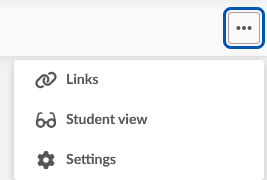
- Select the three-dot menu (…) in the course menu and select Settings.

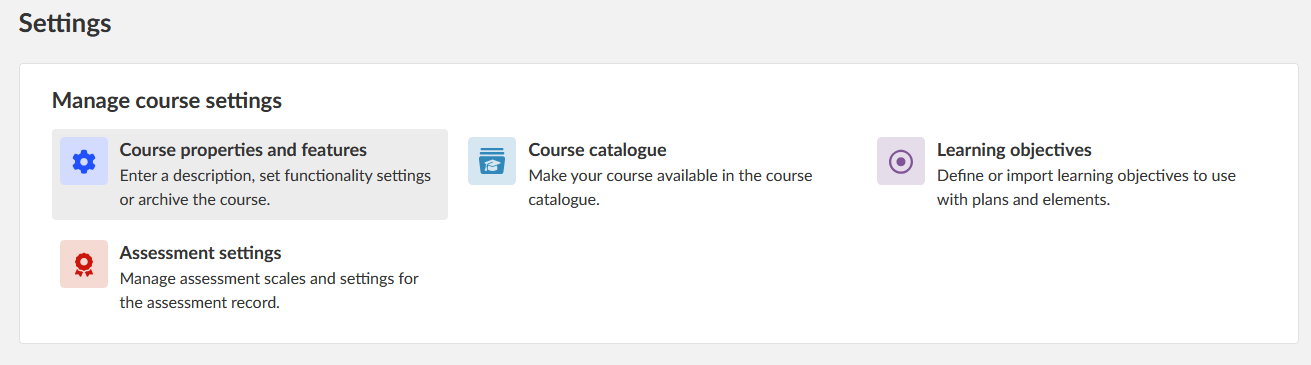
- On the Settings page, find the Course catalogue tile in the Manage course settings section.
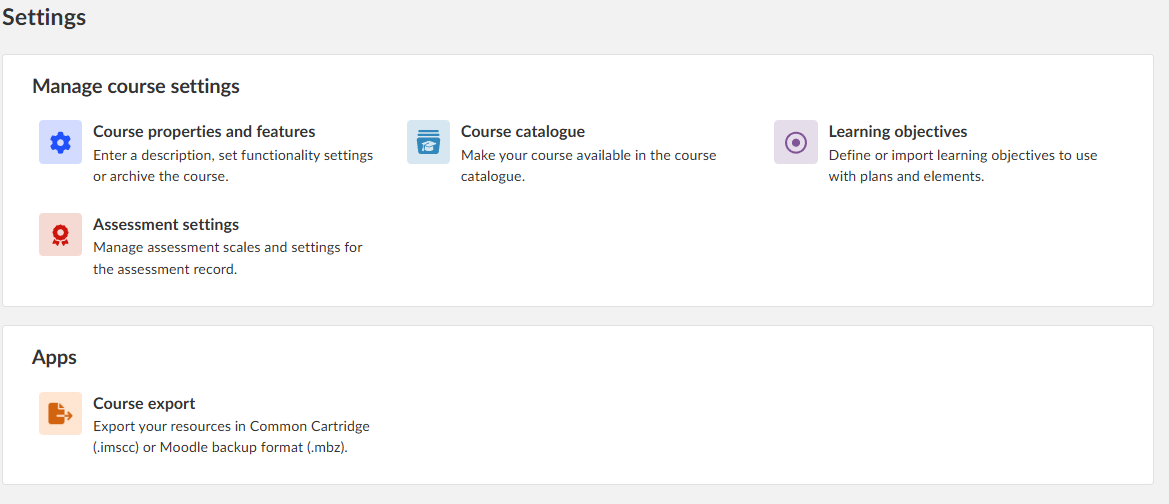
- Select the Course catalogue tile (Make your course available in the course catalogue).
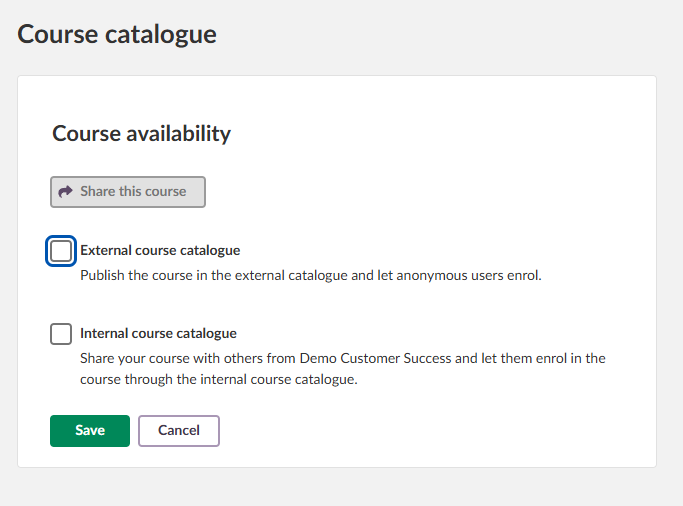
Note: If the Course catalogue tile is not visible, either the feature is not enabled for your site or you do not have the necessary permissions.
4 Course catalogue configuration
4.1 Selecting the catalogue type
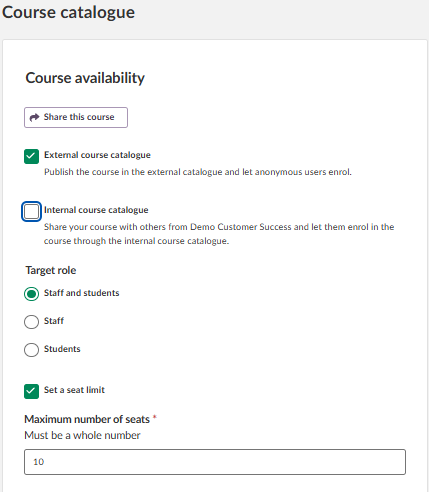
Choose where your course should be available by selecting the appropriate check boxes:
- External course catalogue: Publish the course in the external catalogue and let anonymous users enrol.
- Internal course catalogue: Share your course with others from your organisation and let them enrol through the internal course catalogue.
You can select both options to maximise the visibility of the course.
4.2 Availability in the internal course catalogue
When you select Internal course catalogue, the section Availability in internal course catalogue appears. Here you choose which organisation level can see your course:
- Site: The course is visible to all users on the itslearning site.
- Organisation or school: The course is visible only to users from your organisation or school.
- Unlisted: The course is only available trough the direct link or QR code the teacher sends directly to participants.
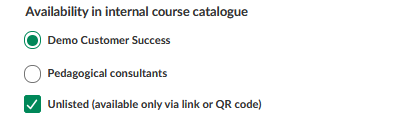
Note: The availability options depend on how your course is connected in the organisation hierarchy and on your permissions. If your course is connected to the site (in Course properties and features), you will not see the option to share it with a school.
4.3 Target role
Under Target role, define which users can enrol in your course:
- Staff and students: Both teachers/administrators and students can enrol.
- Staff: Only teachers and administrators can enrol. "Staff" refers to the role in the hierarchy.
- Students: Only students can enrol.
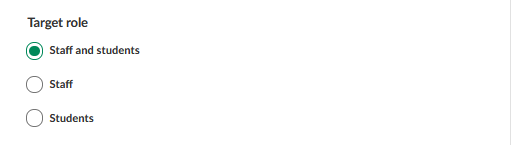
Important: Teachers can see courses targeted at students but cannot enrol in them.
5 Registration method
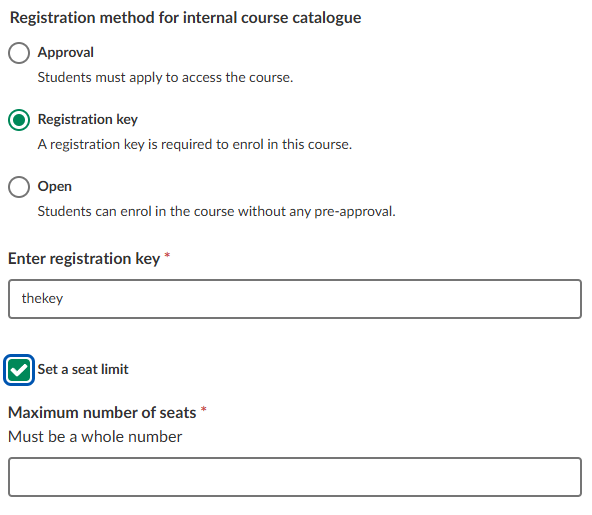
Choose how users enrol in your course. The Registration method for internal course catalogue section appears when you select the internal course catalogue. The available options depend on what your system administrator has enabled.
5.1 Approval
Description: Students must apply to access the course.
Your responsibilities:
- Review applications on the Participants page > Applicants tab.
- Approve or reject each application individually.
- Receive daily notifications about pending applications.
User experience: Users submit an enrolment request and wait for your approval.
5.2 Registration key
Description: A registration key is required to enrol in the course.
Your responsibilities:
- Create the registration key and share it with the intended users.
- Distribute the key through appropriate channels (email, announcements and so on).
- Receive daily notifications about successful enrolments.
User experience: Users enter the correct registration key and are enrolled immediately.
5.3 Open
Description: Students can enrol in the course without any pre-approval.
Your responsibilities:
- Monitor enrolment numbers.
- Receive daily notifications about new enrolments.
User experience: Users can enrol immediately without restrictions.
5.4 Optional: seat limit
Select Set a seat limit to set a maximum number of users who can enrol in the course via the course catalogue.
Students who are added manually as course participants on the Participants page do not count towards this maximum.
6 Course information for the catalogue
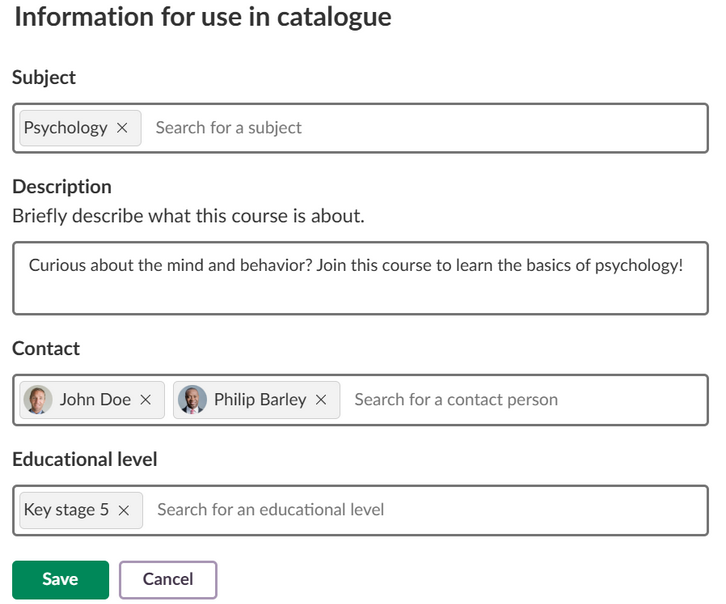
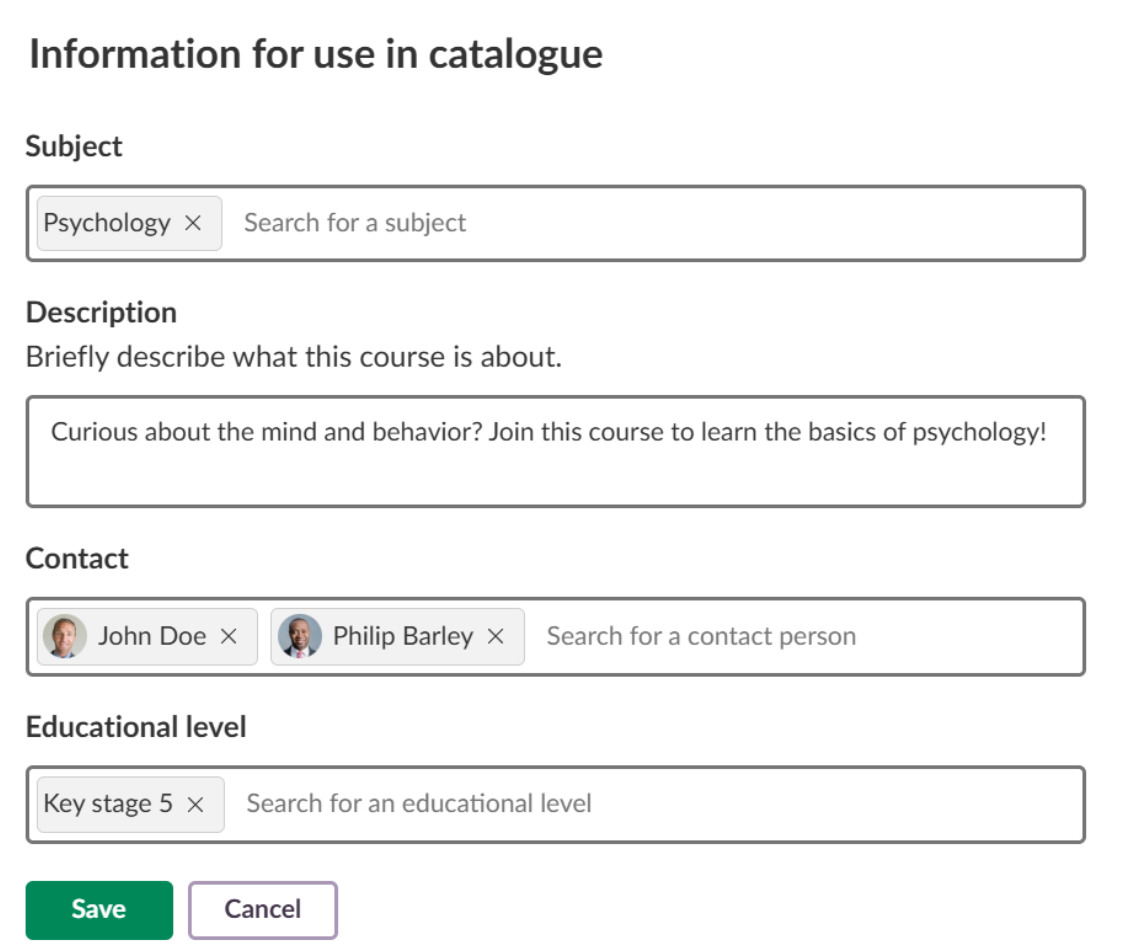
Under Information for use in catalogue, you can describe your course so that it is clear what it is about. Not all fields are mandatory, but leaving fields empty might make your course harder to find.
6.1 Information fields
6.1.1 Subject
Purpose: Enables filtering and categorisation in the catalogue.
Options:
- Select an existing subject by typing in the search field.
- Create a new subject by typing its name. The option + Create new subject appears.
- Selected subjects appear as tags that can be removed with X.
To create a subject:
- Type the subject name in the Subject field.
- Select + Create new subject when it appears.
- The subject is available immediately and appears as a tag.
System administrators can manage the subjects you create later.
6.1.2 Description
Purpose: Explains the course content and objectives to potential participants.
Recommendations:
- Clearly describe the course content and expectations.
- Include any special requirements or prerequisites.
6.1.3 Contact
Purpose: Provides a contact person for questions about the course.
Default: All course teachers and administrators are included automatically.
Customisation: Remove or add specific course staff as contacts.
6.1.4 Educational level
Purpose: Helps users find the appropriate level.
Availability: Only shown if educational levels are configured for your country. This field is managed at national level by itslearning, so it might not be available.
6.1.5 Additional information
The course catalogue also shows information from your course properties:
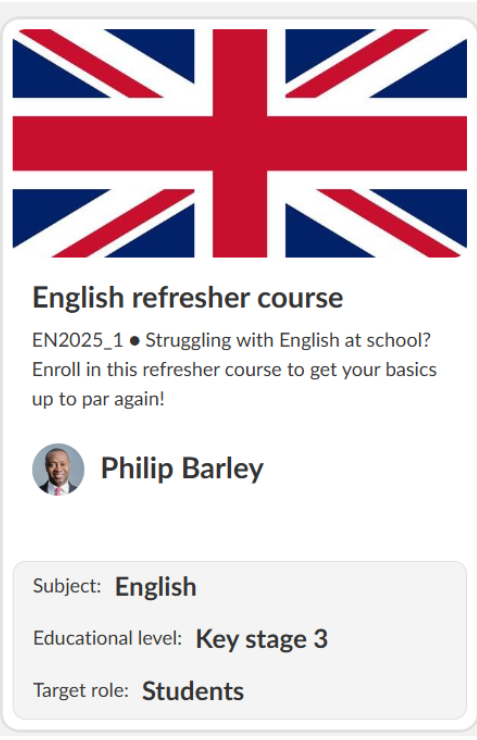
- Course title: The main identifier in catalogue listings.
- Course image: Shown on the course card.
- Course code: Shown in front of the description, if enabled.
6.2 How the course looks in the course catalogue
Card with all information:
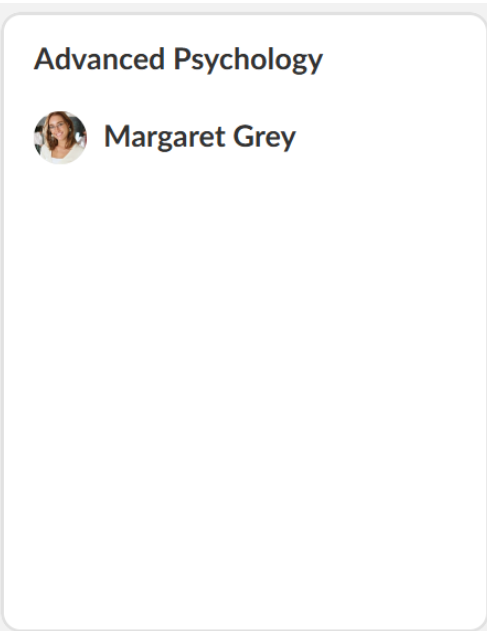
Card with minimum information:
7 External course catalogue settings
The settings for the external course catalogue are the same as for the internal course catalogue, but there are fewer options. You cannot define availability as in the internal course catalogue, and you cannot choose a registration method, as these are predefined site-wide by a system administrator. External courses can be found by anyone outside the organisation as long as the external course catalogue is turned on and has a link.
Important: You must manually approve all external participants in your course.
7.1 External catalogue considerations
When you add courses to the external catalogue, be aware of what becomes visible:
- Privacy notice: Course participants see a notification that external users may join the course.
- Content visibility: Course materials and discussions may be visible to users outside your organisation.
- Interaction: External users interact with your regular course participants.
7.2 Sharing the course via links and QR codes
Once your course is published in a catalogue, you can share it with the Share this course button:
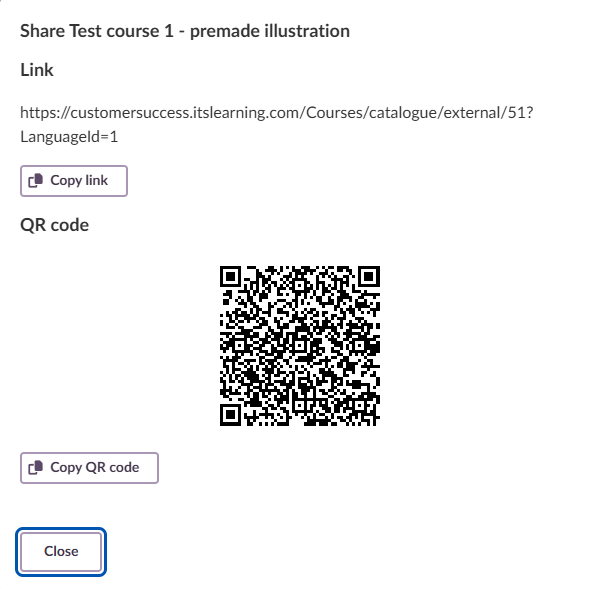
Option 1: Copy link
- Function: Copies the direct URL to the course details page.
- Use: Share via email or messages, or add it to websites.
- For the recipient: Direct access to course information and enrolment.
Option 2: Copy QR code
- Function: Copies the QR code image.
- File format: High-resolution image suitable for printing.
- Use: Printed promotional materials.
Tips for using QR codes:
Professional development:
- Print and post in staff rooms.
- Include in printed training calendars.
- Add to conference materials or handouts.
Promoting courses to students:
- Post on noticeboards.
- Include in printed course catalogues.
- Add to classroom posters or announcements.
8 Managing course applications
8.1 Daily notifications
Users listed as course contacts receive a daily summary in their bell notifications about:
- New enrolment applications that need approval (Approval method)
- New successful enrolments (Registration key and Open methods)
Timing: Notifications are sent once a day at a time set by the system administrator (see the system administrator article).
Content: A summary of all enrolment activity since the last notification.
Direct access: Selecting the bell notification takes you directly to the Applicants tab on the Participants page.
8.2 Reviewing applications
For courses that use the Approval method, and for external participants:
- Go to the Participants page of the course.
- Select the Applicants tab. The tab shows the number of pending applications, for example Applicants (1).
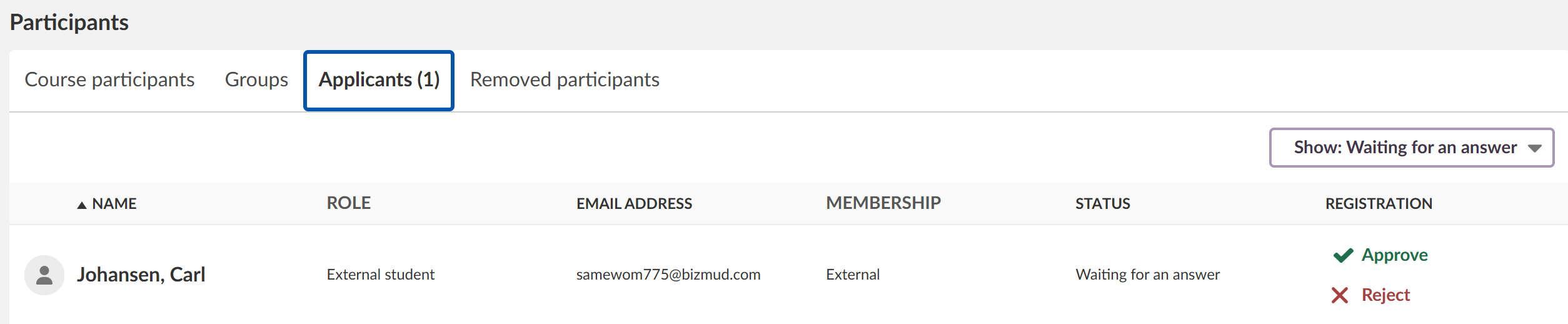
- Review each application. It shows:
- Name
- Role (for example Parent, Student)
- Email address
- Membership type (for example External)
- Status (for example Waiting for an answer)
- Use the action buttons for each applicant:
- Approve (green tick): Gives access to the course.
- Reject (red X): Denies access to the course.
Use the status filter to show All, Approved, Waiting for an answer or Rejected applications.
8.3 Approving applications
- Select Approve (green tick) next to the applicant's name.
- Confirm with Approve in the confirmation dialog.
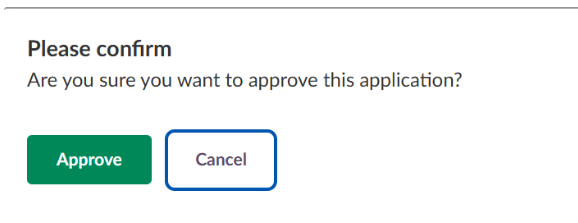
Result: The applicant immediately gets access to the course and a bell notification that the application has been approved.
8.4 Rejecting applications
You have two options when you reject an application:
Option 1: Reject this application
- Select Reject (red X) next to the applicant's name.
- Select Reject this application in the confirmation dialog.
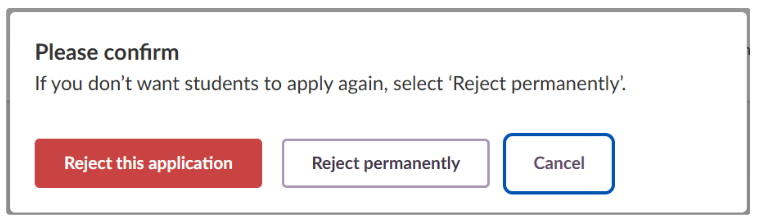
Result: The applicant can apply for the course again at any time and receives a bell notification that the application has been rejected.
Option 2: Reject permanently
- Select Reject (red X) next to the applicant's name.
- Select Reject permanently in the confirmation dialog.
Result: The applicant is blocked from applying for this course again and receives a bell notification that the application has been rejected.
8.5 Cancelled applications
Users can cancel their application before you make a decision:
- This is only possible for courses that use the Approval method.
- Users can withdraw their application at any time before you approve or reject it.
- You do not receive notifications about cancelled applications.
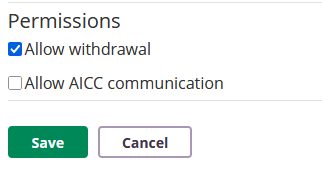
9 Allowing users to withdraw from a course
If you want users to be able to withdraw from your course, you must turn this on for each course.
- Open the course.
- Select the three-dot menu (…) in the upper-right corner and select Settings.
- Select Course properties and features.
- Scroll to the bottom and select Allow withdrawal under Permissions.
- Select Save.
10 Troubleshooting
| Problem | Possible cause | Solution |
|---|---|---|
| Course catalogue options are not available in the course settings | The course catalogue is not enabled by the system administrator, you are missing permissions to add courses to the catalogue, or your role lacks the necessary rights. | Check with your system administrator that the course catalogue is enabled for the site and that you have the permissions. Make sure you have a teacher or administrator role in the course. |
| A registration method is not available | The system administrator has restricted the available registration methods. | Contact your system administrator to enable additional registration methods. |
| The right subject is not in the list | The subject has not been created yet. | Create a new subject by typing in the Subject field, ask your system administrator to add it, or select the closest existing subject for now. |
| The course does not appear in the catalogue | The availability settings are too restrictive, the target role excludes the intended users, or the seat limit has been reached. | Check the availability, target role and seat limit settings, and make sure the catalogue settings have been saved. |
| Users can see the course but cannot enrol | The seat limit has been reached, the registration key is missing or wrong, or the course is targeted at a different role. | Check the seat limit, check that the correct registration key has been shared, and review the target role. |
For further help, contact your itslearning administrator.
More Help Resources
Have more questions? Please start with asking your school administrator.
Product Release notes
Stay updated with itslearning latest releases: https://itslearning.com/product-updates
Service Status
Check the current status of itslearning services: https://status.itslearning.com/
Ideas Portal
Share your ideas and help shape the future of itslearning: https://ideas.itslearning.com/
Roadmap
Check out our roadmap: https://itslearning.com/global/roadmap/
The features shown are part of the project within the framework of the German Development Project (GDP), a cooperation between four German states and itslearning with the aim of improving digital education in Germany through tailor-made product developments.
Click here to learn more about the GDP roadmap and what other features you can expect.
For German readers: Click here for more information about the project within the framework of the German Development Project.