Using the course catalogue (students/external users)
TABLE OF CONTENTS
- 1 Overview
- 2 Accessing the Course Catalogue
- 3 Browsing and Searching Courses
- 4 Course Display
- 5 Course Enrolment Process - Internal Course Catalogue
- 6 Course Enrolment Process - External Course Catalogue
- 7 Course Withdrawal
- 8 Troubleshooting
1 Overview
The course catalogue allows you to discover and enrol in courses beyond your regular assigned classes. There are two types of catalogues you may encounter:
Internal Course Catalogue: Available to users with itslearning accounts within the organization. Displays courses offered by your school or institution.
External Course Catalogue: Available to anyone, including users without itslearning accounts. Allows anonymous browsing and account creation during enrolment.
What You Can Do
- Browse available courses by subject, educational level, or organization
- Search for specific courses using keywords
- View detailed course information before enrolling
- Enrol in courses using different methods (immediate, approval-required, or registration key)
- Manage your enrolment applications and course participation
Account Requirements
Internal Catalogue: Requires existing itslearning account and appropriate permissions
External Catalogue: Can be browsed anonymously; account creation required for enrolment
2 Accessing the Course Catalogue
2.1 Internal Course Catalogue Access
For Students and Staff with itslearning accounts:
- Log in to your itslearning account
- Navigate to the Courses page (main courses overview)
- Click All courses link in the top right
- Click Course catalogue button in the top right area
- Browse available courses in the course catalogue interface
Note: If you cannot access the internal course catalogue, your profile may not have the necessary permissions. Contact your administrator for access.
2.2 External Course Catalogue Access
Via Login Page:
- Go to your organization's itslearning login page
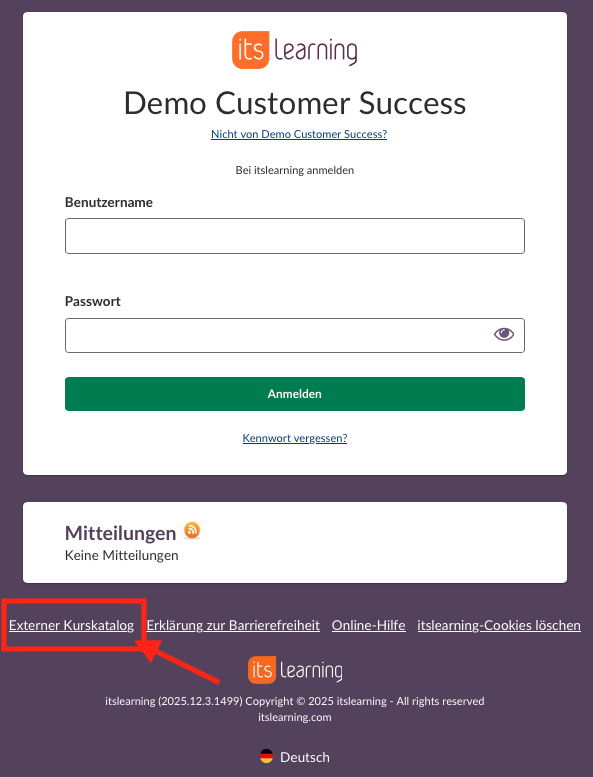
- Look for External course catalogue link at the bottom of the page (in the footer area)
- 3. Click the link to browse available courses anonymously
Via Direct Link or QR code:
- Use the direct URL or QR code
- Access from organization website or promotional materials
- Bookmark the link for easy future access
3 Browsing and Searching Courses
Note! The browsing of courses functions in the same way regardless of accessing it internally or externally. The main difference is the method of entering/applying for the course and both will be describer further down the article.
3.1 Search Functionality
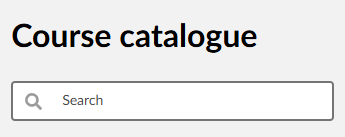
Use the search field to find specific courses:
- Enter keywords related to course title, description, or course code
- Search results update automatically as you type
- Use multiple keywords to narrow results
3.2 Filter Options
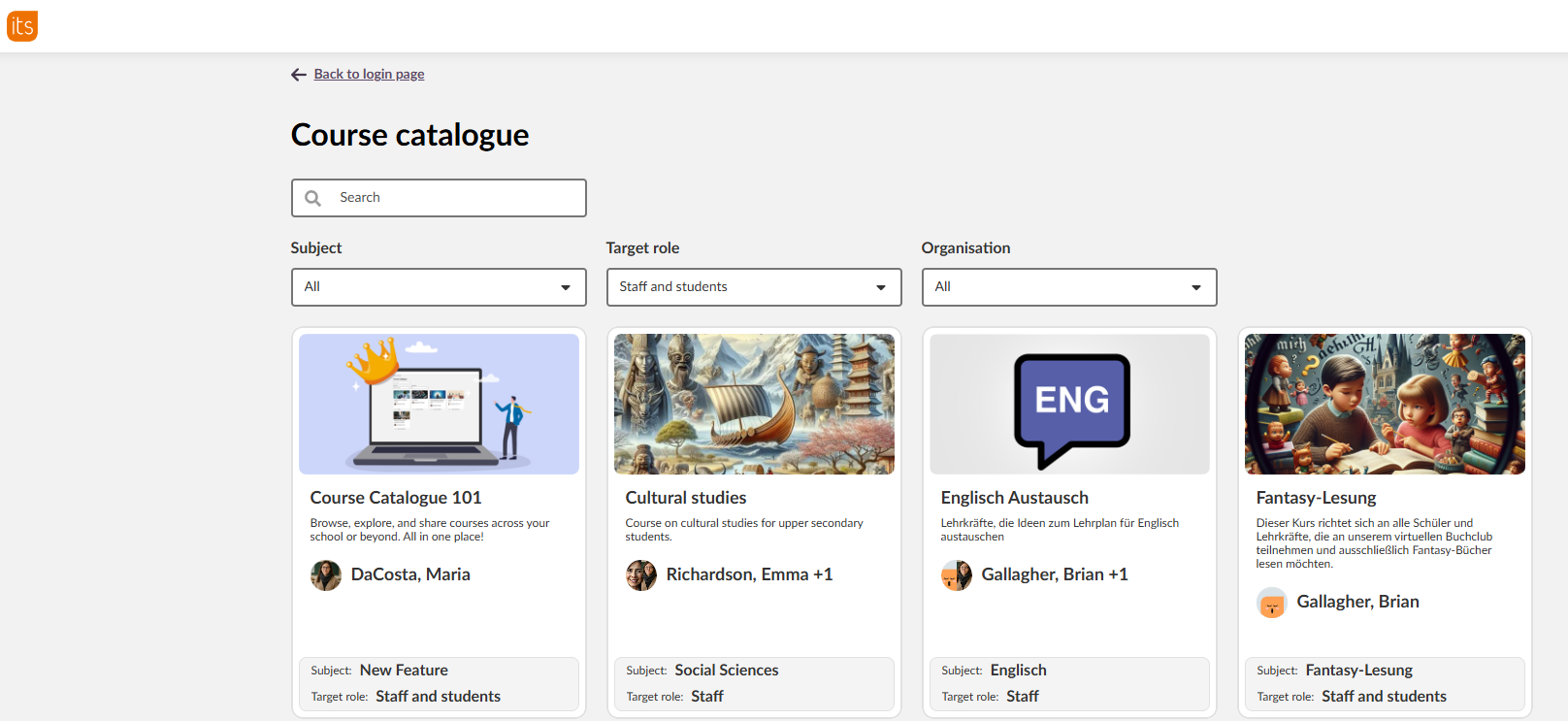
Refine your course search using available filters:
Subject Filter
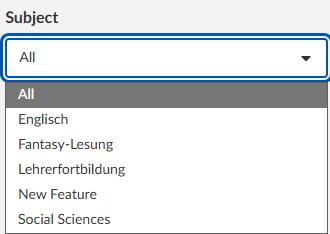
- Available when: At least one course is tagged with a subject
- Options: Dropdown showing "All" and specific subjects currently used by catalogue courses
- Use for: Finding courses in specific academic areas
Target Role Filter
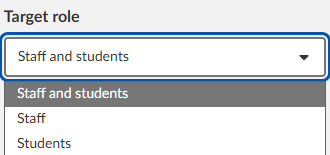
- Available to: All users can see this filter on the external course catalogue. This is not available for students in the internal course catalogue, as their role is already defined.
- Options: Staff and students, Staff, Students
- Use for: Finding courses appropriate for your role
- Note: Shows which user types the course is intended for
Note! The target role filter will be hidden in the external course catalogue if the site is set up so it is only possible to create an account via email.
Organization Filter
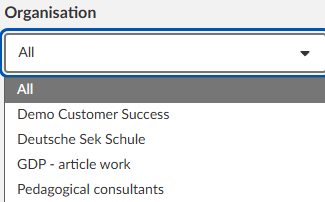
- Available when: Multiple organizations offer courses in the catalogue
- Options: Dropdown showing "All" and specific organizations that have courses in catalogue
- Use for: Finding courses from specific schools or institutions
Educational level
If enabled on a national level, courses can also be filtered by educational level. Note that this will differ between countries. The filter will be hidden when no course is tagged with an educational level, so if you can`t see it, its either not turned on in your country, or no courses has been tagged with educational level.
4 Course Display
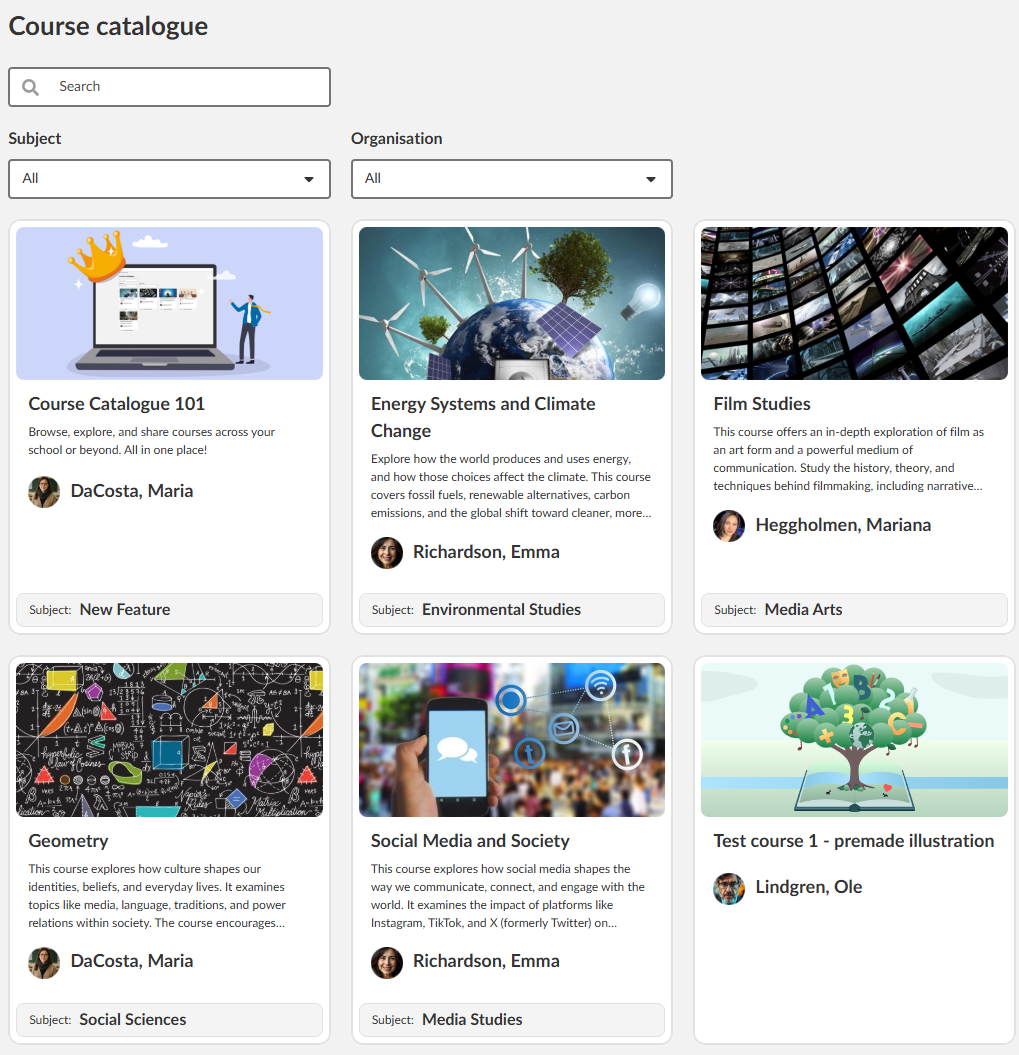
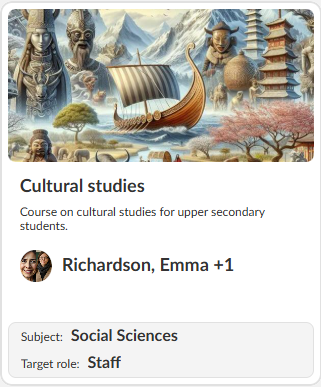
Courses appear as cards showing key information:
- Course image (if provided)
- Course title
- Course description
- Course teacher name and profile picture
- Subject classification (shown at bottom of card)
- Target role information (shown at bottom of card)
Layout Features:
- Visual course cards with images and clear typography
- Teacher information prominently displayed with profile pictures
- Consistent card layout for easy scanning
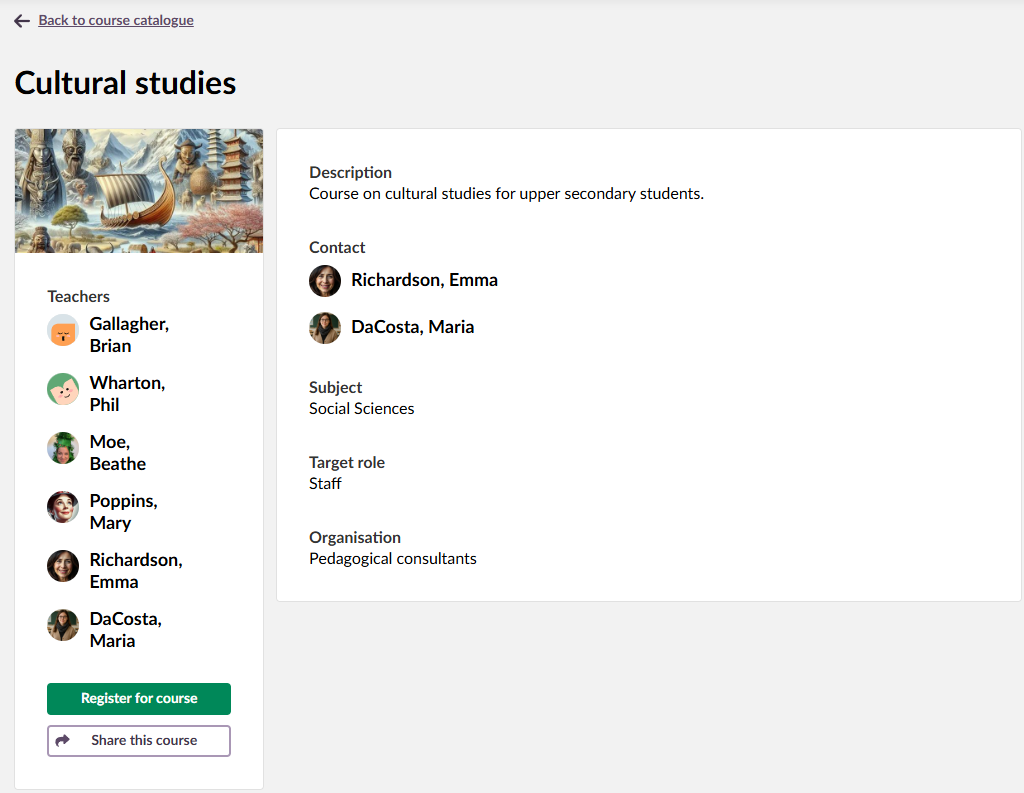
4.1 Course Information
Click any course card to view complete course information:
Course Details Include:
- Course image and title
- Full course description
- Teachers list with profile pictures
- Contact information for course inquiries
- Subject classification
- Organization name
- Enrolment/registration button
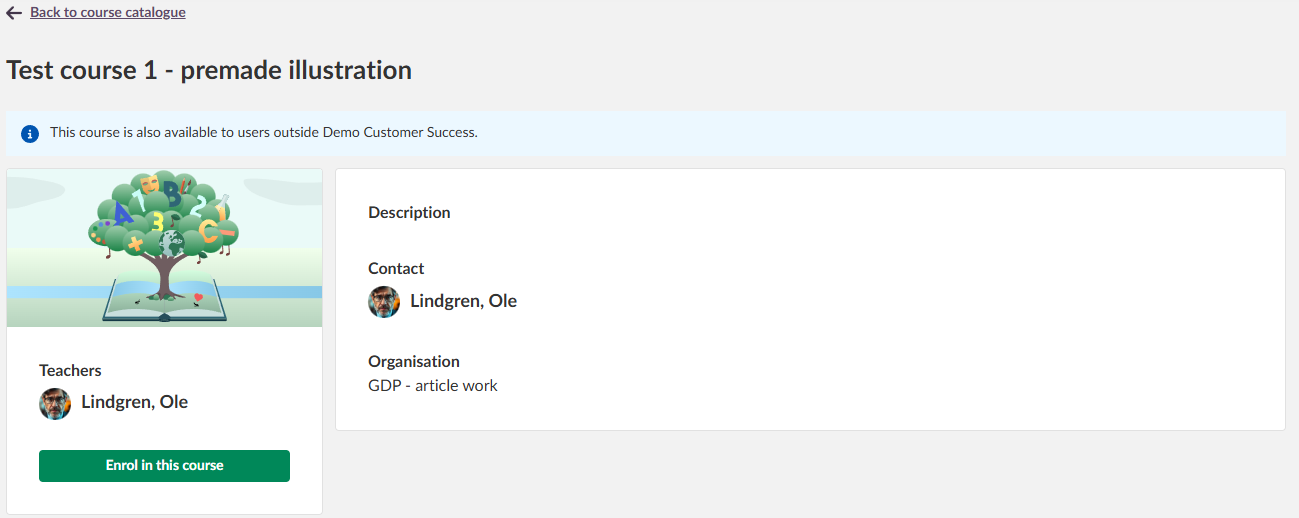
Special Notices:
- In internal course catalogue: External course notice: Blue information banner stating "This course is also available to users outside [Organization Name]" when applicable
Seat Availability
When courses have enrolment limits:
- "Course full" message appears when limit reached and new applicants try to register

5 Course Enrolment Process - Internal Course Catalogue
5.1 Standard Enrolment Steps
- Browse or search for desired course
- Click course card to view details
- Review course information and requirements
- Click "Enrol in this course" button
- Follow specific enrolment process based on course method and your account status

5.2 When a course needs teacher approval for enrolment:
- Click "Enrol in this course"
The page will update, and you will get a new banner notification: "Your request to enrol..."
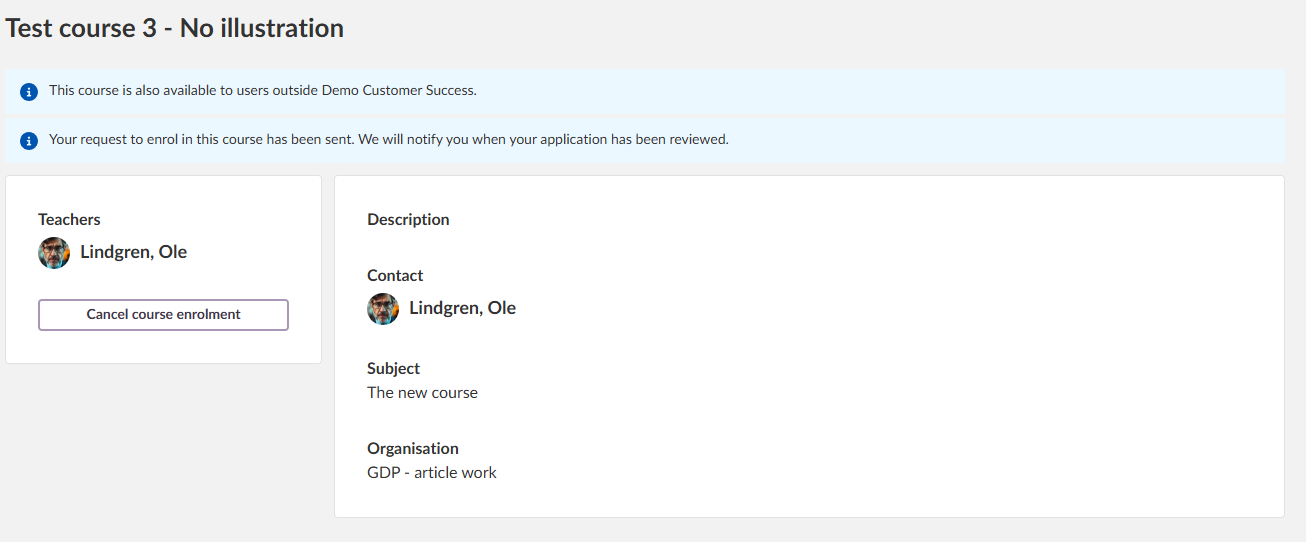
2. You will need to wait for teacher approval, and you will be notified when approved or rejected
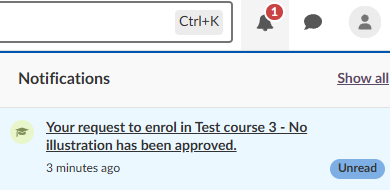
You will have Access to the course immediately upon approval
Your Options While Waiting:
- Cancel application before teacher decision
- Check application status in your course list
5.3 When a course needs a registration key for enrolment
- Click "Enrol in this course"
- You'll see a blue information notice: "A registration key is required to enrol in this course. If you don't have a registration key, please reach out to the course contact."
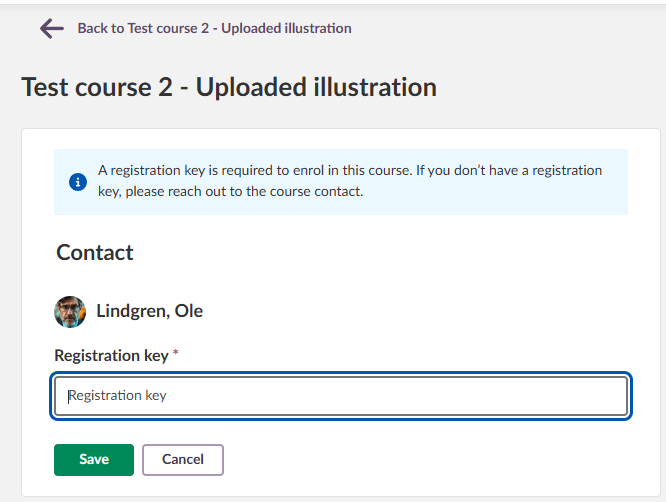
- If you already have a key, enter it here. Otherwise contact the course teacher to obtain a registration key.
- Enter the registration key in the provided field
- Click "Save" to complete enrolment
- Immediate enrolment upon correct key entry
5.4 When a course has open enrolment
- Click "Enrol in this course"
- Immediate access to course
- Begin participating right away
6 Course Enrolment Process - External Course Catalogue
6.1 Registration Page Options
When you click "Register for course" on an external course, you'll see up to three options, depending on the setup of the school you are looking at:
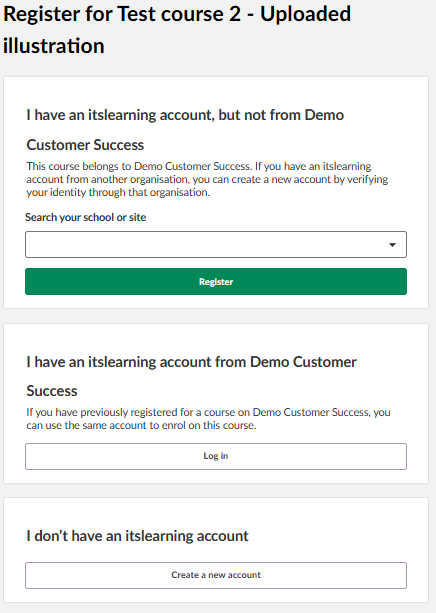
6.1.1: I have an itslearning account, but not from [Organization Name]
Requirements:
- Active itslearning account from partner organization
- Access to original itslearning site for verification
Process:
- Select this option
- Choose your organization from "Select your school or site" dropdown
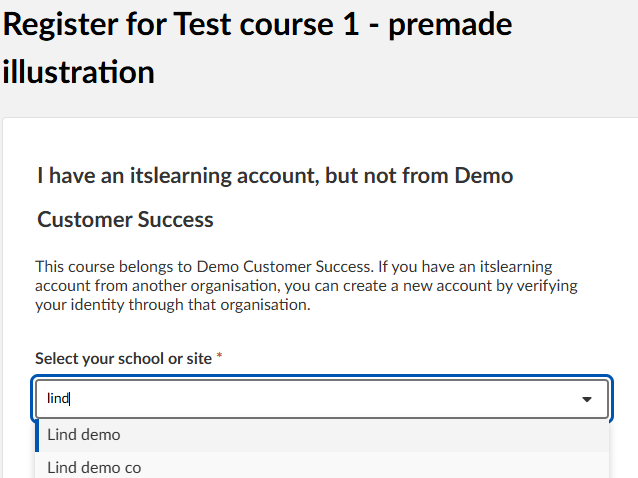
- Click "Register" button
- Log in to your original itslearning site when redirected, and a new page will appear.
- Create a password
- Agree to terms and conditions and push "Create a new account"
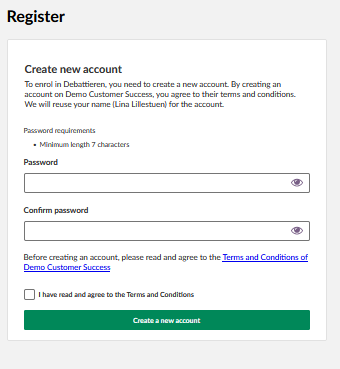
You will receive a new account name and can now login to the new site with your new username and password.
These are unique for that site, and does not affect your logins in your usual site. 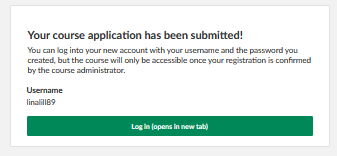
- Note that even though you can already log in, you won’t have access to the course you have registered for until your application has been approved by the course administrator.
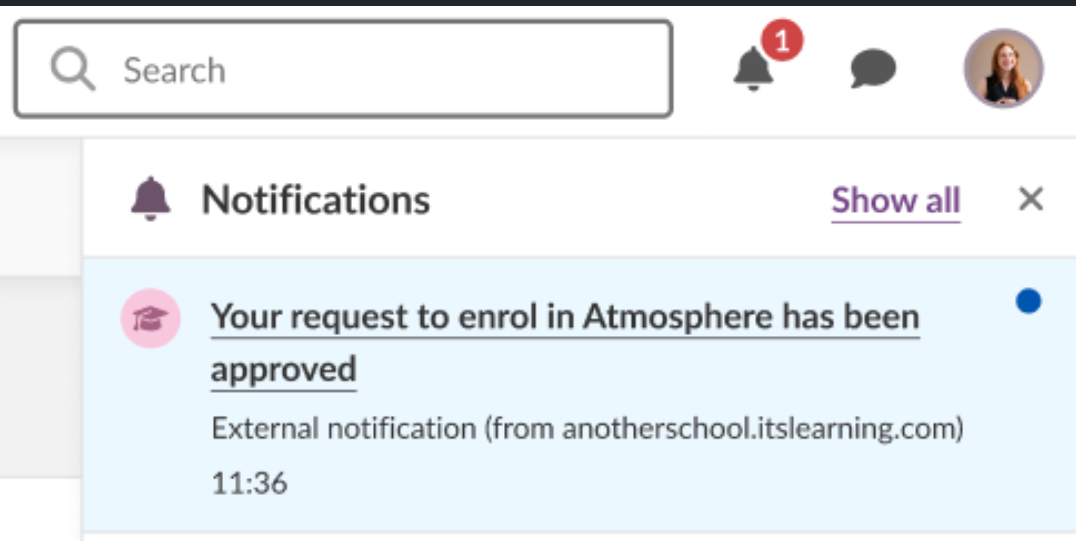
- You will receive a bell notification in your own itslearning site when your application has been approved. Clicking on this notification will open a new tab with the login page of the site the notification came from (unless you were already logged in to that site)
6.1.2 I have an itslearning account from [Organization Name]
Requirements:
- Previously created account through this organization's external catalogue
Process:
- Select this option
- Click "Log in" button
- Enter your existing username and password
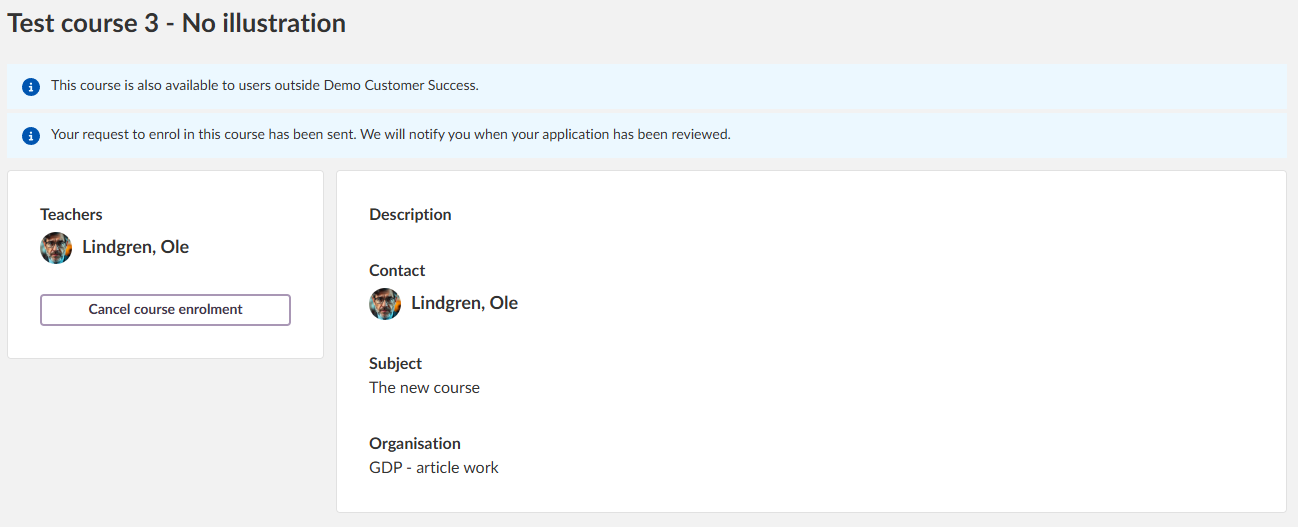
- You can cancel the enrollment at his point if you wish to - You can now see the course pending on your course page in itslearning and will be notified in your account when you have approval, the same way as if you had applied trough the internal course catalogue.
6.1.3 I don't have an itslearning account
Requirements:
- Valid email address
- Agreement to terms and conditions
Process:
- Select this option
- Click "Create a new account" button
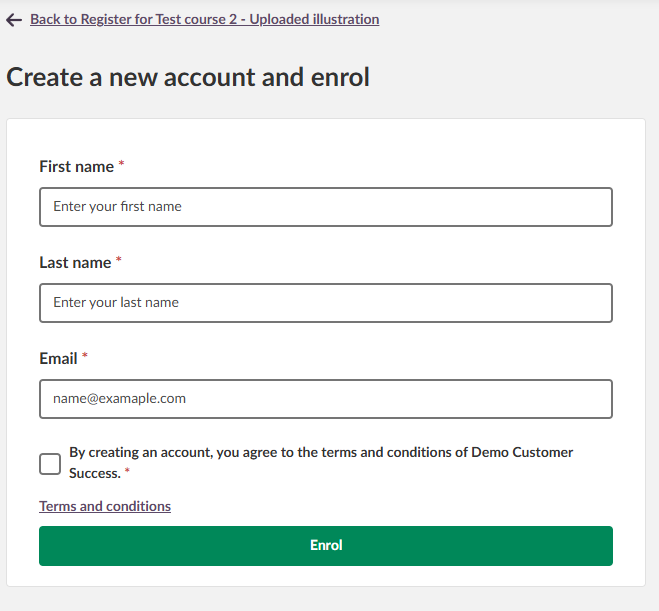
- Fill out the account creation form:
- First name (required)
- Last name (required)
- Email address (required)
- Check the agreement checkbox: "By creating an account, you agree to the terms and conditions of [Organization Name]"
- Review terms and conditions via the provided link
- Click "Enrol" button to submit
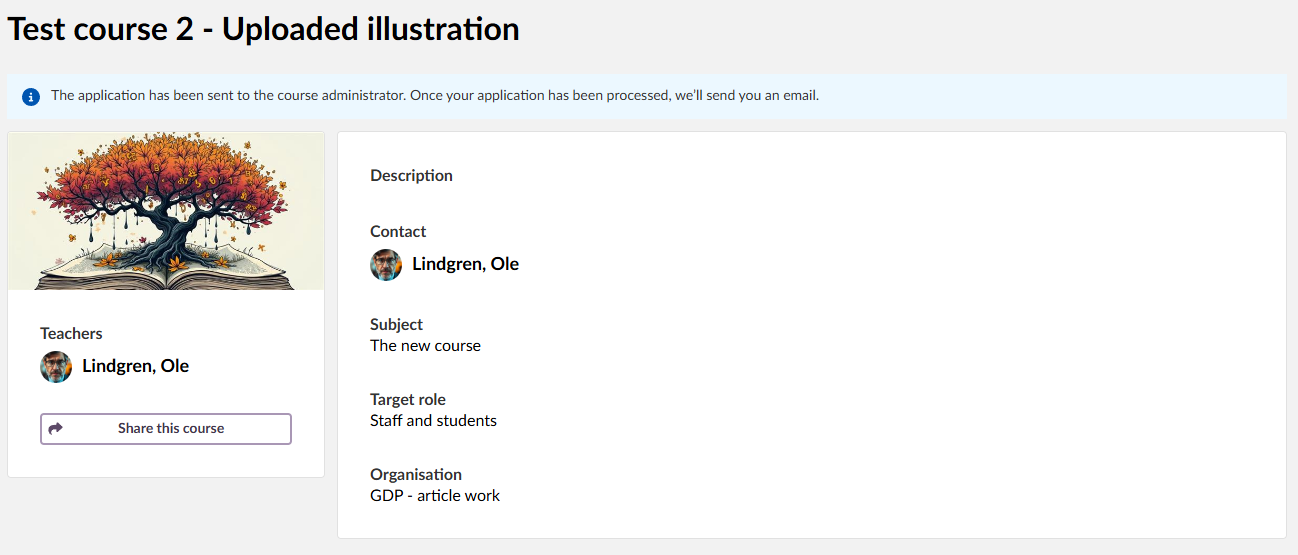
6.1.3.4 Account Activation Process via email
After Account Creation:
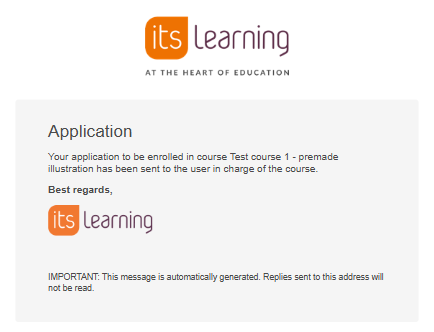
Step 1: Application Confirmation
- You receive an initial email confirming your application has been sent to the course administrator
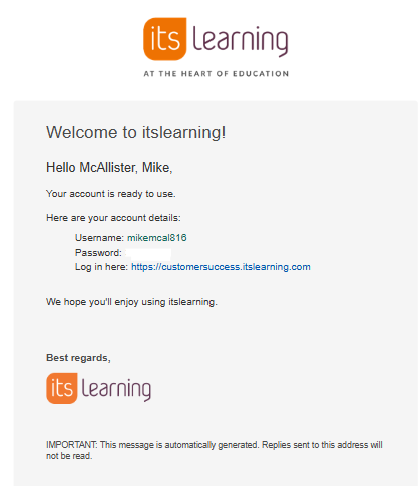
Step 2: Account Credentials (when approved)
- After teacher approval, you receive a "Welcome to itslearning!" email
- Email contains your account details:
- Username (e.g., mikemcal816)
- Temporary password (e.g., 9T-Vz9)
- Direct login link to the itslearning site
Step 3: First Login
- Click the login link provided in the email
- Enter your username and temporary password
- System will prompt you to create a new, secure password
- Store your new credentials securely for future access
Important: Save your username and new password - you will need them for all future access.
7 Course Withdrawal
Availability: This option only appears if the course teacher has enabled the "Allow withdrawal" setting in their course properties.
How to Withdraw:
- Open the course you want to leave
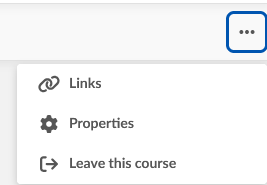
- Click the 3-dot menu (⋯) in the top right corner of the course interface
- Select "Leave this course" from the dropdown menu
- Confirm your withdrawal decision when prompted
Important:
- Withdrawal removes all course access and may delete your progress data
- This feature must be enabled by the teacher - it's not available by default
- Once withdrawn, you have to re-enrol through the catalogue if you want to rejoin
8 Troubleshooting
Cannot Access Course Catalogue
Symptoms: Course catalogue not visible or accessible
Possible Causes:
- Course catalogue not enabled by administrator
- Missing user permissions
- Not logged in (for internal catalogue)
Solutions:
- Verify you are logged in for internal catalogue
- Contact administrator about access permissions
- Try external catalogue if available
- Clear browser cache and refresh page
Registration Key Not Working
Symptoms: Error when entering registration key Possible Causes:
- Incorrect key entered
- Key expired or changed
- Typing/copy-paste errors
Solutions:
- Verify key spelling and capitalization
- Contact course provider for current key
- Try typing key manually instead of copy-paste
- Check for extra spaces before or after key
Account Creation Failing
Symptoms: Cannot create account through external catalogue
Possible Causes:
- Email already used for account
- Terms and conditions not accepted
- Required fields missing
Solutions:
- Check all required fields completed
- Verify email address is correct and unused
- Ensure terms and conditions checkbox is checked
- Try different email address if available
Course Not Appearing in Search
Symptoms: Expected course not visible in results
Possible Causes:
- Course not added to catalogue
- Filters excluding course from results
- Course targeted to different user role
Solutions:
- Clear all search filters and try again
- Search for different keywords
- Check if course is in different catalogue (internal vs external)
- Contact administrator or course teacher
Password Reset Issues
Symptoms: Cannot reset or change password
Solutions:
- Use "Forgot password" link on login page
- Check email for password reset instructions
- Contact site administrator for account assistance
- Verify email address associated with account
Contact Support: For additional support, contact your itslearning administrator or visit the itslearning support pages
---------------------------------------
The features shown are part of the project within the framework of the German Development Project (GDP), a cooperation between four German states and itslearning with the aim of improving digital education in Germany through tailor-made product developments.
Click here to learn more about the GDP roadmap and what other features you can expect.
For German readers: Click here for more information about the project within the framework of the German Development Project.