Information hub course – Overview
TABLE OF CONTENTS
Introduction
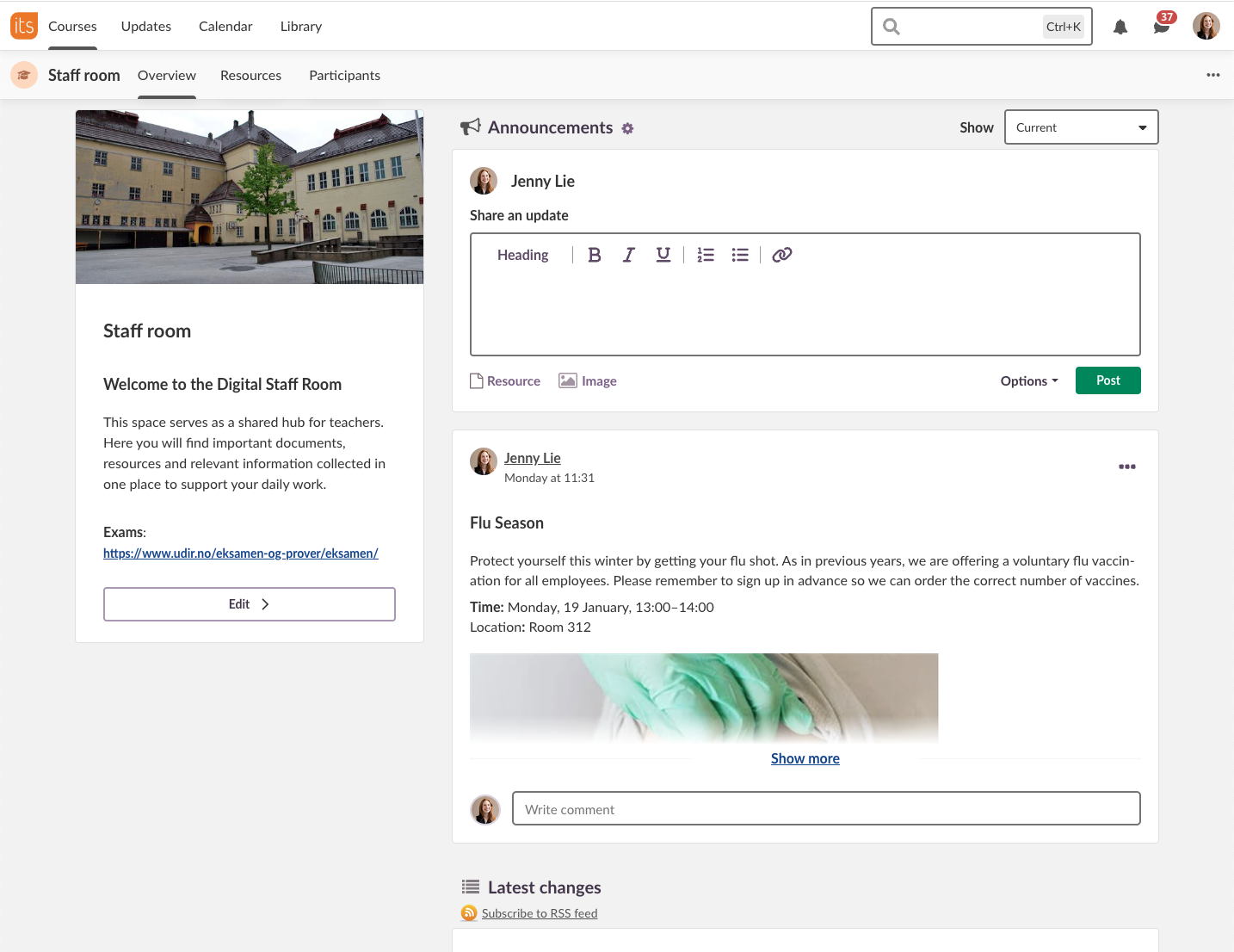
The Information hub course is designed for sharing information and resources with students, teachers, parents or guests. Typical uses include a staff room, a course for all parents of a class, or a course for the entire student body at a school.
Note: The Information hub course is not an academic course. Plans, task lists and reports are not shown in the course menu.
Teachers and administrators manage this course type. It can also be used as a replacement for the hierarchy dashboard.
1 How to get started
You can create an Information hub course in two ways:
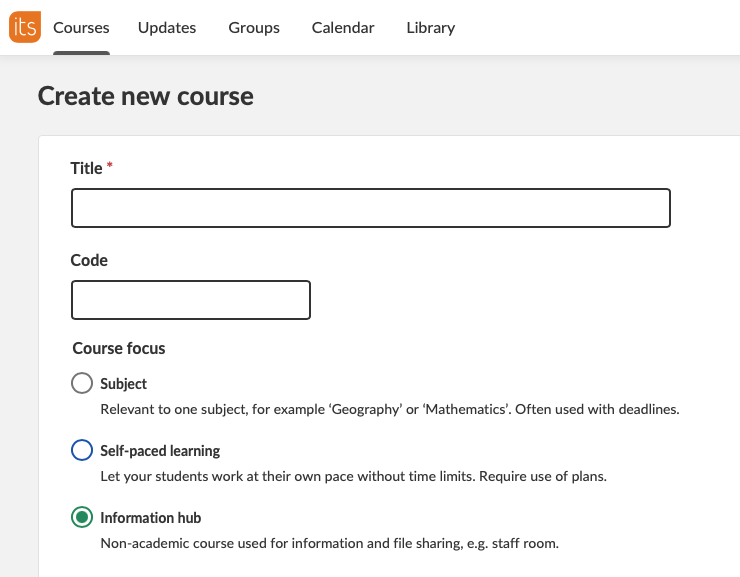
- Select Information hub as the Course focus when you create a new course.
- Convert an existing course in Course properties and features.
1.1 Create a new course
On the Create new course page, select Information hub under Course focus.
1.2 Convert an existing course
Open Course properties and features and select Information hub in the Course focus drop-down list.

2 Components on the course start page
| Component | Description |
|---|---|
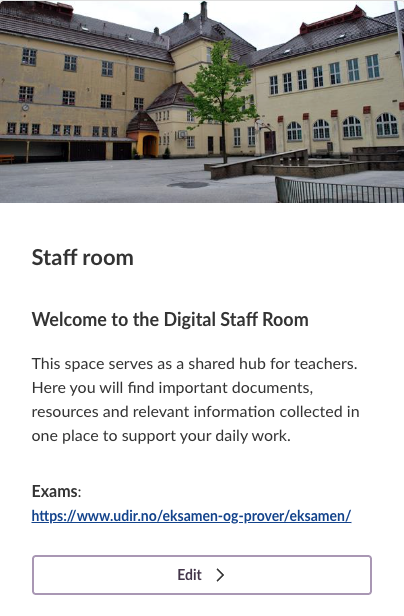
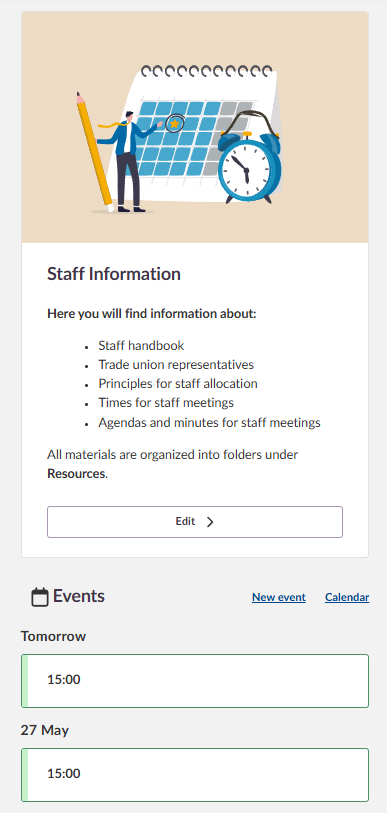
| Course information block | Shows the course image and the course description, which can include internal and external links. |
| Announcements | Shown on the course start page. Course resources can be attached to an announcement. |
| Events | If an event has been added to the calendar for the course, it appears below the course description. |
2.1 Course information block
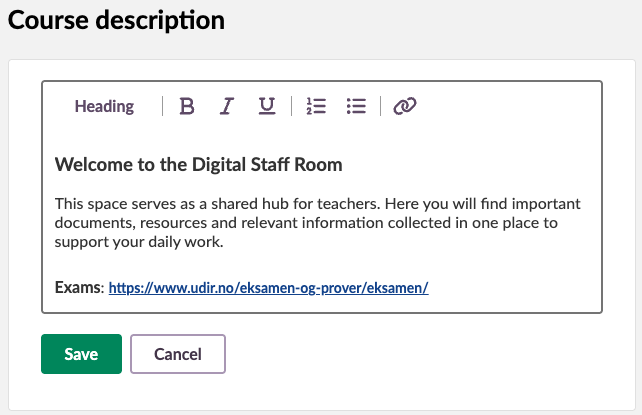
Teachers and administrators can add a course description by using the simple text editor. The editor supports basic formatting options, including headings, text styling and hyperlinks.
If you add an image to the course, it appears in the course information block. If you do not add an image, an illustration based on the selected course colour is shown instead.
You can add a course image in the following ways:
- When you create a new course.
- By editing the course card.
- In Course properties and features.
2.2 Announcements
Announcements can be created and scheduled using the simple text editor. The editor supports basic formatting options, including headings, text styling and hyperlinks.
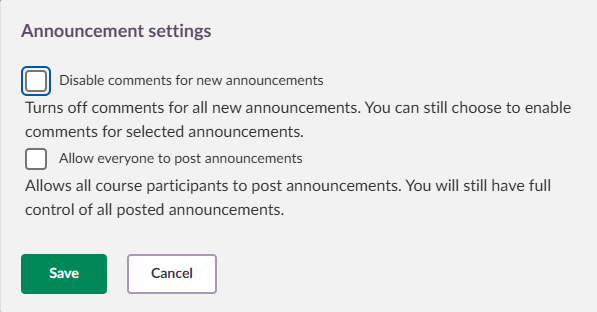
Select the gear icon next to Announcements to set who can post announcements and whether announcements can be commented on. For example, you could allow all course participants to post announcements in a student council course.

2.3 Calendar events
If you have created an event in the calendar for this course, it appears under Events below the course description.
3 Course menu items
The Information hub course shows only the following menu items:
| Menu item | Availability |
|---|---|
| Overview | ✓ |
| Resources | ✓ |
| Participants | ✓ |
| Plans | ✗ |
| Reports | ✗ |
More Help Resources
Have more questions? Please start with asking your school administrator.
Product Release notes
Stay updated with itslearning latest releases: https://itslearning.com/product-updates
Service Status
Check the current status of itslearning services: https://status.itslearning.com/
Ideas Portal
Share your ideas and help shape the future of itslearning: https://ideas.itslearning.com/
Roadmap
Check out our roadmap: https://itslearning.com/global/roadmap/