Self-Paced Courses – Complete Guide
TABLE OF CONTENTS
- Introduction
- 1 Prerequisites
- 2 Getting Started
- 3 Core Features and Functions
- 4 Step-by-Step Workflows
- 5 Settings and Customization
- 6 Technical Information
- 7 Troubleshooting
- 8 Related Features and Cross-References
- 9 Additional Resources
Introduction
Self-Paced Courses are designed for independent learning. Students work through plans without time restrictions, allowing them to progress at their own pace. These courses are ideal for online training programs, self-study modules, or learning paths requiring minimal teacher involvement.
1 Prerequisites
Prerequisite: Teacher or Administrator role required to create and configure courses.
2 Getting Started
2.1 Basic Setup
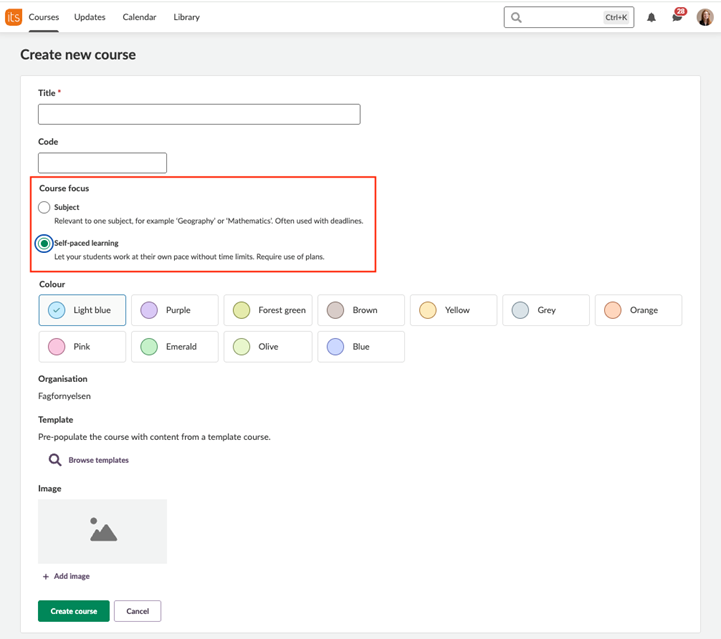
When creating a new course, select Self-paced learning as the Course focus. This format uses the planner tool as the central element for student learning.
2.2 Initial Configuration
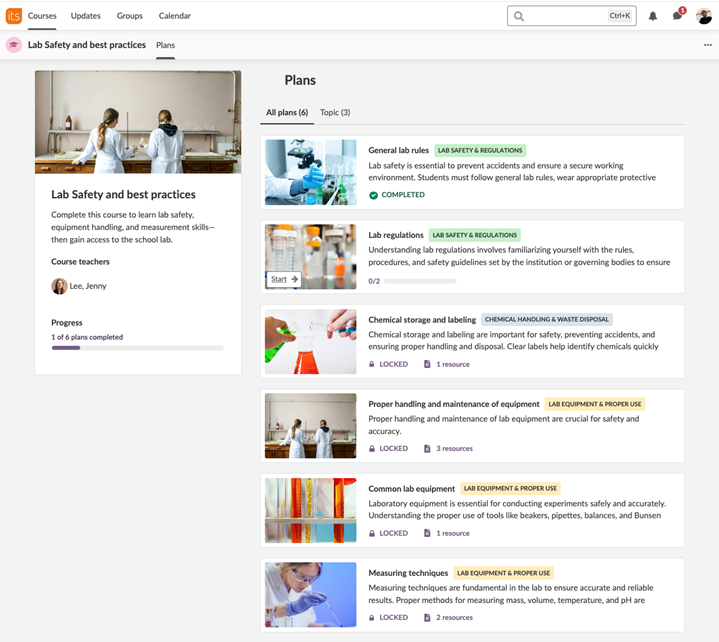
In this initial layout:
- Students land directly on the Plans page.
- Plans have no deadlines or time restrictions.
- Announcements and some traditional Subject course tools are excluded.
3 Core Features and Functions
3.1 Self-Paced Course Page
- Students only see the Plans menu item.
- Teachers see all menu items except the Course Overview.
- No option to pin a plan.
3.2 Course Page Components
On the Course page, participants see:
- All plans and Topic view.
- Course Introduction block including:
- Course image
- Introductory text (optional)
- Teacher’s name and image (optional)
- Visual indicator of student’s overall plan progression
3.3 Plan Workflow Options
To define the plan workflow:
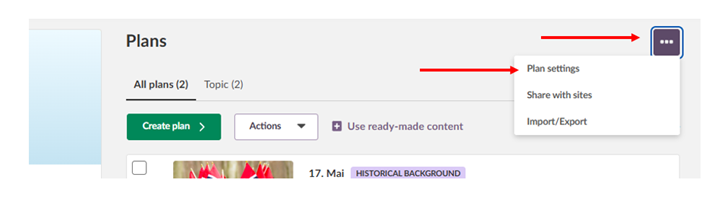
- Open the three-dot menu (⋯) in the top right corner of the Plans page.
- Click Plan settings.
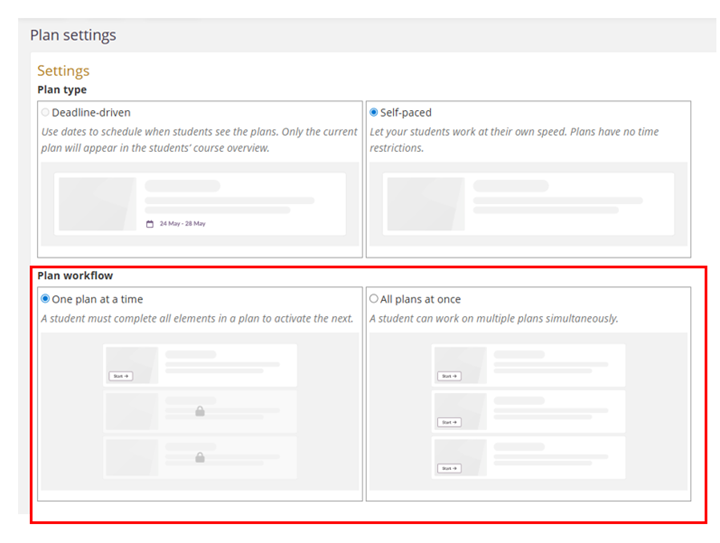
- On the page that opens, you can choose between the different plan types and the plan workflow.
- Choose one of the workflows (the two workflows are described below).
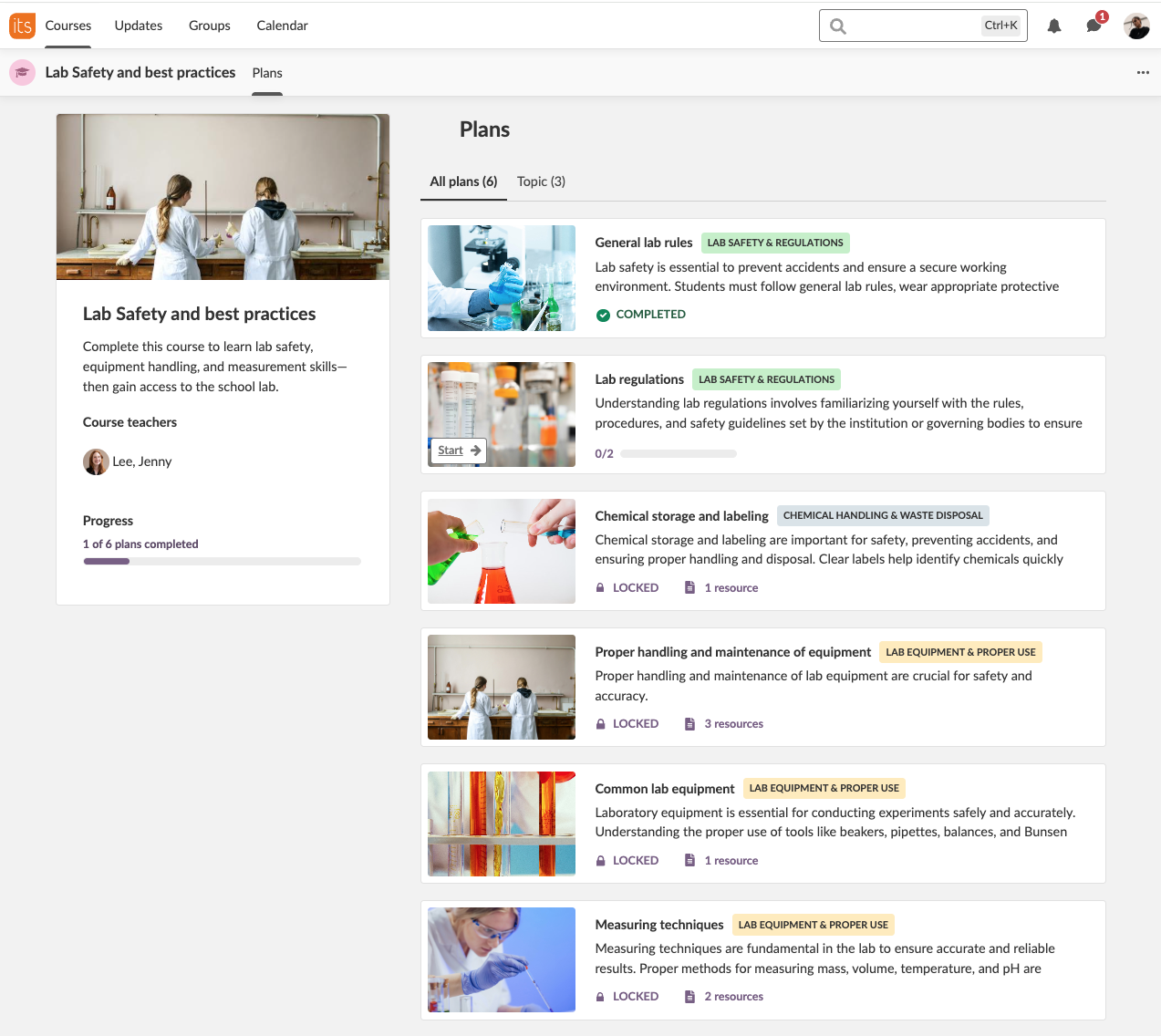
3.3.1 Workflow: One plan at a time
This option will create a sequential opening of the plans. When your students are finished with one plan, the next will open automatically.
3.3.2 Workflow: All plans at once
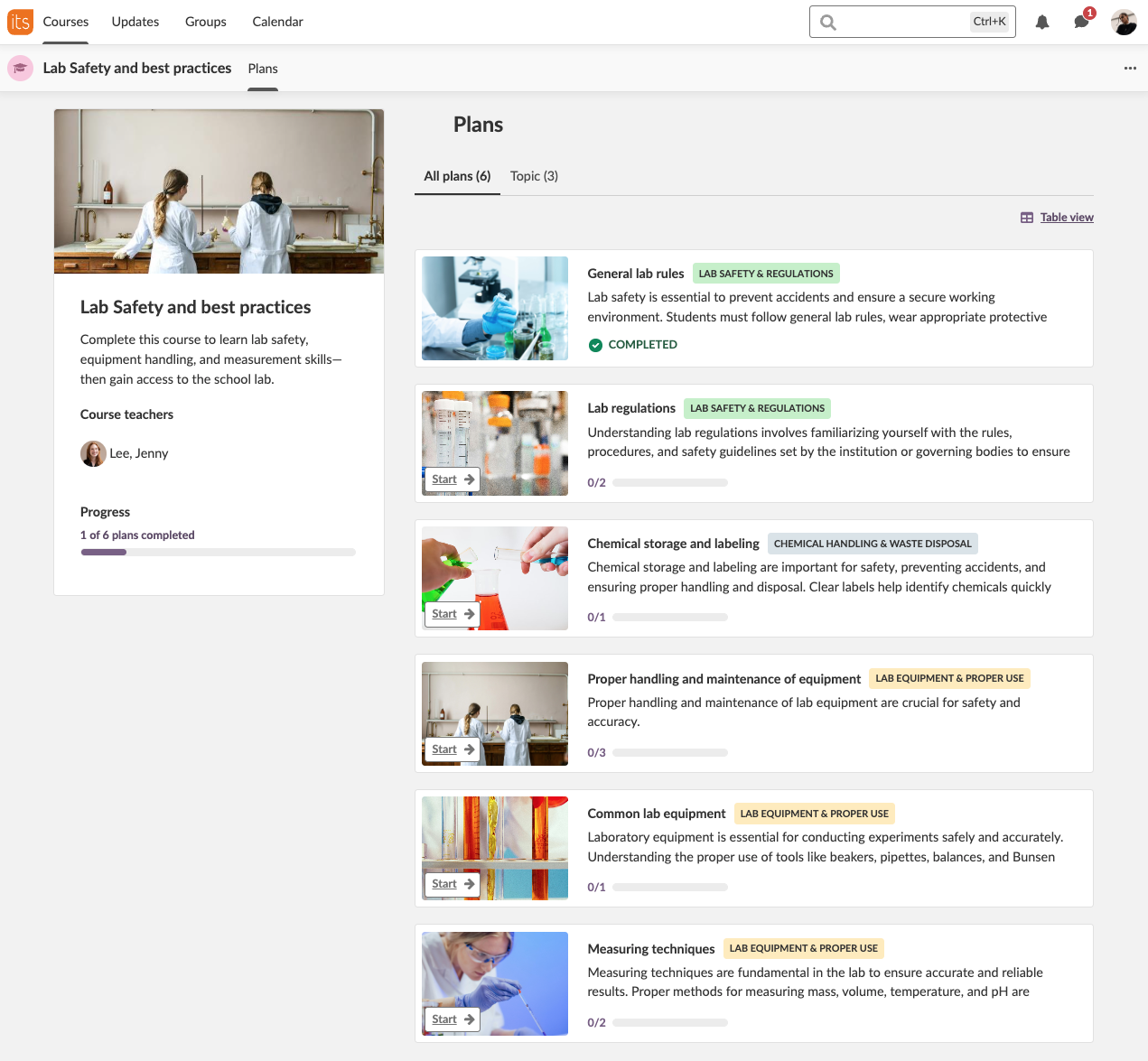
All course content is available immediately for all students. They can work in different plans at the same time.
The All plans tab displays the full list of course plans in the order set by the teacher, helping students follow the intended course sequence.
4 Step-by-Step Workflows
4.1 Create a Self-Paced Course
Objective: Create a new self-paced course.
- Go to Courses and click Create course.
- Select Self-paced learning as the course focus.
Result: The course is created with Plans as the central navigation.
4.2 Change Course Focus
Objective: Switch between Subject and Self-Paced Learning.
- Open the course.
- Click the three-dot menu (⋯) in the top right corner.
- Select Settings.
- Go to Course properties and features.
- Select the new focus (Subject or Self-paced learning).

Note: Content and student progress remain intact.
5 Settings and Customization
5.1 Layout Options
- Currently, only the default self-paced layout is available.
- New layouts will be introduced later.
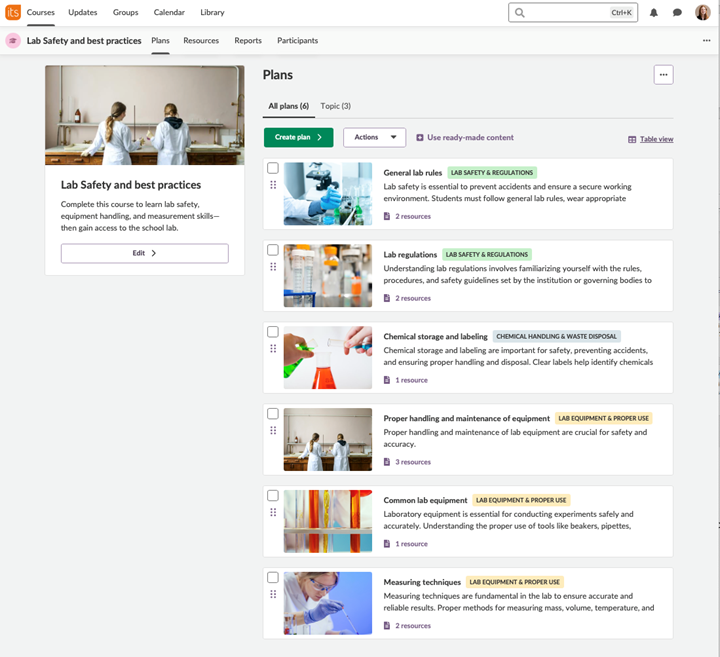
5.2 Teacher View
Teacher view: All menus except Course Overview are available.
6 Technical Information
- All student data and content are preserved when switching course focus.
- Self-Paced Courses use the same infrastructure as Subject Courses.
7 Troubleshooting
Problem: Cannot find Self-Paced Course option
- Cause: School has not enabled it.
- Solution: Contact your itslearning administrator.
Problem: Course Overview page not available
- Cause: Self-Paced Course layout does not include it.
- Solution: Use the Plans page as the landing page.
8 Related Features and Cross-References
- Planner Overview – central for Self-Paced learning.
- Course Overview – alternative course focus with more teacher involvement.
9 Additional Resources
More Help Resources
Have more questions? Please start with asking your school administrator.
Product Release notes
Stay updated with itslearning latest releases: https://itslearning.com/product-updates
Service Status
Check the current status of itslearning services: https://status.itslearning.com/
Ideas Portal
Share your ideas and help shape the future of itslearning: https://ideas.itslearning.com/
Roadmap
Check out our roadmap: https://itslearning.com/global/roadmap/