
TABLE OF CONTENTS
- 1 Overview
- 2 Creating an Assignment
- 3 Assignment Settings
- 4 Assessing Assignments
- 5 Group Activities
- 6 Peer Assessment
- 7 Anonymous Submissions
- 8 Plagiarism Control
1 Overview
The Assignment tool allows teachers to give learners a work instruction that is submitted directly in itslearning. The instruction can range from simple reading tasks to complex group work involving different materials and media. After submission, teachers can view the answer, provide feedback, and assess it within itslearning.
When creating an assignment, teachers can insert content and instructions into the rich text editor. The rich text editor supports text formatting and embedded media.
[Screenshot: Assignment overview page]
2 Creating an Assignment
2.1 Assignment Content
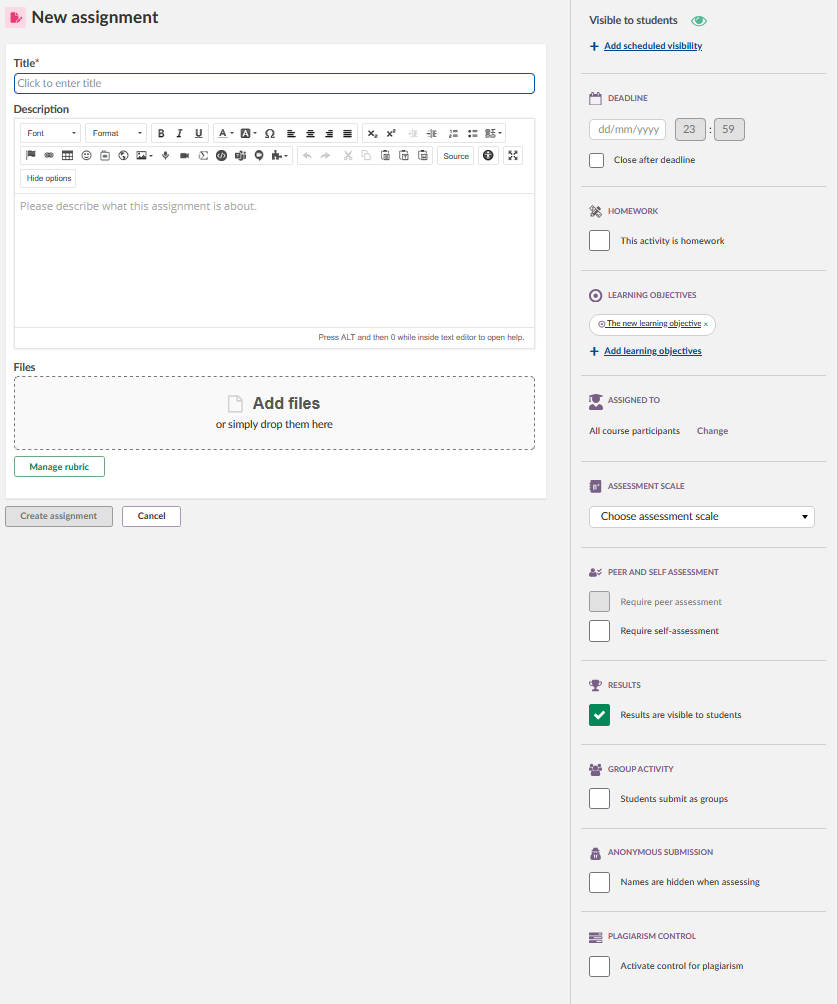
When an assignment is created, the page displays two areas: the assignment content area and the settings panel.
The assignment has a title field and a description field. The description field uses the rich text editor, which supports text formatting and embedded media files.
2.2 Adding Files
To attach a file to an assignment:
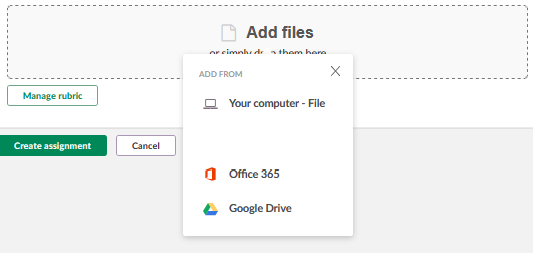
- Click the Add files button.
- Select the source to add the file from. Available sources depend on your itslearning account setup.
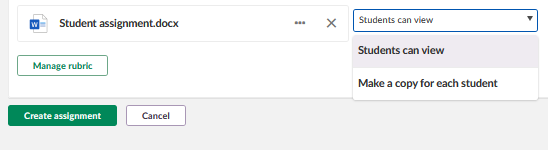
For supported file formats (such as .docx), you can choose how students interact with the file:
| Option | Behaviour |
|---|---|
| View file | Students can view and download the file. Students can also upload files to the submission when this option is used. |
| Make a copy for each student | Each student receives an individual virtual copy of the file. Students can open the file, write directly in it, and submit it without downloading or uploading. If a student does not submit, the teacher can open the file as a draft and assess the work in progress. Students cannot upload extra files when this option is used. |
3 Assignment Settings
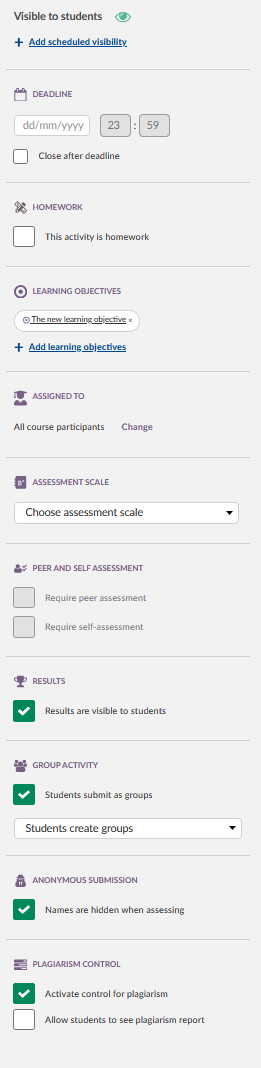
The settings panel is displayed to the right when creating or editing an assignment. All settings configured during creation can be adjusted at any time.
| Setting | Description |
|---|---|
| Visible | Controls student visibility. Options: always visible, visible for a specific period, or not visible. |
| Deadline | Sets a submission deadline. Submissions are stamped with date and time. Late submissions can be permitted and are marked as late. |
| Homework | Marks the assignment as homework. A homework tag is added to the assignment, the students' task list, and Plans. |
| Learning objectives | Learning objectives must first be added to the course, then attached to the assignment. Enables tracking of standards mastery. See Assignments – Rubrics and Learning Objectives. |
| Assigned to | Assigns the assignment to individual students, groups, or all course participants. |
| Assessment scale | Selects the assessment scale. Determines whether the assignment is added to the assessment record. |
| Category | Assigns the assessment to a category, grouping connected evaluation points across itslearning. Categories are configured in the course assessment settings. |
| Peer and self assessment | Allows students to assess themselves or fellow students. See Section 6. |
| Results | Controls whether students can see their own results. Students see only their own results, not those of other participants. |
| Group activity | Enables group submissions. See Section 5. |
| Anonymous submission | Hides student names from the teacher until all grades have been calculated. See Section 7. |
| Plagiarism control Add-on | Checks submissions for plagiarism. Requires a separate subscription. See Section 8. |
| Not mandatory | Marks the assignment as optional. Only visible if the Progress report is enabled for the course. |
4 Assessing Assignments
When reviewing student work, click on a student's name or answer to open the All-in-One Grader in a full-screen window.
[Screenshot: Assignment overview grid showing participants and submission details]
| Element | Description |
|---|---|
| Actions | Select multiple students to delete, download, or assess submissions in bulk. |
| Show and Filter | Filter student work by group or submission status. |
| Status | Displays the current status of each submission. Submissions can be sent back to students for correction or improvement. |
| Dates | Shows submission dates and the date the teacher reviewed the submission. |
Note: If the assignment is aligned to learning objectives, results will be added to the Learning Objective Progress Report. If students have worked in groups, one submission and one grade apply to all group members.
▶ Viewing the answer
If a student has submitted one file attachment, it opens immediately in the All-in-One Grader. If there are multiple attachments, or both an attachment and content written in the rich text editor, attachments can be opened separately.
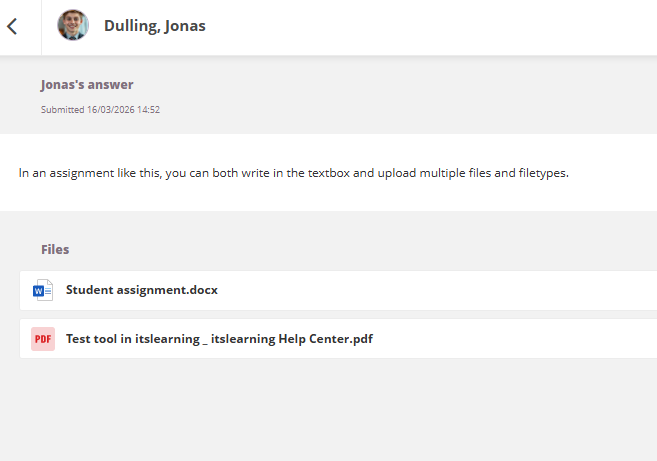
Three viewer types are available depending on the file format and site settings:
| Viewer | When used |
|---|---|
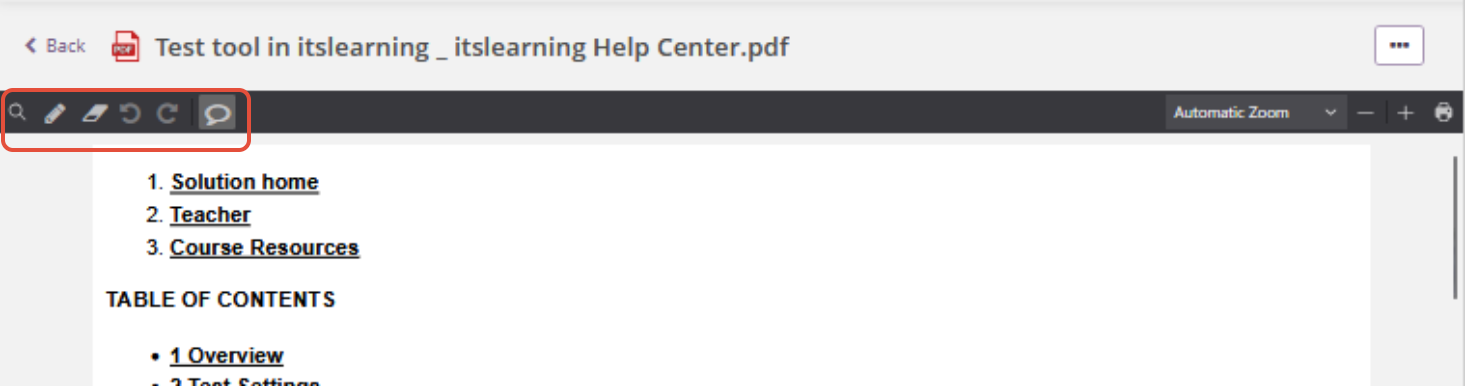
| Document viewer | When the answer is submitted as a PDF, or when Office Online is disabled (uploaded files are then converted to PDF). Supports annotations and comments on selected text. |
| Google viewer | When the assignment uses "make a copy for each student" with a Google file. A preview of the Google Doc is shown. |
| Office Online | When Office Online is enabled. Office files (.docx, .pptx, .xlsx) open in Office Online. |
▶ Submission status
Submission status display depends on site settings. Two formats are available:
Custom submission statuses: When custom statuses are configured for the site, these options are available for selection.
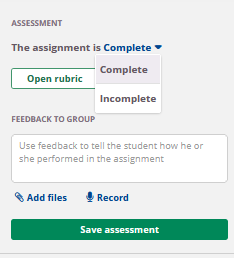
Simple submission status: The teacher marks the assignment as complete or incomplete (requires resubmission).
▶ Assessment scale, score, and rubric
If an assessment scale or score has been configured, it is displayed below the submission status field.
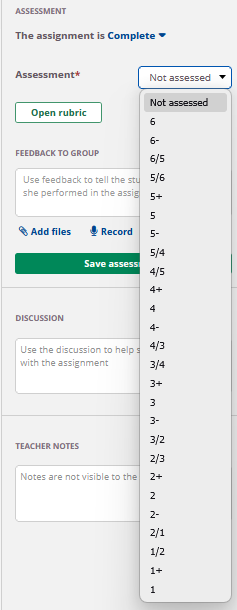
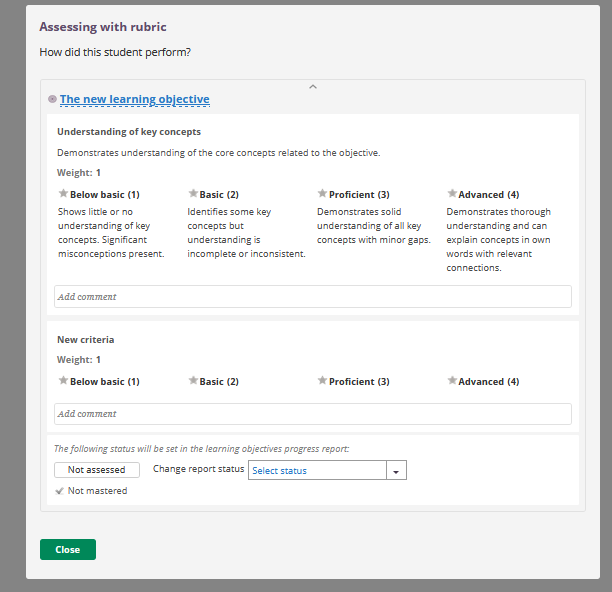
If a rubric has been added to the assignment, an Open rubric button is shown above the feedback field. Clicking it opens the rubric in a separate window.
▶ Feedback and rich text feedback
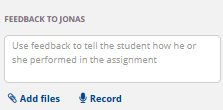
Written and audio feedback can be entered in the Feedback field. This is one-way communication from the teacher to the student. To attach a file, click the Attach file link below the feedback field and select the source.
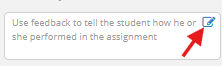
To open the rich text editor for feedback, click the rich text icon next to the feedback field.
The rich text editor opens in a separate window and supports text formatting and embedded media.
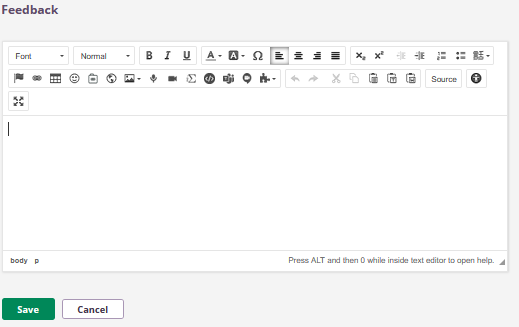
Note: Due to limited space in the side panel, images in rich text feedback are shown at a smaller size. Rich content such as tables and recordings is replaced by placeholders in the side panel view.
▶ Discussion and teacher notes
The Discussion field enables two-way communication between teacher and student while a submission is in progress. It is available only when a student has submitted an answer.
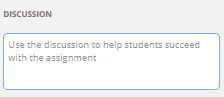
Note: This feature was previously called 'Comments'. Teachers can now initiate a discussion, which was not possible with the previous Comments feature.
Comments can be edited or deleted via the gear icon next to each comment. The Discussion feature can be disabled site-wide by the system administrator under Features and Security.
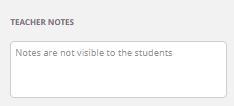
Teacher notes
Prerequisite: Teacher notes are disabled by default and must be enabled by a site administrator.
When enabled, teacher notes appear below the Discussion field. They can be used for personal reminders or to communicate about an assessment with other teachers in the course.
▶ Submit on behalf of student
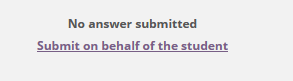
The Submit on behalf of student function allows the teacher to submit an answer received via an alternative route (for example, by e-mail). This is commonly used when the teacher wants all answers to be checked for plagiarism regardless of how they were submitted.
- Click the Submit on behalf of the studentlink in the All-in-One Grader.
- A window opens. Add the student's answer.
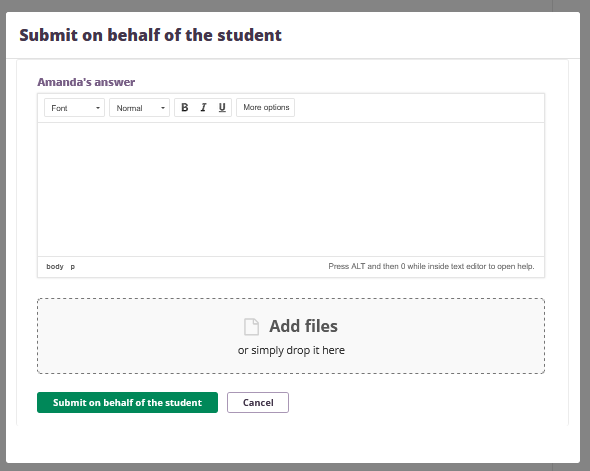
- Submit the answer.
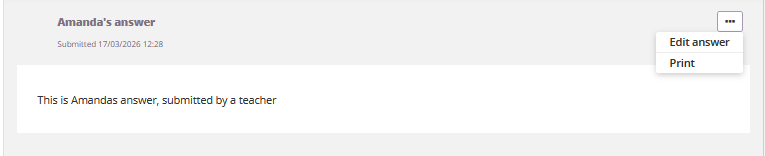
- Once submitted, the answer can be edited by selecting Edit answer from the [...] menu.
5 Group Activities
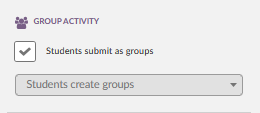
Assignments can be set up as group activities. The Group activity option is enabled in the assignment settings panel.
Two group options are available:
| Option | Behaviour |
|---|---|
| Students create groups | Students freely create their own groups by inviting other students in the course. |
| Use course groups | Students select from predefined groups created and managed by the teacher. |
Note: The assignment can be changed between individual and group mode until at least one submission has been made.
▶ Students create groups – details
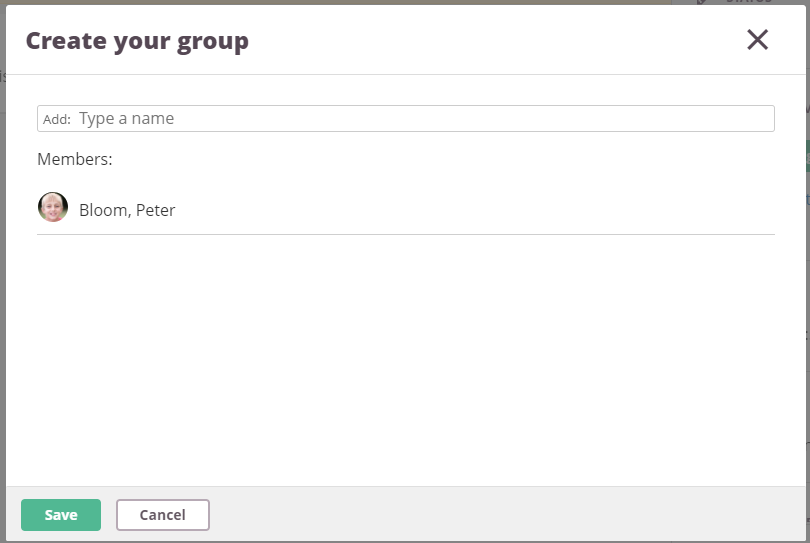
- Students can invite other students to collaborate on the assignment. A student cannot submit an answer until they have either created a group or chosen to submit individually.
- To create a group, the student types the name of the student(s) they want to collaborate with.
- When the group is saved, invited members receive a Bell notification.
- Group members are shown at the top of the assignment page. The group can be edited using the Edit group button. Members can also withdraw from a group.
Note: Group membership can only be changed as long as no answer has been submitted.
▶ Use course groups – details
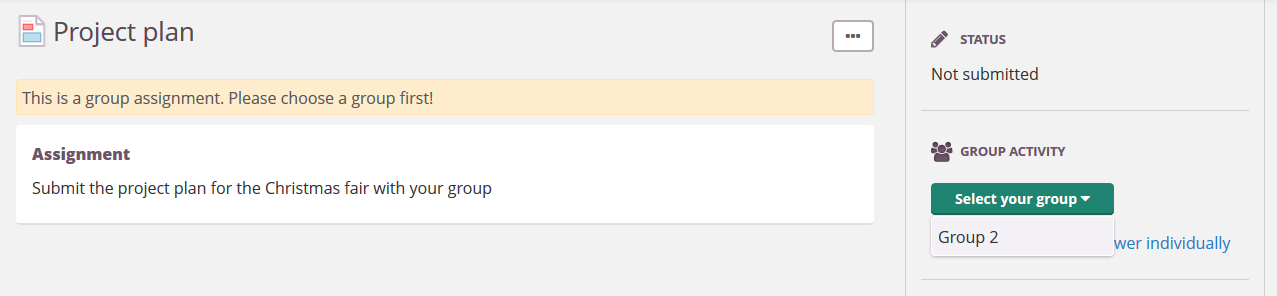
- When Use course groups is selected, students submit using one of the course groups they are a member of. These groups are created and managed by the teacher.
- Instead of Create your group, the assignment shows the button Select your group. Clicking it lists all groups the student is a member of.
- As long as no answer has been submitted, the student can select a different group or choose to submit individually.
▶ Group notifications
Students receive a Bell notification in the following situations:
- When they are added to a group.
- When a group member withdraws from the group.
- When a group member submits an answer on behalf of the group.
- When an answer is saved as a draft.
▶ Assessing group submissions
Assessing a group submission follows the same process as assessing an individual submission. The teacher can see the group members in the All-in-One Grader. The assessment is applied to all members of the group. It is not currently possible to give different assessments to individual group members.
6 Peer Assessment
Peer assessment is a process in which students review and assess each other's work. In itslearning, peer assessment is an option within the Assignment tool.
Two common purposes for using peer assessment are:
- To reduce the time a teacher spends providing individual feedback.
- To improve students' understanding of course objectives by reviewing others' work from a different perspective.
6.1 Setting Up Peer Assessment
Prerequisites:
- A deadline must be set on the assignment before peer assessment can be enabled.
- Group activity and peer assessment are mutually exclusive: enabling one disables the other.
To enable peer assessment:
- Create or edit an assignment.
- Set a deadline.
- Enable Peer assessment in the settings panel.
- Select how many peers each student will assess (between 1 and 5).
6.2 Anonymous Peer Assessment
When peer assessment is enabled, the identity of the submitting student can be hidden from their peers. This setting operates independently from the anonymous submission setting for teachers.
To enable anonymous peer assessment:
- In the assignment settings panel, locate the Peer assessment section.
- Select Enable anonymous peer assessment.
Note: Teachers will still see the names of students commenting on their peers. To hide student names from teachers as well, also enable Names are hidden when assessing under Anonymous submission in the assignment settings.
6.3 Student Workflow
Until the deadline, the assignment appears to students the same as a regular assignment. The right panel indicates how many peers the student will need to assess after the deadline.
▶ How peer answers are distributed after the deadline
After the deadline, itslearning automatically distributes the configured number of answers to each student who submitted. Students who did not submit an answer are excluded from the peer assessment process.
Note: A short grace period applies. If a student is already on the answer page at the deadline, submission is permitted for a few minutes to account for minor clock differences. The actual distribution of peer answers therefore occurs approximately 5 minutes after the deadline.
The assignment reappears on the student's task list with the action Assess peers.
▶ Assessing peers (student view)
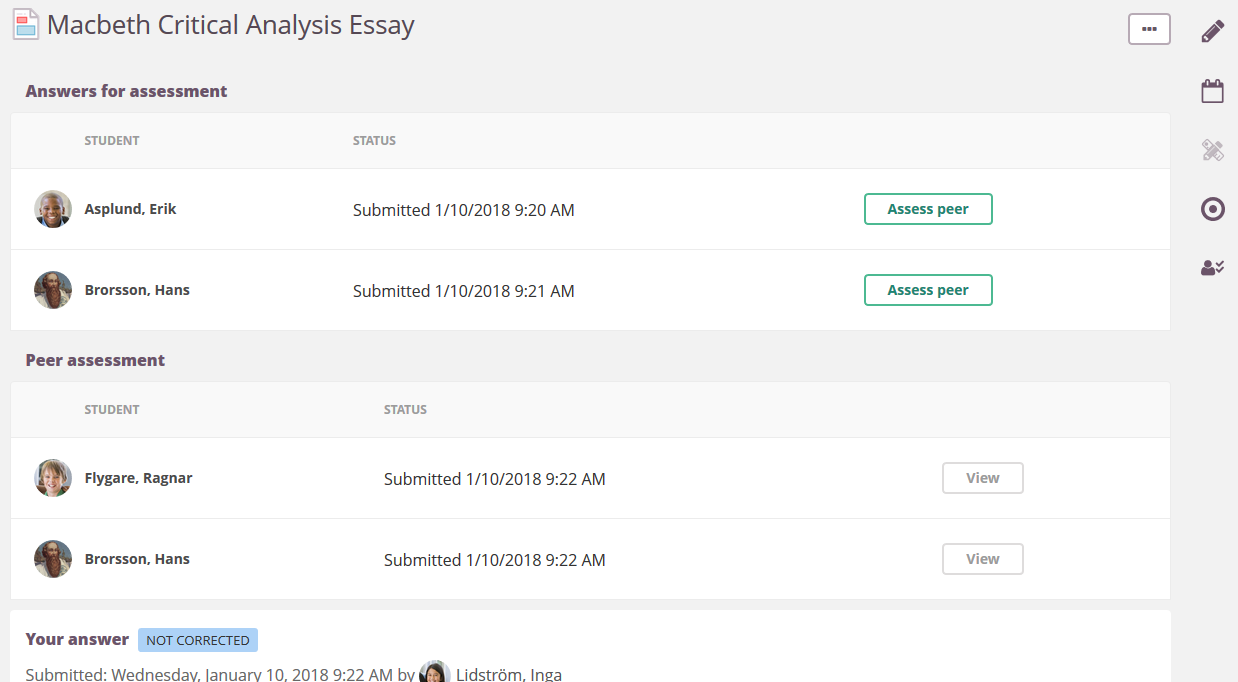
When the student opens the assignment, the peers they need to assess are shown at the top of the page. Below, the students who will assess them are listed.
When assessing a peer, students can:
- View and annotate the submitted document (for common document types). Files always open in itslearning's document viewer for peer assessment, not in Office Online.
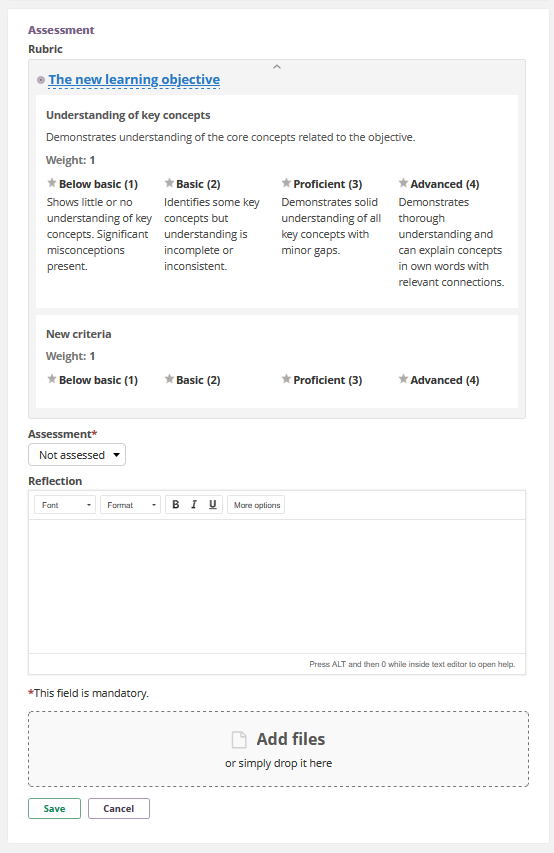
- Assess using a rubric, if the teacher has provided one.
- Set a grade or score, if an assessment scale is configured.
- Provide overall feedback in the rich text editor.
- Download the submitted answer, annotate it locally, and attach the edited file to the feedback.
Peers cannot:
- Change the submission status of the assignment.
- Request a plagiarism report.
- Set the mastery status of learning objectives.
Clicking Save and assess next moves to the next peer to be assessed.
▶ Viewing peer assessment results (student view)
As soon as a peer assessment is available, students can view it by clicking the View button. The peer assessment opens in a dialogue. To view annotations on a submitted file, click the file name at the bottom of the dialogue.
6.4 Teacher View of Peer Assessments
The teacher can monitor the progress of peer assessment in the Status column of the answer grid. The column shows how many peers have assessed each student.
[Screenshot: Answer grid showing peer assessment progress in Status column]
From the assess page, the teacher can access the peer assessments a student has received as well as the assessments that student has given to others.
[Screenshot: Teacher view of received and given peer assessments]
Important: After the teacher submits their overall assessment, peers can no longer assess that student's answer. Do not submit the overall assessment while peer assessment is still in progress.
After the peer assessment process has started, teachers can manually add or remove peer assignments.
[Screenshot: Teacher interface for manually adding/removing peers]
6.5 Self-Assessment
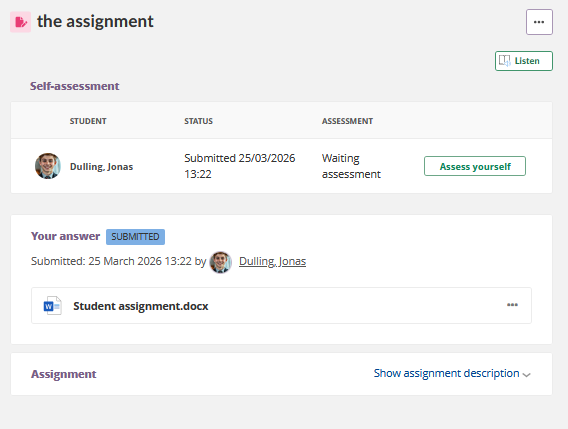
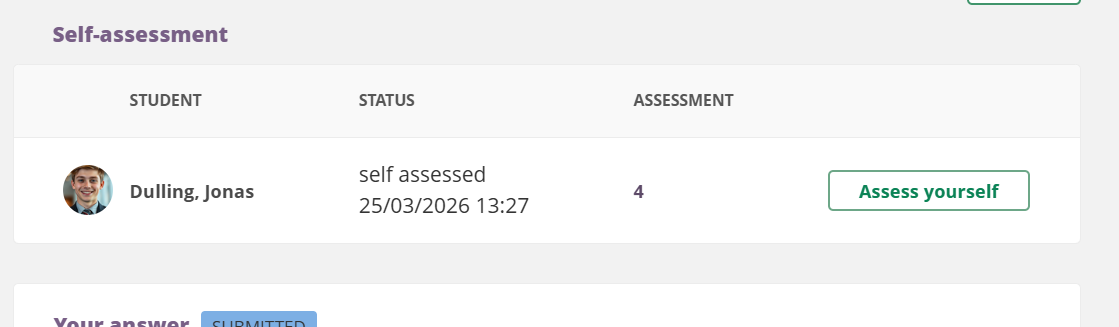
When self-assessment is enabled, students can assess their own submission using the same tools available for peer assessment.
7 Anonymous Submissions
Anonymous submission is designed to improve objectivity when assessing work by hiding the identity of the student from the assessing teacher. This feature was developed with the premise that teachers act in good faith.
Admin setting: Admin > Edit Global Settings > Features and Security > Anonymous activities.
▶ Anonymous submission settings – comparison
| Setting | Behaviour |
|---|---|
| Student names remain hidden in the activity, but results are visible in the course reports | Names cannot be matched to answers, but results are visible in the assessment record and course reports. A teacher could potentially deduce a student's name by matching a unique grade to a specific answer. |
| Student names are shown when assessments are completed and results are visible | Names are hidden during assessment. Once the assessment is completed and made visible to the student, the teacher sees the student's name. Students can also see if the assessment is subsequently changed. |
| Student names remain hidden and results will not be visible in course reports | Names cannot be identified by any means within the course. Results and progress are not shown in any report, including the assessment record. Results can still be accessed via the Organisation API for integration with a SIS. |
To enable anonymous submission, check the Anonymous submission box in the assignment settings panel.
When anonymous submission is active:
- Student names are replaced with random characters visible to the teacher.
- Student profile pictures are replaced with the default profile image.
- Teachers cannot open a student's profile from the assessment view.
- Teachers cannot navigate directly to a student's answer from the assessment record. The link icon redirects to the assignment overview page instead.
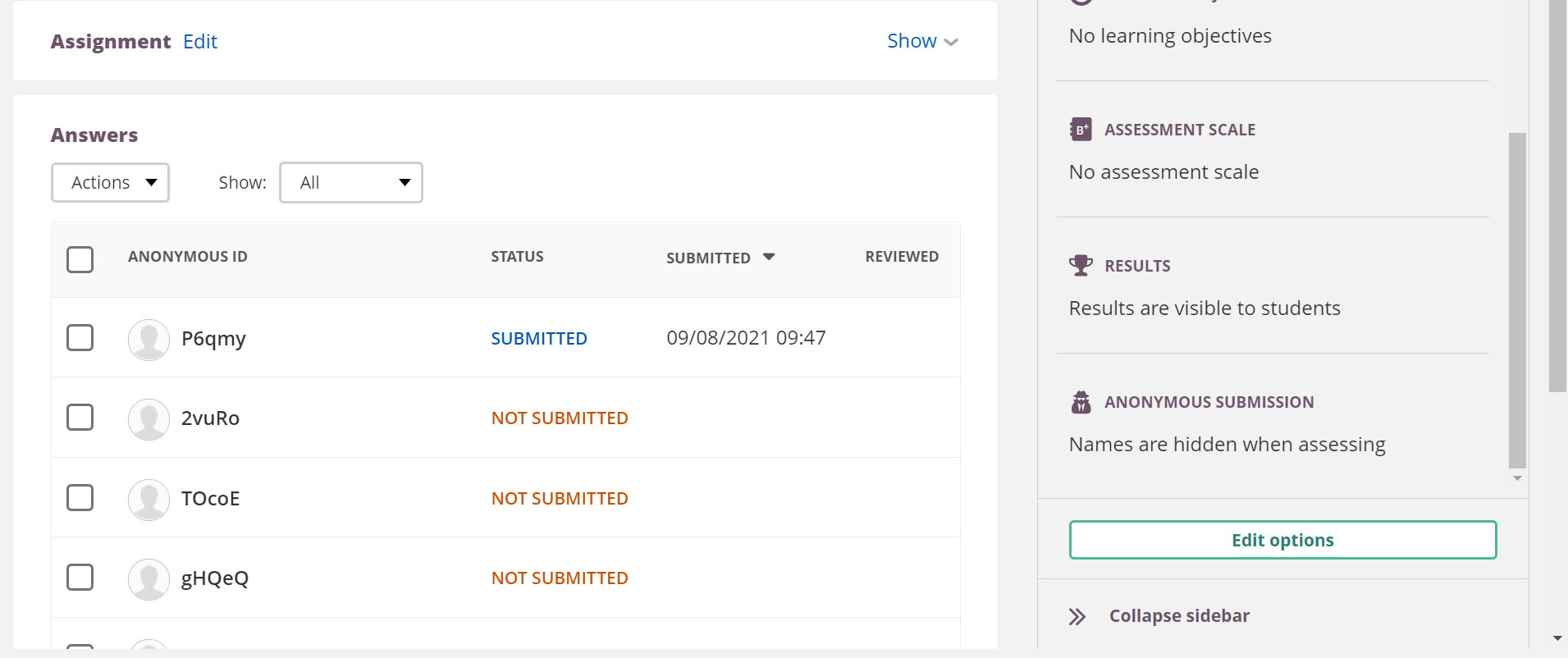
When downloading the assessment file, student names are replaced with the same random characters. It remains possible to upload a feedback file or assign a grade. Students are informed that the assignment is anonymous via a message next to the answer button, and they can see the setting in the side panel.
Anonymous submissions can be used in combination with group assignments or peer assessment.
8 Plagiarism Control
itslearning integrates with the following plagiarism services, available as add-ons:
- SimCheck (TurnItIn)
- Ouriginal (formerly Urkund)
Admin setting: Plagiarism control must be purchased and enabled by the site administrator via Plagiarism settings before teachers can use it.
8.1 Enabling Plagiarism Control
To enable plagiarism control for an assignment:
- Open or create the assignment.
- In the settings panel, enable Plagiarism control.
Important: Plagiarism control applies only to answers submitted after it has been activated on the assignment. It does not apply retroactively.
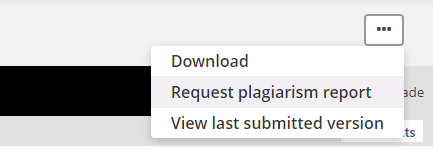
To request a plagiarism report for an already-submitted answer, use the on-demand plagiarism report option.
8.2 Student Submission with Plagiarism Control
Students are informed when their answer will be checked for plagiarism.

Both answers written in the rich text editor and file attachments are checked. When plagiarism control is enabled, only the following file formats are accepted:
Supported formats: .doc .docx .sxw .ppt .pptx .pdf .txt .rtf .html .htm .wps .odt
Students are informed by the file uploader if they attempt to upload an unsupported format.
8.3 SimCheck (Add on)
- SimCheck is a plagiarism service provided by TurnItIn. Once SimCheck is set up by the site administrator, teachers can enable plagiarism control on individual assignments. All subsequent submissions are automatically checked.
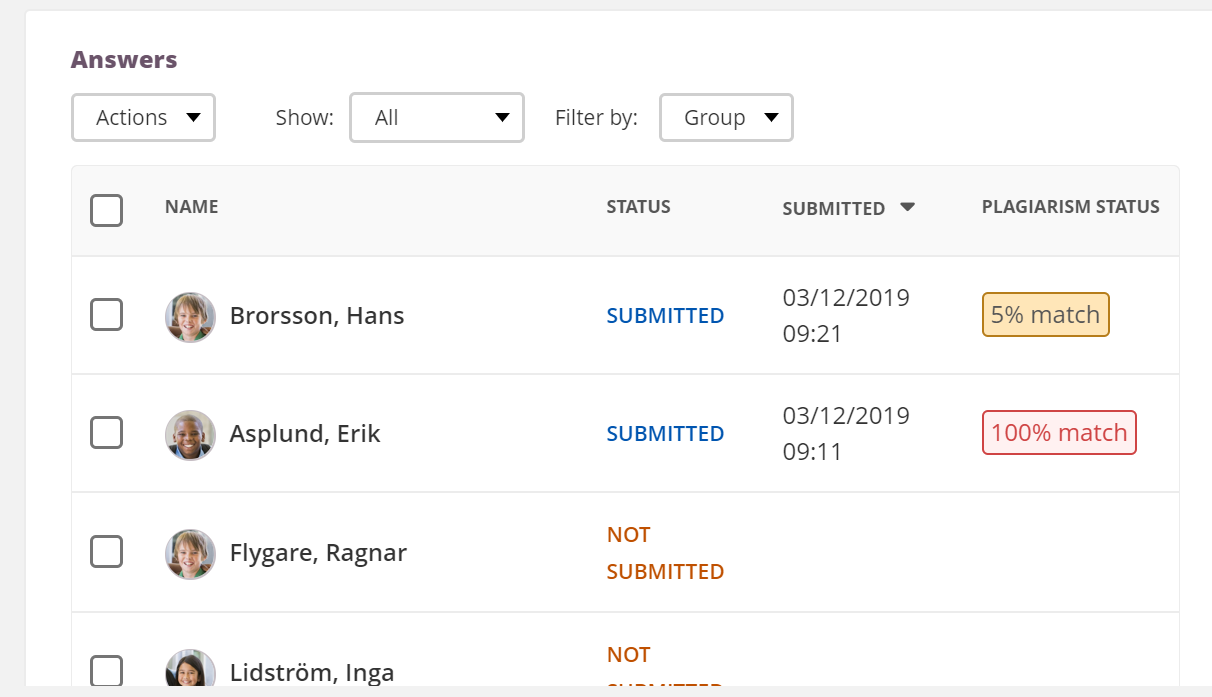
- Results are displayed in the answer overview as either OK or a match percentage indicating how much of the submission matched other sources.
- To open the full report, click the match percentage or select Open plagiarism report from the [...] menu.
▶ Working with the plagiarism report
- The plagiarism report highlights matched text within the submitted document. SimCheck checks internet sources, its own resources, and previously submitted assignment answers.
- From the side panel of the report, individual sources can be excluded. Excluding a source updates both the report and the plagiarism percentage displayed in itslearning.
- When a match is found with a document previously submitted via itslearning, clicking Detailsshows the student's name, the course, and the assignment where the text was originally submitted.
Note: The ability to identify previously submitted documents can be disabled by the itslearning system administrator.
Via the gear icon in the report, it is possible to exclude specific source types (repositories) and specific types of text, including bibliography, quotes, and small matches.
8.4 Detecting Plagiarism in Anonymous Submissions
For assignments with anonymous submission enabled, itslearning does not display the student's name in the plagiarism report for that student's own submission. However, if another student's submission matches the anonymised submission, the name of the anonymised student will appear in the other student's plagiarism report.
For additional information, see the TurnItIn help site.
More Help Resources
Have more questions? Please start by asking your school administrator.
Product Release Notes
Stay updated with itslearning's latest releases: https://itslearning.com/product-updates
Service Status
Check the current status of itslearning services: https://status.itslearning.com/
Ideas Portal
Share your ideas and help shape the future of itslearning: https://ideas.itslearning.com/
Roadmap
Check out our roadmap: https://itslearning.com/global/roadmap/