-
-
- Users and access rights - Reference (Sysadmin)
- Supervisor (Mentor and Headteacher) Roles – Configuration (Sysadmin)
- Workflow
- Hierarchy – Reference (Sysadmin)
- Hierarchy - Roles and Permissions (Sysadmin)
- User Management – Importing Users by CSV (Sysadmin)
- Profile Pictures and Avatars - System Administrator Guide
- CSV User Import for Parents (Administration)
-
- Setting up the course catalogue (admin)
- Individual Learning Plans – Template Configuration (Sysadmin)
- Courses - Administration - Reference (Sysadmin)
- Projects – Administration (Sysadmin)
- Bookins mangement - Room and Resources - Administrator Guide
- Terms - Manually Managing Terms (Sysadmin)
- Settings for Learning Objective Reports - System Administrator
- Learning Objectives Repository - Sysadmin
- Learning Objective Repository – Importing via XLSX (Sysadmin)
- Trash Can – Overview (Sysadmin)
- Cross site templates - sysadmin
- Attendance system
- Calendar – Managing External Calendars for Organisations (Sysadmin)
-
- Automated integration with a Student Information System
- LTI Integrations
- Single Sign-On - Updating SAML IdP Metadata and Certificates (Sysadmin)
- SIS Integration – IMS Enterprise Import Status Emails (Sysadmin)
- Test Mode Browser (Overview)
- Test Mode Browser – Installing the itslearning LockDown Browser Extension for Chromebooks (Sysadmin)
- Microsoft Cloud Services – Connecting Microsoft 365 to itslearning (Sysadmin)
- MS Team Integration - setup
- Outlook integration - Paid add-on
- Connecting your G Suite domain to itslearning
- Swedish integration- Skola24 – Calendar Integration for Swedish Customers (Sysadmin)
- German integration- Univention UCS@school – Provisioning API (Sysadmin)
- German integration- Univention UCS@school - ID Broker Connector (Sysadmin)
- Univention UCS@school – Itswizard) Connector (Sysadmin)
- Dutch integration: Timetable integration -
- Dutch integrations - Timetable Integration Notification – Assigning Appointments
-
-
- Main menu - Overview (Teacher)
- Login - Getting started
- Navigation - Getting started (Teacher)
- Personal settings - Getting started
- Courses - Getting started (Teacher)
- Plans - Getting started (Teacher)
- Resources and activities - Getting started (Teacher)
- Resources and activities - Overview (Teacher)
- Assignments - Getting started (Teacher)
- Tests - Getting started (Teacher)
- Calendar - Getting started (Teacher)
- Messages - Getting started (Teacher)
- Keyboard shortcuts - Overview
-
- Notification Preferences – Overview (Teacher, Admin)
- Profile Pictures and Avatars – Overview (All users)
- Personal Settings – Overview (All users)
- Product Updates – Release Note Sharing (All users)
- Supervisor Roles – Mentors and Headteachers (Teacher)
- Font Selection – Overview (All users)
- Rich Text Editor – Reference (All users)
- Search – Overview (All users)
-
- Course Focus - Choosing the Right Course Type (Teacher)
- Class Course – Reference (Teacher)
- Self-Paced Courses – Complete Guide
- Information hub course – Overview
- Subject Course settings - Reference (Teacher)
- Course Participants Page (Teacher)
- Course Templates – Reference (Teacher)
- Using the course catalogue (Teacher)
- The permission system - Admin and teacher guide
- Learning Objectives – Reference (Teacher)
- Courses – Student View (Teacher)
- Courses – Archiving (Teacher)
- Course Card Images
- Image selector - Teacher guide
- Course Templates – Cross-Site Templates (Teacher)
- Teacher - Course Import Guide
- Teacher - Course export guide
-
- Resources – Overview (Teacher)
- Resource Page – Reference (Teacher)
- Immersive Reader – Overview (All users)
- Test – Updating from Test 2.0 to Test 3.0 (Teacher)
- Files – Overview (Teacher, Student)
- Files – Saving Course Materials (All users)
- Library – Reference (Teacher)
- Brand Icons – Reference (All users)
- H5P – Upload and Play Content (Teacher)
-
- AI Toolkit – Overview and Getting Started (Teacher)
- AI Toolkit – Prompt Suggestions (Teacher)
- Assignment – Reference (Teacher)
- Tasks – Overview (Teacher)
- Discussions – Reference (Teacher)
- Registrations – Reference (Teacher)
- Learning Paths – Reference (Teacher)
- Tests – Reference (Teacher)
- Survey Tool – Reference (Teacher)
- Page – Create and Manage Content (Teacher)
- Assignment – Combined Assignment and Task Tool (Teacher)
- Assignment – Custom Labels (Teacher)
- SCORM – Importing and Using Content (Teacher)
-
- Reports - Overview (Teacher)
- Assignment Report - Overview (Teacher)
- Progress Report – Reference (Teacher)
- Learning Objectives Alignment Report - Overview (Teacher)
- Learning Objectives Progress Report - Overview (Teacher)
- Attendance – Overview (Teacher)
- 360° Reports – Overview (Teacher)
- 360° Reports – Activity Report (Teacher)
- 360° Reports – Progress Report (Teacher)
- 360° Reports – Grades Report (Teacher)
- 360° Reports – Resources Summary (Teacher)
- 360° Reports – Notifications and Weekly Updates (Teacher)
- Assessment Record / Gradebook - Reference (Teacher)
- ePortfolio – Overview (Teacher)
- ePortfolio – Managing Your Portfolio (Teacher)
-
- LTI tool – adding external tools to a course (2026)
- H5P integration – Creating a Learning Activity in a Plan (Teacher)
- Microsoft Office templates in the Assignment tool
- Google templates in the Assignment tool
- Using MS Teams in itslearning and Fronter 19
- Using Google Meet in itslearning and Fronter 19
- Equation editor - iMathEQ
- Accessibility Checker (Plugin)
- MS Teams Integration
-
-
-
360° Reports – Overview (Teacher)
TABLE OF CONTENTS
Introduction
360° Reports allow teachers and tutors to compare the progress of all students in a course and identify students who may need additional support. Each student's performance is presented through visual infographics that show engagement, progress, and achievement.
Use 360° Reports to understand how each student is engaging and progressing with course content, including time spent in the course and time on task.
Admin setting: 360° Reports must be activated by your system administrator. You will find 360° Reports inside the Reports tab in courses.
1 Available reports
There are four reports available:
| Report | Shows |
|---|---|
| Activity | Student activity and visit duration over time. |
| Progress | Completion of activities and resources against course averages. |
| Grades | Grade trends and assessment results against the course average. |
| Resources summary | How many students have accessed each resource and time spent on each. |
Each report has a course-level overview where you can scroll through all students and compare them to the course averages. Clicking on a student name opens a details page with more information. From the details page, you can quickly navigate to a different student or switch to one of the other reports.
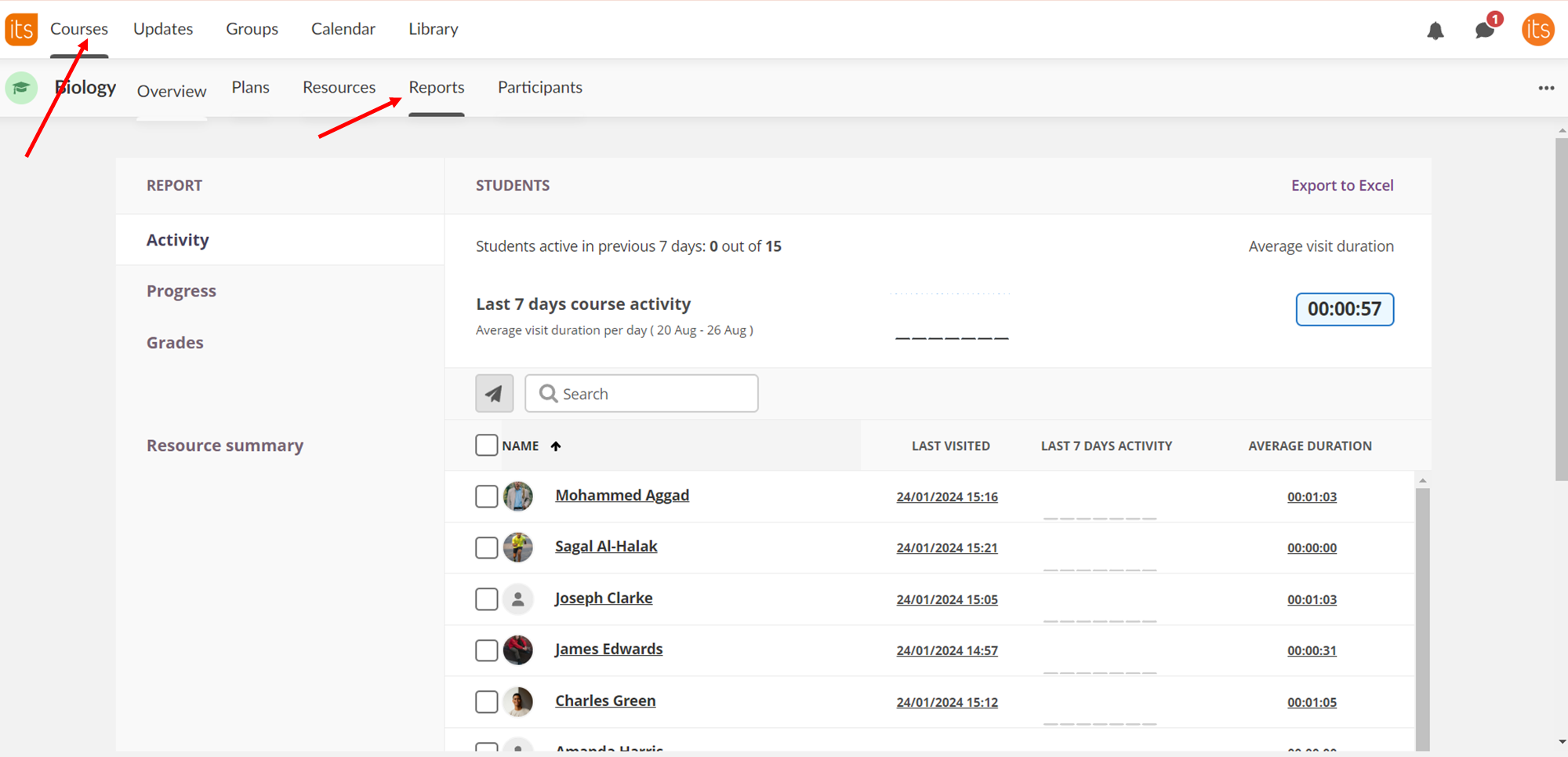
Note: For courses with more than 1000 participants, the report summary and export are hidden and you can only sort by name.
You can also send messages to students directly from 360° Reports and opt in to receive weekly course activity summaries. See the related articles for details on each report.
More Help Resources
Have more questions? Please start with asking your school administrator.
Product Release notes
Stay updated with itslearning latest releases: https://itslearning.com/product-updates
Service Status
Check the current status of itslearning services: https://status.itslearning.com/
Ideas Portal
Share your ideas and help shape the future of itslearning: https://ideas.itslearning.com/
Roadmap
Check out our roadmap: https://itslearning.com/global/roadmap/