Learning Objectives – Reference (Teacher)
TABLE OF CONTENTS
- Introduction
- 1 Prerequisites
- 2 Accessing Learning Objectives in Course Settings
- 3 Understanding the Learning Objectives Page
- 4 Finding and Importing Learning Objectives
- 5 Creating Learning Objectives Manually
- 6 Linking Learning Objectives to Plans
- 7 Linking Learning Objectives to Resources and Activities
- 8 Managing Assessment Criteria
- 9 Using Rubrics in Assignments
- 10 Assessing Students with Rubrics
- 11 Settings for Learning Objectives' Assessment
- 12 What Students See
- 13 Troubleshooting
- 13.1 Learning objectives option not available in course settings
- 13.2 Cannot find expected learning objectives in the repository
- 13.3 Cannot share assessment criteria
- 13.4 "To create a rubric, start by adding learning objectives" message
- 13.5 "Not all learning objectives currently have assessment criteria" warning
Introduction
Learning objectives are statements of what students are expected to know or accomplish after completing a set of tasks. In itslearning, you can align your course to learning objectives to track student progress and mastery.
Learning objectives in itslearning come from two sources. The first is the global repository, which contains nationally or regionally defined learning objectives uploaded by system administrators or provided at the country level. The second source is objectives you create manually within your course.
Once learning objectives are added to your course, you can:
- Link them to plans so students see which objectives a plan covers.
- Link them to resources and activities (such as assignments) so that specific tasks are aligned to objectives.
- Attach assessment criteria to objectives, defining what performance looks like at each achievement level.
- Use rubrics when assessing student work, with the rubric results feeding into the learning objectives progress report.
As a general rule, add all the learning objectives you plan to use in the course for the year. You can add more later, but keeping the number manageable makes it easier to track mastery.
Note: The global repository is managed by your system administrator. If learning objectives are missing from the repository, contact your system administrator.
1 Prerequisites
- You must have a teacher role in the course.
- Learning objectives must be enabled for the course. If the Learning objectives option is not available in course settings, contact your system administrator.
- Assessment criteria and rubric functionality depend on achievement levels configured either at the organisational level (by a system administrator) or at the course level (see section 11).
2 Accessing Learning Objectives in Course Settings
- Open the course.
- Click the three-dot menu (⋯) in the top-right corner of the course page.
- Select Settings.
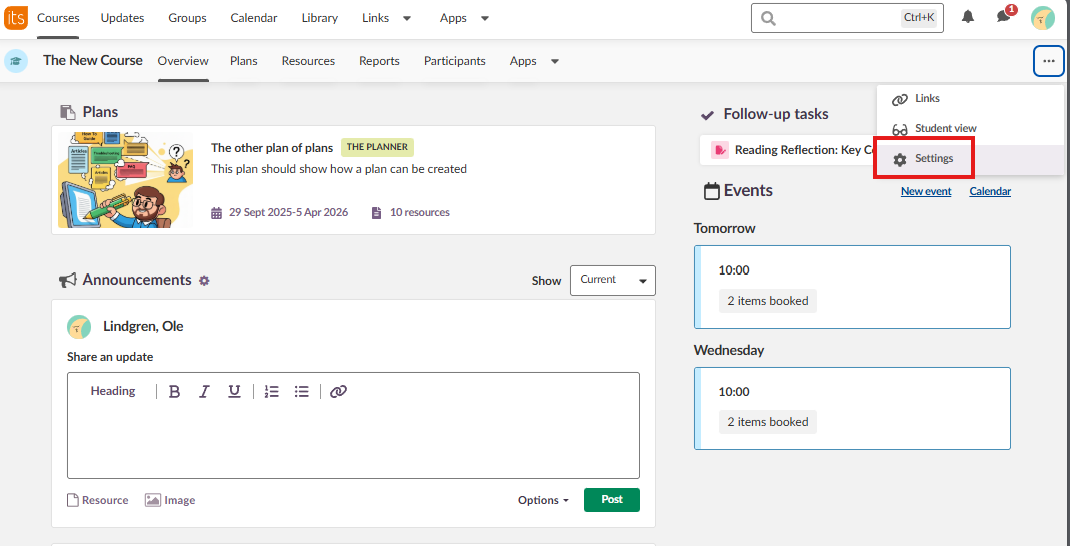
- On the Settings page, under Manage course settings, click Learning objectives. The description reads: "Define or import learning objectives to use with plans and elements."
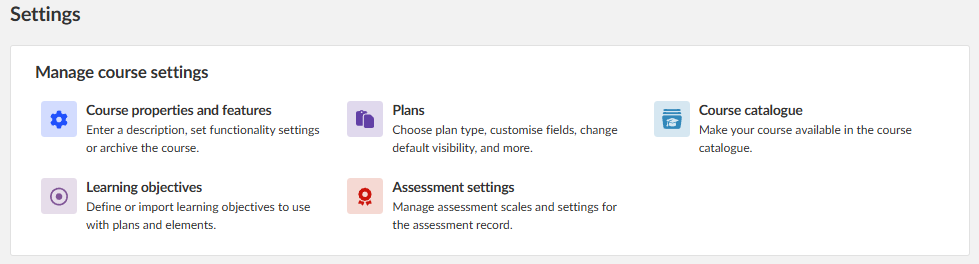
- The Learning objectives page opens.
3 Understanding the Learning Objectives Page
The Learning objectives page displays all learning objectives currently added to the course. At the top of the page, a Back to Settings link returns you to the course settings page.
The toolbar contains the following actions:
| Action | Description |
|---|---|
| Find | Opens the repository browser to search for and import existing learning objectives |
| Create | Opens a form to manually create a new learning objective |
| Assessment criteria | Opens the assessment criteria management page for the selected objective |
| Edit | Allows you to edit the selected objective |
| Delete | Removes the selected objective from the course |
Objectives are displayed in a tree structure. Imported objectives appear under the Imported objectives folder, organised by their original folder structure from the repository. Manually created objectives appear under the Created objectives folder.
A three-dot menu (⋯) is also available in the top-right corner of the page for additional options.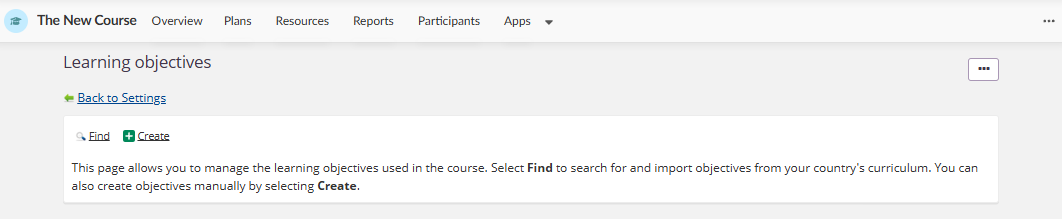
4 Finding and Importing Learning Objectives
To import learning objectives from the repository:
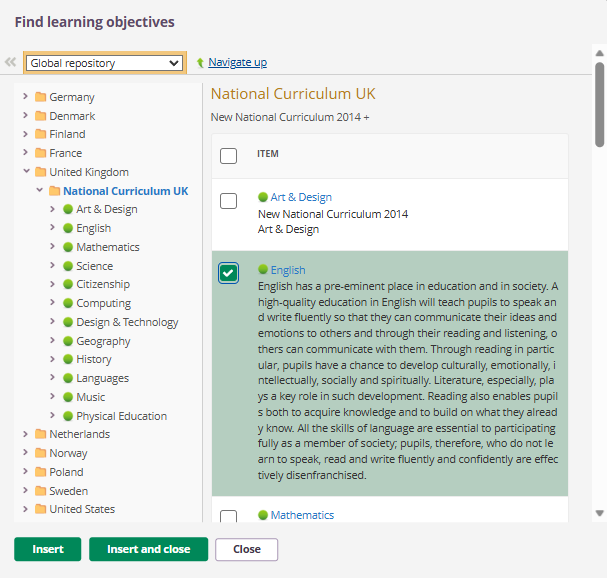
- On the Learning objectives page, click Find.
- The Find learning objectives dialog opens. A dropdown at the top-left allows you to select the repository source (e.g. Global repository).
- The left panel displays a folder tree organised by country. The right panel shows the same countries with folder icons. Select a country to browse its learning objectives.
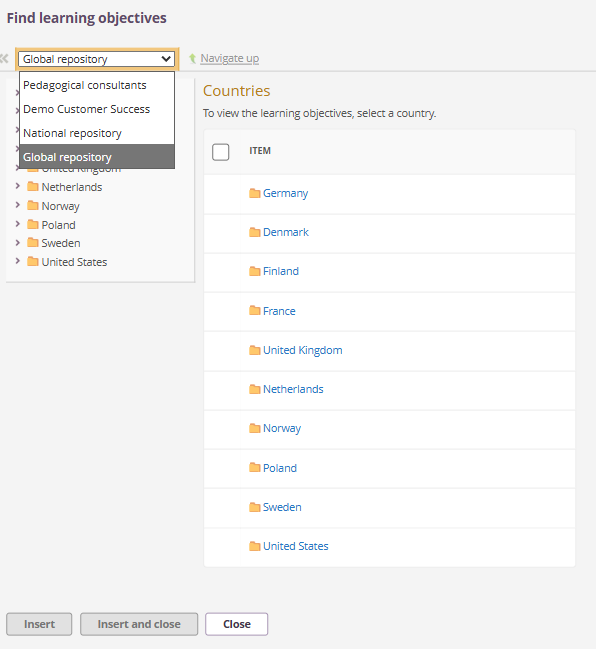
- Navigate through the folder structure to find the relevant learning objectives. The structure varies by country. For example, Germany is organised by federal state, while Norway is organised by curriculum version (e.g. Læreplan 2020). Below the top level, you will typically find subjects, then grade or year level, then the individual objectives.
- Select the objectives you want to add to the course.
- Click Insert to add the selected objectives and continue browsing, or click Insert and close to add them and close the dialog.
- Click Close to close the dialog without inserting.
Note: If the learning objectives you need are not available in the repository, contact your system administrator. System administrators can import learning objectives into the repository.
5 Creating Learning Objectives Manually
You can create your own learning objectives within a course. This is useful for tracking course-specific or student-friendly objectives that are not available in the global repository.
To create a learning objective:
- On the Learning objectives page, click Create.
- The Add new objective page opens. A Back to Learning objectives link is available at the top.
- Enter a Title for the learning objective.
- Optionally, enter a Description.
- Click Save.
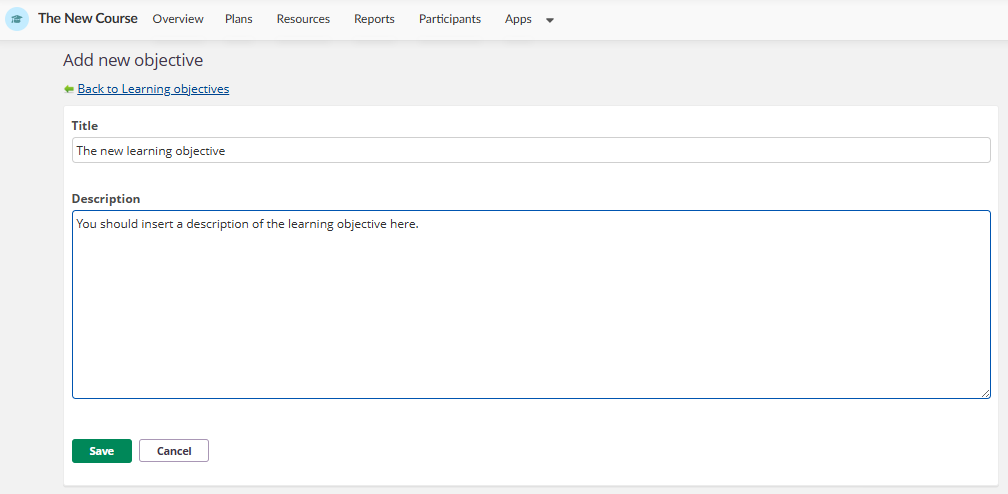
The new objective appears under the Created objectives folder on the Learning objectives page.
You can create sub-objectives by selecting an existing created objective and then clicking Create. The sub-objective appears indented under its parent objective.
Important: Learning objectives created within a course cannot be shared with other courses directly. If you need learning objectives available across multiple courses, contact your system administrator to add them to the repository. Course-created objectives can, however, be included if the course is shared as a course template.
6 Linking Learning Objectives to Plans
Once learning objectives have been added to the course, you can link them to plans. This makes visible to both teachers and students which objectives a plan covers.
To link learning objectives to a plan:
- Open the plan you want to edit.
- In the plan detail view, locate the LEARNING OBJECTIVES section.
- Click Add.
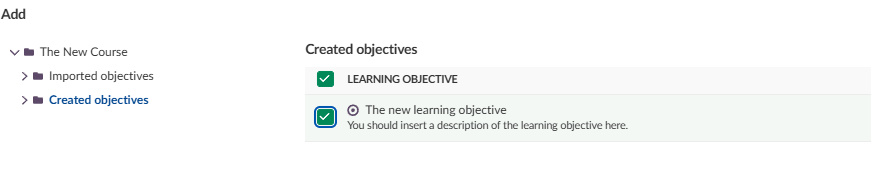
- The Add dialog opens. The left panel shows the course's folder tree with Imported objectives and Created objectives. The right panel lists the objectives in the selected folder.
- Tick the checkbox next to each objective you want to link to the plan. Selected objectives are highlighted.
- Click Save.
The linked objectives now appear in the LEARNING OBJECTIVES section of the plan, visible to both teachers and students.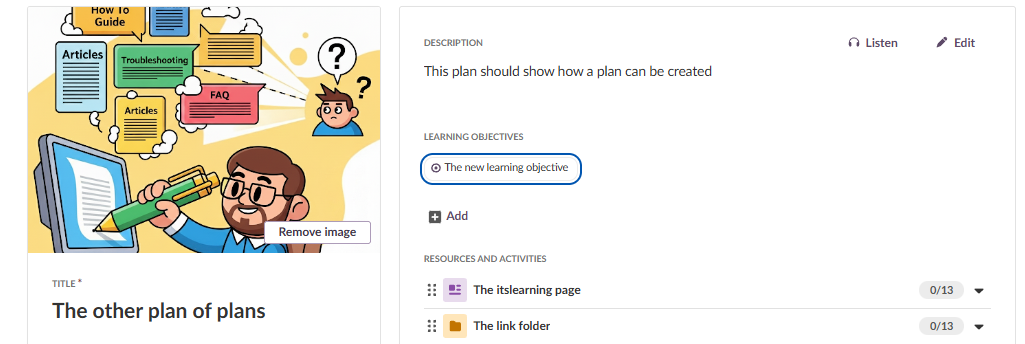
6.1 Viewing and removing linked objectives
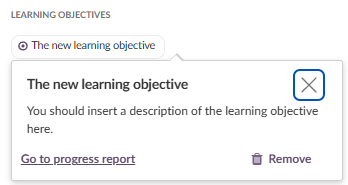
Click on a linked learning objective in the plan to open a popup. The popup displays the objective title and description, and provides two options:
- Go to progress report – Opens the learning objectives progress report for that specific objective (see below).
- Remove – Removes the objective from the plan.
6.2 Learning objectives progress report
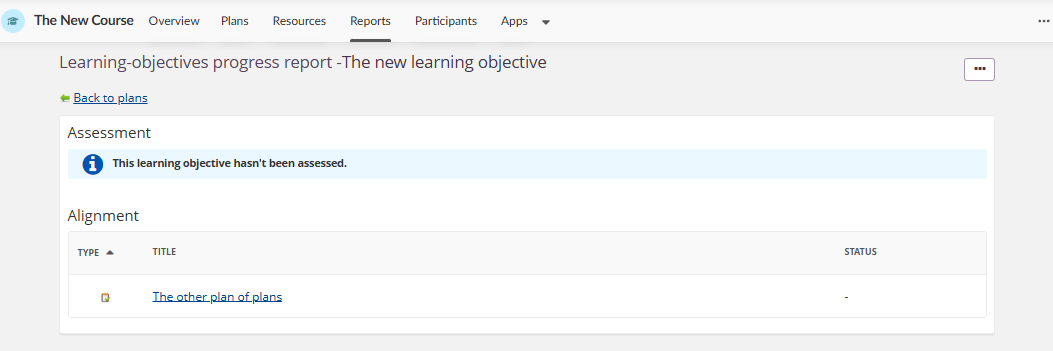
The progress report shows how a specific learning objective has been assessed within the course. The page title follows the format Learning objectives progress report – [Objective title]. A Back to plans link is available at the top.
The report contains two sections:
| Section | Description |
|---|---|
| Assessment | Displays assessment results for the objective. If no assessments have been recorded, the message reads: "This learning objective hasn't been assessed." |
| Alignment | A table showing which resources and plans are aligned to the objective, with columns for Type, Title, and Status. |
7 Linking Learning Objectives to Resources and Activities
You can also link learning objectives directly to individual resources and activities, such as assignments. This allows you to align specific tasks to specific objectives and is required before you can use rubrics for assessment.
To link learning objectives to a resource or activity:
- Open the resource or activity (e.g. an assignment).
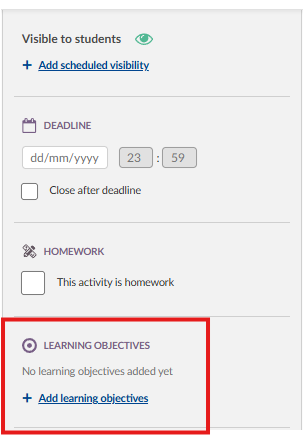
- In the settings panel, scroll down to the LEARNING OBJECTIVES section. If no objectives have been added, the section displays: "No learning objectives added yet."
- Click + Add learning objectives.
- The Add learning objectives dialog opens. A Navigate up link is available at the top. The left panel shows the folder structure: Imported objectives and Created objectives. The right panel shows the contents of the selected folder.
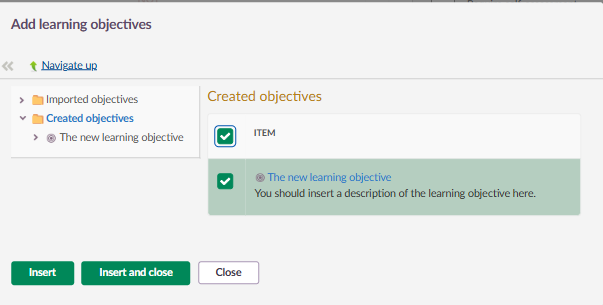
- Navigate to the relevant folder and select the objectives.
- Click Insert to add the objectives and continue browsing, or click Insert and close to add them and close the dialog.
Once objectives are linked to a resource or activity, they become available for rubric-based assessment on that element (see section 9).
8 Managing Assessment Criteria
Assessment criteria allow you to define specific, measurable criteria for a learning objective, broken down across achievement levels. This is part of the criteria-based assessment approach. It can be applied to both imported and created objectives.
8.1 Adding assessment criteria to an objective
- On the Learning objectives page (via course Settings), select the objective you want to add criteria to.
- Click Assessment criteria in the toolbar.
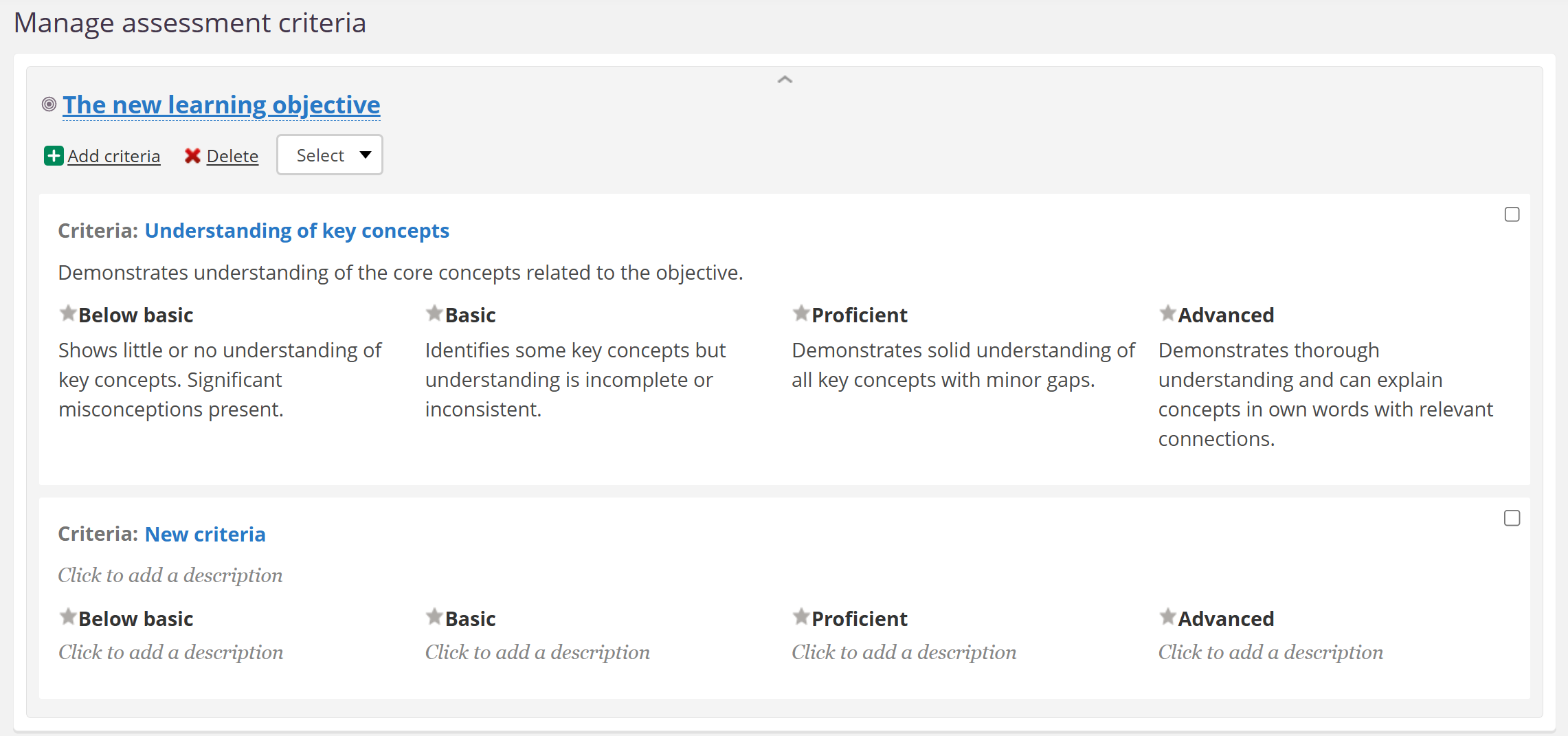
- The Manage assessment criteria page opens.
- Click Add criteria.
- Enter a name and description for the criteria.
- Define the criteria descriptions for each achievement level. By default, four levels are used: Below basic, Basic, Proficient, and Advanced.
- Repeat steps 4–6 to add additional criteria to the same objective. A single objective can have multiple criteria, each describing a different aspect of the expected learning.
Note: The number of achievement levels and their labels are configured at admin level or in the course-level settings for learning objectives' assessment (see section 11).
8.2 Searching for existing assessment criteria
You can search for and reuse assessment criteria that have been shared within your organisation or the itslearning community.
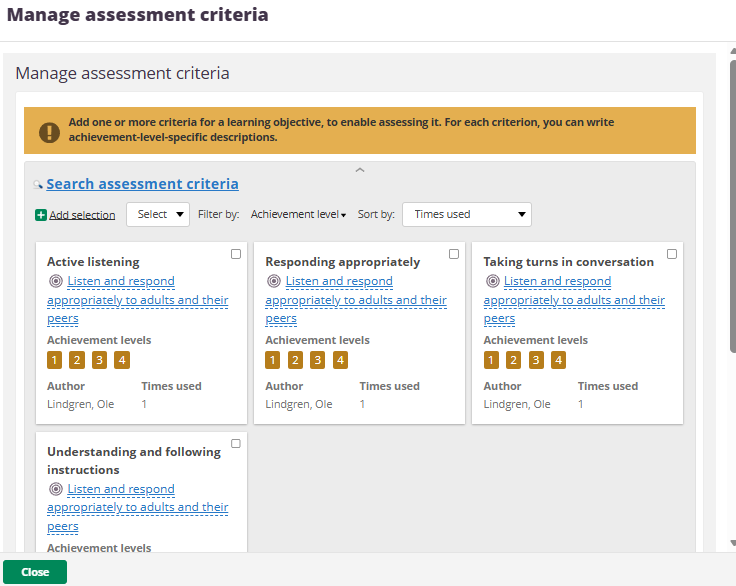
- On the Manage assessment criteria page, click Search assessment criteria.
- The search panel opens with the following options:
- Add selection – Adds the selected criteria to the current objective.
- Select dropdown – Provides selection options.
- Filter by: Achievement level – Filters criteria by the number of achievement levels.
- Sort by: Times used – Sorts criteria by how frequently they have been used.
- Each criteria card displays the criteria name, linked objective, achievement levels (shown as numbered badges), author, and times used.
- Select the desired criteria and click Add selection to add them to the current objective.
8.3 Sharing assessment criteria
You can share assessment criteria that you have created on imported learning objectives with other users within your organisation or the itslearning community.
- On the Manage assessment criteria page, select the criteria you want to share.
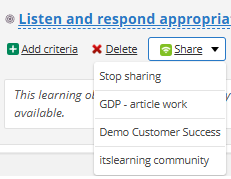
- Click the Share dropdown.
- Select the sharing target from the list of available organisations and groups.
- To stop sharing, click the Share dropdown and select Stop sharing.
Important: Assessment criteria created on manually created learning objectives (under the Created objectives folder) cannot be shared with other users. Sharing is only available for criteria attached to objectives imported from the repository.
Note: The sharing targets shown in the Share dropdown depend on the organisations and groups available on your site.
9 Using Rubrics in Assignments
Rubrics allow you to assess student work against the assessment criteria defined for learning objectives. A rubric is set up per assignment and uses the learning objectives linked to that assignment.
9.1 Setting up a rubric
To set up a rubric on an assignment:
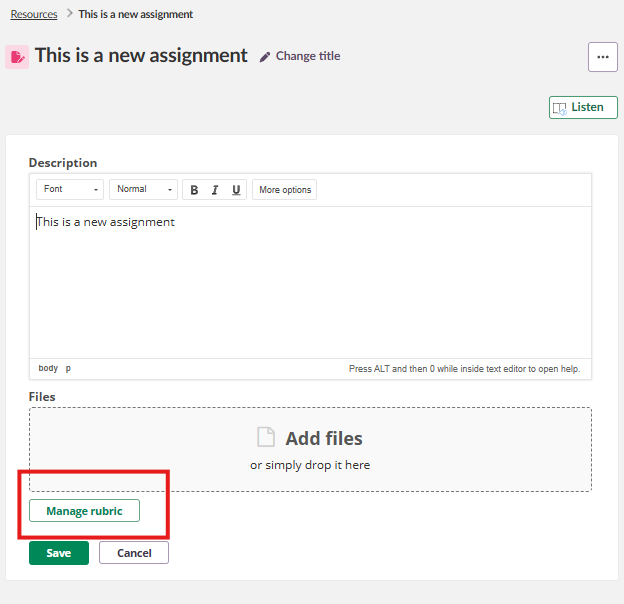
- Open the assignment for editing.
- At the bottom of the assignment editing page, click Manage rubric.
- If no learning objectives have been linked to the assignment yet, the page displays: "To create a rubric, start by adding learning objectives." Click Add learning objective to link objectives first (see section 7).
- Once learning objectives are linked, the Manage rubric page displays each objective with its assessment criteria.
9.2 Managing rubric content
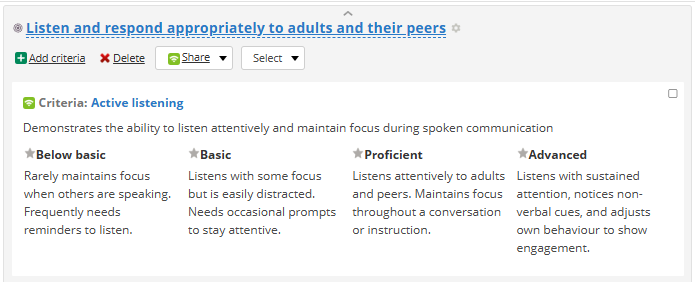
The Manage rubric page displays all learning objectives linked to the assignment. Each objective shows its assessment criteria with the defined achievement levels.
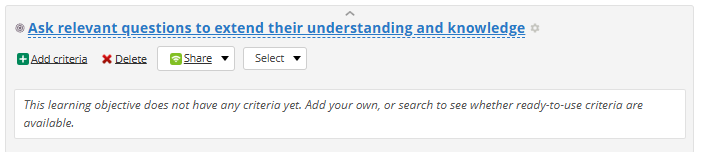
If a learning objective does not have assessment criteria yet, a message is displayed: "This learning objective does not have any criteria yet. Add your own, or search to see whether ready-to-use criteria are available."
A warning banner appears if not all objectives have criteria: "Not all learning objectives currently have assessment criteria. Objectives without criteria cannot be assessed."
For each objective, you can:
- Click Add criteria to create new criteria directly.
- Click Delete to remove criteria.
- Click Share to share criteria (only for imported objectives).
- Click Search assessment criteria to find and reuse existing criteria.
10 Assessing Students with Rubrics
When a student submits an assignment that has a rubric, you can assess their work using the rubric.
To assess with a rubric:
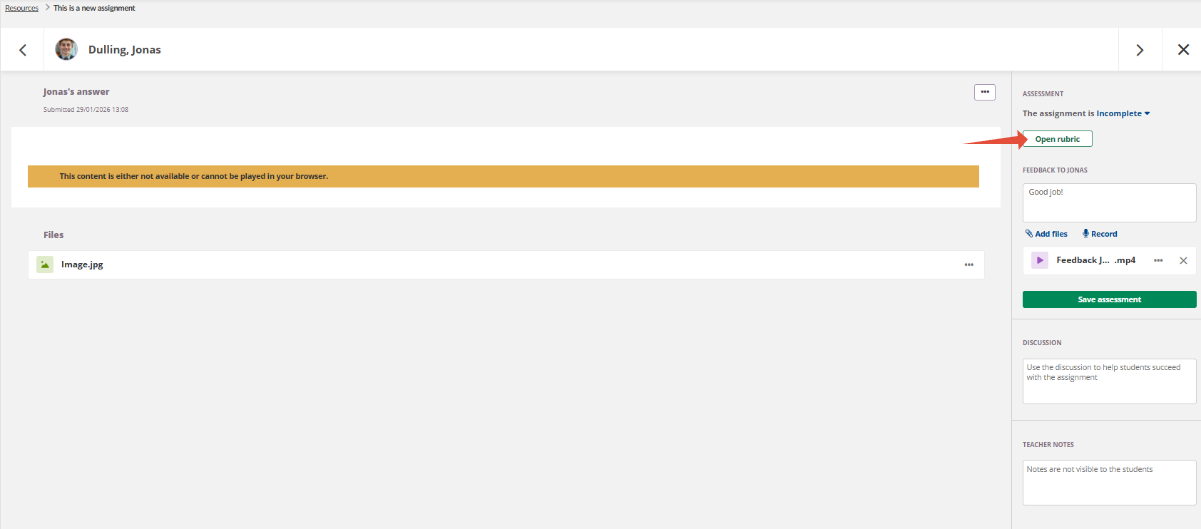
- Open the student's submission for assessment.
- In the ASSESSMENT panel on the right side, click Open rubric.
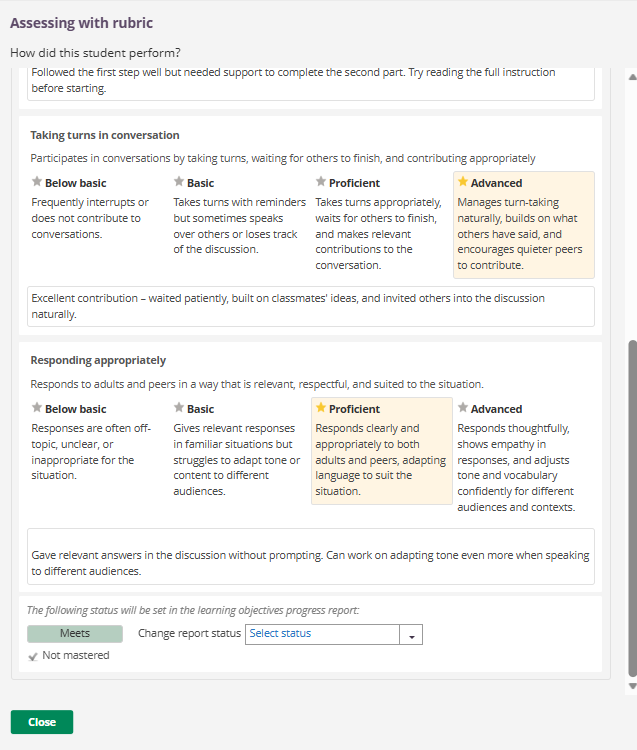
- The Assessing with rubric dialog opens, displaying the question: "How did this student perform?"
- For each objective and its criteria, select the appropriate achievement level (e.g. Below basic, Basic, Proficient, or Advanced) by clicking on it. The selected level is highlighted.
- Optionally, enter a comment in the Add comment field below the criteria.
- Below the criteria, the system displays: "The following status will be set in the learning objectives progress report." The system automatically maps the selected achievement level to a report status (e.g. "Meets").
- If needed, you can override the automatically assigned status by using the Change report status dropdown to select a different status (e.g. "Does not meet" or "Meets").
- The current mastery status is also displayed (e.g. "Not mastered").
- Click Close to save the rubric assessment.
- Back in the assessment panel, you can add additional feedback (text, files, or recorded audio/video), write in the Discussion field, and add Teacher notes (not visible to students).
- Click Save assessment to finalise.
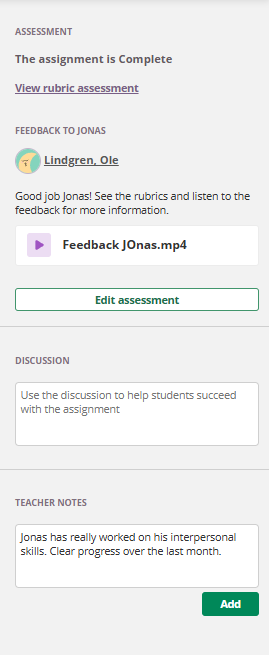
The rubric assessment feeds directly into the learning objectives progress report, updating the student's status for each assessed objective. The available report statuses (e.g. "Does not meet", "Meets") and mastery rules are configured by the system administrator (see Learning Objective Report Settings – System Administrator Guide).
11 Settings for Learning Objectives' Assessment
Teachers can configure achievement levels and assessment display options at the course level. These settings affect how rubrics and criteria-based assessment work within the course.
To access these settings:
- On the Learning objectives page (via course Settings), click the three-dot menu (⋯) in the top-right corner of the page.
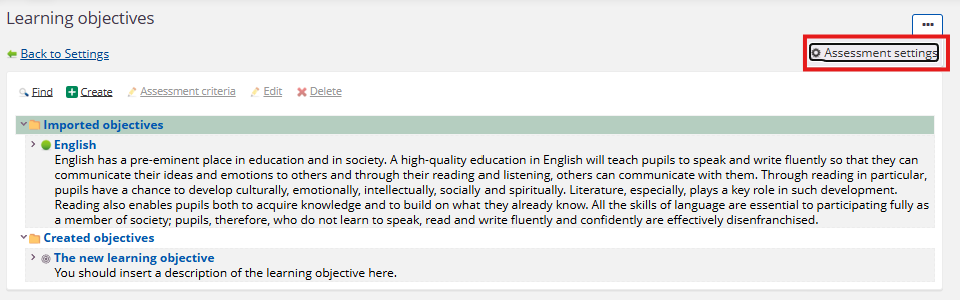
- The page title is Settings for learning objectives' assessment. A Back to Learning objectives link is available at the top.
11.1 Achievement levels
Achievement levels define the categories on which criteria for an objective can be demonstrated.
The on-screen description reads: "Achievement levels allow you to define several levels on which the criteria for an objective can be demonstrated."
- Number of levels – Select the number of achievement levels from the dropdown.
- The lowest level should be on top – When entering level labels, list the lowest level first.
- Achievement level labels – Text fields for each level name.
By default, four levels are available: Below basic, Basic, Proficient, and Advanced (from lowest to highest).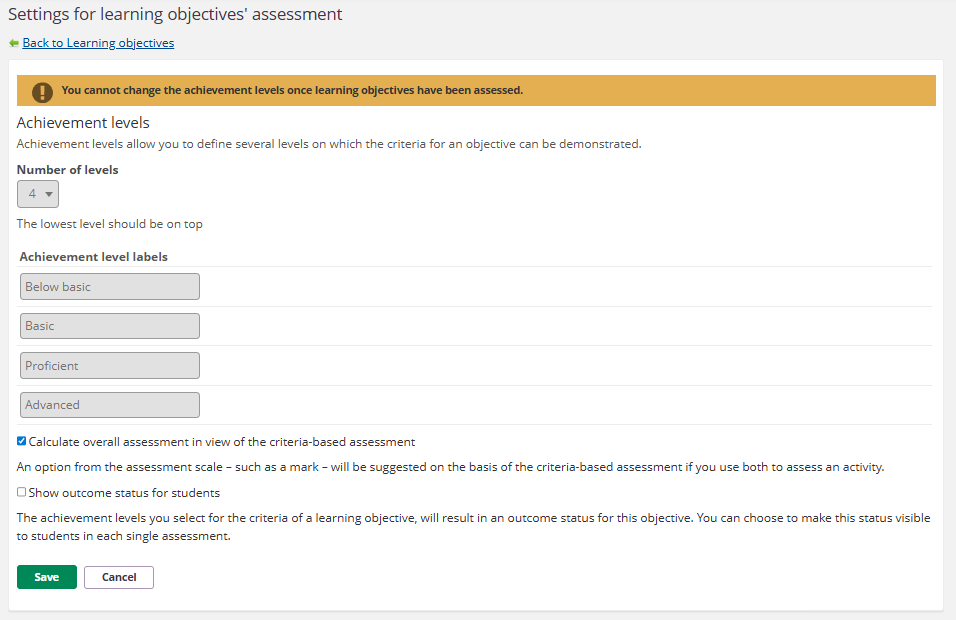
Important: If you have shared assessment criteria from this course, changing the number of achievement levels will affect those shared criteria. Those criteria will still be shared but can no longer be updated from this course. You can set them for sharing again for the new number of achievement levels.
11.2 Calculate overall assessment in view of the criteria-based assessment
A checkbox option. The on-screen description reads: "An option from the assessment scale – such as a mark – will be suggested on the basis of the criteria-based assessment if you use both to assess an activity."
When enabled, if you use both criteria-based assessment and a grading scale to assess an activity, the system suggests a grade based on the criteria results.
11.3 Show outcome status for students
A checkbox option. The on-screen description reads: "The achievement levels you select for the criteria of a learning objective, will result in an outcome status for this objective. You can choose to make this status visible to students in each single assessment."
When enabled, students can see their outcome status for each learning objective in individual assessments.
Click Save to apply the settings, or Cancel to discard changes.
12 What Students See
Students can see learning objectives in several places within the course.
In plans: When learning objectives are linked to a plan, students see the LEARNING OBJECTIVES section on the plan detail page. The objectives are listed by name, giving students a clear view of what the plan covers.
In assignments (rubric): When an assignment has a rubric, students can view the rubric before and during submission. The rubric displays the learning objective, criteria name, description, and the achievement level descriptions (e.g. Below basic, Basic, Proficient, Advanced). Students can expand or collapse the rubric using the Hide rubric / Show rubric link.
Note: Whether students can see their outcome status for learning objectives in individual assessments depends on the Show outcome status for students setting (see section 11.3).
13 Troubleshooting
13.1 Learning objectives option not available in course settings
Symptoms: The Learning objectives option does not appear on the course Settings page.
Cause: Learning objectives may not be enabled for the course or the site.
Solution:
- Contact your system administrator to verify that learning objectives are enabled.
13.2 Cannot find expected learning objectives in the repository
Symptoms: The country or subject-specific objectives you need are not available in the Find learning objectives dialog.
Cause: The objectives may not have been imported into the repository by a system administrator.
Solution:
- Verify you are browsing the correct repository using the dropdown (e.g. Global repository).
- Navigate through the country and subject folders.
- If the objectives are still missing, contact your system administrator to request that they be imported.
13.3 Cannot share assessment criteria
Symptoms: The Share button does not offer sharing options for your criteria.
Cause: You may be attempting to share criteria attached to a manually created objective. Sharing is only available for criteria on imported objectives.
Solution:
- Verify that the learning objective was imported from the repository, not created manually.
- If you need to share criteria, attach them to an imported objective instead.
13.4 "To create a rubric, start by adding learning objectives" message
Symptoms: The Manage rubric page shows this message instead of rubric content.
Cause: No learning objectives have been linked to the assignment.
Solution:
- Click Add learning objective on the Manage rubric page, or
- Go to the assignment settings and add learning objectives via the LEARNING OBJECTIVES section (see section 7).
13.5 "Not all learning objectives currently have assessment criteria" warning
Symptoms: A warning banner appears on the Manage rubric page.
Cause: One or more learning objectives linked to the assignment do not have assessment criteria defined.
Solution:
- For each objective without criteria, click Add criteria to create new criteria, or click Search assessment criteria to find and reuse existing criteria.
- Objectives without criteria cannot be assessed using the rubric.
More Help Resources
Have more questions? Please start with asking your school administrator.
Product Release notes
Stay updated with itslearning latest releases: https://itslearning.com/product-updates
Service Status
Check the current status of itslearning services: https://status.itslearning.com/
Ideas Portal
Share your ideas and help shape the future of itslearning: https://ideas.itslearning.com/
Roadmap
Check out our roadmap: https://itslearning.com/global/roadmap/