
TABLE OF CONTENTS
- 1 Overview
- 2 Prerequisites
- 3 Adding Mentor and Headteacher Roles to Profiles
- 4 Assigning a Mentor
- 5 Setting Up a Headteacher
- 6 Configuring Role Names and Labels
- 7 User Access After Setup
- 8 Troubleshooting
This article describes how to configure the Mentor and Headteacher roles in itslearning. These roles must be set up before users can access Individual Learning Plans (ILPs), behaviour tracking, and related features. Configuration is performed by a system administrator.
1 Overview
The Mentor role enables a teacher to manage Individual Learning Plans (ILPs) and behaviour notes for an assigned group of learners. Mentors can view attendance and assessment information from their assigned learners' courses.
The Headteacher role provides equivalent access scoped to all learners within an assigned school or organisation in the hierarchy.
Note: Both the Mentor and Headteacher role names can be customised to match your school's terminology. See Section 6 for details.
2 Prerequisites
Prerequisite: An Administration profile is required to perform the steps in this article. Hierarchies must be configured before mentors can be assigned to classes or groups via the hierarchy view.
3 Adding Mentor and Headteacher Roles to Profiles
Before assigning individuals as mentors or headteachers, enable the corresponding roles in the profile settings.
- Log in with an Administration profile.
- Go to Administration > Profiles.
- Add the Mentor and Headteacher roles as required.

4 Assigning a Mentor
4.1 Adding a mentor
- In the Administration area, go to the Mentor tab.
- Click Add Mentor.
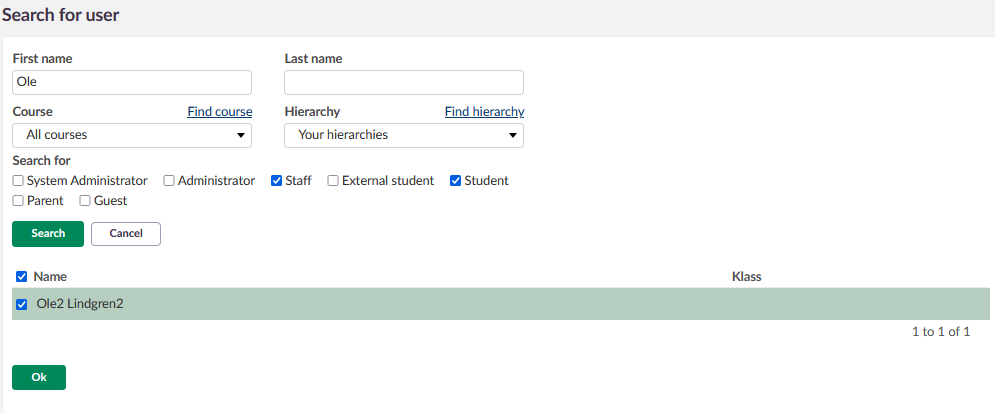
- Search for the person you want to assign the role to and click OK.
4.2 Assigning students or classes
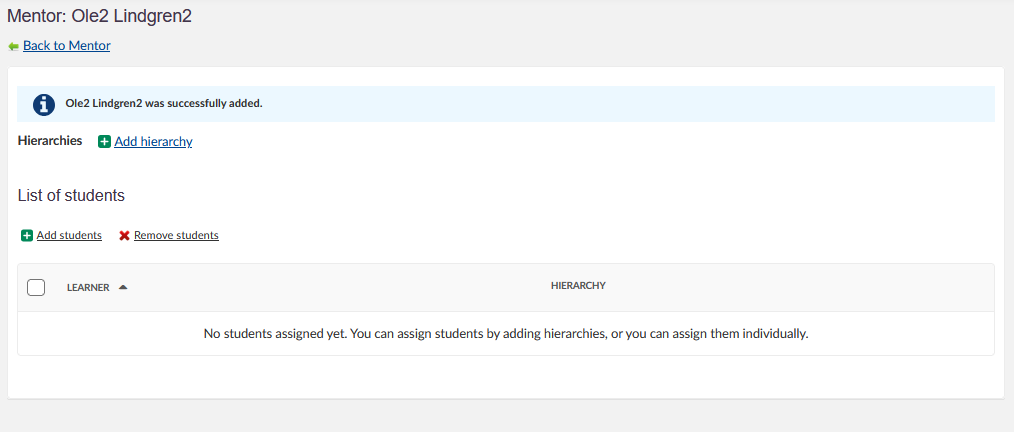
Once a mentor has been added, assign learners using one of the following methods:
- Add students individually: Search for and select individual learners.
- Search hierarchy: Select an entire class or group from the organisational hierarchy.
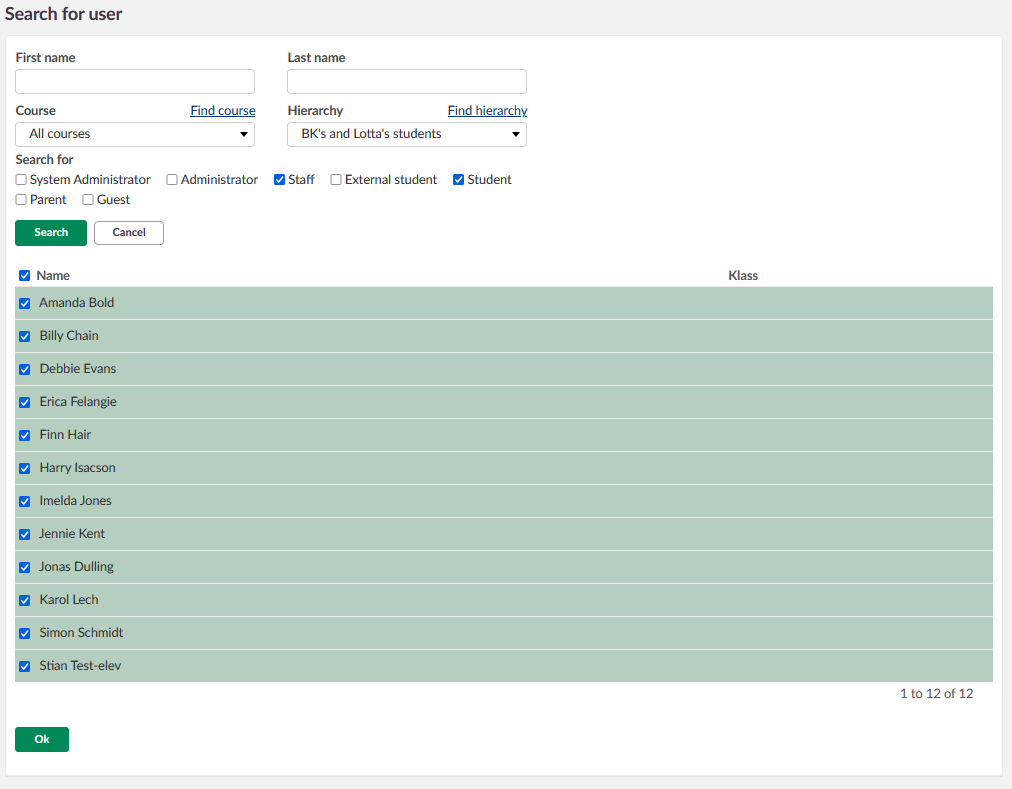
Note: A mentor can be assigned to more than one class, and a class can have more than one mentor assigned to it.
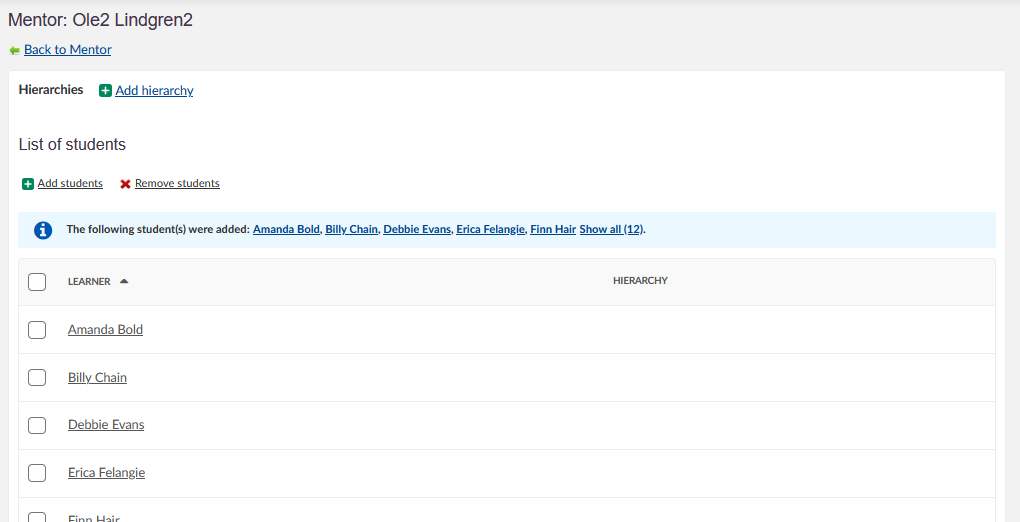
When learners have been assigned, the mentor overview lists all assigned learners.
4.3 Editing assignments
To edit the classes or learners assigned to a mentor, click the edit icon (pencil) on the right side of the relevant row. You can add or remove individual learners and classes at any time.
5 Setting Up a Headteacher
The process for setting up a headteacher is almost identical to setting up a mentor. The difference is that instead of assigning individual learners or classes, you assign a school or organisation from the hierarchy.
- In the Administration area, go to the Headteacher tab.
- Click Add Headteacher.
- Search for the person and click OK.
- Assign the relevant school or organisation from the hierarchy.
Note: A headteacher has access to information for all learners within the assigned school or organisation.
6 Configuring Role Names and Labels
Both the Mentor and Headteacher roles can be renamed to match your school's terminology. Open the settings via the three-dots menu (⋮) in the upper right corner of the configuration page.
| Setting | Description |
|---|---|
| Tool name | The label that appears as the menu entry in the main navigation for users with the Mentor role. |
| Role name | The label displayed when showing relationships between users on the profile card. |
7 User Access After Setup
Once roles have been configured and assigned, users have the following access:
- Mentors: A dedicated entry appears in the personal menu, providing access to mentor functions including ILPs and behaviour tracking for their assigned learners.
- Supervisors: A dedicated entry appears in the personal menu, providing access to the combined mentor and headteacher tools.
- If a user has both the Mentor and Supervisor roles active, only the Supervisor tab is displayed.

Note: Before mentors can use Individual Learning Plans, a sysadmin must create at least one ILP template.
8 Troubleshooting
Mentor tab not visible
Symptoms: A user with the Mentor role cannot access ILP tools or does not see the Mentor menu entry.
Cause: The role has not been assigned, or visibility settings are incorrect.
Solution:
- Verify that the Mentor role is present in Administration > Profiles.
- Check that the user has been assigned as a mentor and that learners have been linked to them.
Prevention: Review role assignments during user onboarding.
More Help Resources
Have more questions? Please start with asking your school administrator.
Product Release notes
Stay updated with itslearning latest releases: https://itslearning.com/product-updates
Service Status
Check the current status of itslearning services: https://status.itslearning.com/
Ideas Portal
Share your ideas and help shape the future of itslearning: https://ideas.itslearning.com/
Roadmap
Check out our roadmap: https://itslearning.com/global/roadmap/