Image selector - Teacher guide
TABLE OF CONTENTS
- Introduction
- 1 Where the Image Selector Appears
- 2 Using the Image Selector
- 3 Managing Your Saved Images
- 4 Troubleshooting
- Related Articles
Introduction
The image selector dialogue allows you to upload, crop, and select images for use throughout the platform. You can upload new images, reuse previously saved images, or choose from pre-defined illustrations. Images selected through this dialogue appear on course cards and other platform elements.
This is separate from your personal profile picture, which is managed through Your settings > Edit profile.
Prerequisite: To access the image selector as a teacher, the "create courses" permission must be enabled for your profile by a system administrator. Alternatively, you can upload an image through the course settings page and tick the checkbox to save it for later reuse.
1 Where the Image Selector Appears
The image selector dialogue is currently available when you:
- Create a new course
- Access course properties and features
Note: The image selector dialogue will be expanded to additional areas of the platform in future updates.
2 Using the Image Selector
The image selector dialogue has three tabs: Upload image, Your images, and Illustrations.
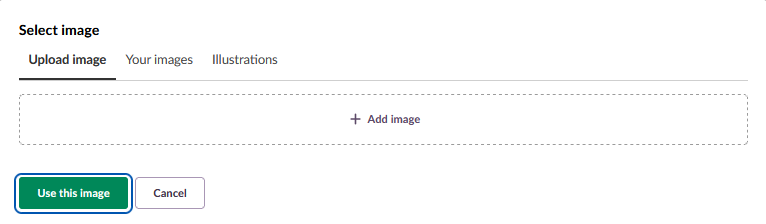
2.1 Uploading a New Image
Upload and crop a new image for immediate use.
Note: Supported file formats are JPEG (.jpeg, .jpg) and PNG (.png). Maximum file size: 5 MB.
- In the image selector dialogue, the Upload image tab is selected by default.
- Add an image using one of these methods:
- Drag and drop an image file from your computer into the upload area.
- Click Add image to browse and select a file from your computer.
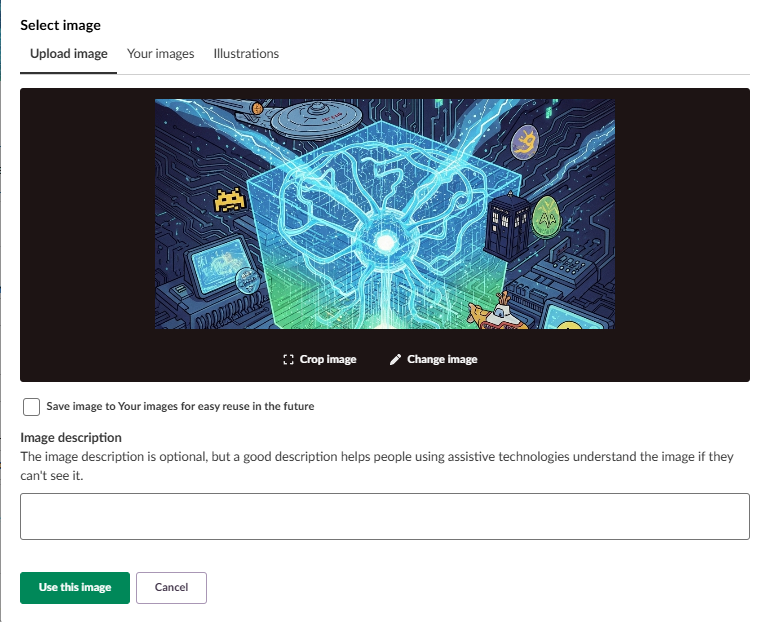
- After uploading, adjust the image as needed:
- Click Crop image to reframe the image.
- Click Change image to upload a different image.
- To save this image for future reuse, tick the checkbox labelled Save image to Your images for easy reuse in the future.
- (Optional) Enter an Image description. This text is used by screen readers to describe the image for users who cannot see it. Aim to be concise and descriptive.
- Click Use this image to apply the image, or click Cancel to discard the image and return to the course properties page.
2.2 Using Your Saved Images
Select from images you have previously saved for reuse.
- In the image selector dialogue, click the Your images tab.
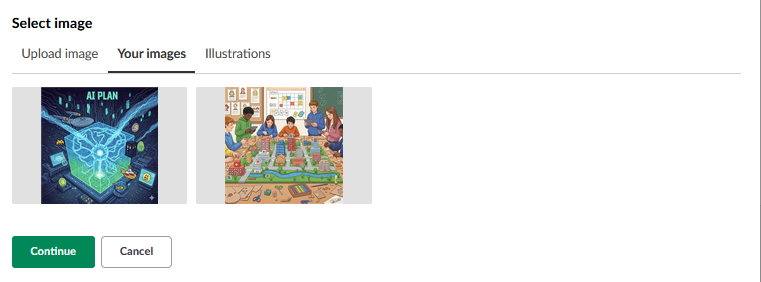
- Browse your collection of saved images.
- Click on any image to select it.
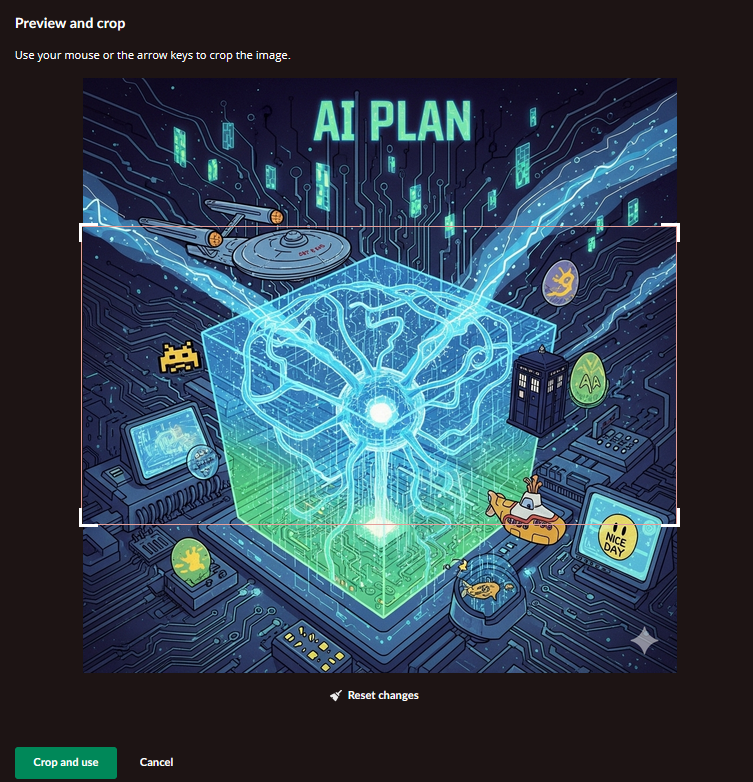
- Click Continue. A preview and crop popup will appear.
- Click Crop and use to apply the selected image.
2.3 Selecting Illustrations
Choose from pre-defined illustrations provided by itslearning.
Admin setting: Your site administrator controls whether all illustrations are available. If illustrations are missing from the tab, the K-12 illustrations have been disabled for your site.
- In the image selector dialogue, click the Illustrations tab. The image below shows all illustrations with K-12 enabled.
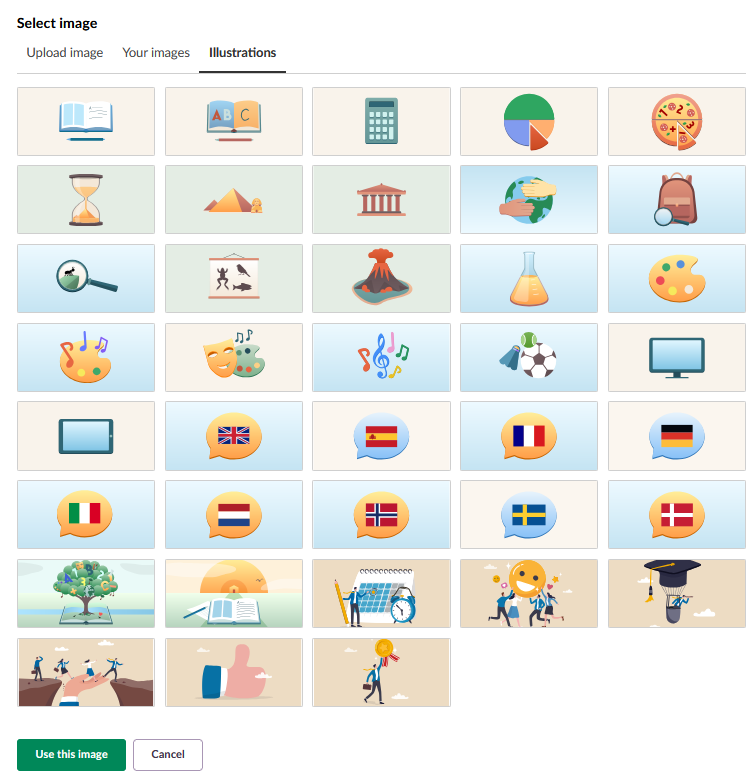
- Browse the available illustrations.
- Click on any illustration to select it.
- Click Use this image to apply the selected illustration.
If K-12 illustrations are not enabled, the following illustrations are available:
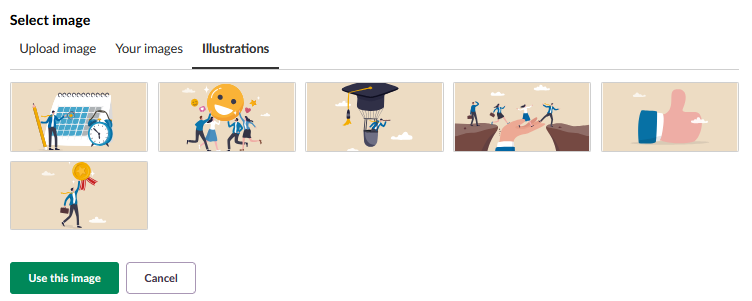
3 Managing Your Saved Images
Access and manage your collection of saved images through your personal menu.
- Click the circular picture in the upper-right corner to open the personal menu.
- Select Your images from the menu.
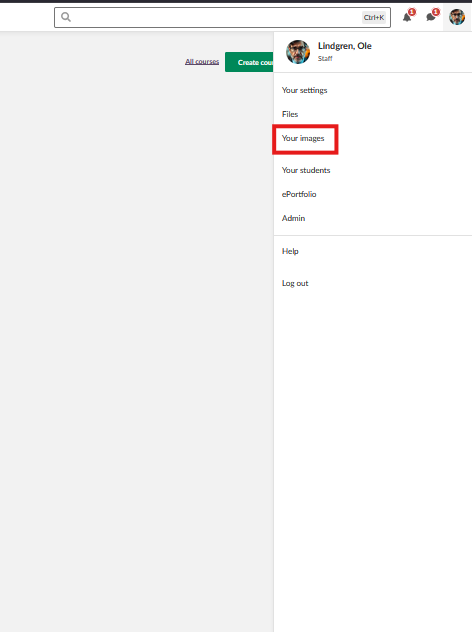
- On the Your images page, you can:
- Upload new images by clicking the green Upload button.
- Delete images by selecting them and clicking Delete.
- Update image descriptions by clicking the three-dot menu next to an image.
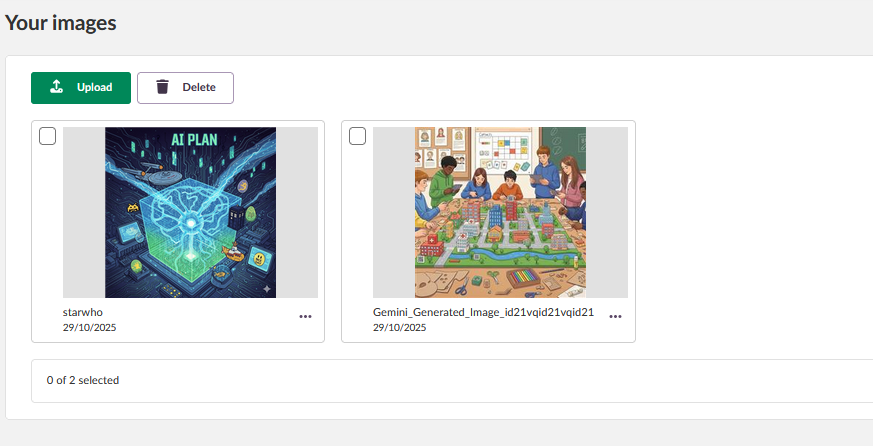
Information displayed for each image:
- Thumbnail preview
- File identifier
- Upload date
Note: Deleting an image from your collection does not remove it from places where it is already in use, such as existing course cards.
4 Troubleshooting
Missing Illustrations
Symptoms: The Illustrations tab appears to be missing images.
Cause: Your system administrator has disabled K-12 illustrations for your site.
Solution:
- Verify you are looking in the correct image selector dialogue, not the profile picture modal.
- Contact your system administrator to request that K-12 illustrations be enabled.
- Use the Upload image or Your images tabs as alternatives.
Prevention: Check with your administrator about available image options before planning to use illustrations.
Image Upload Fails in Selector Dialogue
Symptoms: When trying to upload an image, you receive an error message or the upload does not complete.
Cause: The file format is not supported, the file size exceeds the limit, or there is a network connection issue.
Solution:
- Verify your image is in JPEG (.jpeg, .jpg) or PNG (.png) format.
- Check the file size and reduce it if necessary using image editing software. The maximum file size is 5 MB.
- Verify your internet connection is stable.
- Refresh the page and try uploading again.
- Try a different image file to determine whether the issue is file-specific.
- If the problem persists, contact technical support.
Prevention: Use supported file formats and keep the file size under 5 MB.
Deleted Image Still Appears in Use
Symptoms: After deleting an image from Your images, it still appears on course cards or other locations where it was previously applied.
Cause: Deleting an image from your collection does not remove it from places where it is already in use. This is expected behaviour.
Solution:
- Navigate to each location where the image is in use, for example course properties.
- Manually replace the image with a different one.
- The previous image will remain in place until you actively replace it.
Prevention: Your images is a library for reuse. Removing an image from the library does not affect existing uses.
Related Articles
Profile pictures and avatars – System administrator guide
More Help Resources
Have more questions? Please start with asking your school administrator.
Product Release notes
Stay updated with itslearning latest releases: https://itslearning.com/product-updates
Service Status
Check the current status of itslearning services: https://status.itslearning.com/
Ideas Portal
Share your ideas and help shape the future of itslearning: https://ideas.itslearning.com/
Roadmap
Check out our roadmap: https://itslearning.com/global/roadmap/
The features shown are part of the project within the framework of the German Development Project (GDP), a cooperation between four German states and itslearning with the aim of improving digital education in Germany through tailor-made product developments.
Click here to learn more about the GDP roadmap and what other features you can expect.
For German readers: Click here for more information about the project within the framework of the German Development Project.